Allow Chrome To Access The Network In Your Firewall. In this article, you will read how to allow Chrome access in your firewall. Sometimes, you have seen an error message stating that ‘The site can’t be reached’. This happens when you try to access unauthorized servers and websites. This problem is not very common. It can be solved by adding Chrome to the exception list of antivirus and firewalls.

How To Allow Chrome To Access The Network In Your Firewall?
The task of the Firewall is to examine and controls the security of incoming and outgoing traffic in your system. Sometimes, it blocks access to some authorized applications and websites. To solve this, you have to include Google Chrome on the firewall white list and fix the issue. To do so, follow the steps given below:
Method 1 – Allow Chrome To Firewall:
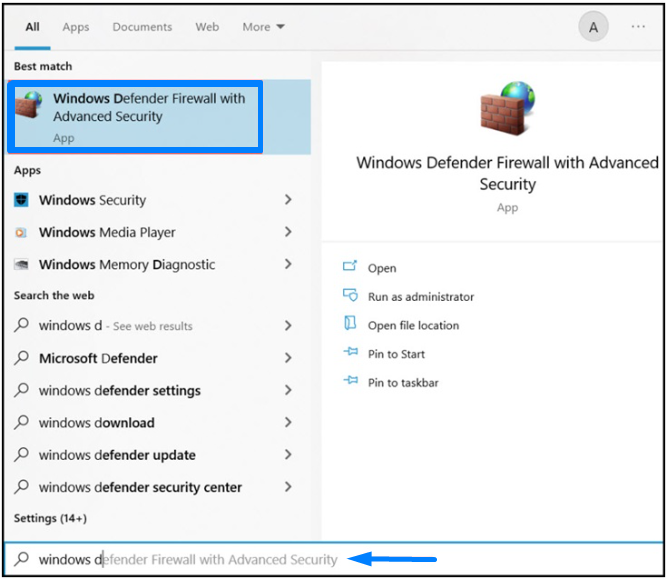
1.Type Firewall in the Windows search box.
2.Select the Windows Defender Firewall from the list.
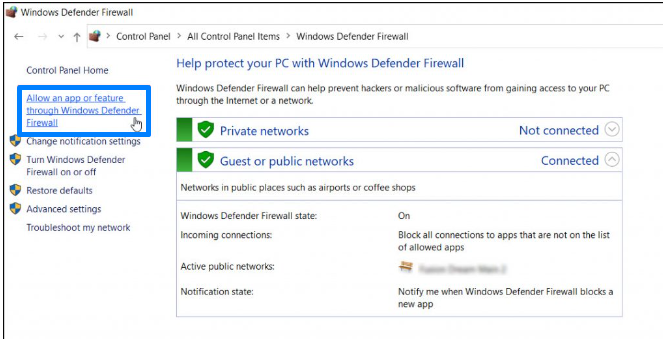
3.From the left panel section, click on Allow an app or feature through the Windows Defender Firewall link.
4.From the list and click on the check box from Google Chrome.
Method 2 – Disable The Firewall To Access The Block Network:
You can also disable the firewall to have an access to the blocked network. Follow the steps:
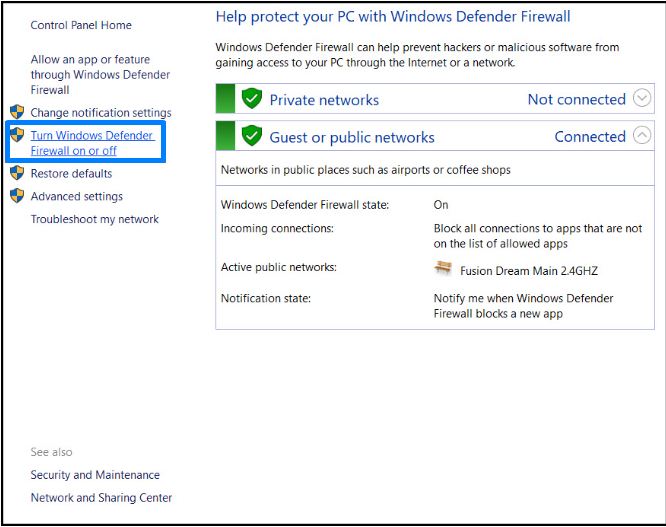
1.Click on Turn Windows Defender Firewall on or off.
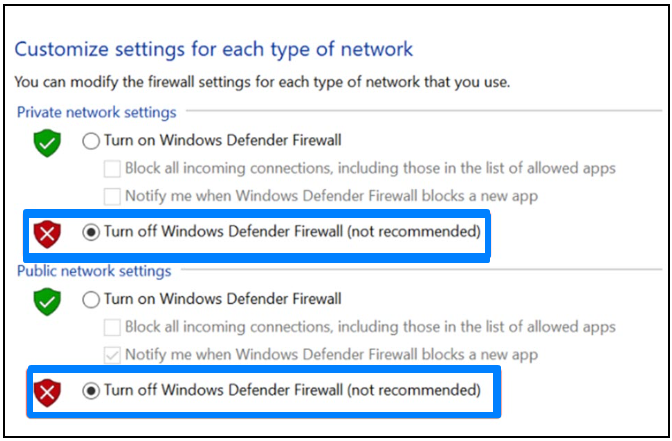
2.Then click on the check box for both private and public network settings.
Method 3 – Add Exclusion On Windows Security:
Follow the instructions below to add Chrome to the in-built Windows Security exclusion list.
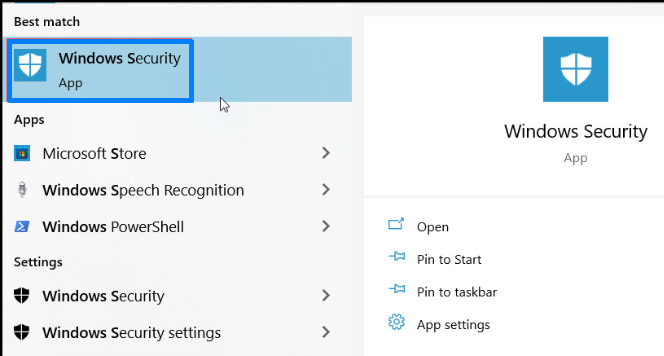
1.Type Windows Security in the Windows search box.
2.Select the appropriate option.
3.Choose Virus and threat protection option from the window.
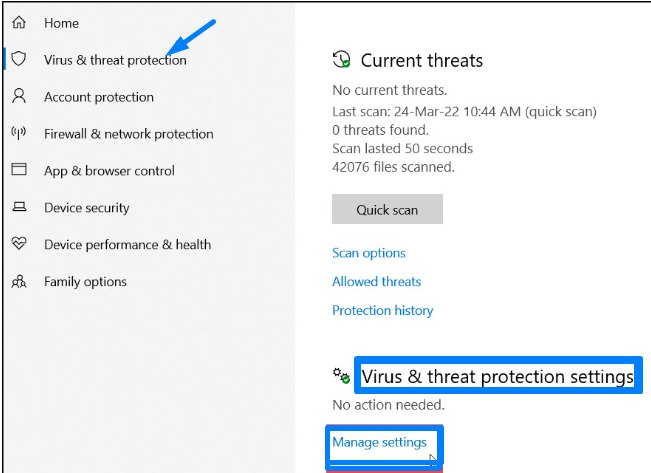
4.Click on the Manage Settings link as shown above.
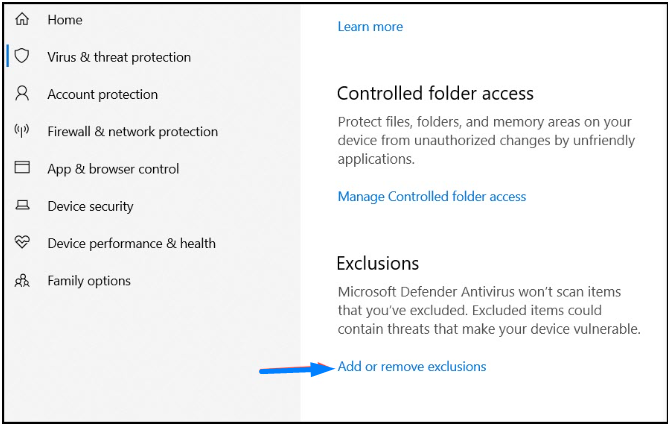
5.Scroll down and hit the Add or remove exclusions button under Exclusions section.
6.Choose the Add an Exclusion option and click on the folder.
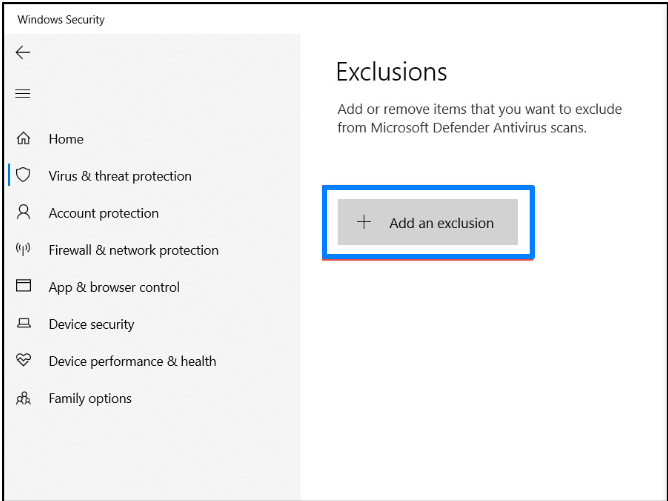
7.Select the Google Chrome root folder from the directory.
Method 4 – Allow Chrome On The Exclusion List Of Your Antivirus:
If you are using any third-party antivirus, then allow Google Chrome there too. Here is an example of Avast antivirus. Follow the instructions.
1.Launch Avast.
2.Expand the left panel menu section.
3.From the Settings tab, choose the General option.
4.Click on the Exceptions option.
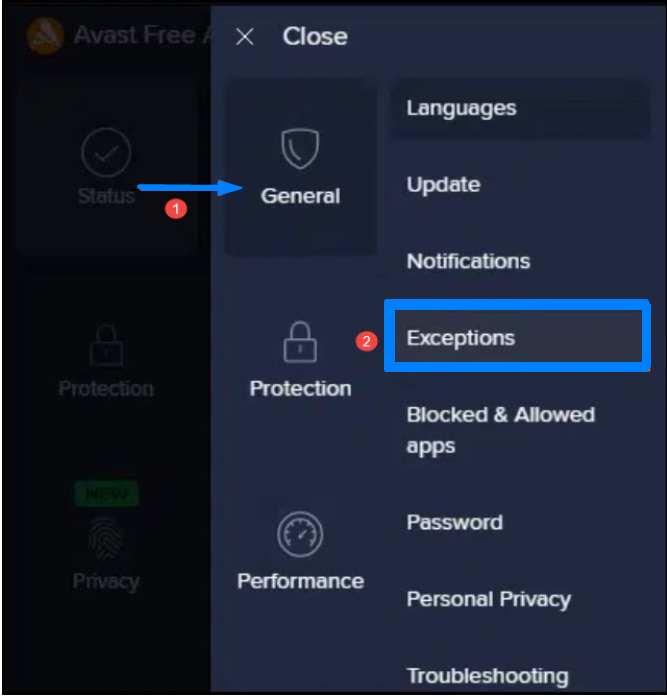
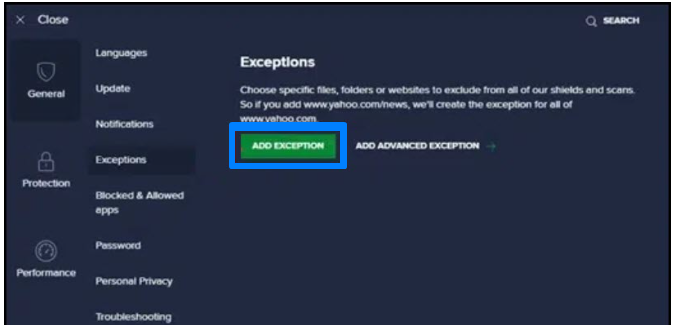
5.Click on the Add Exception option.
6.Click on Browse.
7.Locate the Chrome.exe file, and select it.
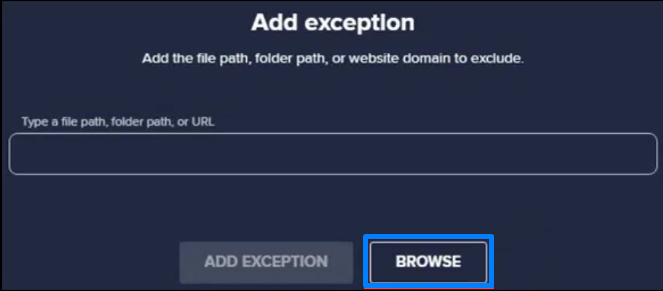
8.Confirm the action by selecting the Add Exception option.