How To Fix Windows Photo Viewer Running Slow Issue. In this article, you will get to know why is my Windows Photo Viewer slow and methods to fix the Windows Photo app running slow issue. Windows Photo Viewer is an inbuilt program for Windows. It is a default photo viewing application on our PC. Many users have reported that Windows Photo Viewer is taking time to load the files.
Users have encountered issues like Windows 10 photo viewer not working, Windows 10 won’t open pictures, Microsoft photo viewer not working, and Photos won’t open in Windows 10. If you are facing the same issue, this article will help you fix the Windows Photo Viewer not working problem.
Why Is My Windows Photo Viewer Slow?
There can be many reasons for this problem, some of them might be:
1.Outdated version of the Windows.
2.Problem with the installation file.
3.Misconfiguration in the Photo viewer settings.
4.Bad color profile is loaded on your PC.
How To Fix Windows Photo Viewer Running Slow Issue?
Method 1 – Delete the Display Profile in Color Management:
This issue can be caused if there is an issue in the Windows Display Driver Model architecture. You have to delete the display profile in color management to fix this issue. Follow the steps:
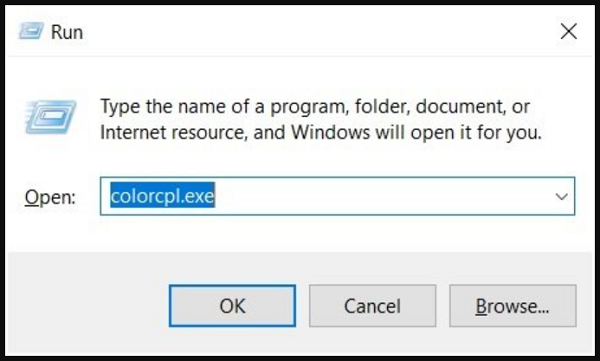
1.Press the Windows logo key + R to open the Run dialogue box.
2.Type colorcpl.exe in the box.
3.Press the enter button.
4.Click on the ‘Advanced’ tab.
5.Select ‘Change system defaults…’ at the bottom left.

6.Then, Choose the default profile.
7.Click on the Remove button.
8.Delete the other profiles with the calibrated term in their names.
9.Close all the programs.
10.Restart Windows,
Method 2 – Run Windows Store Apps Troubleshooter:
To fix the Windows Photo Viewer not working issue, run the Windows Store Apps troubleshooter. Follow the steps:
1.Press the Windows Logo Key from your computer.
2.Type Troubleshoot to search the app troubleshooter program.
3.Then Click on Troubleshoot.
4.Scroll down to the bottom.
5.Now, Select Windows Store Apps.
6.Select Run the Troubleshooter tab.
7.Complete the process of troubleshooting by following on-screen instructions.
Method 3 – Set Windows Photo Viewer as Default Application:
Follow the steps to fix the issue:
1.Open the Control Panel from your PC.
2.Click on Default Programs icon.
3.Click on Set your default programs link.
4.Select Windows Photo Viewer from the list.
5.Choose the ‘Set this program as default’ option.
6.Close the window.
7.Check if the problem is solved. Otherwise, try the next solution.
Method 4 – Uninstall and Reinstall the Windows Photos App:
Uninstalling and reinstalling Windows Photo Viewer can fix the issue. To do so:
1.Press the Windows Logo Key + X at the same time.
2.Then, Click on the Windows Powershell(Admin).
3.Click on Yes if prompted
4.Put the following command there and press the Enter button.
get-appxpackage Microsoft.Windows.Photos | remove-appxpackage
5.This will uninstall the application from your PC.
6.Now, you will have to install it again.
7.Open the Windows Powershell again.
8.Put the following command to get the Windows Photo app back on your computer.
Get-AppxPackage -allusers Microsoft.Windows.Photos | Foreach {Add-AppxPackage -DisableDevelopmentMode -Register “$($_.InstallLocation)\AppXManifest.xml”
Method 5 – Reset the Photos App:
To fix your Windows 10 won’t open pictures issue, reset the Photos app. Follow the steps:
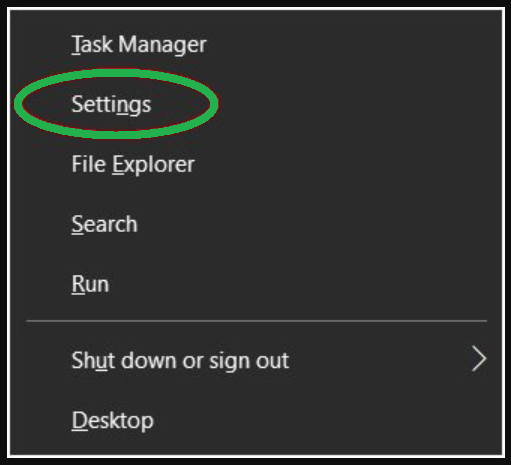
1.Press the Windows Logo Key + X on your keyboard at the same time.
2.Then, from the list Open ‘Settings’.
3.Click on Apps and go to Apps & Features.
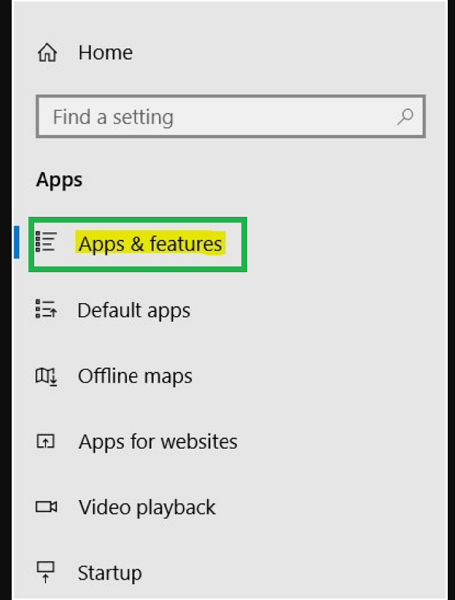
4.Scroll down and locate photos from the list of Apps.
5.Then, Select the App.
6.Click on Advanced Options.
7.Now, Click on Reset to reset the application
8.After that update the app.
9.Go to the Official Microsoft Store online.
10.Click on the three horizontal dots at the top right.
11.Click on Downloads and Updates.
12.Then, check for updates.
13.If there is some update follow the on-screen instructions to update the application.
14.After resetting the app, open the image file and check whether the problem is solved or not.