How to Forget a Wi-Fi Network on Chromebook. Chromebooks are very sophisticated devices. You mainly use the browser on this device and it is built for the internet. You can’t even log in without the internet. It may have a big list of connected WiFi internet connections. You may want to forget all the unwanted internet connections in the Chromebook.
How to Forget a Wi-Fi Network on Chromebook?
Whenever you connect your Chromebook to any network, it will get saved. Like, you go to any restaurant, someone’s house or any other place, and you don’t want that connection. You can forget all the unwanted internet connections in the Chromebook. Follow the steps below:
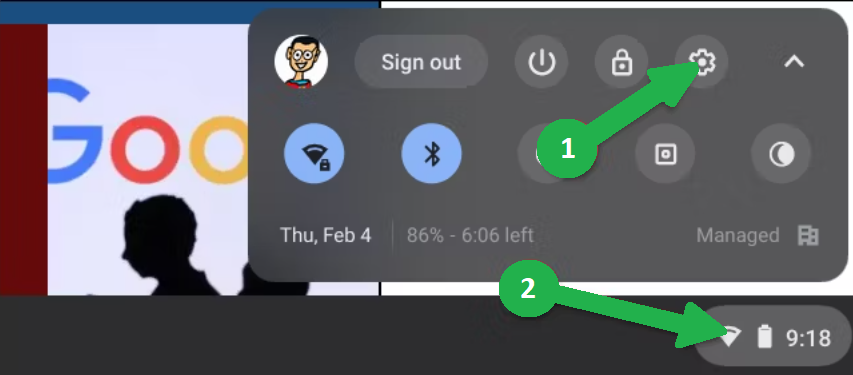
1.Click the clock on the Shelf.
2.It will bring up the Quick Settings panel.
3.Then select the gear icon to open the Settings menu.
4.Then, go to the “Network” section in the Settings sidebar.
5.Tap “Wi-Fi”.
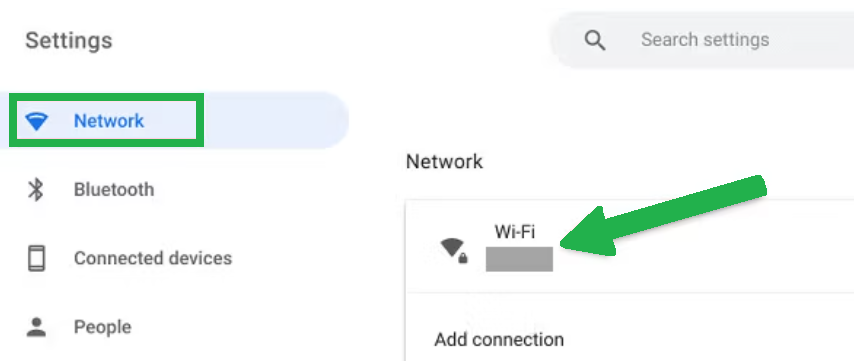
6.You’ll see a list of all the networks that you have connected to your Chromebook.
7.Search for the WiFi connections that you want to forget.
8.Click the little arrow on the right side.

9.Select the “Forget” button.
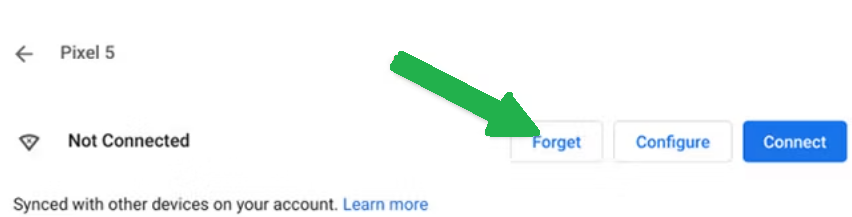
10.That’s it. Now, you will not get connected to the unwanted connections.