How To Disable The Windows Game Bar. In this article, you will read about the use of the gaming bar in Windows and the method to disable the Windows game bar. The Windows Gaming Bar is the new feature of Windows 10 for PC gaming. This type of gaming bar is previously present in the Xbox app. It provides a host of functions.
Use Of The Gaming Bar:
While playing a game, the Game Bar is an easy tool. You can access it by pressing the Windows key + G from the keyboard. You can also press the Xbox button from the gaming pad. It is a productive tool with many features.
Like other Windows programs and tools, it also has errors and bugs. It sometimes clashes with Steam and Twitch. Sometimes, it also lags the game or drops FPS. So, the users want to disable the Windows Game Bar due to this issue.
How To Disable The Windows Game Bar:
Method 1 – Use Settings:
Use the settings app of the Windows to get rid off game bar in Windows. Follow the steps:
1.On the Windows search bar, write Settings.
2.Click the top option.
3.Then, click on gaming.
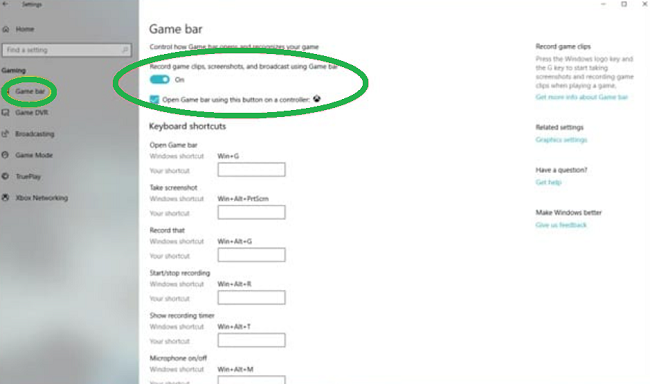
4.Select the Game Bar
5.Set the “Record game clips, screenshots, and broadcast using Game Bar” to Off.
6.Uncheck the Open Game Bar using this button on a controller.
7.Switch to Game DVR menu.
8.Set the “Record in the background while I’m playing a game” to Off.

9.The Game Bar and Game DVR will turn off.
Method 2 – Use Registry Editor:
To turn off Microsoft game bar, use registry editor. To do so:
1.Open Run Command by pressing Win + R.
2.Type regedit to open Registry Editor.
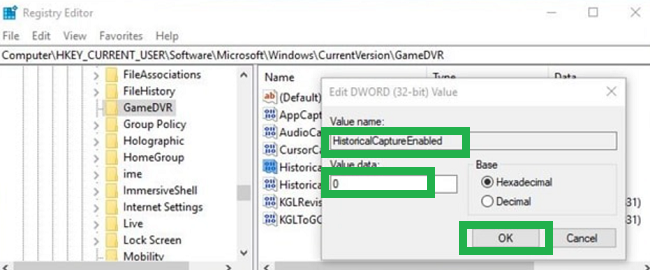
3.Search and open the below mentioned pathway: HKEY_CURRENT_USER\Software\Microsoft\Windows\CurrentVersion\GameDVR
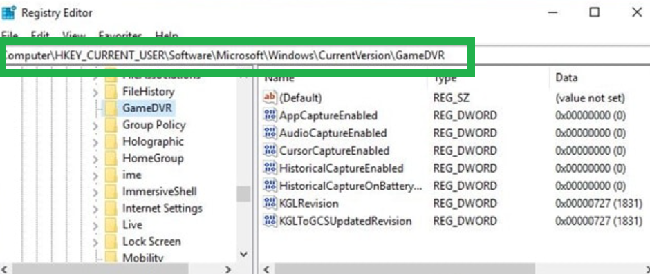
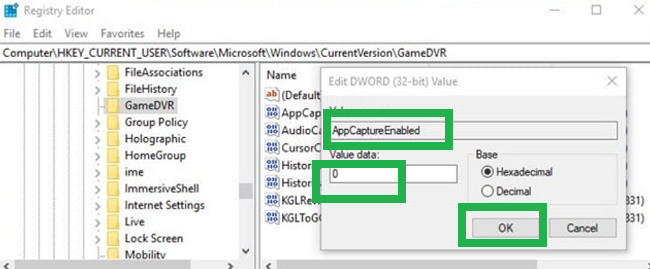
4.Double click on DWORD entry AppCaptureEnabled on the right side.
5.Set its value data to 0 to turn off Game Bar.
6.Double click on DWORD entry HistoricalCaptureEnabled.
7.Change the value data to 0 to turn off the Xbox Game DVR.
Method 3 – Use Local Group Policy:
To disable Windows 10 Game Bar:
1.Open Run Command by pressing Win + R.
2.Type msc.
3.Press enter to open the Local Group Policy Editor.
4.Open the following pathway:
Computer Configuration\Administrative Templates\Windows Components\Windows Game Recording and Broadcasting.
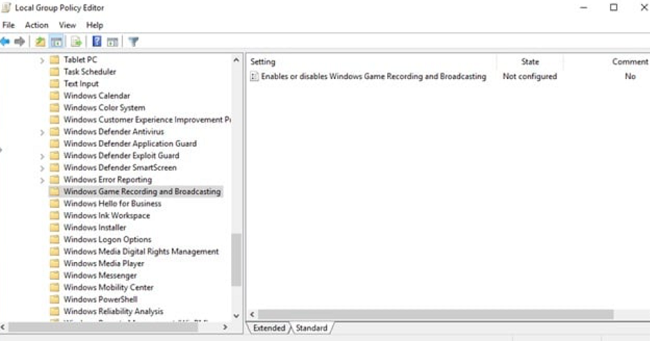
5.Double-click on Windows Game Recording and Broadcasting.
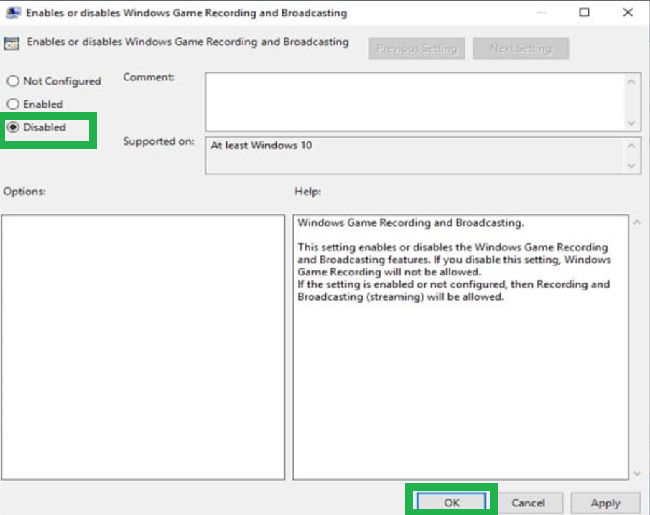
6.Select Disabled and click OK.
7.Restart your computer for the changes that you have made.
Method 4 – Use Group Policy Editor:
You can also disable the Windows Gaming Bar through Group Policy Editor. Follow the steps:
1.Open Run Command by pressing Win + R.
2.Type regedit to open Registry Editor.
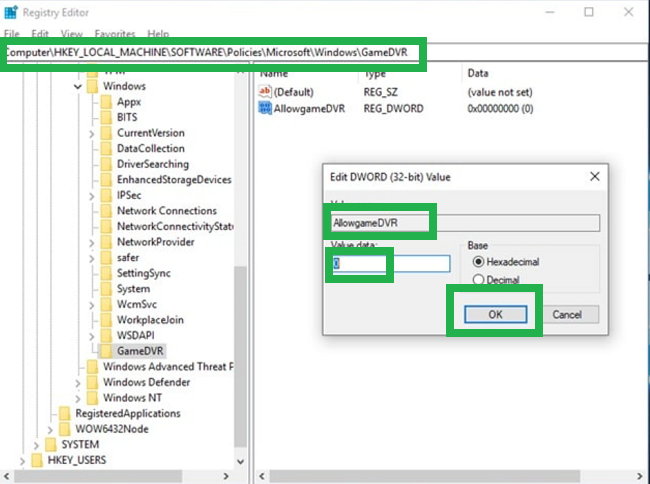
3.Go to HKEY_LOCAL_MACHINE\SOFTWARE\Policies\Microsoft\Windows
3.Create a subkey named GameDVR
4.Create a DWORD (32 bit) entry called AllowgameDVR.
5.Set value data to 0.