How to Fix Black Screen After Windows Update. Windows updates are designed to improve performance, patch security flaws, and introduce new features. However, many users encounter a frustrating problem after installing the latest update: a black screen issue. If you’ve been asking yourself, “Why is my Windows stuck on a black screen?”You’re not alone. This error is common in both Windows 10 black screen after update and Windows 11 black screen after update scenarios.
How To Fix Black Screen With Cursor On Windows
In this detailed guide, we’ll walk through how to fix black screen after Windows update, discuss why it happens, and provide multiple troubleshooting methods to restore your PC. Whether your computer shows a black screen with a cursor, gets stuck during startup, or loops into Windows automatic repair black screen, the solutions below will help.
Why Does Black Screen Issue After Windows Update Happen?
Before we jump into solutions, let’s understand the possible reasons behind a black screen after a recent Windows update. Knowing the root cause will help you choose the right fix.
Driver conflicts – Outdated or incompatible graphics drivers can trigger display issues.
Corrupted update files – Sometimes updates fail to install properly, leaving Windows unable to boot.
Startup glitches – Background processes may prevent the system from loading.
Malware or third-party software – Security software or other programs can block startup processes.
Hardware failures – Faulty hard drives or memory may cause the screen to go black.
How to Fix Black Screen After Windows Update | Step-by-Step Solutions
1.Restart Your PC and Disconnect External Devices:
Sometimes, the simplest solution is the most effective. Remove any USB devices, external drives, or peripherals, then restart your system. This eliminates hardware conflicts that can cause a Windows update black screen fix situation.
2.Boot Into Safe Mode:
Safe Mode loads only essential drivers and can help identify faulty updates. Steps to boot into Safe Mode:
1.Restart your computer and press F8, F11, or Shift + F8 (depending on your system).
2.Go to Advanced Options > Troubleshoot > Startup Settings.
3.Select Safe Mode with Networking.
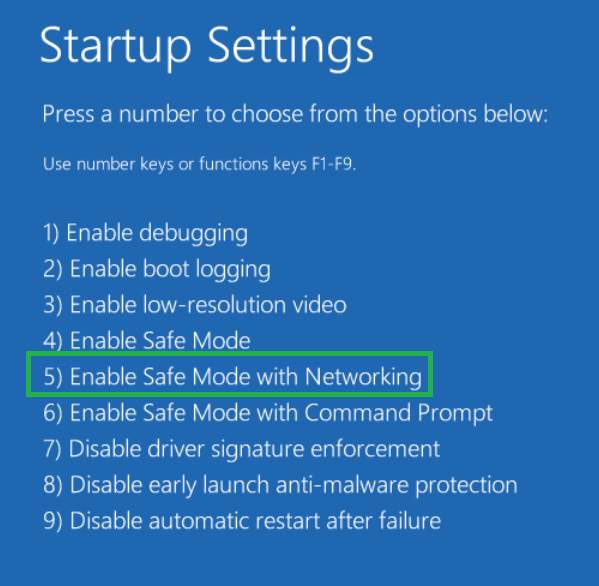
4.If the PC starts normally, the problem is likely a driver or update conflict.
3.Perform a System Restore:
System Restore rolls back your system to a previous working state.
1.In Safe Mode, go to Control Panel > Recovery > Open System Restore.
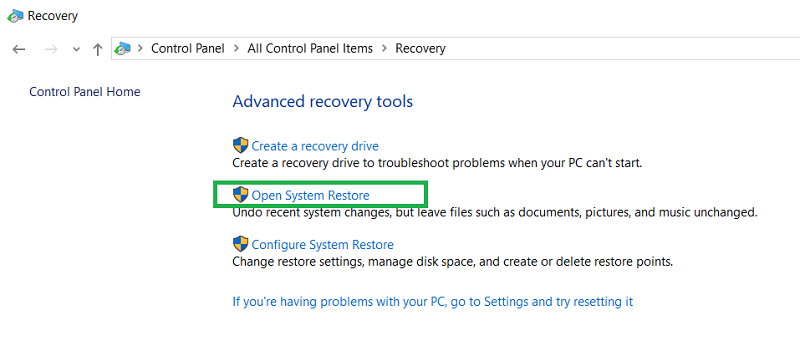
2.Choose a restore point before the update was installed.
3.Restart your system and check if the black screen issue after Windows update is resolved.
4.Update or Roll Back Graphics Drivers:
Since black screens are often linked to GPU issues, updating or rolling back drivers can help.
1.Open Device Manager → expand Display adapters.
2.Right-click your graphics driver → choose Update driver.
3.If the problem began after an update, choose Roll back driver instead.
5.Run Windows Startup Repair:
If your system fails to load, use Windows automatic repair black screen fix.
1.Insert a Windows installation media (USB or DVD).
2.Boot from it and select Repair your computer.
3.Choose Troubleshoot > Advanced Options > Startup Repair.
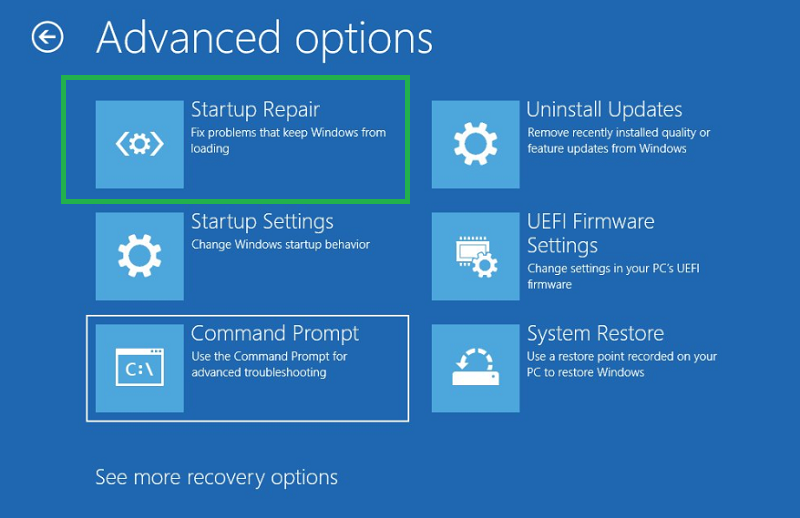
4.This tool automatically repairs startup errors.
6.Uninstall Recent Updates:
If the black screen started after a specific update, uninstalling it may solve the issue.
1.In Safe Mode, go to Settings > Update & Security > Windows Update > View Update History.
2.Select Uninstall updates.
3.Remove the most recent problematic update.
7.Check for Malware or Corruption:
Use Windows Defender Offline Scan or a trusted third-party tool to eliminate hidden malware. Also, run SFC (System File Checker) and DISM commands:
sfc /scannow
DISM /Online /Cleanup-Image /RestoreHealth
To perform an SFC scan, open the Command Prompt as an administrator, then type sfc /scannow and press Enter to initiate the scan. It will scan and repair any corrupted or missing Windows system files. Restart your computer after the scan.
To run a DISM scan, open Command Prompt or PowerShell as an administrator, then enter the command ” DISM /Online /Cleanup-Image /RestoreHealth “.
These commands repair corrupted system files that may be causing a black screen after a recent Windows update.
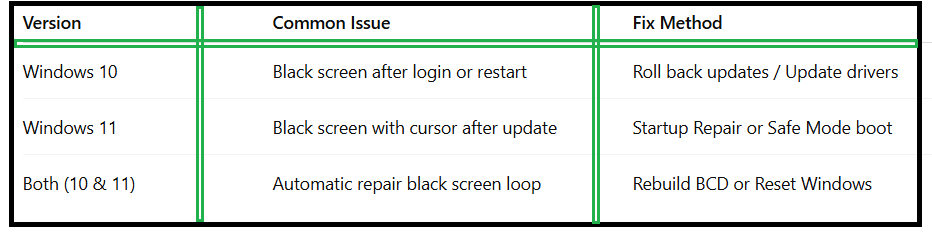
Comparison of Common Black Screen Situations:
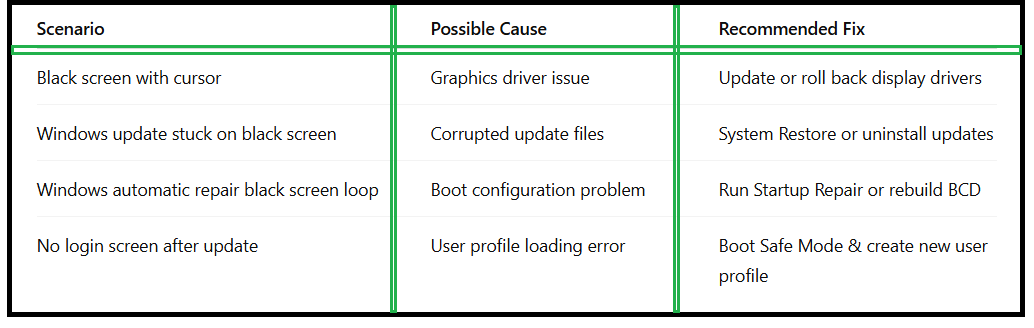
Advanced Fixes for Windows Update Black Screen:
Method 1 – Rebuild the Boot Configuration Data (BCD):
If Windows won’t start, BCD corruption may be the culprit.
1.Boot from installation media.
2.Open Command Prompt and type:
bootrec /fixmbr
bootrec /fixboot
bootrec /rebuildbcd
3.This rebuilds boot files and resolves the Windows not starting after update problem.
Method 2 – Disable Fast Startup:
Fast Startup can sometimes cause Windows to freeze.
1.Open Control Panel > Power Options > Choose what power buttons do.
2.Uncheck Turn on fast startup.
3.Save changes and restart.
Method 3 – Reset or Reinstall Windows:
If nothing works, resetting Windows may be necessary.
1.Go to Settings > Update & Security > Recovery.
2.Select Reset this PC.
3,Choose Keep my files (preferred) or Remove everything for a clean installation.
Preventing Black Screen Issues After Windows Update:
To avoid facing the same issue in the future, follow these best practices:
1.Always keep your drivers updated before installing Windows updates.
2.Backup your important files regularly.
3.Create a restore point before applying major updates.
4.Install updates gradually, not all at once.
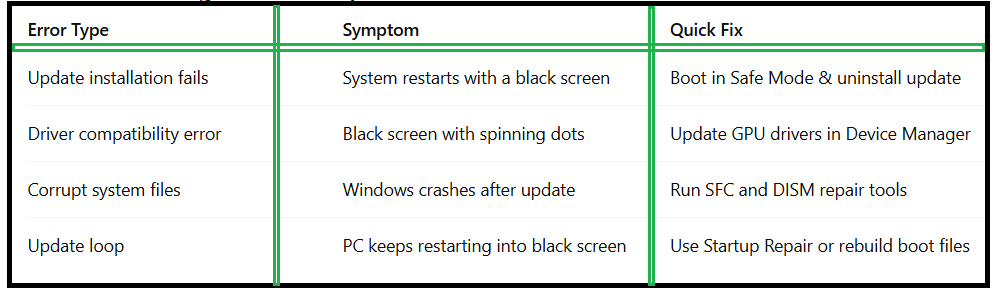
Troubleshooting Windows Update Errors: Quick Reference Table
How to Fix Black Screen After Windows Update (Windows 10 vs Windows 11)
FAQ – Fixing Black Screen After Recent Windows Update:
Q1.Why is my Windows stuck on a black screen after update?
This happens due to corrupted update files, driver issues, or boot configuration problems.
Q2.How long should I wait on a black screen after updating Windows?
If the screen stays black for more than 30 minutes, it’s likely stuck, and you should restart or enter Safe Mode.
Q3.Will resetting my PC fix a black screen issue after Windows update?
Yes, but it should be your last option. Try System Restore, driver updates, or Startup Repair first.
Q4.Does a black screen mean Windows is corrupted?
Not always. Sometimes it’s just a driver or update conflict, not full corruption.
Q5.Can I prevent Windows update stuck on black screen in the future?
Yes. Keep drivers updated, apply updates in stages, and always create restore points before installing major updates.
Final Thoughts:
Dealing with a black screen after a Windows update can be intimidating, but with the right troubleshooting steps, you can bring your PC back to life. Start with simple fixes like restarting, Safe Mode, or uninstalling recent updates, then move on to advanced solutions such as rebuilding boot files or resetting Windows.
By following these methods, you’ll not only fix a black screen after a Windows update but also prevent future issues. Whether it’s Windows 10 black screen after update or Windows 11 black screen after an update, these solutions ensure a smoother recovery process.