How to Fix Blue Screen Memory Management Error. Experiencing the Blue Screen of Death (BSOD) can be one of the most frustrating problems for Windows users. Among the different types of BSODs, the Memory Management error is particularly common. If you’ve recently come across this error, you’re probably searching for ways to understand, troubleshoot, and fix it permanently.
How To Fix Windows Can’t Stop Your Volume Device
In this detailed guide, we’ll break down the causes, solutions, and preventive measures to help you learn how to fix Blue Screen Memory Management error effectively.
What Is the Blue Screen Memory Management Error?
The Windows Memory Management error usually points to an issue with how the system handles memory allocation. This can be linked to faulty RAM, corrupted drivers, damaged system files, or even malware.
In simple terms, when Windows detects a serious problem with your memory subsystem, it triggers a Blue Screen of Death with the stop code Memory Management.
Some common scenarios include:
•How to fix memory management in Windows when the OS fails to access RAM correctly.
•How to solve memory management blue screen during startup or while running heavy applications.
•Errors such as What is the error blue screen on video memory management when GPU memory gets corrupted.
Why Does the Memory Management Error Occur?
Here are the main causes of the Memory Management BSOD error on Windows:
•Faulty RAM – One of the most common hardware-related issues.
•Corrupted system files – Windows system files’ errors may cause stop codes.
•Outdated or corrupted drivers – Display drivers and chipset drivers often trigger memory errors.
•Disk errors – Bad sectors on your hard drive/SSD can lead to Windows 10 blue screen errors.
•Overclocking or hardware changes – Unstable settings may cause memory corruption.
•Malware infections – Viruses can tamper with memory handling.
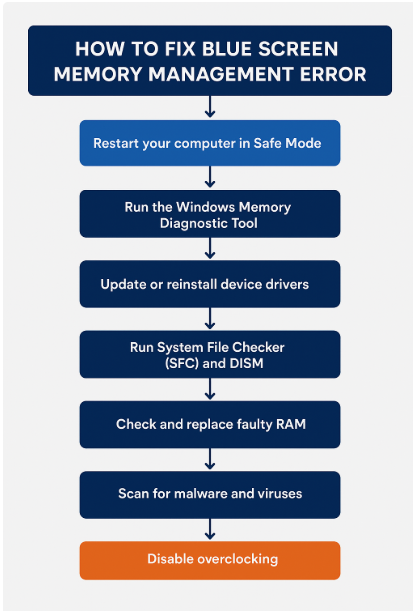
How to Fix Blue Screen Memory Management Error (Step-by-Step):
If you are wondering how to fix memory management BSOD error on Windows, follow these solutions in sequence.
Method 1 – Restart Windows in Safe Mode:
Booting into Safe Mode helps isolate the problem by running only essential drivers.
Steps:
1.Press Shift + Restart from the Start menu.
2.Navigate to Troubleshoot > Advanced options > Startup Settings.
3.Select Enable Safe Mode.
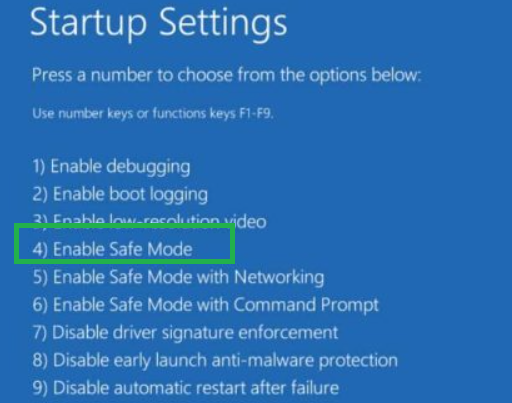
If your PC runs fine in Safe Mode, the problem is likely linked to drivers or third-party applications.
Method 2 – Run the Windows Memory Diagnostic Tool:
Windows comes with a built-in tool to test your RAM. This is the quickest way to diagnose memory management blue screen Windows 10 problems.
Steps:
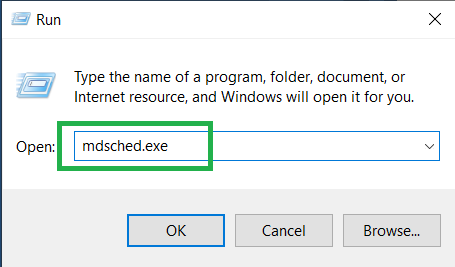
1.Press Win + R, type mdsched.exe, and hit Enter.
2.Choose Restart now and check for problems.
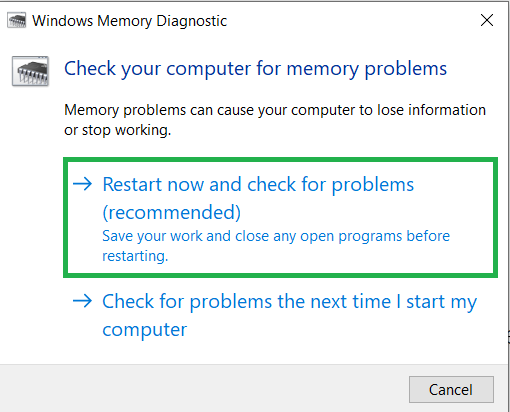
3.Windows will reboot and scan for RAM errors.
Method 3 – Update or Reinstall Device Drivers:
Outdated or corrupted drivers often cause Windows 10 blue screen error messages.
Steps:
1.Open Device Manager from the Start menu.
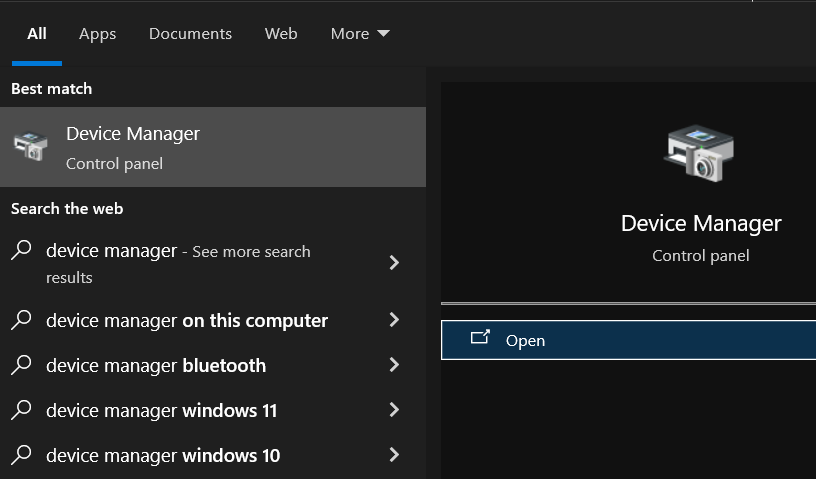
2.Expand Display adapters, Memory controllers, and Disk drives.
3.Right-click and select Update driver.
Method 4 – Run System File Checker (SFC) and DISM:
Damaged system files are a key reason behind Windows stop code Memory Management. Running SFC and DISM can resolve the issue. These commands will repair missing or corrupted system files.
Commands to Run:
sfc /scannow
DISM /Online /Cleanup-Image /RestoreHealth
To perform an SFC scan, open the Command Prompt as an administrator, then type ” sfc /scannow ” and press Enter to initiate the scan. It will scan and repair any corrupted or missing Windows system files. Restart your computer after the scan.

To run a DISM scan, open Command Prompt or PowerShell as an administrator, then enter the command ” DISM /Online /Cleanup-Image /RestoreHealth “.

Method 5 – Check RAM Modules Physically:
Sometimes, the error is caused by a faulty RAM stick.
Steps:
1.Power off your PC and unplug it.
2.Remove the RAM sticks and clean them gently.
3.Test them one by one to identify faulty hardware.
If a stick is defective, replace it to fix the error permanently.
Method 6 – Scan for Malware:
Viruses and malware can corrupt system memory. Run a full system scan using Windows Defender or a trusted antivirus program.
Method 7 – Run Disk Check (CHKDSK)
Bad sectors on your hard drive or SSD can lead to Fix Memory Management Blue Screen on startup issues. To run the chkdsk /f /r command, open the Command Prompt as an administrator, type chkdsk C: /f /r (replacing C: with your target drive letter), and press Enter.
Command:
chkdsk /f /r

This will scan and repair disk errors.
Method 8 – Disable Overclocking:
If you have overclocked your CPU or GPU, revert the settings back to default in BIOS/UEFI. Overclocking often destabilizes memory handling.
Method 9 – Reinstall Windows (Last Resort):
If none of the above methods work, reinstalling Windows is the only solution. This removes corrupted system files and restores default settings.
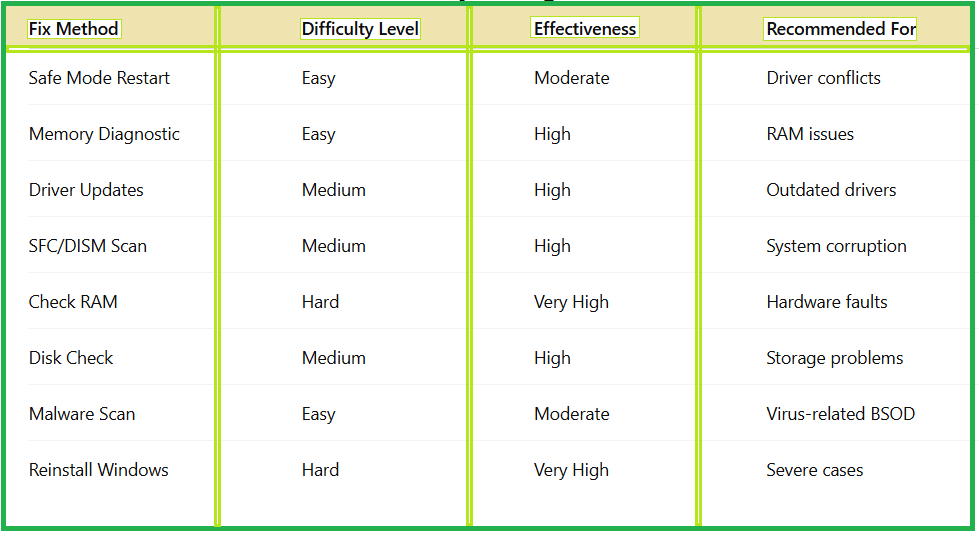
Quick Fix Methods for Memory Management Error:
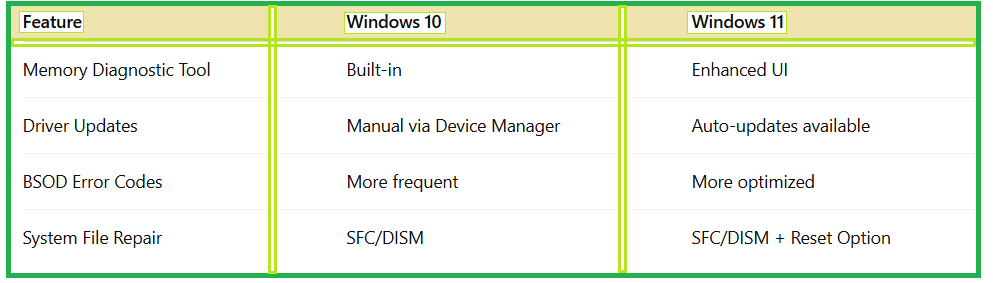
How to Fix Memory Management Error in Windows 10 vs Windows 11
Although the steps are similar, Windows 10 and Windows 11 handle memory differently.
Windows 10 vs Windows 11 Memory Management Fixes:
Advanced Troubleshooting: Video Memory Management Error
Another variation of this issue is “What is the error blue screen on video memory management”, which relates to GPU memory.
Fixes include:
•Updating graphics drivers
•Lowering GPU overclocking settings
•Running GPU stress tests
•Replacing faulty video cards if necessary
•Preventive Tips to Avoid Memory Management BSOD
•Keep Windows and drivers updated
•Run regular malware scans
•Avoid unstable overclocking
•Maintain proper hardware cooling
•Use reliable RAM and storage devices
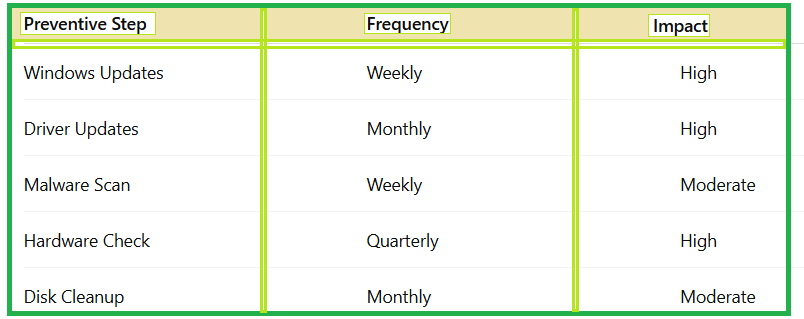
How To Prevent Memory Management Error
FAQ – How to Fix Blue Screen Memory Management Error
Q1.What causes the Blue Screen Memory Management error?
It usually occurs due to faulty RAM, corrupted drivers, or system file errors.
Q2.Can faulty RAM cause this BSOD?
Yes, defective RAM is one of the most common reasons for this error.
Q3.How to solve memory management blue screen without reinstalling Windows?
You can try Safe Mode, Memory Diagnostic, SFC/DISM scans, and updating drivers before considering a reinstall.
Q4.Does the video memory management error mean my GPU is failing?
Not always. It may just be a driver issue, but persistent crashes could mean GPU hardware problems.
Q5.Is the Windows stop code Memory Management fixable at home?
Yes, most fixes can be done at home without professional help.
Conclusion:
Now you know how to fix Blue Screen Memory Management error using various troubleshooting methods. From running the Windows Memory Diagnostic tool to checking RAM physically, updating drivers, or repairing system files, most solutions are within reach for any Windows user.
By applying preventive practices like regular updates, malware scans, and avoiding overclocking, you can ensure your system runs smoothly without encountering frequent Windows 10 Blue Screen errors.
If you continue experiencing issues after trying all fixes, replacing faulty hardware or reinstalling Windows may be the final step toward restoring stability.