How to Extend Laptop Battery Life. A Complete Guide for Longer Performance
Introduction. In today’s fast-paced digital world, laptops have become essential for work, study, and entertainment. But one of the biggest challenges most users face is short battery life. Whether you’re working remotely, traveling, or simply don’t want to sit next to a charger all day, knowing how to extend laptop battery life can make a huge difference.
How to Reset BIOS Without Opening Laptop
The good news? With the right habits, optimized settings, and battery care techniques, you can increase laptop battery lifespan, improve performance, and make your device last longer between charges. This guide covers easy ways to extend your battery life, proven methods to maximize laptop battery time, and tips on battery calibration for laptops.
Why Extending Laptop Battery Life Matters?
Laptop batteries degrade over time due to charging cycles, heat exposure, and improper usage. If not taken care of, your laptop battery will start draining faster, reducing productivity. By following laptop battery care tips, you not only improve performance but also delay the need for costly replacements.
Common Mistakes That Reduce Battery Performance:
Before we dive into practical solutions, let’s look at common mistakes users make that shorten laptop battery life:
-Keeping the charger plugged in all the time.
-Using laptops on soft surfaces that cause overheating.
-Ignoring power management settings.
-Running too many background applications.
-Skipping battery calibration for laptops.
Understanding these mistakes is the first step toward optimizing laptop battery usage.
How to Extend Laptop Battery Life (Proven Methods):
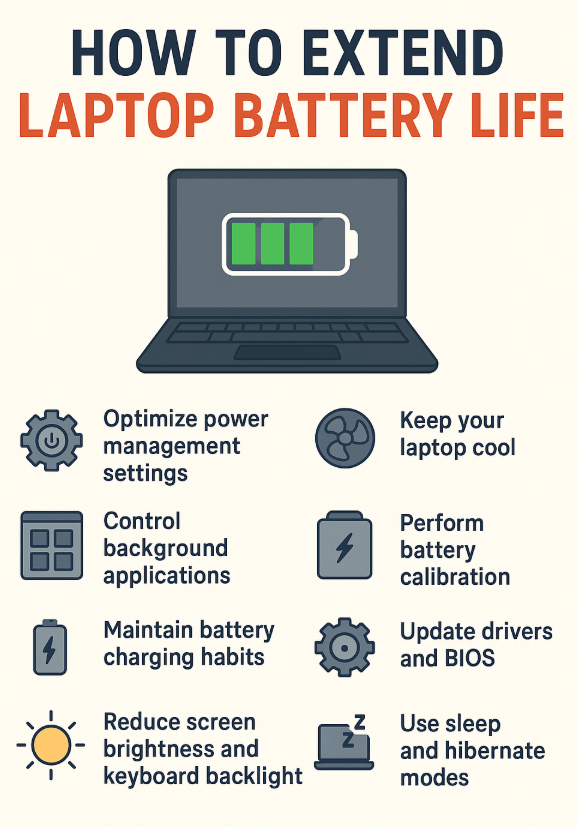
Method 1 – Optimize Power Management Settings
One of the easiest ways to extend your battery life is by adjusting power management options.
Tips for Power Optimization:
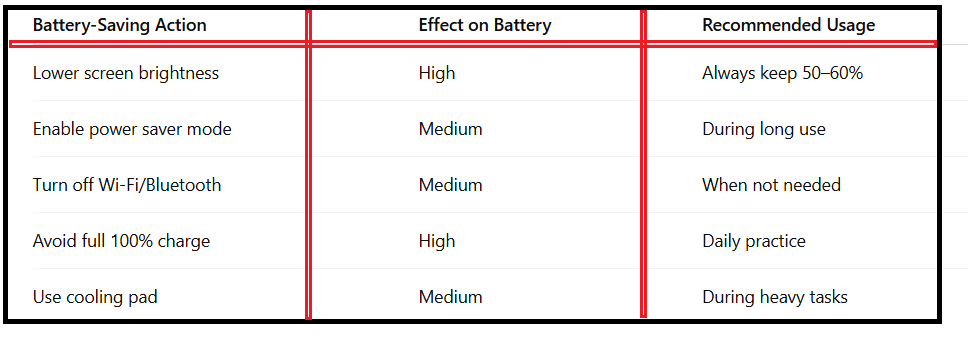
1.Use “Battery Saver” or “Power Saver” mode.
2.Lower screen brightness to 50–60%.
3.Turn off Bluetooth and Wi-Fi when not in use.
4.Set your laptop to sleep instead of shutdown for quick resume.
Method 2 – Control Background Applications:
Many apps run in the background, consuming CPU and draining your battery.
1.Disable unnecessary startup apps.
2.Close unused browser tabs.
3.Monitor battery usage through system settings.
This helps improve laptop battery performance significantly.
Method 3 – Maintain Battery Charging Habits:
Your charging habits directly impact battery health. Follow these laptop battery care tips:
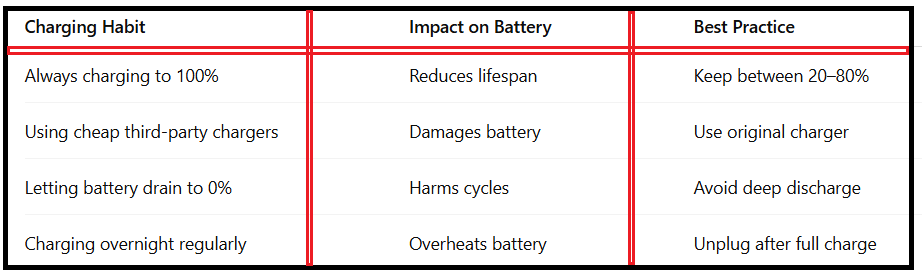
1.Avoid charging from 0% to 100% daily.
2.Keep your charge between 20% and 80% for better cycle health.
3.Unplug the charger once it’s fully charged.
4.Use the original charger for best performance.
Method 4 – Reduce Screen Brightness and Keyboard Backlight:
Your display is the largest power consumer in a laptop. Lower brightness to save energy. Do turn off keyboard backlighting when unnecessary. These small adjustments can maximize laptop battery time during travel or long work sessions.
Method 5 – Keep Your Laptop Cool:
Overheating damages both the CPU and the battery. A cooler laptop means a longer battery lifespan.
1.Use a cooling pad.
2.Avoid using laptops on beds or pillows.
3.Clean air vents regularly.
Quick Comparison of Battery-Saving Practices:
Method 6 – Perform Battery Calibration:
If your laptop battery shows incorrect percentage levels, calibration is essential.
Steps for Battery Calibration for Laptops:
1.Fully charge the laptop to 100%.
2.Keep it plugged in for two more hours.
3.Unplug and use until it shuts down completely.
4.Recharge back to 100%.
This improves battery percentage accuracy and helps optimize laptop battery usage.
Method 7 – Update Drivers and BIOS:
Outdated drivers or BIOS settings may cause excessive power drain. Update graphics drivers. Install the latest BIOS update from your laptop manufacturer. Check for battery firmware improvements.
Method 8 – Use Sleep and Hibernate Wisely:
Instead of shutting down repeatedly, use sleep or hibernate modes. They consume less power and reduce unnecessary battery cycles, helping you increase laptop battery life.
Charging Habits and Their Impact on Battery:
Advanced Tips to Maximize Battery Performance:
1.Use External Battery Packs
Traveling? Invest in a portable power bank designed for laptops.
2.Disable Unused Hardware
Turn off external devices like USB drives, printers, or external hard disks when not in use.
3.Switch to SSD Storage
SSDs consume less power compared to traditional HDDs, helping extend laptop battery life.
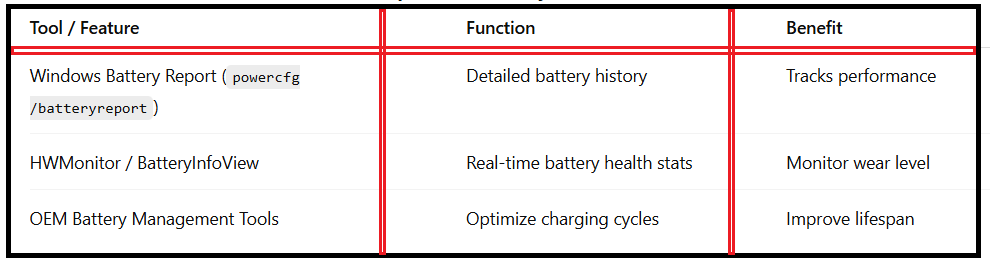
Tools to Monitor and Improve Battery Health:
Final Thoughts On How to Extend Laptop Battery Life:
Learning how to extend laptop battery life is not just about getting extra hours on a single charge—it’s about maintaining long-term battery health. From easy ways to extend your battery life like lowering brightness, using battery saver, and following charging best practices, to advanced strategies like calibration and BIOS updates, every small step counts.
By implementing these laptop battery saving tips, you’ll not only increase laptop battery lifespan but also save money by avoiding premature replacements.
Frequently Answer Questions (FAQ):
Q1:How often should I calibrate my laptop battery?
👉 Once every 2–3 months is enough for accurate readings.
Q2:Is it okay to leave my laptop plugged in overnight?
👉 Occasionally yes, but frequent overnight charging reduces battery lifespan.
Q3:Does using dark mode save battery?
👉 Yes, especially on laptops with OLED displays.
Q4:Should I always charge my laptop to 100%?
👉 No. Keeping it between 20% and 80% is best for long-term health.
Q5:How long does a laptop battery usually last?
👉 On average, 2–4 years depending on usage and care.