How to Fix PS5 Error Code CE-105638-3 Content Activation Failed. Encountering PS5 error code CE-105638-3 with the message “Content Activation Failed” can be frustrating, especially when you’re eager to play your favorite games. This error usually appears when the PlayStation 5 fails to verify a license or authenticate purchased digital content from the PlayStation Store. Whether you’re launching a newly downloaded title or trying to access existing content, this problem disrupts the gaming experience.
How To Fix PS5 Overheating Problem
The good news is that there are several practical solutions to fix this issue. In this guide, we’ll break down the common causes, provide step-by-step fixes, and help you understand how to fix PS5 error code CE-105638-3 Content Activation Failed efficiently.
Common Reasons Behind CE-105638-3:
Several underlying issues can trigger the PS5 Content Activation Failed error. Understanding them will make troubleshooting easier:

How to Fix PS5 Error Code CE-105638-3 Content Activation Failed?
Method 1 – Restart Your Console:
When you see CE-105638-3 error when downloading games, the first troubleshooting step should be restarting your PS5.
1.Close the affected game.
2.Press the PS button to open the Control Center.
3.Navigate to Power > Restart PS5.
4.After reboot, launch the game again.
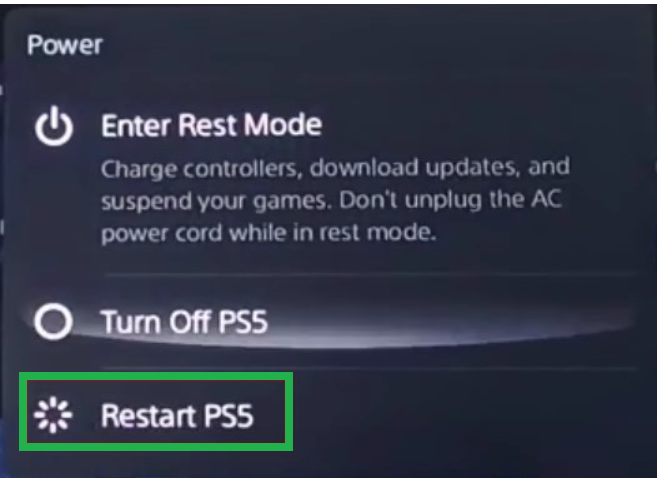
This simple step often resolves temporary verification or network glitches.
Method 2 – Verify Game Compatibility:
Sometimes the PS5 error CE-105638-3 fix requires confirming whether the game itself supports PS5. Some PS4 titles may need patches or updates before they work smoothly. Always check the game’s official PlayStation Store page for compatibility notes.
Method 3 – Check Your Internet Connection:
A weak network can cause PS5 Content Activation Failed errors. To test your connection:
1.Go to Settings > Network > Test Internet Connection.
2.Verify speed and stability.

3.If unstable, try a wired Ethernet connection or reset your router.

Method 4 – Optimize PS5 Placement:
Poor console placement can interfere with Wi-Fi performance. Ensure your PS5 is placed close to the router with minimal obstacles. Avoid barriers like thick walls, furniture, or other electronic devices that may weaken the signal.
Method 5 – Restart Router or Modem
Network resets often help resolve activation problems. Turn off your router and modem, wait for 2–3 minutes, then restart. This can refresh the connection to PSN servers and remove temporary issues.
Method 6 – Enable Console Sharing and Offline Play
Misconfigured sharing settings often lead to PS5 error code CE-105638-3. To fix:
1.Go to Settings > Users and Accounts > Other.
2.Select Console Sharing and Offline Play.
3.Enable this option.
4.This ensures your console is authorized to access purchased games offline.
Method 7 – Restore Licenses:
If your PS5 still fails to activate content, restoring licenses might help.
1.Navigate to Settings > Users and Accounts > Other.
2.Select Restore Licenses.
3.Wait for the process to finish, then relaunch your game.

Method 8 – Update System Software:
Outdated software is a common cause of content activation failed PS5 solution errors. To update:
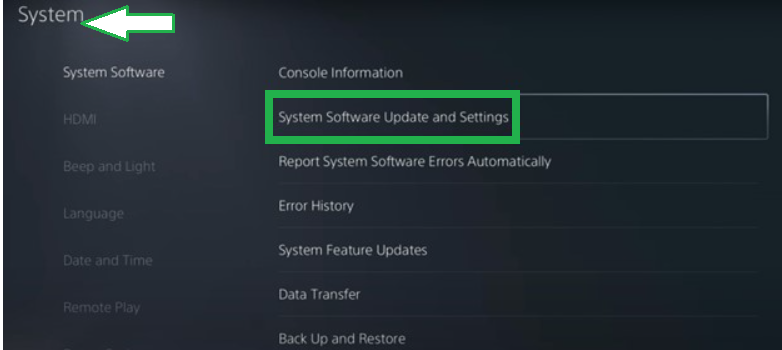
1.Open Settings > System > System Software.
2.Select System Software Update and Settings.
3.Choose Update Using Internet.
4.Follow on-screen prompts to install the latest firmware.
Method 9 – Contact PlayStation Support:
If none of the above steps fix the issue, the problem may be server-side or account-specific. Visit the PlayStation Support website and provide details about your PS5 error code CE-105638-3 for tailored guidance.
FAQ – How to Fix PS5 Error Code CE-105638-3
Q1.What does PS5 error code CE-105638-3 mean?
It means your console failed to verify a license or activate purchased digital content.
Q2.Can I fix CE-105638-3 without restoring my PS5?
Yes. Try restarting your console, restoring licenses, and enabling console sharing before considering a factory reset.
Q3.Does internet speed affect PS5 Content Activation Failed errors?
Yes. Slow or unstable internet can prevent proper communication with PSN servers, causing activation issues.
Q4.Is CE-105638-3 a permanent error?
No. In most cases, following the troubleshooting steps resolves the issue quickly.
Final Thoughts:
The PS5 error code CE-105638-3 can disrupt your digital gaming experience, but most cases can be fixed with simple steps like restarting the console, restoring licenses, or updating the system software. If the error persists, contacting Sony support is the best way forward. By applying the solutions in this guide, you can get back to enjoying your PlayStation games without interruption.