How to Enter Windows Recovery Environment. If your Windows PC ever runs into trouble; such as boot errors, driver failures, or system crashes; you’ll likely need a way to troubleshoot without logging into the main operating system. That’s where the Windows Recovery Environment (WinRE) comes in. In this detailed guide, we’ll explain how to enter Windows Recovery Environment, different access methods for Windows 10 and Windows 11, and the tools available inside it.
By the end, you’ll know not only how to boot into Windows Recovery Environment but also how to use it effectively to fix startup problems, reset your PC, or recover lost functionality.
What is the Windows Recovery Environment (WinRE)?
The Windows Recovery Environment is a specialized boot environment that provides powerful troubleshooting tools when your computer doesn’t start normally. Think of it as a safety net built into Windows to help you recover from serious system errors.
It contains features like:
Startup Repair – Fixes boot issues automatically.
System Restore – Restores your system to an earlier working state.
Command Prompt (Recovery Mode commands) – Allows advanced users to run repair commands.
Reset this PC – Reinstalls Windows while keeping or removing files.
Safe Mode access – Boots Windows with limited drivers and services.
Why Do You Need to Enter Windows Recovery Environment?
There are several situations where you might need to access Windows Recovery Environment:
1.When Windows fails to boot normally.
2.To perform Windows Recovery Mode commands such as sfc /scannow or bootrec /fixmbr.
3.Reset Windows 10/11 without installation media.
4.To fix driver-related problems.
5.To restore factory settings or roll back updates.
How to Enter Windows Recovery Environment?
There are multiple ways to enter Windows Recovery Environment depending on whether you can log into your system or not. Let’s go step by step.
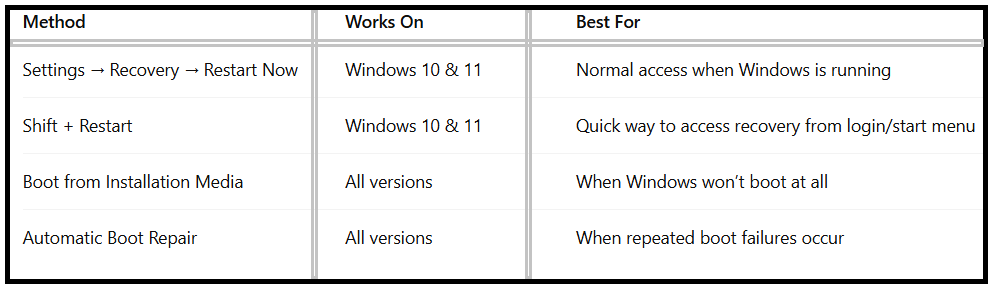
Method 1 – How to Enter Windows Recovery Environment from Settings (Windows 10 & 11)
If you can log into Windows, this is the simplest method.
Steps:
1.Open Settings → Update & Security → Recovery.
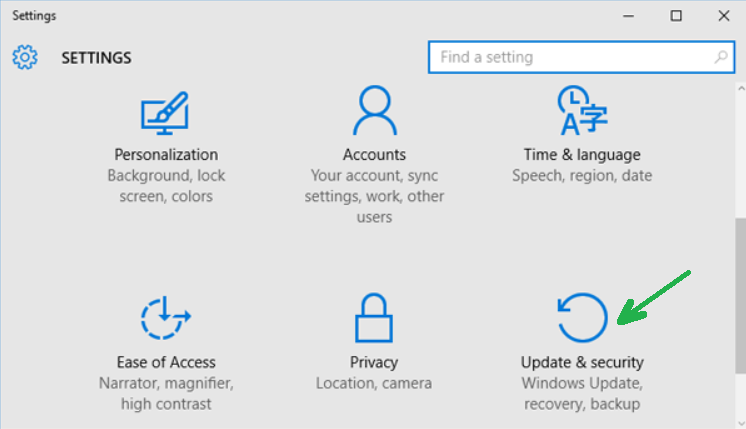
2.Under Advanced Startup, click Restart Now.
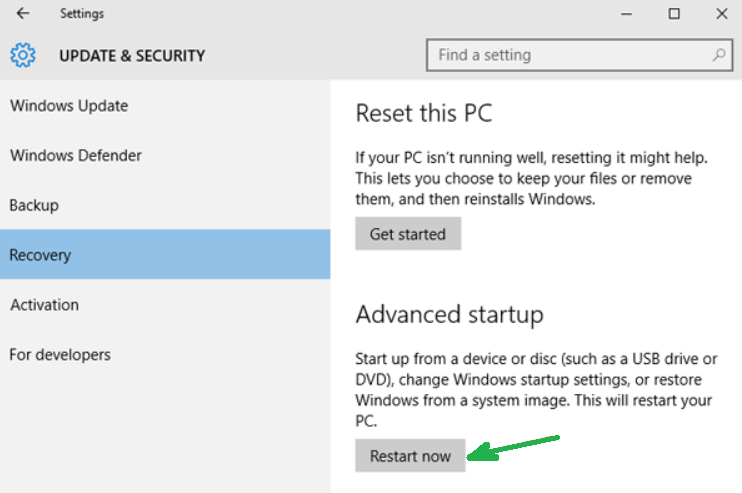
3.Your system will reboot directly into the Windows Recovery Environment.
✅ This method works for both Windows 10 and Windows 11.
Method 2 – Boot into Windows Recovery Environment Using Restart Options
Another quick way is via the Shift + Restart method.
Steps:
1.Hold the Shift key on your keyboard.
2.While holding, click Restart from the Start Menu or Lock screen.
3.Windows will reboot into Advanced Startup Options → WinRE.
This is one of the fastest methods to open Windows Recovery Environment without login when you’re at the sign-in screen.
Method 3 – Start Windows Recovery Environment Manually Using Installation Media
If your PC can’t boot at all, you can use a Windows installation USB or DVD.
Steps:
1.Insert the installation media and boot from it.
2.On the setup screen, select your language and click Repair your computer.
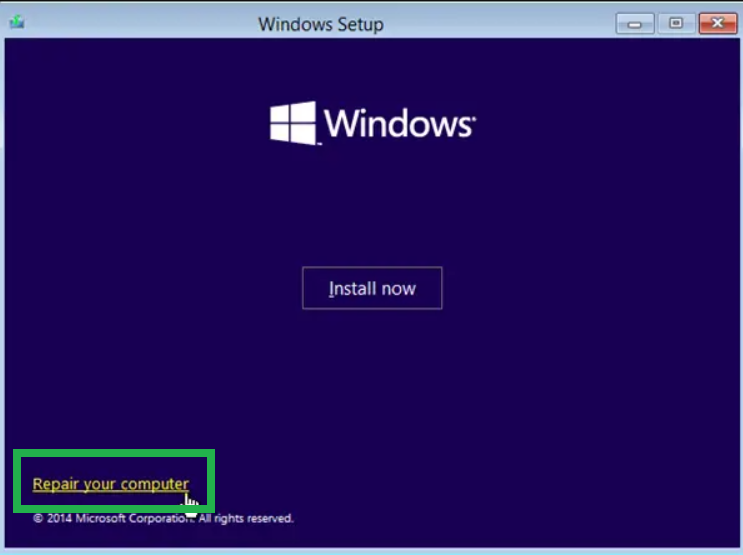
3.You’ll now be inside the Windows Recovery Environment step by step interface.
This method is helpful when Windows doesn’t launch recovery tools automatically.
Method 4 – Automatic Boot into Windows Recovery Environment
When Windows detects repeated failed startups, it automatically launches WinRE. You’ll see the message “Preparing Automatic Repair.” From there, you can access:
-Startup Repair
-Recovery Mode commands via Command Prompt
-Reset PC options
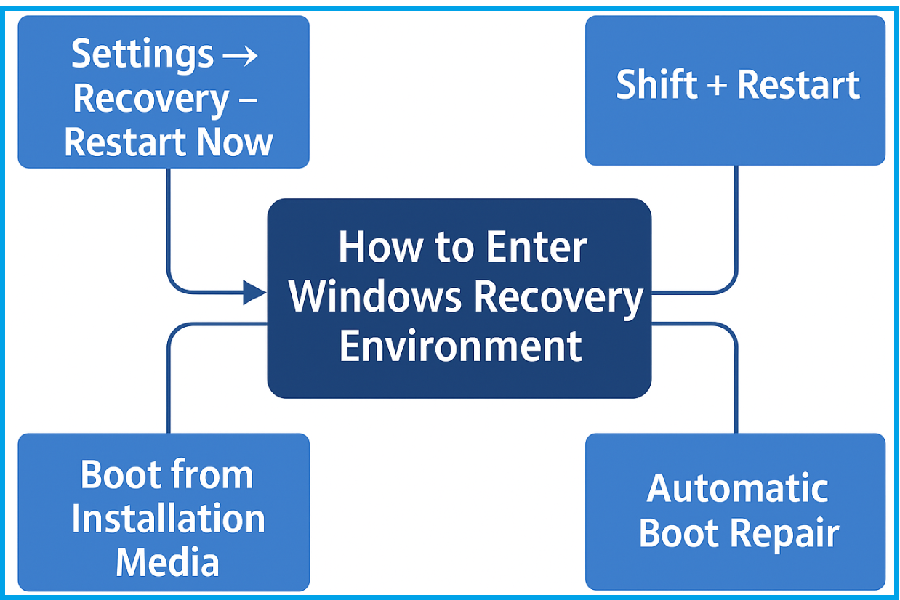
Methods to Enter Windows Recovery Environment
Tools Available After You Enter Windows Recovery Environment:
Once you’ve successfully accessed WinRE, here’s what you can do:
Startup Repair – Fixes boot errors automatically.
System Restore – Rolls back changes.
Reset this PC – Fresh Windows installation.
Command Prompt – Use powerful Windows Recovery Mode commands.
Uninstall Updates – Roll back problematic Windows updates.
UEFI/BIOS Access – Switch to firmware setup if needed.
How to Boot into Windows Recovery Environment with Command Prompt:
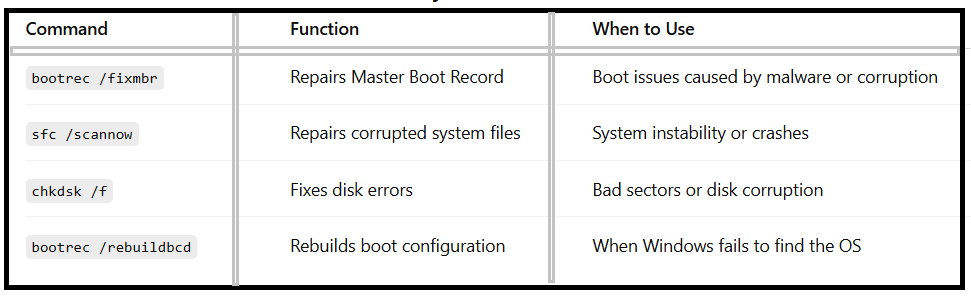
For advanced users, the Command Prompt in WinRE provides deep troubleshooting capabilities. Some commonly used commands include:
bootrec /fixmbr – Repairs the master boot record.
bootrec /fixboot – Writes a new boot sector.
sfc /scannow – Checks for and repairs corrupted system files.
chkdsk /f – Fixes hard disk errors.
These Windows Recovery Mode commands can resolve serious system failures when automatic repair isn’t enough.
Common Windows Recovery Mode Commands
How to Recover Windows Using Recovery Environment:
If your PC is completely unusable, WinRE allows you to recover Windows using recovery environment tools. You can:
-Perform a system reset while keeping personal files.
-Reinstall Windows completely for a fresh start.
-Restore to a previously working system image.
This flexibility makes the Windows Recovery Environment a must-know for every Windows user.
Troubleshooting: Open Windows Recovery Environment Without Login
Sometimes you may be locked out of your PC due to forgotten passwords or startup crashes. In that case:
1.Power on your system.
2.Interrupt the boot process 2–3 times (force shut down).
3.Windows will automatically load WinRE.
This technique is essential when you cannot log in to Windows at all.
Best Practices When Using Windows Recovery Environment:
-Always back up your files before performing resets.
-Use System Restore first before reinstalling Windows.
-Only run advanced commands if you understand them.
-Keep a Windows installation USB handy for emergencies.
FAQ – How to Enter Windows Recovery Environment
Q1:Can I access Windows Recovery Environment without logging in?
Yes, you can use the Shift + Restart method or force shutdowns during startup to trigger WinRE.
Q2:What’s the difference between Safe Mode and Recovery Environment?
Safe Mode loads a minimal version of Windows, while WinRE provides repair tools and reset options.
Q3:Do I need installation media to open Windows Recovery Environment?
Not always. Installation media is only required if your system fails to load WinRE automatically.
Q4:Can I fix boot issues with Windows Recovery Environment?
Yes, tools like Startup Repair and Command Prompt commands (bootrec, sfc, chkdsk) are designed for that.
Q5:Is Windows Recovery Environment available in both Windows 10 and 11?
Absolutely. The process of entering Windows Recovery Environment step by step is almost identical in both versions.
Conclusion:
Knowing how to enter Windows Recovery Environment is essential for troubleshooting and fixing PC issues effectively. Whether you need to boot into Windows Recovery Environment manually, run Windows Recovery Mode commands, or recover Windows using recovery environment tools, WinRE provides everything you need to restore your system.
By following the step-by-step methods shared here, you’ll always have a way to access the recovery environment in Windows 10 and Windows 11, even if your system doesn’t boot normally.