How to Encrypt Files on Windows – A Complete, Practical Guide for Real Users. Data leaks don’t always happen because of hackers. Sometimes, it’s just a lost USB drive, a shared laptop, or a curious coworker. That’s why learning How to Encrypt Files on Windows is no longer optional—it’s basic digital hygiene.
Whether you’re storing personal documents, client files, or business data, encryption turns readable information into unreadable code. Only the right key or password can unlock it. In this guide, I’ll walk you through realistic, everyday ways to encrypt data on a Windows PC—without overcomplicating things.
We’ll cover data privacy and protection, real-world cybersecurity best practices, and methods that actually work for normal users—not just IT pros.
What File Encryption Really Means on Windows
Before jumping into tools, let’s keep this simple.
File encryption is the process of converting files into coded data using cryptographic algorithms like AES encryption for files. Once encrypted, even if someone copies the file, they won’t be able to read it without authorization. This is a core technique for unauthorized access prevention and long-term secure data storage.
On Windows, you can encrypt:
- Individual files
- Entire folders
- Full drives
And yes, you can even encrypt files without software using Windows’ own features.
How to Encrypt Files on Windows Using Built-In Tools
Windows already includes powerful encryption options that many users never notice. Let’s start there.
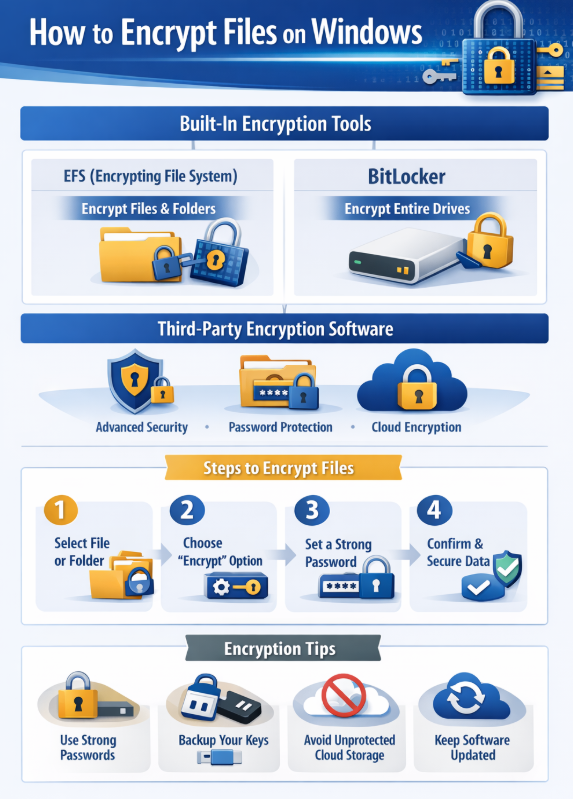
Encrypt Files on Windows 10 and Windows 11 with EFS
The EFS encryption Windows feature (Encrypting File System) is available in professional editions.
Steps:
- Right-click the file or folder
- Choose Properties → Advanced
- Check Encrypt contents to secure data
- Apply and confirm
This method is great for sensitive file protection, but it’s tied to your Windows account. If your account is compromised, so is your data.
Personal take: EFS is fine for personal laptops, but I wouldn’t rely on it alone for business-critical files.
Windows Built-In Encryption Tools Comparison
| Feature | EFS Encryption | BitLocker File Encryption | Folder-Level Control |
|---|---|---|---|
| Ease of use | Easy | Moderate | Limited |
| Best for | Individual files | Full drives | File-based |
| Security strength | Medium | High | Medium |
| Password required | Account-based | Yes | Account-based |
How to Encrypt Files on Windows with BitLocker
If you’re serious about protect sensitive data on Windows, BitLocker file encryption is the gold standard.
BitLocker encrypts entire drives, including external USBs. It uses strong AES-based encryption and is ideal for laptops.
How it works:
- Encrypts full disk automatically
- Requires password or TPM authentication
- Protects data even if device is stolen
BitLocker is one of the most trusted Windows built-in encryption tools, especially for professionals and enterprises.
How to Encrypt Files on Windows Without Software
Yes, it’s possible to encrypt files without software—but with limitations.
Options include:
- EFS (already discussed)
- Password-protected ZIP files (basic protection)
ZIP encryption isn’t military-grade, but it’s still useful for casual how to lock files on Windows scenarios like sharing files via email.
Encrypt Files Without Software – What You Gain & Lose
| Method | Security Level | Use Case |
|---|---|---|
| EFS | Medium | Personal files |
| ZIP password | Low–Medium | File sharing |
| BitLocker | High | Full device protection |
Encrypt Folders in Windows for Better Organization
Instead of encrypting dozens of files, it often makes more sense to encrypt folders in Windows.
Why?
- Cleaner workflow
- Automatic encryption for new files
- Better Windows file security methods
Both EFS and third-party tools allow folder encryption. Folder-level encryption is especially useful for project directories and backups.
File Encryption Software for Windows: When Built-In Isn’t Enough
Sometimes, native tools don’t cut it. That’s where file encryption software for Windows comes in.
Popular features include:
- Cross-platform access
- Independent passwords
- Encrypted containers
- Cloud-friendly encryption
These tools are ideal for freelancers, journalists, or anyone serious about data encryption for Windows users beyond the basics.
Honest opinion: Third-party tools feel more flexible, especially if you switch devices often.
Built-In vs Third-Party Encryption Tools
| Feature | Windows Tools | Third-Party Software |
|---|---|---|
| Cost | Free | Free/Paid |
| Ease | Simple | Moderate |
| Portability | Limited | High |
| Advanced control | Basic | Advanced |
Password Protect Files on Windows the Right Way
Many users think password protection equals encryption. Not always.
To password protect files on Windows securely:
- Use BitLocker for drives
- Use encrypted containers for files
- Avoid simple ZIP passwords for critical data
Strong passwords + encryption = real protection. Weak passwords? Not so much.
Encrypt Files in Windows 11 vs Windows 10: Any Difference?
Functionally, encryption works the same in both systems. You can encrypt files in Windows 10 and encrypt files in Windows 11 using identical tools.
Windows 11 does improve:
- TPM integration
- Default security settings
- Device encryption availability
That’s good news for overall cybersecurity best practices.
Best Practices to Secure Files on Windows PC
If you’re wondering how to secure files on Windows PC properly, here’s what actually works:
- Combine encryption with strong passwords
- Back up encrypted data securely
- Store recovery keys offline
- Avoid cloud uploads without encryption
These habits significantly improve secure data storage and long-term safety.
Why Encryption Matters More Than Ever
We live in a world of constant data movement—USBs, cloud sync, shared laptops. Encryption isn’t paranoia; it’s responsibility.
Learning How to Encrypt Files on Windows helps ensure data privacy and protection, even when things go wrong.
Conclusion: How to Encrypt Files on Windows Without Overthinking It
You don’t need to be a tech expert to protect your files. Windows already gives you powerful options, and when needed, third-party tools fill the gaps.
Whether you’re using EFS, BitLocker, or external software, the goal is simple: keep your data yours. Encryption supports sensitive file protection, prevents unauthorized access, and gives peace of mind that’s hard to put a price on.
If you take just one step today, let it be this—start encrypting now, not after a data scare.
FAQ: How to Encrypt Files on Windows
Q1. Is file encryption necessary for personal users?
Yes. Even personal photos and documents deserve protection against loss or theft.
Q2. Does encryption slow down Windows?
Modern systems handle encryption efficiently with minimal performance impact.
Q3. Can encrypted files be recovered if I forget the password?
Usually no. Always store recovery keys securely.
Q4. Is BitLocker better than EFS?
For full-device protection, yes. For individual files, EFS is simpler.
Q5. Can I encrypt files and still share them?
Yes, but the recipient will need the password or decryption key.