How to Fix Inaccessible Boot Device Error. If you’ve ever turned on your PC only to be greeted by a terrifying blue screen, you’re not alone. The blue screen inaccessible boot device error is one of those Windows problems that feels dramatic—but in most cases, it’s fixable.
I’ve personally seen this error appear after a rushed Windows update, a BIOS tweak gone wrong, or even a simple SSD upgrade. The good news? Once you understand why it happens, fixing it becomes far less intimidating.
In this guide, you’ll learn How to Fix Inaccessible Boot Device Error step by step, using proven methods that work for both inaccessible boot device error Windows 10 and inaccessible boot device Windows 11 users.
What Is the Inaccessible Boot Device Error?
A Windows boot error inaccessible boot device occurs when Windows can’t access the system drive during startup. In simple terms, your PC knows something is there—but it can’t talk to it.
This usually results in:
- A sudden Windows boot failure
- A restart loop
- Or a full inaccessible boot device error on startup
The root cause can range from a storage controller driver problem to corrupted partitions or misconfigured firmware settings.
Common Causes of Inaccessible Boot Device Error
Before jumping into fixes, it helps to understand what typically triggers this issue.
🧠 Most Frequent Triggers
| Cause | What Actually Happens | Real-World Example |
|---|---|---|
| Windows Update | Boot drivers fail to load | inaccessible boot device after Windows update |
| BIOS / UEFI change | Disk mode mismatch | inaccessible boot device after BIOS change |
| Driver corruption | Storage controller not recognized | inaccessible boot device driver issue |
| SSD problems | Disk not initialized correctly | inaccessible boot device SSD issue |
| File system damage | System can’t read boot partition | disk partition access error |
These issues all lead to one outcome: Windows can’t access the drive it needs to boot.
How to Fix Inaccessible Boot Device Error – Step-by-Step Solutions
Let’s walk through the most reliable fixes, starting from the simplest to the more advanced.
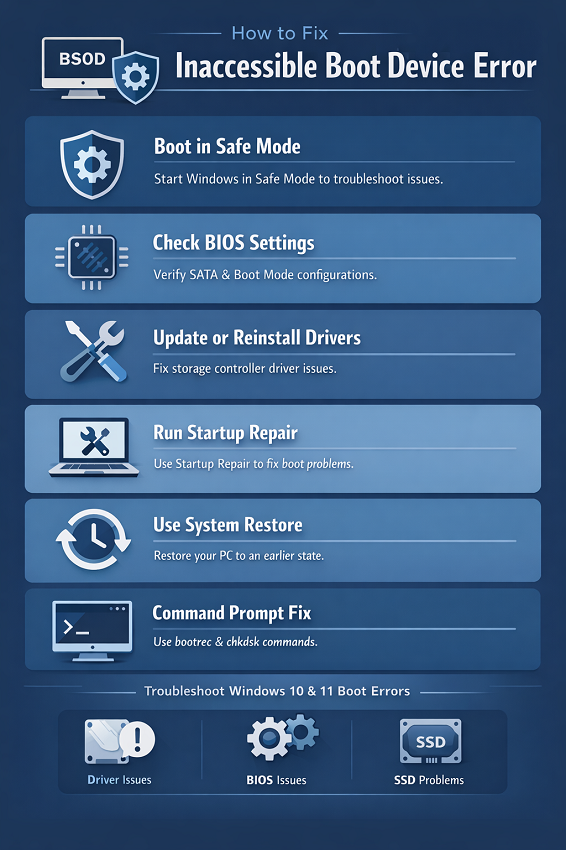
How to Fix Inaccessible Boot Device Error Using Safe Mode
Safe Mode is often the fastest way to regain control.
Steps:
- Force shutdown your PC during boot (2–3 times)
- Enter Automatic Repair
- Go to Advanced options → Startup Settings
- Choose Enable Safe Mode
If your system boots, congratulations—you’ve bypassed the immediate boot device inaccessible Windows fix barrier.
From here, uninstall recent updates or roll back drivers. This method works especially well for inaccessible boot device safe mode scenarios.
Fix Storage Controller Driver Issues (Very Common)
A broken or incompatible driver is one of the most overlooked causes.
What to Do:
- Boot into Safe Mode
- Open Device Manager
- Expand IDE ATA/ATAPI Controllers
- Uninstall the storage controller driver
- Restart the PC
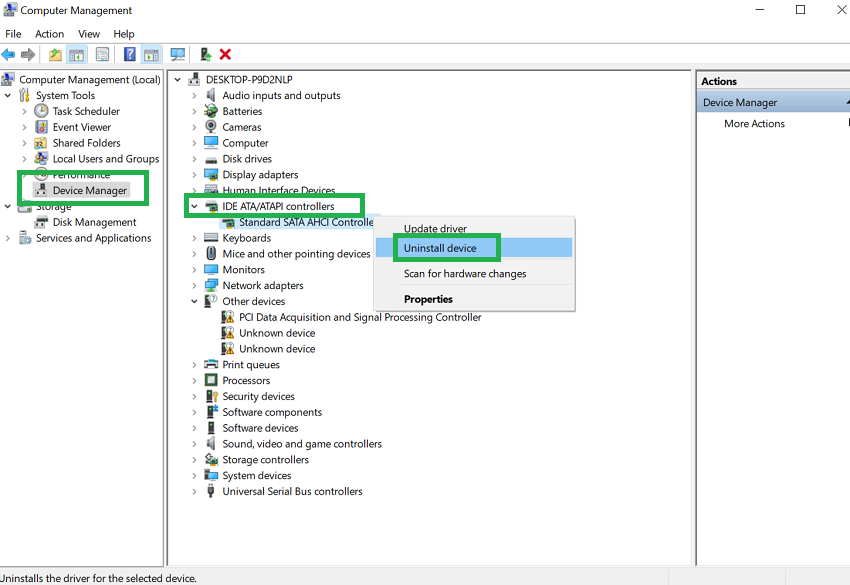
Windows will automatically reinstall a compatible version. This simple action resolves many inaccessible boot device BSOD fix cases caused by driver conflicts.
How to Fix Inaccessible Boot Device Error After BIOS or UEFI Changes
If the error appeared right after entering BIOS, this fix is critical.
Check These BIOS Settings:
- SATA Mode: AHCI vs IDE vs RAID
- Boot Mode: Legacy vs UEFI
| BIOS Setting | Correct Option | When to Use |
|---|---|---|
| SATA Mode | AHCI | Most modern SSDs |
| Boot Mode | UEFI | Required for Windows 11 |
| CSM | Disabled | Prevents boot conflicts |
Incorrect settings often trigger inaccessible boot device UEFI BIOS problems. Resetting BIOS to defaults can instantly restore access.
Run Startup Repair for Automatic Fixes
Windows includes built-in recovery tools that actually help—sometimes.
Steps:
- Boot into Advanced Startup
- Select Startup Repair
- Let Windows diagnose the issue
This method focuses on startup recovery troubleshooting and works well for minor configuration errors.
Use System Restore to Undo the Damage
If your PC worked yesterday, this is worth trying.
Why It Helps:
- Reverses driver updates
- Restores registry entries
- Fixes corrupted system files
This is the best option for resolving inaccessible boot device system restore situations without touching your data.
How to Fix Inaccessible Boot Device Error with Command Prompt
When nothing else works, manual repair is your last line of defense.
Essential Commands:
bootrec /fixmbr
bootrec /fixboot
bootrec /scanos
bootrec /rebuildbcd
You can also check disk health:
chkdsk /f /r
These commands repair boot records and resolve deep disk partition access error issues.
Windows 10 vs Windows 11: Key Differences
| Feature | Windows 10 | Windows 11 |
|---|---|---|
| Boot Mode | Legacy or UEFI | UEFI only |
| Secure Boot | Optional | Mandatory |
| TPM | Optional | Required |
Understanding these differences is crucial when troubleshooting inaccessible boot device Windows 11 compared to Windows 10.
When Hardware Is the Real Problem
Sometimes, software isn’t to blame.
Check for:
- Loose SATA cables
- Failing SSDs
- Cloned drives without proper boot configuration
In my experience, many fix boot device not accessible error cases after upgrades come down to simple hardware mismatches.
Final Thoughts: Don’t Panic, Fix It Smartly
The How to Fix Inaccessible Boot Device Error process can feel overwhelming—but it doesn’t have to be. Most cases are tied to driver conflicts, BIOS misconfigurations, or failed updates.
Work methodically. Start simple. And always back up data once you regain access.
Windows is powerful, but sometimes it just needs a little help—especially when Microsoft pushes an update a bit too hard.
Frequently Asked Questions (FAQ)
Q1. Can a Windows update cause this error?
Yes, inaccessible boot device after Windows update is extremely common due to incompatible drivers.
Q2. Will reinstalling Windows fix it?
Yes—but it should be your last option after trying all recovery steps.
Q3. Does this mean my SSD is dead?
Not always. Many inaccessible boot device SSD issue cases are software-related.
Q4. Is this error dangerous for my data?
Usually no. Data loss is rare unless the drive itself has failed.