How To Fix Windows 11 Not Detecting SSD. If your SSD suddenly disappears in Windows 11, you’re not alone. I’ve personally dealt with this frustrating issue more times than I’d like to admit. One day everything works fine… and the next, your drive is just gone.
The good news? Most cases of storage device detection issues aren’t hardware failures—they’re fixable.
In this detailed guide, we’ll walk through How To Fix Windows 11 Not Detecting SSD step by step using real-world solutions. Whether you’re facing disk initialization and partition errors, hardware compatibility problems, or BIOS and UEFI configuration issues, this guide has you covered.
Common Reasons Behind SSD Detection Issues
Before jumping into fixes, it helps to understand why this happens.
Common Causes & Their Impact
| Issue Type | Description | Impact Level |
|---|---|---|
| Driver Problems | Outdated or missing drivers | Medium |
| BIOS Settings | SSD disabled or not configured | High |
| Partition Issues | Unallocated or uninitialized disk | High |
| Hardware Fault | Loose cable or damaged SSD | Critical |
| Compatibility Issues | NVMe/SATA mismatch | Medium |
Sometimes it’s just a small glitch—other times, it’s a deeper data drive recognition failure. Either way, let’s fix it.
How To Fix Windows 11 Not Detecting SSD (Step-by-Step)
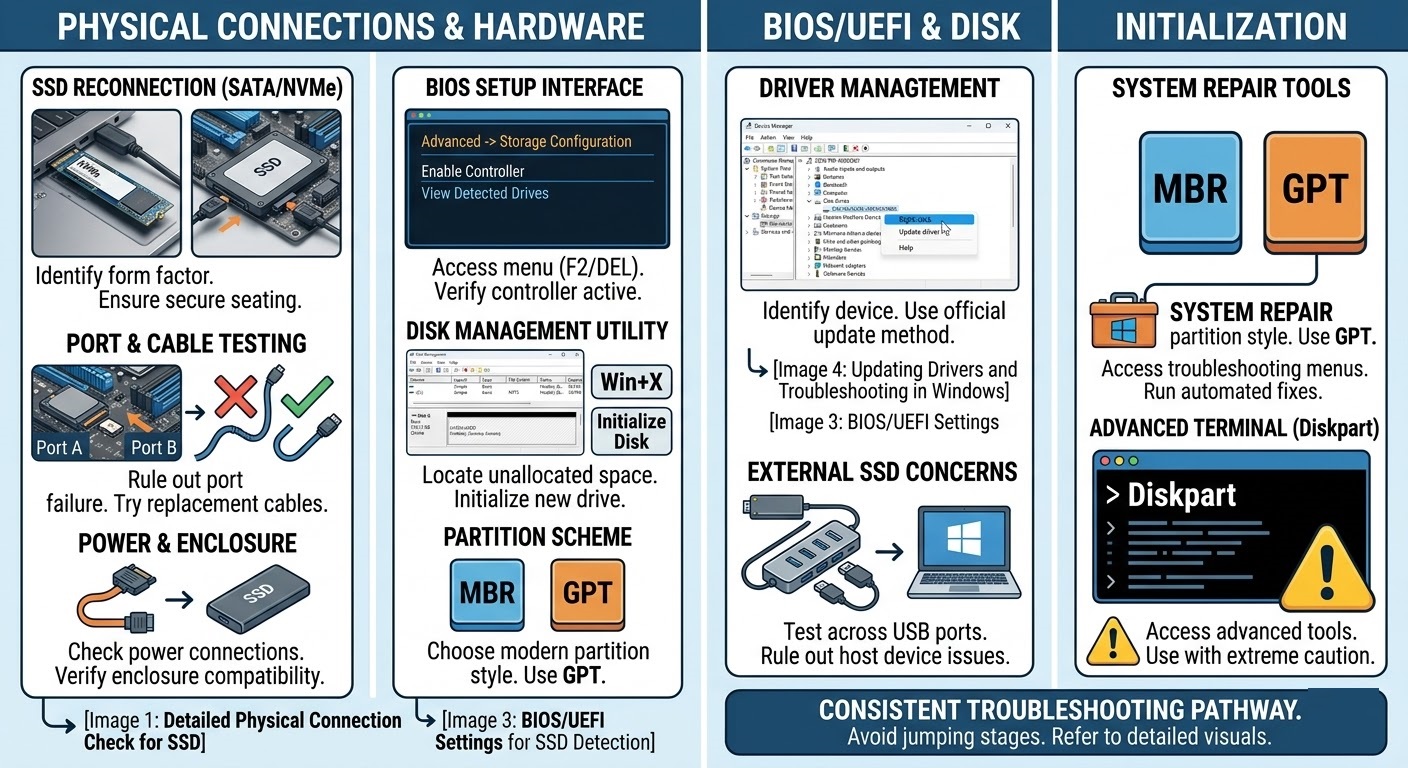
1. Check Physical Connections First (Don’t Skip This)
It sounds basic, but trust me—this solves a surprising number of cases.
- Reconnect SATA or NVMe SSD
- Try a different port or cable
- Ensure power supply is stable
If you’re dealing with a SATA SSD not working Windows 11, cables are often the culprit.
2. Fix SSD Not Showing in Windows 11 via Disk Management
Sometimes the drive is there… just invisible.
Steps:
- Press
Win + X→ Open Disk Management - Look for an unallocated drive
- Right-click → Select Initialize Disk
- Create a new partition
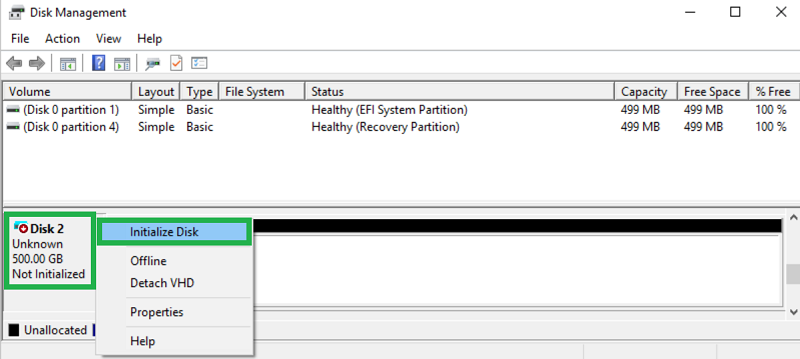
This is the easiest way to fix SSD not appearing in disk management or when disk management not showing SSD properly.
3. Initialize SSD Windows 11 Properly
A brand-new SSD won’t appear unless initialized.
MBR vs GPT Comparison
| Feature | MBR | GPT |
|---|---|---|
| Max Size | 2TB | Unlimited |
| Boot Mode | Legacy BIOS | UEFI |
| Reliability | Basic | Advanced |
| Recommended | No | Yes |
Choose GPT unless you have a specific reason not to.
This fix is essential when your new SSD not showing up Windows 11.
4. Fix Windows 11 SSD Not Recognized by Updating Drivers
Driver issues are sneaky.
Steps:
- Open Device Manager
- Expand Disk Drives
- Right-click SSD → Update Driver
You can also manually update SSD drivers Windows 11 from the manufacturer’s website.
5. Solve SSD Not Detected in BIOS
If your SSD doesn’t appear in BIOS, Windows won’t detect it either.
Try this:
- Enter BIOS/UEFI (usually F2/DEL key)
- Enable storage controller
- Check if SSD is listed
If you see SSD not listed in boot menu, it’s likely a BIOS issue.
6. Fix NVMe SSD Not Detected Windows 11
NVMe drives can be tricky.
- Ensure motherboard supports NVMe
- Update BIOS firmware
- Disable CSM mode (if needed)
This often resolves hardware compatibility problems.
7. Fix External SSD Not Recognized Windows 11
External drives have their own quirks.
- Try a different USB port
- Use another system to test
- Update USB drivers
This is especially helpful for external SSD not recognized Windows 11 cases.
8. Run Windows Troubleshooter
Sometimes Windows can fix itself (surprisingly).
- Go to Settings → System → Troubleshoot
- Run hardware troubleshooter
This helps with general Windows 11 storage troubleshooting.
9. Fix Internal SSD Not Detected Issue Using CMD
Advanced users can try this:
diskpart
list disk
select disk X
clean
create partition primary
format fs=ntfs quick
⚠️ Warning: This deletes all data.
10. Resolve Fix Storage Device Not Detected Error
If none of the above works:
- Update Windows 11
- Reset BIOS settings
- Check SSD health using SMART tools
Comparison: SATA vs NVMe SSD Detection Issues
SATA vs NVMe Troubleshooting
| Feature | SATA SSD | NVMe SSD |
|---|---|---|
| Detection Ease | Easy | Moderate |
| Speed | Slower | Faster |
| Common Issues | Cable faults | BIOS compatibility |
| Fix Complexity | Low | Medium |
This comparison highlights BIOS and UEFI configuration issues and hardware compatibility problems.
💡 Pro Tips (From Experience)
- Always check BIOS first—it saves time
- New SSD? Initialize it immediately
- NVMe drives need updated BIOS more often
- Cheap cables = big problems
Honestly, I’ve wasted hours debugging what turned out to be a loose cable. Don’t repeat that mistake.
🧠 Conclusion
Dealing with SSD issues can feel overwhelming, but most problems come down to a few common factors. Whether it’s disk initialization and partition errors, outdated drivers, or BIOS and UEFI configuration issues, there’s almost always a solution.
This guide on How To Fix Windows 11 Not Detecting SSD covered everything from basic checks to advanced fixes. If your system still doesn’t recognize your drive, there’s a chance of data drive recognition failure due to hardware damage—but that’s rare.
Take it step by step. Don’t rush. You’ll get there.
❓ FAQ (Quick Answers)
1. Why is my SSD not showing in Windows 11?
It could be due to uninitialized disk, outdated drivers, or BIOS settings.
2. How do I fix SSD not detected in BIOS?
Enable storage settings, update BIOS, and check physical connections.
3. What to do if disk management not showing SSD?
Initialize the disk or assign a drive letter.
4. Why is my NVMe SSD not detected Windows 11?
Check motherboard compatibility and update BIOS firmware.
5. Can a faulty SSD cause detection issues?
Yes, but it’s less common than software or configuration problems.