Updating your BIOS can improve performance—but sometimes, it backfires. Maybe your system starts lagging, certain hardware stops working, or stability drops unexpectedly. That’s when many users start searching for How To Downgrade BIOS To Previous Version.
Honestly, BIOS downgrading isn’t something you do every day. It’s a bit technical, slightly risky, and requires attention. But when done correctly, it can restore system performance and fix annoying issues caused by recent updates.
In this guide, I’ll walk you through everything—from preparation to execution—using a practical, human-first approach. Along the way, we’ll also touch on concepts like firmware version management, system stability optimization, hardware compatibility issues, low-level system configuration, and motherboard firmware control.
What Does BIOS Downgrade Actually Mean?
A BIOS downgrade is simply the process of reverting your system firmware to an earlier version. In technical terms, it’s a BIOS update rollback or revert BIOS version process.
Why would anyone do this?
- A new update caused bugs
- Performance dropped
- Hardware stopped responding
- Compatibility issues appeared
Sometimes newer isn’t better—especially when it comes to firmware.
When Should You Downgrade BIOS?
Before jumping into How To Downgrade BIOS To Previous Version, it’s important to know when it’s actually needed.
✔️ Common Situations:
- After a failed update → use BIOS update failed fix
- System instability or crashes
- Boot issues or black screen
- Device drivers not working
- BIOS update removed certain features
BIOS Upgrade vs Downgrade
| Feature | BIOS Upgrade | BIOS Downgrade |
|---|---|---|
| Purpose | Add features & fixes | Restore stability |
| Risk Level | Medium | Slightly Higher |
| Use Case | Performance boost | Fix compatibility issues |
| Tools Required | BIOS updater | Older firmware + flash tool |
| Recommendation | Generally safe | Only when necessary |
👉 In short, upgrading is proactive, downgrading is corrective.
Preparation Before BIOS Downgrade
Let’s not rush. A little preparation can save your system.
🔹 Key Steps:
- Backup important data
- Check current BIOS version
- Download older firmware
- Ensure stable power supply
Also, verify if your manufacturer allows downgrade BIOS firmware—some systems block it.
How To Downgrade BIOS To Previous Version (Step-by-Step)
Now let’s get into the real process of How To Downgrade BIOS To Previous Version.
Method 1: Downgrade BIOS Using USB Flash Drive
This is the most reliable and widely used method.
Steps:
- Download the older BIOS file
- Format USB to FAT32
- Copy BIOS file to USB
- Enter BIOS setup
- Launch BIOS flash utility tool
- Select the file and start flashing
This method is also known as downgrade BIOS using USB flash drive.
Method 2: Using BIOS Recovery Mode
If your system isn’t booting properly, try BIOS recovery mode.
Steps:
- Insert USB with BIOS file
- Press recovery key combo (varies by brand)
- System auto-detects firmware
- Begin recovery process
This is often the best safe BIOS downgrade method when things go wrong.
Method 3: Manufacturer Utility (Windows-Based)
Some brands allow downgrade BIOS Windows 11 directly.
Tools:
- HP BIOS Utility
- Dell SupportAssist
- Lenovo Vantage
These tools simplify the BIOS flashing process but may restrict older versions.
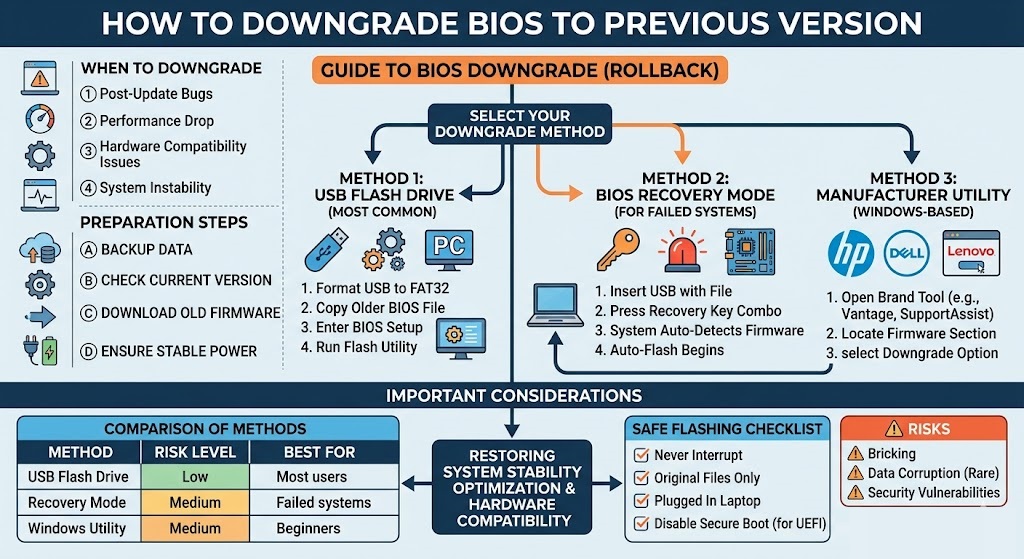
BIOS Downgrade Methods Comparison
| Method | Difficulty | Risk | Best For |
|---|---|---|---|
| USB Flash Drive | Medium | Low | Most users |
| Recovery Mode | Medium | Medium | Failed systems |
| Windows Utility | Easy | Medium | Beginners |
Brand-Specific BIOS Downgrade Tips
Different manufacturers handle BIOS differently.
🔹 HP / Dell / Lenovo:
- Use official tools for rollback BIOS update HP Dell Lenovo
- Enable downgrade option in BIOS settings
- Some require disabling security features
How To Flash Older BIOS Version Safely
This is where many users get nervous—and rightly so.
Best Practices:
- Never interrupt flashing
- Use original firmware files
- Avoid unofficial sources
- Keep laptop plugged in
These steps ensure a smooth how to flash older BIOS version process.
Common BIOS Downgrade Errors & Fixes
| Issue | Cause | Solution |
|---|---|---|
| BIOS file not detected | Wrong format | Use FAT32 USB |
| Downgrade blocked | Security setting | Enable rollback option |
| System won’t boot | Corrupted BIOS | Use recovery mode |
| Flash failed | Power loss | Retry with stable power |
Risks of BIOS Downgrade (Be Honest About It)
Let’s not sugarcoat it—downgrading BIOS has risks.
- System bricking
- Data corruption (rare but possible)
- Security vulnerabilities
- Loss of new features
Still, if done correctly, the benefits outweigh the risks—especially for system stability optimization and fixing hardware compatibility issues.
Advanced Tip: Downgrade UEFI BIOS Version
Modern systems use UEFI instead of legacy BIOS.
To downgrade UEFI BIOS version:
- Disable Secure Boot
- Enable Legacy Mode (if needed)
- Use compatible firmware only
This is part of deeper low-level system configuration and motherboard firmware control.
💬 Real Talk: Is BIOS Downgrade Worth It?
From experience? Yes—if your system broke after an update.
But no—if everything is working fine.
BIOS isn’t like regular software. You don’t tweak it for fun. You fix it when necessary.
Conclusion
Understanding How To Downgrade BIOS To Previous Version is an essential skill for troubleshooting system issues. While the process involves some risk, following the correct steps ensures a safe and successful rollback.
Whether you’re dealing with bugs, instability, or compatibility problems, a proper BIOS update rollback can restore balance to your system. Just remember—this isn’t about chasing older software; it’s about smarter firmware version management and long-term system stability optimization.
Take your time, follow instructions carefully, and your system will thank you.
❓ FAQ – BIOS Downgrade
1. Is it safe to downgrade BIOS?
Yes, if done properly using official tools and files. Always follow a safe BIOS downgrade method.
2. Can I downgrade BIOS without USB?
Sometimes yes, using Windows utilities, but USB is the most reliable option.
3. Why would I need a BIOS downgrade?
To fix bugs, resolve hardware compatibility issues, or restore performance.
4. Does BIOS downgrade delete data?
No, but it’s always smart to back up your files.
5. What if BIOS downgrade fails?
Use BIOS recovery mode to restore your system.