How To Fix Laptop Not Detecting External Monitor. Connecting your laptop to a second screen should be simple. However, things don’t always go as planned. You plug in the cable, turn on the monitor, and… nothing happens. If you’re wondering How To Fix Laptop Not Detecting External Monitor, you’re not alone. This is one of the most common display problems Windows users face.
The good news is that the issue is usually easy to solve. Whether it’s a loose HDMI cable, outdated monitor drivers, incorrect Windows display settings, or a faulty GPU driver, there are several ways to get your external display working again.
This guide walks you through practical solutions that work for both beginners and experienced users.
Common Causes of the Problem
Before trying random fixes, it’s helpful to understand why your laptop can’t detect another screen.
Some of the most common reasons include:
- Loose or damaged HDMI, USB-C, or DisplayPort cable
- Incorrect display settings
- Outdated graphics or monitor drivers
- Wrong input source selected on the monitor
- Windows update conflicts
- Faulty graphics hardware
- Unsupported monitor resolution or refresh rate
Many users assume the monitor is broken when the real problem is simply a disabled display output.
Signs and Symptoms
You may notice one or more of these problems:
- Laptop Not Detecting External Monitor
- Black screen on the second monitor
- Second Monitor Not Detected
- Windows only shows one display
- Flickering external screen
- “No Signal” message
- Laptop HDMI Not Detecting Monitor
- Screen mirroring stops working unexpectedly
If these symptoms sound familiar, continue with the troubleshooting steps below.
Common Problems and Likely Causes
| Problem | Possible Cause | Difficulty |
|---|---|---|
| No signal on monitor | Loose HDMI cable | Easy |
| External Monitor Not Detected Windows 11 | Incorrect display settings | Easy |
| Flickering display | Faulty cable or refresh rate | Medium |
| Graphics Driver Not Detecting Monitor | Outdated GPU driver | Medium |
| Monitor works on another PC | Laptop display output issue | Medium |
| No display from USB-C | Unsupported USB-C port | Advanced |
How To Fix Laptop Not Detecting External Monitor -Step-by-Step Solutions
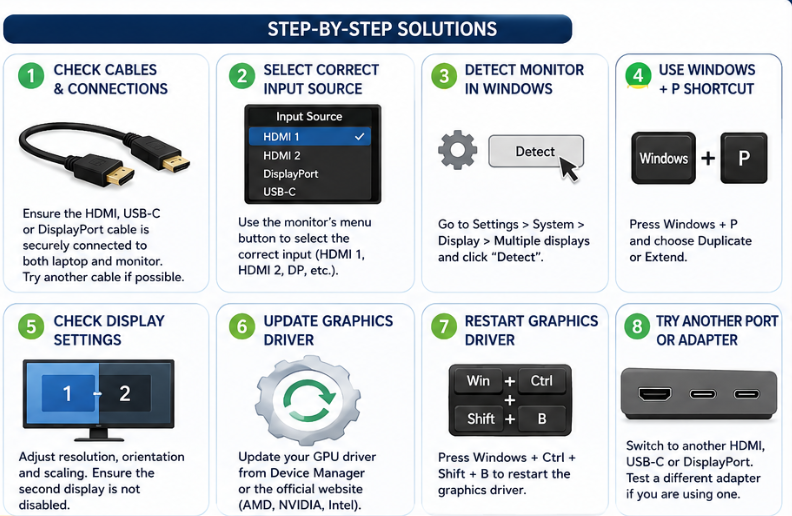
1. Check All Cable Connections
It sounds obvious, but this solves more problems than most people expect.
Disconnect the cable from both the laptop and monitor. Then reconnect it firmly. If possible, test another HDMI cable, DisplayPort cable, or USB-C display cable.
Also make sure your monitor is powered on and set to the correct input source.
Pro Tip: Try connecting the monitor to another laptop. If it works there, the problem is likely with your computer rather than the monitor.
2. Detect the Monitor Manually
Sometimes Windows simply doesn’t recognise the new display automatically.
To Detect Second Monitor Windows 11:
- Open Settings.
- Go to System → Display.
- Scroll down to Multiple Displays.
- Click Detect.
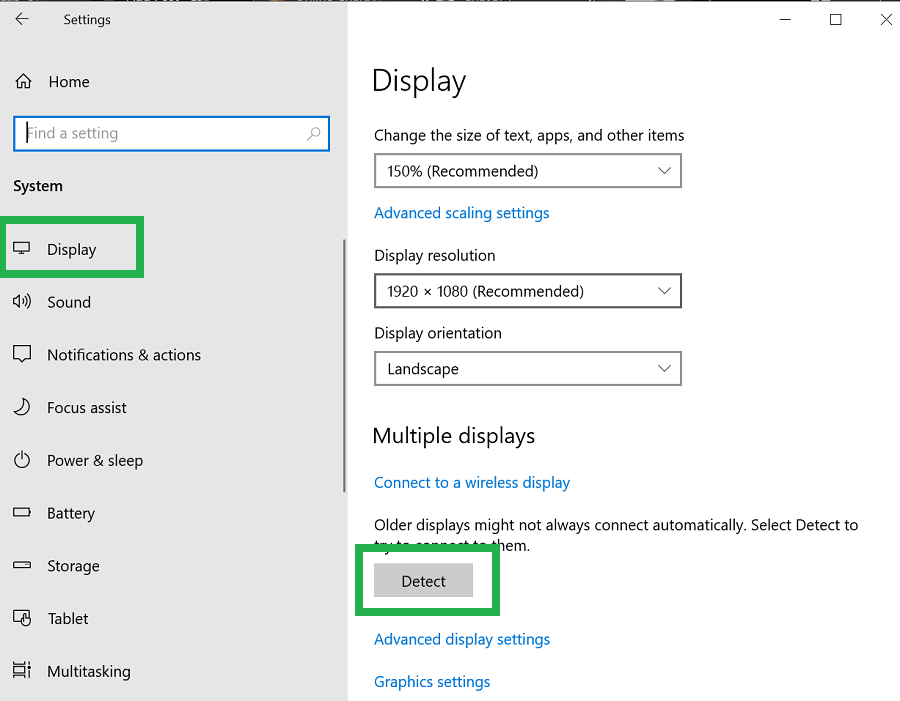
This manually forces Windows to search for another connected screen.
If the monitor appears, your problem is solved in seconds.
3. Use the Windows Display Shortcut
Windows includes a hidden shortcut that many users forget about.
Press:
Windows + P
You’ll see four options:
- PC Screen Only
- Duplicate
- Extend
- Second Screen Only
If your Laptop Screen Mirroring Not Working, choose Duplicate.
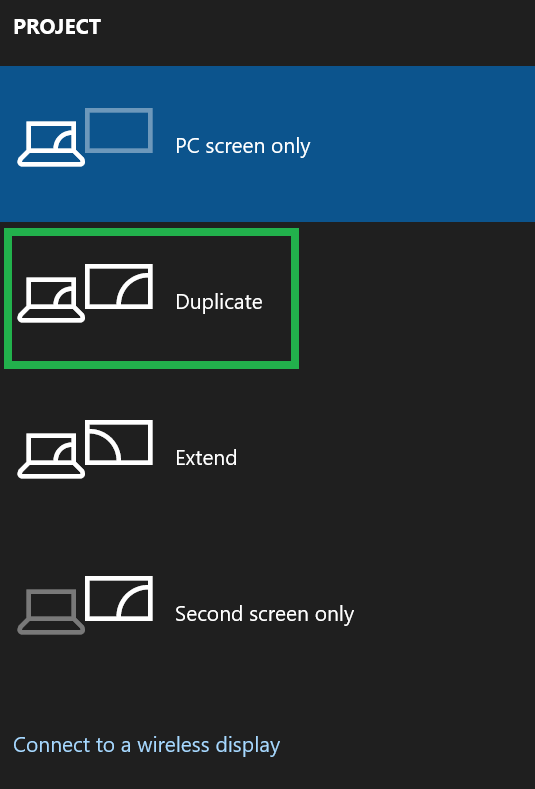
If you’re using two displays for work, choose Extend for a proper dual monitor setup.
4. Check Windows Display Settings
Incorrect Windows display settings often prevent an external display from appearing.
Open:
Settings → System → Display
Look for:
- Wrong monitor arrangement
- Disabled second display
- Incorrect scaling
- Unsupported monitor resolution
- Wrong refresh rate
Changing these settings often fixes Windows 11 Dual Monitor Setup Not Working without installing anything.
5. Update Your Graphics Driver
A damaged or outdated GPU driver is another common cause.
Open Device Manager, expand Display Adapters, right-click your graphics card, and choose Update Driver.
This helps resolve:
- Update Graphics Driver for External Monitor
- Intel Graphics External Monitor Fix
- NVIDIA External Monitor Not Working
- AMD External Monitor Not Detected
If the latest driver causes problems, try rolling back to the previous version instead.
6. Test a Different Port or Adapter
Sometimes the issue isn’t Windows at all—it’s the port you’re using.
If your laptop has multiple display outputs, try switching between HDMI, USB-C, or DisplayPort. If you’re using an adapter, such as USB-C to HDMI, test a different one. A faulty adapter can easily cause a USB-C Monitor Not Detected or DisplayPort Monitor Not Detected error.
Warning: Not every USB-C port supports video output. Check your laptop’s specifications before assuming the port is defective.
7. Reinstall Graphics and Monitor Drivers
If updating the driver doesn’t help, reinstalling it often does.
- Press Windows + X and open Device Manager.
- Expand Display Adapters.
- Right-click your graphics card and select Uninstall Device.
- Restart your laptop.
- Windows will automatically reinstall the required monitor drivers and GPU driver.
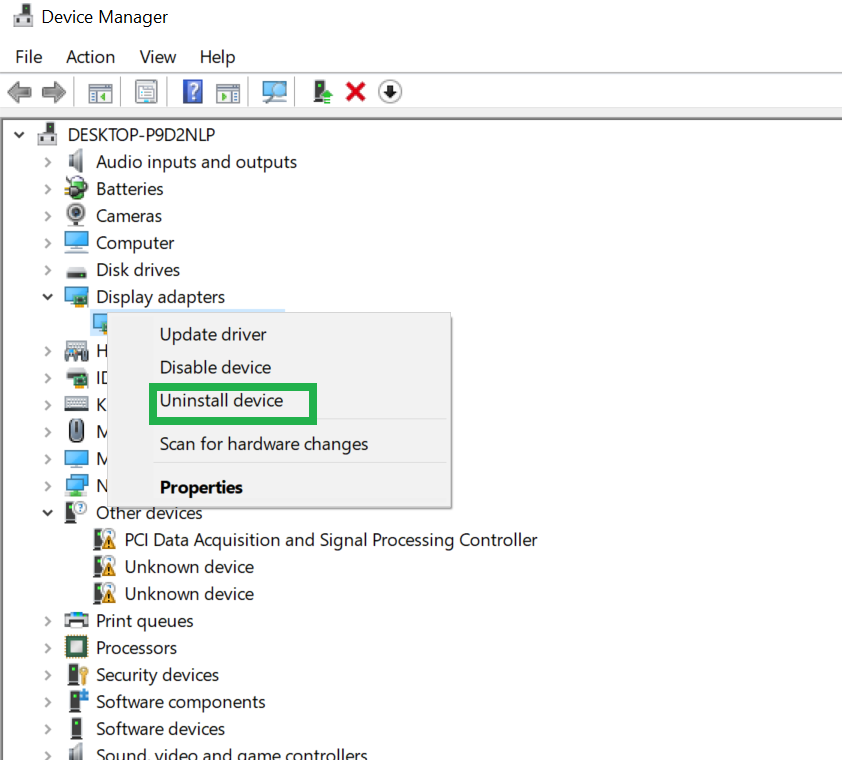
This method can resolve problems such as Laptop Not Recognizing HDMI Display and External Monitor Not Working on Laptop after a Windows update.
8. Restart the Graphics Driver
Windows includes a handy shortcut that restarts the graphics driver without rebooting the entire computer.
Press:
Windows + Ctrl + Shift + B
Your screen may briefly flash and you’ll hear a beep. If the issue was caused by a temporary graphics glitch, your external display may begin working immediately.
Advanced Troubleshooting
If the monitor still isn’t detected, try these advanced checks.
Verify BIOS or UEFI Settings
Some laptops allow display options to be configured in the BIOS or UEFI firmware. If external display support has been disabled, Windows won’t detect the monitor correctly.
Check for Windows Updates
Microsoft regularly releases fixes for display compatibility issues. Installing the latest updates can solve unexpected problems with multiple displays.
Test Another Monitor
If possible, connect a different monitor or TV. This quickly tells you whether the problem lies with the laptop or the original monitor.
Troubleshooting Guide
| Problem | Recommended Solution | Result |
|---|---|---|
| Second Monitor Not Detected | Click Detect in Display Settings | Often fixes instantly |
| Laptop HDMI Not Detecting Monitor | Replace HDMI cable or try another port | High success rate |
| USB-C Monitor Not Detected | Confirm USB-C supports video output | Medium |
| Graphics Driver Not Detecting Monitor | Reinstall or update GPU driver | High |
| Incorrect screen resolution | Adjust display settings | Easy fix |
| Monitor says “No Signal” | Check monitor input source | Very common |
When Should You Reset or Reinstall Windows?
Reinstalling Windows should be your last option.
Consider a reset only if:
- The problem started after a major Windows update.
- Multiple monitors fail to work.
- Graphics drivers repeatedly become corrupted.
- System files are damaged.
- None of the troubleshooting methods solve the issue.
Before reinstalling Windows, back up your important files and create a restore point if possible.
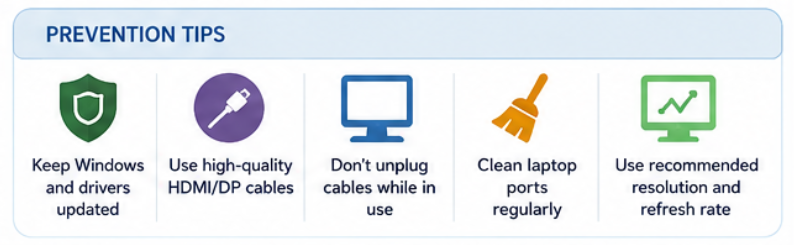
Prevention Tips
You can reduce the chances of future display issues by following a few simple habits.
- Keep Windows and graphics drivers updated.
- Use high-quality HDMI or DisplayPort cables.
- Avoid unplugging display cables while the laptop is under heavy load.
- Clean laptop ports regularly to remove dust.
- Use the monitor’s recommended monitor resolution and refresh rate.
- Restart your laptop occasionally instead of leaving it running for weeks.
Small maintenance habits can prevent many common display problems.
Conclusion
Knowing How To Fix Laptop Not Detecting External Monitor can save you hours of frustration. In most cases, the solution is surprisingly simple—checking cables, adjusting Windows display settings, updating the GPU driver, or manually detecting the display.
If basic troubleshooting doesn’t work, move on to reinstalling drivers, testing different ports, or checking your BIOS settings. Only consider resetting Windows after ruling out hardware and driver issues.
With the steps covered in this guide, you should be able to restore your dual monitor setup and get your external display working again without unnecessary repairs.
Frequently Asked Questions (FAQ)
1. Why is my laptop not detecting my external monitor?
The most common causes include faulty cables, incorrect display settings, outdated graphics drivers, or an unsupported display connection.
2. How do I force Windows 11 to detect a second monitor?
Open Settings → System → Display, scroll to Multiple Displays, and click Detect.
3. Why does my monitor say “No Signal”?
This usually means the monitor is on the wrong input source, the cable is loose, or the laptop isn’t sending a video signal.
4. Can a bad HDMI cable cause display detection issues?
Yes. A damaged or low-quality HDMI cable is one of the most common reasons an external monitor isn’t recognised.
5. Should I update my graphics driver?
Absolutely. Updating or reinstalling the graphics driver often resolves display detection problems, especially after Windows updates.
6. Why is my USB-C monitor not working?
Some USB-C ports only support data transfer and charging. Make sure your laptop’s USB-C port supports DisplayPort Alt Mode or video output.
7. When should I reinstall Windows?
Only after you’ve tried all other troubleshooting methods and confirmed that the issue isn’t caused by cables, ports, drivers, or hardware.