Best BIOS Settings for Faster Boot Time. When you press the power button on your computer, the first process that kicks in is the BIOS (Basic Input/Output System). It initializes your hardware and prepares your system for the operating system to load. While this step is necessary, certain settings inside the BIOS can significantly impact how fast your computer starts. By adjusting the Best BIOS Settings for Faster Boot Time, you can reduce delays, optimize performance, and make your PC reach the desktop much quicker.
How to Fix Laptop Overheating Using BIOS Settings
In this article, we’ll explore how to change BIOS settings for faster boot, optimization tips, and tables with easy-to-follow comparisons to ensure your system boots in record time.
Why BIOS Settings Impact Boot Speed?
Before diving into the configurations, let’s understand why BIOS has such a big role in startup speed:
•BIOS performs a POST (Power-On Self-Test), checking all hardware components.
•It decides how to initialize drives (HDD, SSD, USB, or network boot).
•Depending on your chosen boot performance settings in BIOS, it may either load faster or spend extra time scanning.
•Newer UEFI-based BIOS supports fast boot BIOS settings, which skip unnecessary checks.
•Optimizing these processes ensures your system doesn’t waste time during startup.
Best BIOS Settings for Faster Boot Time:
Here are the most effective BIOS settings to enable or adjust for a quick startup.
Method 1 – Enable Fast Boot BIOS Settings:
Most modern motherboards come with a Fast Boot option. This skips lengthy POST checks like memory tests or peripheral scans, allowing Windows to load faster.
1.Go to BIOS setup > Boot Options > Enable Fast Boot.
2.This is especially effective for SSD-based systems.

Method 2 – Set Primary Boot Device:
If your BIOS is scanning for multiple boot devices (USB, network boot, DVD, etc.), it slows down startup. Configure your primary boot device to the drive where your OS is installed.
BIOS Setup > Boot Priority > Set SSD/HDD with Windows as the first boot option.
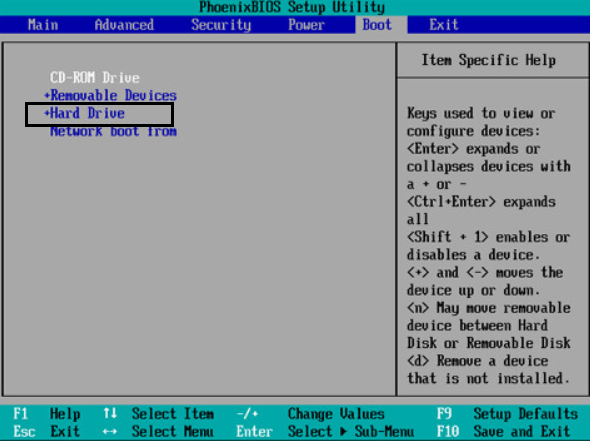
This simple tweak can reduce boot time in BIOS by several seconds.
Method 3 – Switch from Legacy to UEFI Mode:
UEFI is much faster than the traditional Legacy BIOS. If your hardware and OS support it, switching ensures best BIOS settings to improve boot speed.
Go to BIOS Setup > Boot Mode > Choose UEFI.
Requires Windows installed in UEFI mode (GPT partition style).
Method 4 – Enable AHCI for Storage Devices:
For SSDs, enabling AHCI (Advanced Host Controller Interface) improves drive response time.
BIOS Setup > SATA Configuration > Set mode to AHCI.
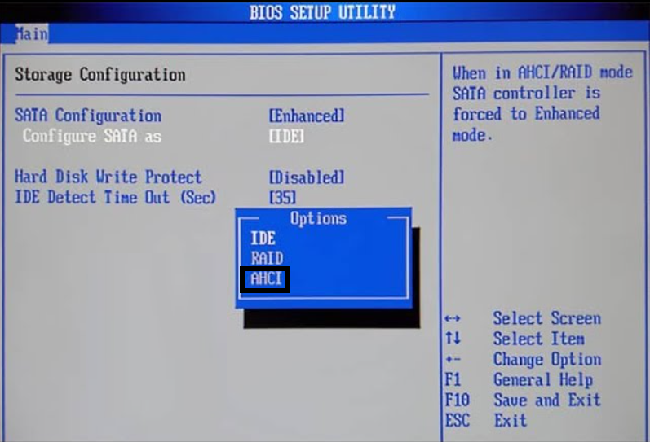
This helps in optimizing BIOS settings for performance, especially with fast SSDs.
Method 5 – Disable Unused Hardware Checks:
If your BIOS is checking for hardware you don’t use (network adapters, secondary drives), disable them.
1.Disable onboard LAN (if not needed).
2.Turn off unused SATA ports.
3.Disable network boot (PXE).
4.This reduces unnecessary scans during POST.
Comparison of Boot Modes
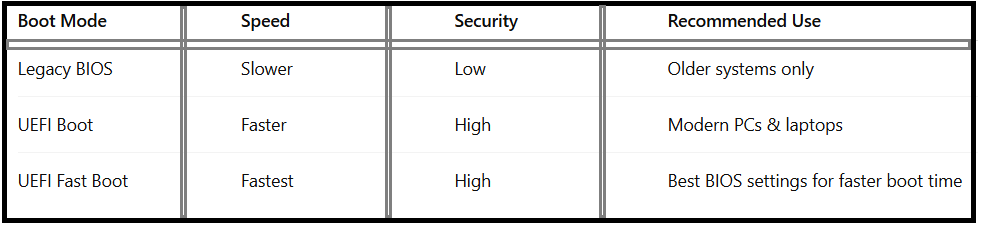
How To Change BIOS Settings For Faster Boot:
Now that we know the options, let’s explore the steps on how to change BIOS settings for faster boot.
1.Restart your PC and press the BIOS key (F2, Del, F10, or Esc depending on manufacturer).
2.Navigate to Boot Settings.
3.Enable Fast Boot BIOS settings.
4.Adjust boot priority to OS drive.
5.Enable UEFI if supported.
6.Save changes and exit.
These steps not only improve boot speed but also optimize BIOS settings for performance.
BIOS Settings and Their Impact on Boot Time:
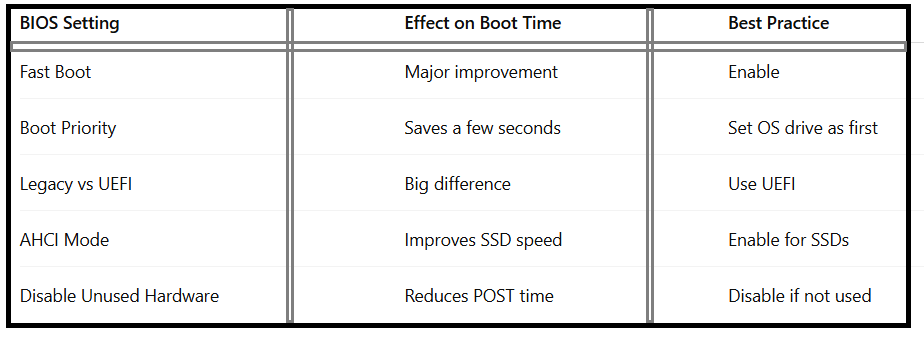
Advanced BIOS Optimization for Quick Boot:
Beyond the basics, advanced users can tweak additional BIOS settings for quick boot performance.
Memory Check:
Some BIOS versions allow skipping detailed memory tests. Disable it for faster startup.
Secure Boot:
While it enhances security, it may slightly affect boot time. Keep it enabled if security is a concern.
Power-On Self-Test (POST) Delay:
Set this to 0 or the lowest possible.
These advanced optimizations reduce boot time in BIOS without sacrificing stability.
How to Make PC Boot Faster with BIOS and Windows:
1.BIOS tweaks alone might not be enough if Windows startup is cluttered. For best results:
2.Disable unnecessary startup programs.
3.Keep drivers updated.
4.Use SSD instead of HDD.
5.Enable Windows Fast Startup (Control Panel > Power Options > Choose what power buttons do > Turn on fast startup).
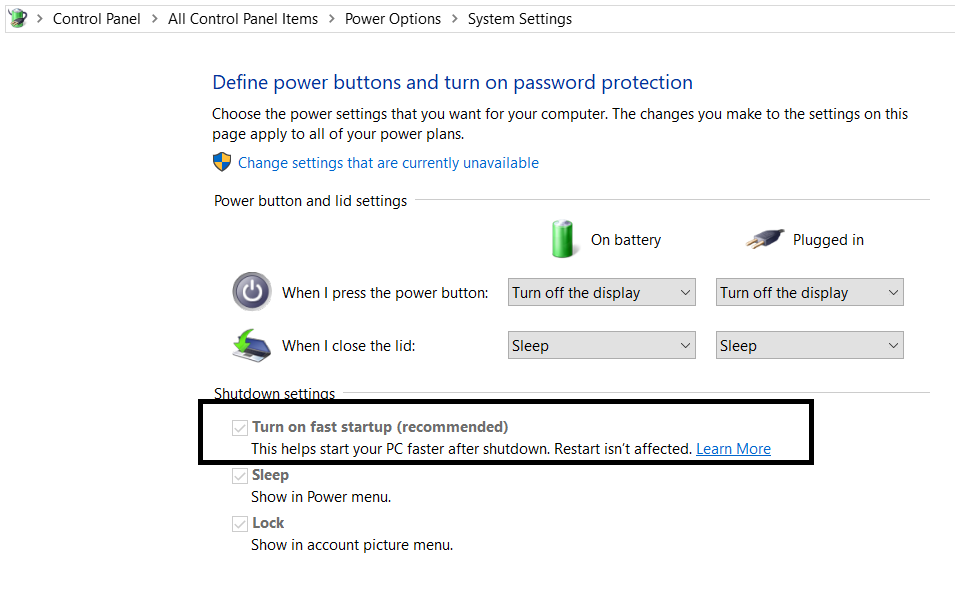
This combination ensures both BIOS and Windows are working together for quick boot.
BIOS vs Windows Optimizations:

Common Mistakes When Adjusting BIOS for Boot Speed:
While changing BIOS settings for faster boot is safe, mistakes can cause issues:
Wrong boot order:
System won’t boot if OS drive is not selected.
Disabling essential hardware:
Don’t disable storage controllers or primary USB ports.
Switching to UEFI without reinstall:
If Windows is installed in Legacy mode, switching may prevent boot.
Always back up important data before making changes.
FAQ – BIOS Settings for Faster Boot Time
1.Does enabling Fast Boot affect performance?
No, Fast Boot only reduces POST checks. It won’t impact performance once Windows loads.
2.Should I disable Secure Boot for faster startup?
Secure Boot adds a small delay but provides better security. Keep it enabled unless you have compatibility issues.
3.Can changing BIOS settings damage my PC?
No, but incorrect boot order or disabling critical hardware may prevent startup. Always note original settings.
4.What’s better for speed: UEFI or Legacy BIOS?
UEFI is faster, more secure, and optimized for modern hardware.
5.How To Make Your Windows PC Boot Faster besides BIOS tweaks?
Disable startup apps, upgrade to SSD, and enable Windows Fast Startup.
Final Thoughts:
Tweaking your BIOS isn’t just for enthusiasts—it’s one of the easiest ways to make your computer start faster. By applying the Best BIOS Settings for Faster Boot Time, such as enabling Fast Boot, setting boot priority, and switching to UEFI, you can shave valuable seconds off startup. Combine these with Windows optimizations like Fast Startup, and your PC will reach the desktop almost instantly.