How To Detect Malware Without Antivirus. Malware doesn’t always announce itself loudly. Sometimes it whispers. A slow PC. Random pop-ups. Strange background activity.
If you’ve ever wondered How To Detect Malware Without Antivirus, you’re not alone. Many users rely entirely on security software—but what happens if your antivirus fails, gets disabled, or simply misses something?
This guide explains practical, real-world malware detection techniques using observation, system performance monitoring, and smart manual checks. No fancy tools required. Just awareness.
Let’s break it down step by step.
Why Learning How To Detect Malware Without Antivirus Matters
Antivirus software is helpful. But it’s not perfect. Some modern threats are designed specifically to evade automated scanners.
That’s where malware detection without antivirus becomes valuable.
By understanding:
- process behavior analysis
- unauthorized system changes
- abnormal network traffic
- core operating system security concepts
You gain control instead of relying entirely on software alerts.
And honestly? Knowing what’s happening inside your PC feels empowering.
How To Detect Malware Without Antivirus by Observing Signs of Malware Infection
The first step is awareness.
Most infections leave behavioral clues. Subtle at first. Then obvious.
Common Signs of Malware Infection
| ⚠️ Symptom | What It Usually Means | What To Check |
|---|---|---|
| Slow startup | Hidden startup entries | Check startup programs |
| Random pop-ups | Adware infection | Browser extensions |
| High CPU usage | Crypto-miner or spyware | Task Manager |
| Internet slowdown | Background data theft | Network usage |
| Unknown apps installed | Trojan activity | Installed programs list |
These are classic malware symptoms on Windows, and they shouldn’t be ignored.
If your system suddenly behaves differently—trust your instinct. It’s often right.
How To Detect Malware Without Antivirus Using Task Manager
One of the easiest ways to detect malware manually is through Task Manager.
Press Ctrl + Shift + Esc.
Now look carefully.
Watch for:
- Suspicious processes in Task Manager
- Strange names (random letters or misspellings)
- Duplicate processes that shouldn’t exist
- Extremely high CPU or RAM usage
🚩 Red Flag: Unusual CPU and Disk Usage
If your PC is idle but CPU usage is above 70%, something isn’t normal.
| Process Indicator | Safe Behavior | Suspicious Behavior |
|---|---|---|
| CPU usage | 0–15% idle | 50–100% idle |
| Disk activity | Minimal | Constant high activity |
| Memory use | Stable | Gradually increasing |
This method works because malware often runs silently in the background—crypto miners, spyware, data collectors.
Sometimes you’ll notice unknown programs running in background. Google the process name. If there’s little information or security forums flag it? Investigate further.
Check Startup Programs for Malware
Another powerful way to detect malware manually is reviewing startup entries.
Malware loves persistence. It wants to relaunch every time you reboot.
How to Check:
- Open Task Manager
- Click the Startup tab
- Review unknown or suspicious entries
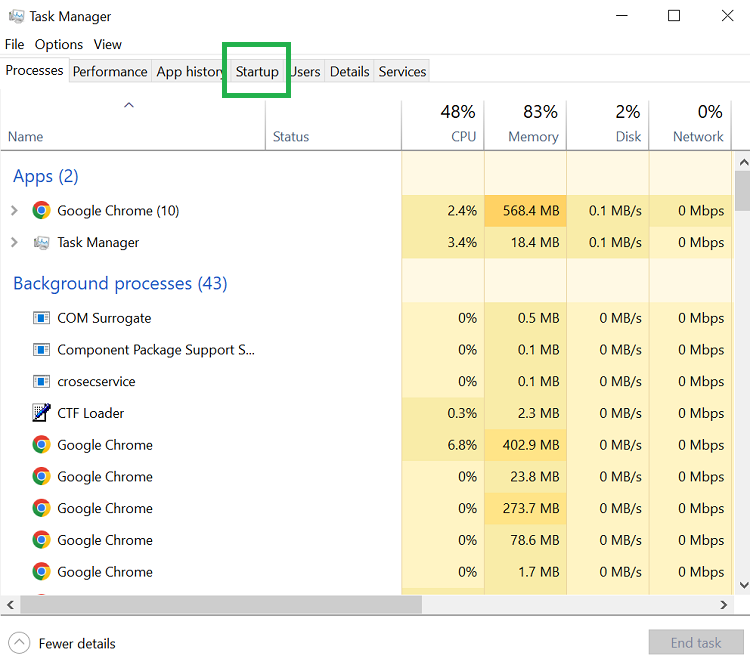
Look for:
- Publisher listed as “Unknown”
- Strange file paths
- Random file names
This step helps you check startup programs for malware and identify hidden threats early.
| Startup Entry | Status | Action |
|---|---|---|
| Recognized app | Enabled | Keep |
| Unknown publisher | Enabled | Research |
| Random letters name | Enabled | Disable immediately |
If you disable something and your PC suddenly runs smoother? That’s telling.
How To Check for Malware on PC Using Network Monitoring
Malware often communicates with external servers.
So how do you detect that?
Open Resource Monitor → Network tab.
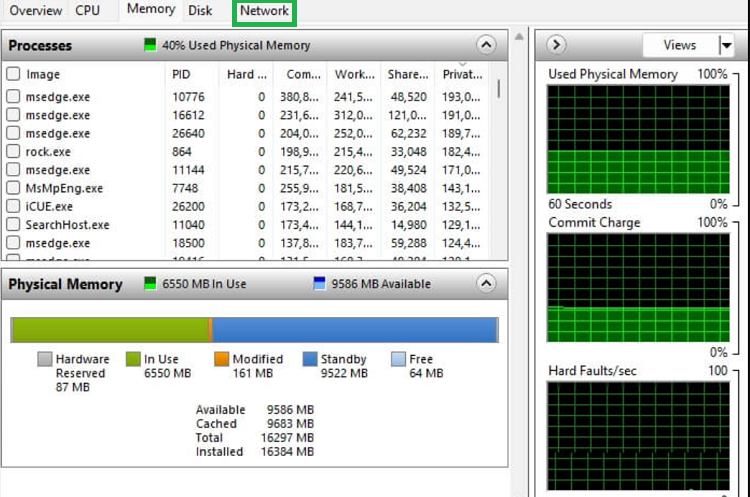
Look for:
- Suspicious network activity on computer
- High outbound traffic when idle
- Unknown IP connections
🚨 Watch for Abnormal Network Traffic
If you’re not downloading or streaming—but data is being transmitted heavily—this could signal spyware or ransomware.
This form of system performance monitoring is underrated but extremely effective.
How To Find Hidden Malware Through File and Folder Inspection
Some malware hides in unusual directories.
Common hiding spots:
- AppData folder
- Temp folders
- Hidden system files
Enable “Show Hidden Files” in File Explorer.
Now look for:
- Recently created unknown folders
- Random file names
- Executables in unusual locations
This is how you how to find hidden malware without installing additional tools.
And yes, it takes patience. But it works.
Signs Your Computer Is Hacked
Sometimes the infection isn’t just malware—it’s remote access.
Clear signs your computer is hacked include:
- Webcam light turning on randomly
- Mouse moving on its own
- Passwords changed unexpectedly
- New admin accounts created
These are examples of unauthorized system changes.
If this happens, disconnect from the internet immediately.
Browser Behavior: A Major Red Flag
Browsers are common targets.
Look for:
- Homepage changes
- Unknown extensions
- Search engine redirects
- Fake update popups
These are classic malware symptoms on Windows and often linked to adware or browser hijackers.
Check extensions manually. Remove anything unfamiliar.
Malware Detection Techniques vs Antivirus Scanning
Here’s a realistic comparison.
| Feature | Manual Detection | Antivirus Software |
|---|---|---|
| Control | High | Automated |
| Speed | Slower | Faster |
| Accuracy | Depends on skill | Signature-based |
| Detect Zero-Day | Possible via behavior | Sometimes misses |
| Requires Experience | Yes | No |
Understanding malware detection techniques strengthens your overall operating system security.
Ideally? Use both.
But knowing How To Detect Malware Without Antivirus ensures you’re never completely dependent.
Manual Malware Removal Methods
Once identified, how do you remove malware without antivirus software?
Basic Steps:
- Boot into Safe Mode
- End suspicious processes
- Delete malicious files
- Remove startup entries
- Reset browsers
These are effective manual malware removal methods, especially for adware and basic trojans.
For advanced rootkits? Professional tools may still be necessary.
Let’s be honest—manual removal isn’t glamorous. It’s detective work. But sometimes that’s exactly what’s needed.
How To Detect Malware Without Antivirus (Final Checklist)
Here’s a quick summary checklist:
| ✔️ Check | Tool | What To Look For |
|---|---|---|
| CPU Usage | Task Manager | High idle activity |
| Startup Entries | Task Manager | Unknown publishers |
| Network Activity | Resource Monitor | Abnormal outbound traffic |
| Browser Settings | Browser Extensions | Unknown add-ons |
| Hidden Files | File Explorer | Suspicious executables |
Follow this checklist monthly. Prevention beats panic.
Conclusion: Mastering How To Detect Malware Without Antivirus
Learning How To Detect Malware Without Antivirus isn’t about replacing security software. It’s about awareness.
Through process behavior analysis, careful system performance monitoring, and spotting abnormal network traffic, you build a second layer of defense.
Malware hides in plain sight. But behavior always reveals it.
Trust changes in your system. Question unknown programs running in background. Monitor for unauthorized system changes. Strengthen your operating system security habits.
And remember—sometimes the best security tool is simply paying attention.
Frequently Asked Questions (FAQ)
1️⃣ Can I really detect malware manually?
Yes. Many infections show visible symptoms like high CPU usage, suspicious processes, or browser changes.
2️⃣ Is malware detection without antivirus reliable?
It can be effective for common threats. Advanced malware may require specialized tools.
3️⃣ What is the biggest red flag?
Persistent unusual CPU and disk usage while the PC is idle.
4️⃣ How often should I check?
At least once a month—or immediately if you notice performance drops.
5️⃣ Should I remove malware without antivirus software?
You can for minor infections. For ransomware or rootkits, professional tools are safer.