How To Fix Hard Drive Not Showing In BIOS with proven steps to resolve HDD/SSD detection issues, BIOS errors, and boot problems fast. Why This BIOS Problem Feels So Frustrating? You power on your PC, press the BIOS key, and… nothing. Your drive isn’t there. No HDD. No SSD. Just silence.
If you’re searching for How To Fix Hard Drive Not Showing In BIOS, you’re definitely not alone.
This BIOS storage detection issue can happen suddenly—after a Windows update, a hardware upgrade, or even out of nowhere. One moment your system boots fine, the next it says boot device not found. Annoying? Absolutely.
The good news is this problem is often fixable without replacing your drive. Whether it’s a hardware connection failure, motherboard hard drive compatibility, or a simple disk initialization problem, we’ll walk through everything step by step.
What Does “Hard Drive Not Showing in BIOS” Actually Mean?
When users report hard drive not detected in BIOS, it usually means the motherboard can’t communicate with the storage device at a basic hardware level.
This can appear in several ways:
- HDD not showing in BIOS
- SSD not recognized in BIOS
- hard disk not found on startup
- BIOS cannot find boot drive
- storage device not detected in BIOS
If the BIOS can’t see the drive, Windows won’t either. Simple as that.
Common Reasons Why BIOS Is Not Detecting Your Hard Drive
Before fixing anything, it helps to know why it’s happening.
Main Causes Behind BIOS Drive Detection Problems
| Cause | Description | Common Symptom |
|---|---|---|
| Hardware connection failure | Loose or faulty SATA/NVMe cable | SATA hard drive not detected |
| BIOS misconfiguration | Wrong boot mode or disabled port | hard drive not appearing in BIOS setup |
| Drive compatibility issue | Unsupported NVMe or SSD | NVMe SSD not showing in BIOS |
| Corrupt boot settings | Boot order or UEFI conflict | hard drive not recognized during boot |
| Dead or failing drive | Physical failure | PC not recognizing hard drive |
How To Fix Hard Drive Not Showing In BIOS (Step-by-Step)
Let’s now get into the actual solutions. Start from the top—even simple fixes matter more than you think.
1. Check Physical Connections (Don’t Skip This)
It sounds basic, but this solves more cases than people admit.
- Reconnect SATA data and power cables
- Try a different SATA port
- Replace the SATA cable entirely
- For laptops, reseat the internal hard drive not detected issue carefully
A loose cable is the #1 cause behind laptop hard drive not detected in BIOS complaints.
2. Enter BIOS and Load Default Settings
Incorrect settings can trigger a boot device configuration error.
Steps:
- Enter BIOS (DEL / F2 / ESC)
- Look for “Load Optimized Defaults”
- Save and reboot
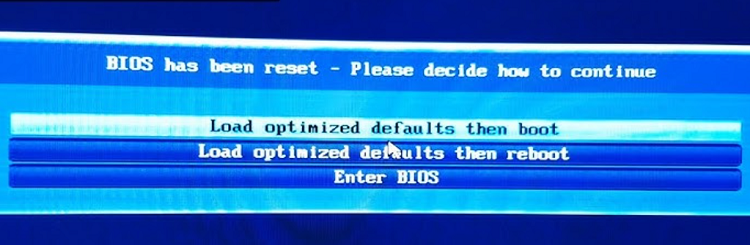
This resets storage controllers and often fixes BIOS not detecting hard disk issues instantly.
3. Check SATA Controller Mode (AHCI vs RAID)
This one is sneaky.
- Set SATA mode to AHCI
- Disable RAID if you’re not using it
- Avoid IDE unless very old hardware
Incorrect mode selection often causes new hard drive not showing in BIOS errors after upgrades.
4. Enable Storage Ports in BIOS
Some boards disable unused ports by default.
- Look for “SATA Configuration”
- Enable all SATA ports
- Enable M.2 or NVMe slots manually
This directly fixes hard drive not appearing in BIOS setup on many systems.
5. Update BIOS Firmware (Carefully)
Outdated BIOS versions may not support newer SSDs, especially NVMe models.
BIOS Version vs Drive Compatibility
| BIOS Version | Drive Type Supported | Risk Level |
|---|---|---|
| Old (Legacy) | SATA HDD only | High |
| Mid-range | SATA SSD + HDD | Medium |
| Latest UEFI | SATA + NVMe SSD | Low |
A BIOS update can resolve SSD not recognized in BIOS and NVMe SSD not showing in BIOS issues—but follow manufacturer instructions exactly.
6. Check Boot Order and Boot Mode
If BIOS detects the drive but won’t boot:
– Set drive as first boot option
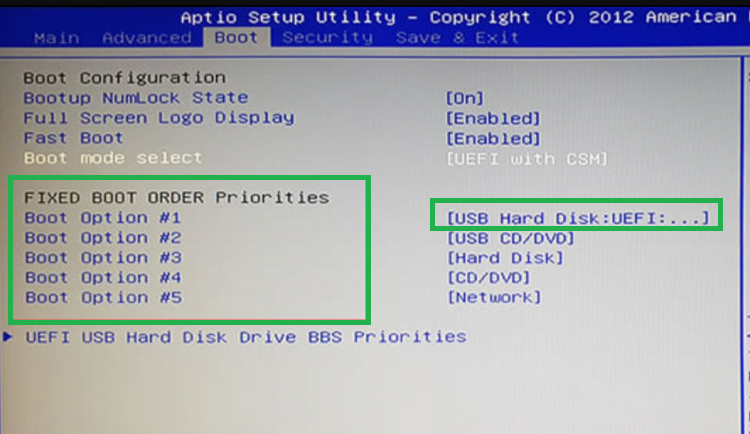
– Match boot mode (UEFI vs Legacy)
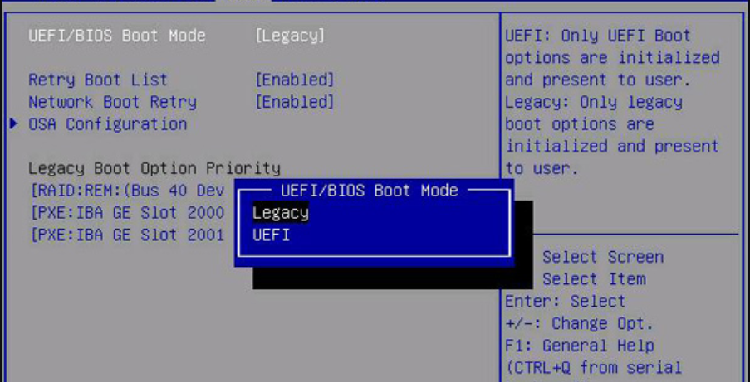
– Disable Secure Boot temporarily
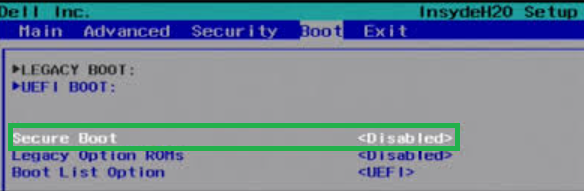
This often resolves hard disk not found on startup errors.
7. Test the Drive on Another PC
Still stuck?
Try connecting the drive to another system or a USB enclosure. If it’s not detected there either, you may be dealing with a failing drive.
That’s when PC not recognizing hard drive becomes a hardware issue—not software.
SATA vs NVMe Detection Differences (Important)
SATA vs NVMe BIOS Detection Comparison
| Feature | SATA Drive | NVMe SSD |
|---|---|---|
| Cable Required | Yes | No |
| BIOS Setting | SATA Enabled | M.2 / NVMe Enabled |
| Common Issue | SATA hard drive not detected | NVMe SSD not showing in BIOS |
| Compatibility Risk | Low | Medium |
This is where motherboard hard drive compatibility really matters.
Laptop vs Desktop: Detection Issues Aren’t the Same
Desktops give you flexibility—multiple ports, cables, BIOS options. Laptops? Not so much.
If you’re facing laptop hard drive not detected in BIOS, common causes include:
- Improper seating after repair
- BIOS whitelist restrictions
- Power delivery issues
Sometimes, laptop manufacturers lock compatibility more than desktops.
When Replacing the Drive Is the Only Option
If none of the above steps work and:
- Drive not detected anywhere
- Clicking or grinding noises
- System freezes when drive connects
Then yes, the drive is likely dead. No shame in that—storage fails eventually.
Conclusion: Fixing BIOS Drive Issues Is About Patience
Learning How To Fix Hard Drive Not Showing In BIOS isn’t about one magic solution. It’s about eliminating possibilities—connections, BIOS settings, compatibility, and firmware.
Most issues come down to simple things: a loose cable, a disabled port, or a mismatched boot mode. Once you understand how BIOS sees storage devices, troubleshooting becomes far less intimidating.
If you’re methodical, calm, and a little patient, this problem is very fixable.
FAQ: Hard Drive Not Showing in BIOS
Q1. Why is my hard drive not detected in Bhttps://www.laboneinside.com/IOS but shows in Windows?
This usually indicates a boot device configuration error or incorrect boot priority.
Q2. Can BIOS detect a dead hard drive?
No. A physically failed drive won’t appear as it causes a hardware connection failure.
Q3. Why does my new SSD not show up in BIOS?
Often due to motherboard hard drive compatibility or outdated BIOS firmware.
Q4. Does resetting BIOS fix detection issues?
Yes, it frequently resolves BIOS storage detection issue problems.
Q5. Is NVMe harder to detect than SATA?
Yes. NVMe requires specific BIOS support and settings enabled.