How To Fix PS5 CE-107863-5 Error Code, A Network Connection Error Has Occurred. PlayStation 5 is an incredible gaming console with cutting-edge features, but like any advanced device, it can occasionally encounter technical issues. One of the more common problems gamers face is the PS5 CE-107863-5 error code, which usually appears during game downloads, system updates, or content transfers. This error typically signals a network connectivity issue, making it difficult for the console to communicate with PlayStation Network (PSN) servers or complete data transfers.
If you’re frustrated by this error and looking for reliable ways to resolve it, you’re in the right place. In this guide, we’ll break down the causes of the CE-107863-5 error on PS5, walk through step-by-step fixes, and provide expert tips to restore smooth operation. Whether you’re a casual player or a hardcore gamer, these solutions will help you get back to gaming without interruption.
What Causes the PS5 CE-107863-5 Error Code?
Typically, it’s a network-related issue, but several factors may be at play:
Unstable or weak internet connection :
Slow or intermittent internet can disrupt communication with game servers.
PlayStation Network (PSN) downtime:
Ongoing maintenance or server issues can block access to online services.
Router or modem problems:
Malfunctioning hardware can lead to frequent disconnections.
Outdated system software:
Older firmware can cause compatibility issues with the PSN.
Incorrect DNS configuration:
DNS errors can prevent the console from reaching external servers.
Understanding these root causes can help you pinpoint the problem and choose the most effective fix.
How To Fix PS5 CE-107863-5 Error Code: Step-by-Step Solutions
Here’s a list of actionable troubleshooting methods to help you eliminate this frustrating network error:
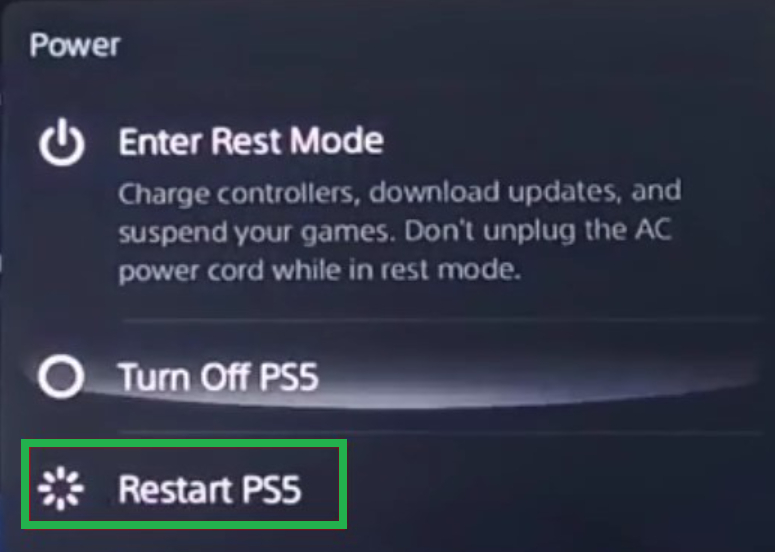
Method 1 – Restart Your PS5 Console:
Sometimes, all it takes is a quick reboot to solve temporary bugs and connectivity issues.
Steps:
1.Press the PS button on your controller.
2.Go to the Control Center.
3.Select Power, then choose Restart PS5.
4.Wait for the console to reboot and check if the error persists.
Method 2 – Test Your Internet Connection:
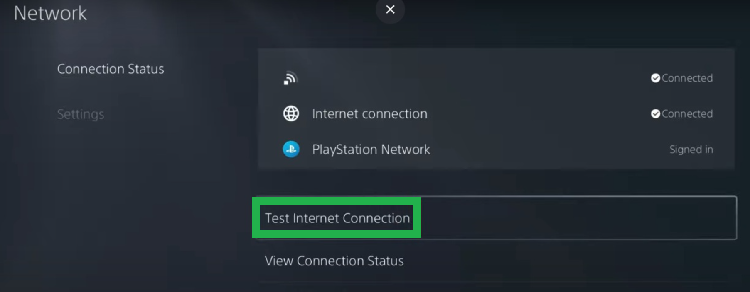
A weak or interrupted network can cause this error. Verifying your internet connection is a great place to start.
Steps:
1.Go to Settings > Network > Test Internet Connection.
2.Review the results to ensure download and upload speeds are stable.
Tip:
You can also visit speedtest.net using another device on the same network to confirm overall performance.
Method 3 – Check PlayStation Network (PSN) Server Status:
If the PSN servers are down for maintenance or experiencing outages, your console may throw this error.
How to check:
1.Visit the official PlayStation Network status page.
2.If servers are down, wait until they are restored and try again.
Method 4 – Reboot Your Router and Modem To Fix PS5 CE-107863-5 Error:
Faulty or overheated network hardware can interrupt your PS5’s online connectivity.
Steps:
1.Turn off both your router and modem.
2.Unplug them from the power source.
3.Wait at least 5 minutes.
4.Plug them back in and power them on.
5.Once your internet is restored, reconnect the PS5 and check if the error is gone.
Method 5 – Update PS5 System Software:
Outdated system software can conflict with the PSN or other network functions.
To update:
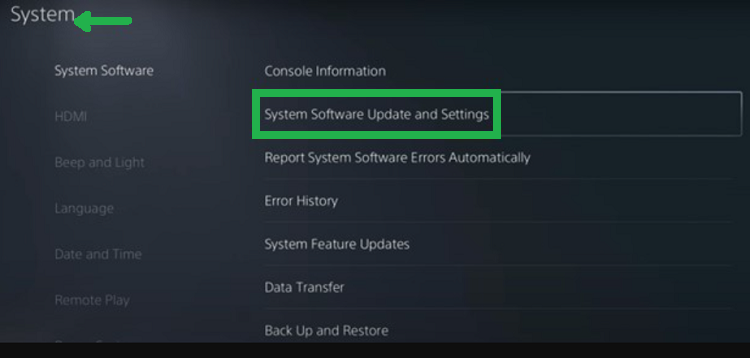
1.Go to Settings > System > System Software.
2.Select System Software Update and Settings.
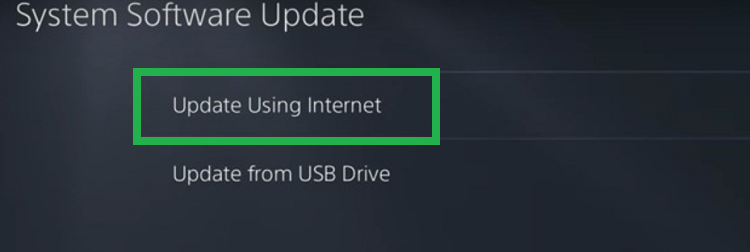
3.Choose Update Using Internet.
4.Follow the on-screen instructions.
5.After installation, reboot your PS5 to apply changes.
Method 6 – Use a Wired Ethernet Connection:
Wi-Fi can be unstable due to interference or range issues. If you want faster and more stable internet access, then use the wired connection.
Steps:
1.Connect an Ethernet cable from your router to your PS5.
2.Go to Settings > Network > Set Up Internet Connection.
3.Select Wired LAN and complete the setup.
4.This method minimizes lag and eliminates many connectivity issues.
Method 7 – Change DNS Settings Manually To Fix PS5 CE-107863-5 Error:
Custom DNS settings can help improve network resolution and reduce connection errors.
Steps:
1.Go to Settings > Network > Settings > Set Up Internet Connection.
2.Select your connected network (Wi-Fi or LAN).
3.Press Options and choose Advanced Settings.
4.Scroll down to DNS Settings and set it to Manual.
Enter the following:
Primary DNS: 8.8.8.8
Secondary DNS: 8.8.4.4
5.Save settings and get back to the Network menu.
6.Run Test Internet Connection to verify connectivity.
Using Google DNS can sometimes resolve hidden networking issues quickly.
Method 8 – Contact PlayStation Support:
If you’ve tried every fix and the error persists, it may be time to contact Sony’s customer support.
Visit: PlayStation Support
Follow the guided troubleshooting process or speak with a support representative for tailored help.
Final Thoughts: How To Fix PS5 CE-107863-5 Error To Get Back To Gaming
The PS5 CE-107863-5 error code is a common but solvable issue that usually stems from connectivity problems. By following the step-by-step methods outlined above—from restarting your console to adjusting DNS settings—you can often resolve the error on your own and enjoy uninterrupted gaming once again.
Keeping your system updated, monitoring your internet connection, and switching to a wired setup when needed are proactive ways to avoid future errors. If the issue continues despite your best efforts, don’t hesitate to reach out to PlayStation Support for professional assistance.
With the right troubleshooting steps, you’ll be back online and ready to dive into your favourite games without a hitch.