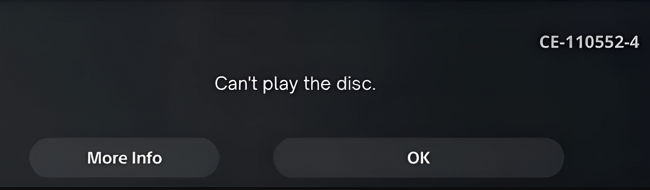
How to Fix PS5 CE-110552-4 Error Code, Failed to Read the Disc. If you’re a PlayStation 5 user and suddenly encounter the error CE-110552-4, you’re not alone. This error, commonly labelled as “Failed to read the disc”, can be a major obstacle when you’re eager to dive into your favourite game. Fortunately, there are proven methods to resolve error CE-110552-4 issue and get your PS5 back to peak performance.
In this article, we’ll read how to fix PS5 CE-110552-4 error. We will use both basic and advanced troubleshooting methods. You will also get to know the error CE-110552-4. Whether it’s a PlayStation 5 disc drive issue, a compatibility problem, or a software glitch, we’ve got you covered.
What Causes PS5 Error Code CE-110552-4?
Before jumping into the fixes, it’s important to understand what might trigger this error. The PS5 CE-110552-4 issue is mainly due to a failure to read disc-based games. Here are the most common reasons for PS5 Error Code CE-110552-4:
Dirty or Damaged Disc:
Dust, fingerprints, or scratches can prevent the disc from being read properly.
Incompatible Game Disc:
Discs not designed for PS5, such as PS3 or foreign region-locked versions, may trigger the error.
System Software Bugs:
Outdated or corrupted firmware can disable the PS5’s ability to read discs.
Faulty Blu-ray Drive:
Hardware defects in the disc drive may lead to persistent reading failures.
Incorrect Disc Insertion:
Improper orientation or an obstruction can cause recognition issues.
Console Overheating:
High internal temperatures can affect the performance of the PS5’s hardware components.
Understanding these causes helps you apply the right fix for your situation.
How To Fix PS5 CE-110552-4 Error Code:
Let’s look at effective ways to resolve PS5 CE-110552-4 disc error.
Method 1 – Check Game Disc Compatibility:
The game disc should be compatible with the PS5. Most PS4 games work on PS5, but PS3, PS2, or region-locked discs won’t. Visit the official game site or PlayStation compatibility lists to confirm.
Method 2 – Try Another Disc To Fix PS5 CE-110552-4 Error:
Insert a different disc to check whether the problem is with the original disc or your PS5 disc drive. If other games work fine, the issue likely lies in that specific game disc.
Tip:
Try inserting the disc both vertically and horizontally, depending on your console’s orientation.
Method 3 – Clean the Game Disc:
Gently wipe the disc from the centre outward. Always use the microfibre cloth for this purpose. Avoid abrasive materials or strong cleaning agents. These materials can damage the disc.
Method 4 – Inspect for Physical Damage To Fix PS5 CE-110552-4 Error:
Look closely for deep scratches or cracks. If the disc is visibly damaged and cleaning doesn’t help, replacement may be your only option.
Method 5 – Restart Your PS5 Console:
Sometimes, a simple console reboot clears temporary system glitches. Turn off your PS5 completely, unplug it for 30 seconds, then restart.
Method 6 – Update System Software:
An outdated firmware can cause multiple errors. To update:
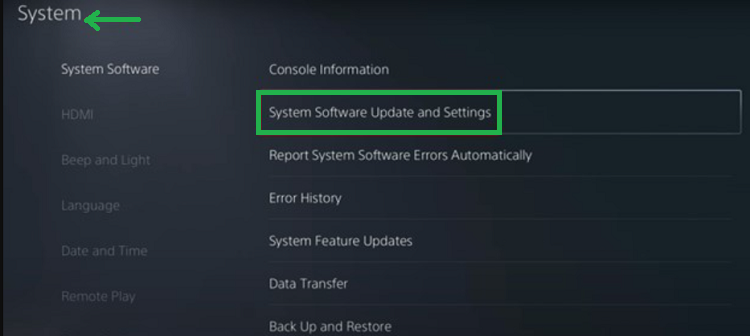
1.Go to Settings → System → System Software.
2.Then, select System Software Update and Settings.
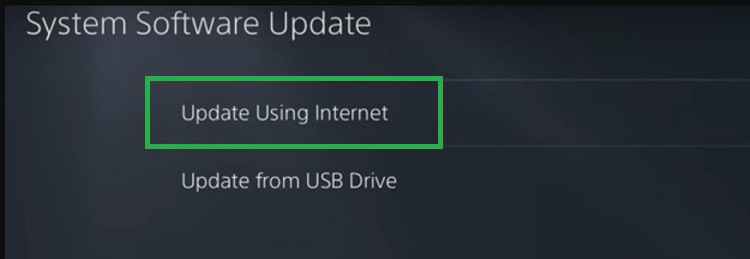
3.Choose Update System Software → Update Using Internet.
4.Let the update complete and restart your console.
5.This step often fixes many PlayStation 5 troubleshooting problems.
Method 7 – Update Game Content To Fix PS5 CE-110552-4 Error:
If the game is showing on the home screen but not launching:
1.Highlight the game icon.
2.Press the Options button.
3.Select Check for Update to install the latest patch.
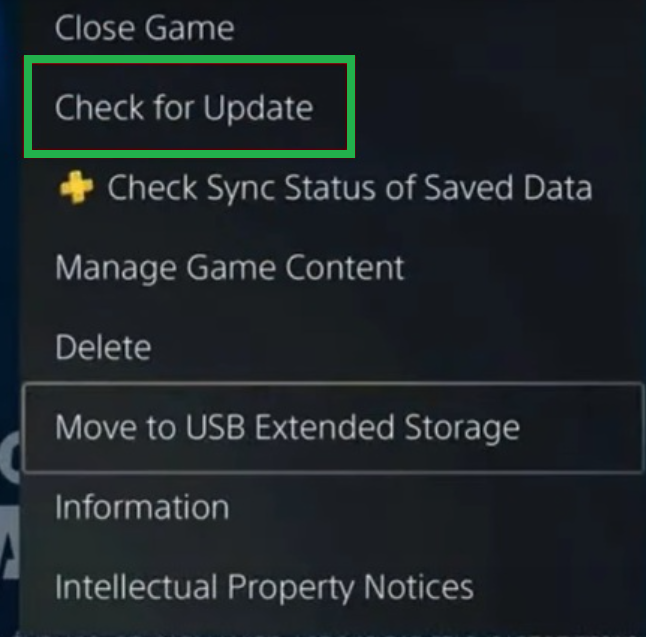
Keeping your game updated helps avoid in-game bugs and PS5 read errors.
Method 8 – Restore Licenses:
Sometimes, licensing issues can interfere with disc recognition:
1.Go to Settings, then go to Users and Accounts.
2.Select Other and then Restore Licenses.
3.Select the licenses to restore.
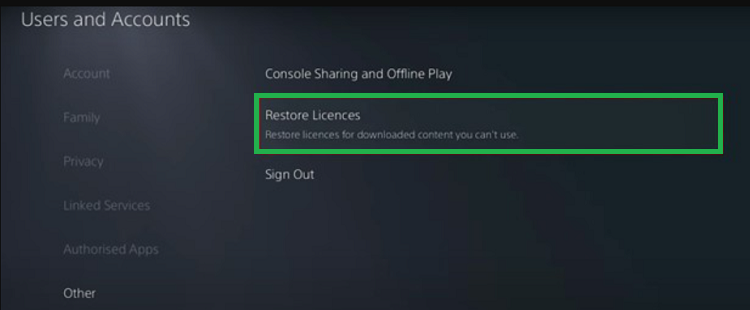
This is particularly useful for users who share games across multiple accounts.
Method 9 – Rebuild Database in Safe Mode:
Corrupted system data can affect disc operations. To rebuild your database:
1.Power off your PS5.
2.Hold the power button until the second beep; it may take 7 seconds.
3.Select the option Rebuild Database in Safe Mode.
This scan and reorganisation of your PS5’s storage system often fixes read errors.
Method 10 – Contact PlayStation Support:
If none of the above methods work, the issue could be hardware-related, especially if your PS5 won’t read any disc. Visit the official PlayStation Support for assistance or repair options.
Final Thoughts: Get Back to Gaming:
Getting hit with the PS5 CE-110552-4 “Failed to read the disc” error can be a real buzzkill, especially when you’re ready to game. But with the right steps—from simple disc cleaning to a full system software update or database rebuild—you can resolve this issue and avoid future disruptions.
Remember to always keep your discs clean, system updated, and check compatibility before assuming a hardware fault. If all else fails, don’t hesitate to contact Sony’s support team for expert help.
By following this guide, you’re one step closer to fixing PS5 CE-110552-4 and enjoying a seamless gaming experience.