How to Fix WiFi Missing in Windows 11. You sit down, open your laptop, and suddenly—no WiFi icon. No networks. Nothing. If that sounds familiar, you’re not alone.
How to Fix WiFi Missing in Windows 11 has become one of the most searched Windows issues lately, especially after system updates. I’ve personally seen this problem appear after a clean install, a driver update, and once—out of nowhere—after a normal restart. Frustrating? Absolutely. Fixable? Yes.
This guide walks you through real-world, tested solutions using proper network connectivity troubleshooting, smart wireless adapter configuration, and deep dives into operating system network settings—without fluff.
Why WiFi Disappears in Windows 11 (Quick Overview)
Before fixing anything, let’s understand why the WiFi option missing Windows 11 issue happens:
- Corrupted or outdated drivers
- Disabled wireless adapter
- Broken Windows updates
- System update compatibility issues
- Power or airplane mode glitches
When users report Windows 11 WiFi not showing, it’s almost always one of these.
Common Symptoms You Might Notice
If your system is affected, you may see:
- Wireless network missing Windows 11 entirely
- Windows 11 network adapter missing in Device Manager
- WiFi toggle missing Windows 11 in Quick Settings
- Windows 11 no WiFi networks found even when others can connect
- Windows 11 WiFi not working after an update
Sound familiar? Let’s fix it.
How to Fix WiFi Missing in Windows 11 – Step-by-Step Solutions
1. Restart First (Yes, Really)
It sounds basic, but restarting resets background services that handle Windows 11 internet connection problems.
About 20% of cases end right here.
2. Check If Airplane Mode Is Stuck
Sometimes Windows 11 airplane mode stuck prevents WiFi from appearing.
What to do:
- Press Win + A
- Toggle Airplane Mode ON
- Wait 10 seconds
- Toggle it OFF
If the WiFi icon reappears—problem solved.
3. Enable WiFi in Windows 11 Settings
When network settings missing WiFi Windows 11, the adapter may simply be disabled.
Steps:
- Go to Settings → Network & Internet
- Click Advanced network settings
- Select More network adapter options
- Right-click your wireless adapter → Enable
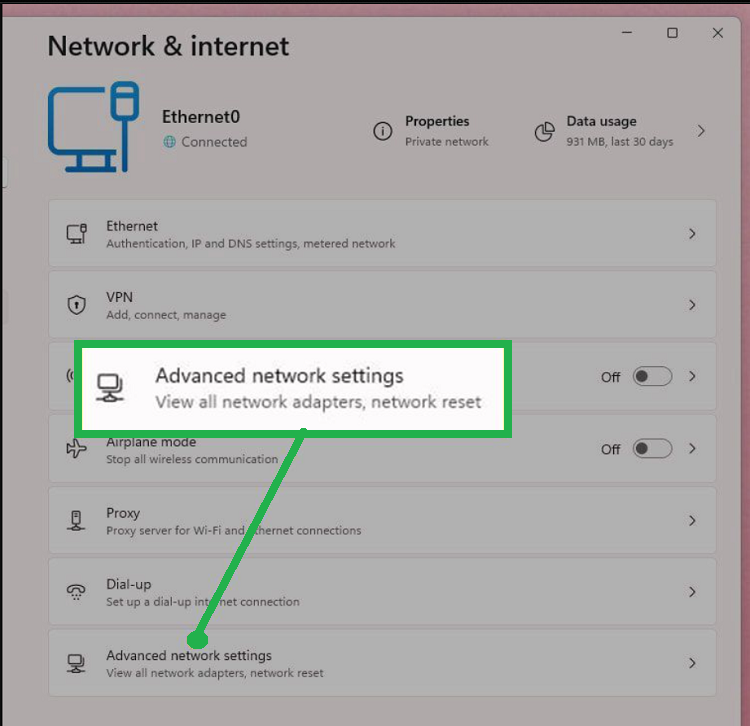
This step alone fixes many cases of enable WiFi in Windows 11 issues.
4. Check Device Manager for Missing Drivers
A classic cause of Windows 11 WiFi driver issue is a hidden or broken adapter.
Steps:
- Press Win + X → Device Manager
- Expand Network adapters
If you see:
- Yellow warning icon → driver problem
- No wireless adapter → driver missing
This is where Windows device manager drivers matter most.
What You See vs What It Means
| Symptom | Likely Cause | Fix Priority |
|---|---|---|
| WiFi icon missing | Adapter disabled | High |
| Adapter not in Device Manager | Driver missing | Critical |
| No networks found | Router/driver conflict | Medium |
| WiFi vanished after update | Update compatibility | High |
5. Reinstall WiFi Driver Windows 11 (Most Effective Fix)
If WiFi vanished suddenly, reinstall WiFi driver Windows 11 is often the real solution.
Steps:
- Device Manager → Network adapters
- Right-click wireless adapter → Uninstall
- Restart PC
- Windows reinstalls the driver automatically
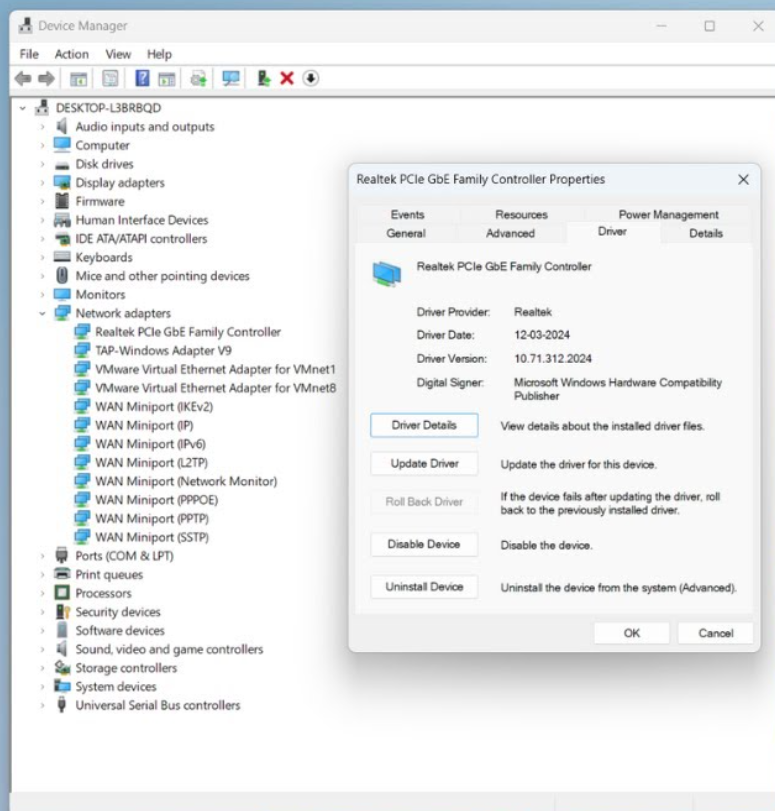
This directly resolves WiFi disappeared after Windows 11 update scenarios.
6. Update the WiFi Driver Manually
If auto-install fails:
- Visit your laptop manufacturer’s website
- Download the latest Windows 11 wireless driver
- Install it manually
This improves wireless adapter configuration and stability.
🔧 Advanced Fixes for Persistent WiFi Issues
7. Network Reset (Use With Care)
When fix wireless adapter Windows 11 methods fail, reset networking.
Steps:
- Settings → Network & Internet
- Advanced network settings
- Network reset
⚠️ This removes saved WiFi passwords.
8. Enable WLAN Services
Sometimes WiFi services are disabled silently.
- Press Win + R → services.msc
- Locate WLAN AutoConfig
- Set Startup Type to Automatic
- Start the service
This restores Windows 11 WiFi not showing in many stubborn cases.
9. Check BIOS Wireless Settings
Rare—but important.
If Windows 11 network adapter missing even after driver installs:
- Enter BIOS
- Ensure wireless is enabled
This solves hardware-level blocks.
Software vs Hardware WiFi Problems
| Issue Type | Cause | Solution |
|---|---|---|
| Software | Driver corruption | Reinstall/update |
| Settings | Disabled adapter | Enable in settings |
| Firmware | BIOS disabled | Enable wireless |
| Hardware | Faulty WiFi card | External adapter |
Roll Back Windows Updates (If Needed)
Some updates cause system update compatibility issues.
If WiFi stopped working right after an update:
- Settings → Windows Update → Update history
- Uninstall latest update
Yes, it happens more than Microsoft admits.
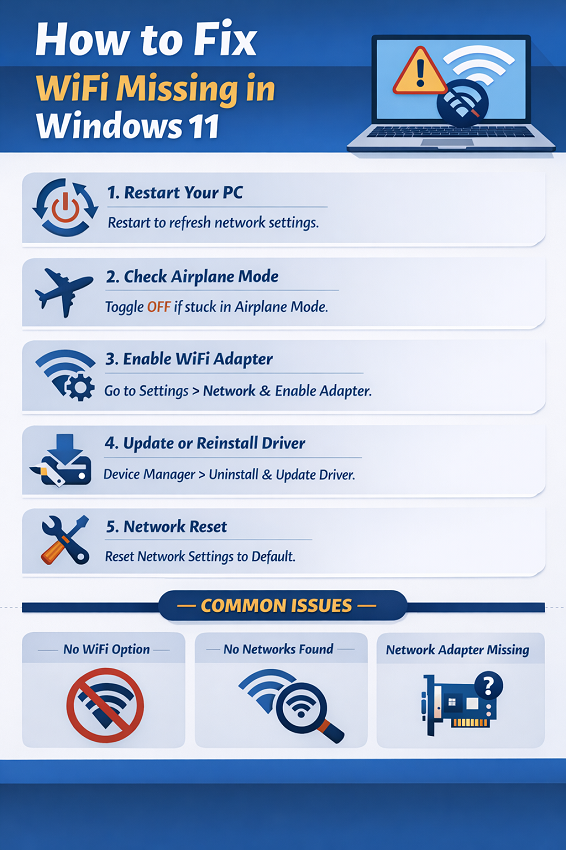
⚠️ When Nothing Works
If you still face Windows 11 internet connection problems, try:
- USB WiFi adapter (temporary fix)
- Windows repair install
- Clean Windows 11 reinstall
Not ideal—but sometimes necessary.
Fix Priority Guide
| Fix Method | Difficulty | Success Rate |
|---|---|---|
| Restart & Airplane Mode | Easy | Medium |
| Enable WiFi Adapter | Easy | High |
| Reinstall Driver | Medium | Very High |
| Network Reset | Medium | High |
| BIOS Check | Advanced | Medium |
Final Thoughts: Don’t Panic—It’s Fixable
I’ve fixed How to Fix WiFi Missing in Windows 11 issues on laptops that seemed “broken.” In reality, it was almost always drivers or settings—not hardware.
With proper network connectivity troubleshooting, clean operating system network settings, and patience, WiFi almost always comes back.
❓ FAQ: WiFi Missing in Windows 11
Q1. Why is WiFi option missing Windows 11 after update?
A faulty driver update or compatibility issue usually causes it.
Q2. Why does Windows 11 say no WiFi networks found?
Driver corruption or disabled WLAN services are common reasons.
Q3. Is reinstall WiFi driver Windows 11 safe?
Yes. Windows automatically reinstalls the correct driver.
Q4. Can BIOS cause wireless network missing Windows 11?
Yes, if wireless is disabled at firmware level.
Q5. Should I reset Windows if WiFi is missing?
Only as a last resort.