How To Fix Windows 11 Startup Repair Loop. If your Windows 11 PC keeps restarting in a Startup Repair loop, you’re not alone. Many users face the Windows 11 automatic repair keeps restarting issue after a failed update, corrupted system file, or unexpected shutdown. When this happens, Windows repeatedly tries to fix itself but never actually boots properly — a classic Windows 11 startup repair stuck in loop problem.
In this guide, we’ll explain what causes this error, and more importantly, how to Fix Windows 11 Startup Repair Loop using proven troubleshooting methods. You’ll learn multiple recovery options — from using Safe Mode to running advanced Command Prompt commands — so you can get your PC running smoothly again.
⚙️ What Is the Windows 11 Startup Repair Loop?
The Startup Repair Loop occurs when Windows detects an issue preventing it from starting correctly. It launches Automatic Repair, but instead of fixing the problem, it restarts over and over — creating an endless boot cycle.
Common Causes of the Windows 11 Boot Loop Error:
| Possible Cause | Description | How It Affects Booting |
|---|---|---|
| Corrupted system files | System files damaged due to power loss or malware | Windows cannot load essential startup files |
| Failed updates | Incomplete or buggy updates | Causes Windows 11 stuck on preparing automatic repair |
| Damaged BCD (Boot Configuration Data) | BCD file corrupted or missing | Boot process fails before reaching desktop |
| Faulty drivers | Incorrect or outdated drivers | Prevents Windows kernel from loading |
| Disk errors | Bad sectors or corrupted partitions | Triggers Startup repair not working Windows 11 issue |
If you’re stuck seeing messages like “Automatic Repair couldn’t repair your PC” or “Diagnosing your PC”, then your system needs manual intervention.
How To Fix Windows 11 Startup Repair Loop?
Method 1: Boot into Safe Mode to Access Windows
The first step in resolving a Windows 11 automatic repair loop is to access Safe Mode, a lightweight version of Windows that loads minimal drivers and services.
Steps to Boot into Safe Mode:
- Turn off your PC completely.
- Press the power button and immediately hold Shift + F8 or interrupt boot 3 times to access the Windows Recovery Environment (WinRE).
- Go to:
Troubleshoot → Advanced options → Startup Settings → Restart - When your system restarts, press 4 or F4 to enter Safe Mode.
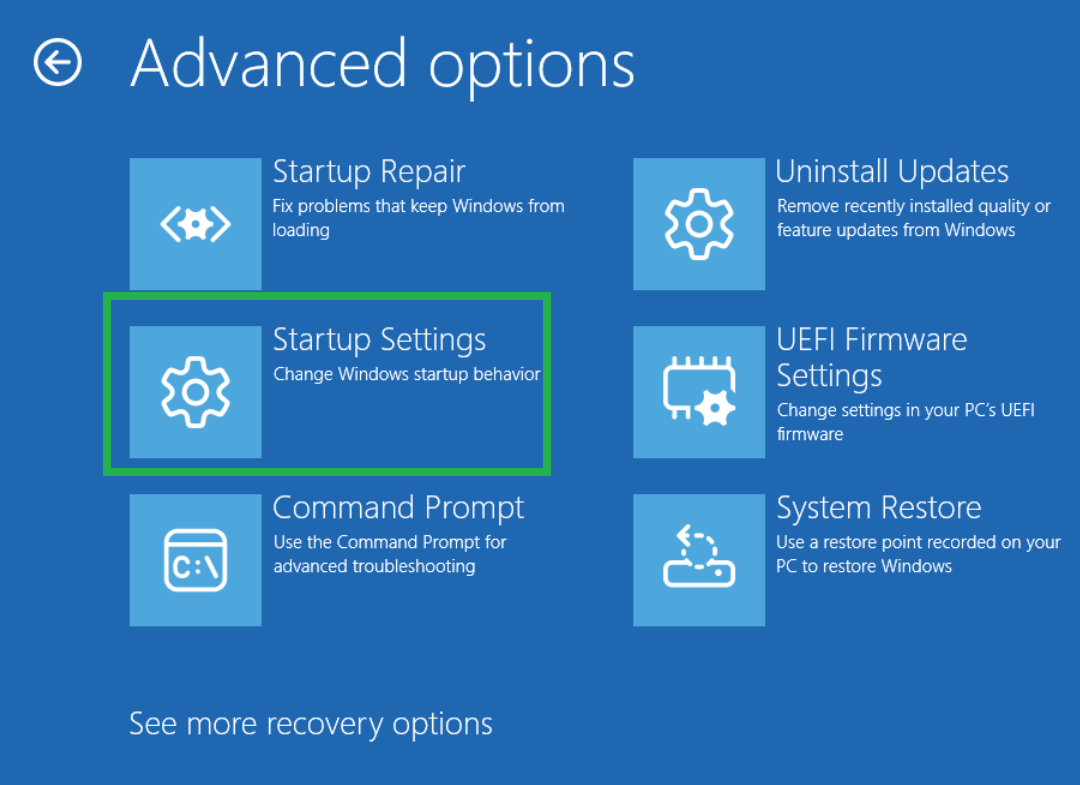
Once you’re inside Safe Mode, uninstall recent updates or faulty drivers that might have caused the loop. This step alone often fixes boot loop issues in Windows 11.
Method 2: Repair Windows 11 Using Command Prompt (CMD)
If Safe Mode doesn’t work, the Command Prompt is your next best friend. It allows you to manually repair Windows 11 boot problems.
Run the Following Commands:
| Command | Purpose |
|---|---|
sfc /scannow | Scans and repairs corrupted system files in Windows 11 |
chkdsk C: /f /r | Checks for disk errors and repairs bad sectors |
bootrec /fixmbr | Fixes Master Boot Record (useful for boot issues) |
bootrec /fixboot | Writes a new boot sector (may fix “access denied” errors) |
bootrec /rebuildbcd | Rebuilds Boot Configuration Data (BCD) |
Running these commands one by one helps fix corrupted system files in Windows 11 and restores the boot manager. This can completely stop the Windows 11 automatic repair couldn’t repair your PC error.
Method 3: Disable Automatic Repair in Windows 11
Sometimes, Automatic Repair itself causes the infinite loop. Disabling it can break the cycle and let you troubleshoot manually.
How to Disable Automatic Repair:
- Open Command Prompt from recovery mode.
- Type:
bcdedit /set {default} recoveryenabled No - Press Enter and restart your PC.
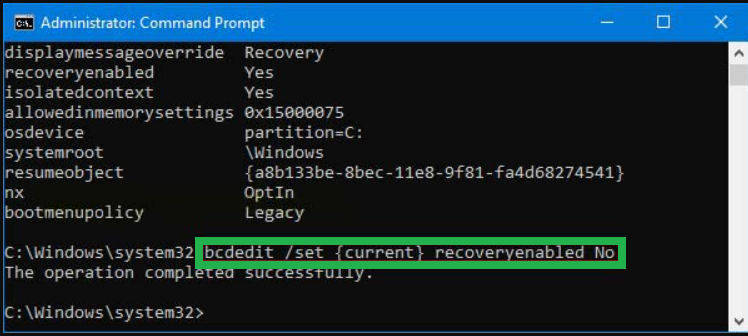
This command disables automatic repair in Windows 11, allowing you to see the real underlying error message instead of being stuck in a loop.
Method 4: Perform a System Restore or Reset
If none of the previous methods work, you can try System Restore or a Reset, both available in the Windows Recovery Environment.
Option 1: Use System Restore
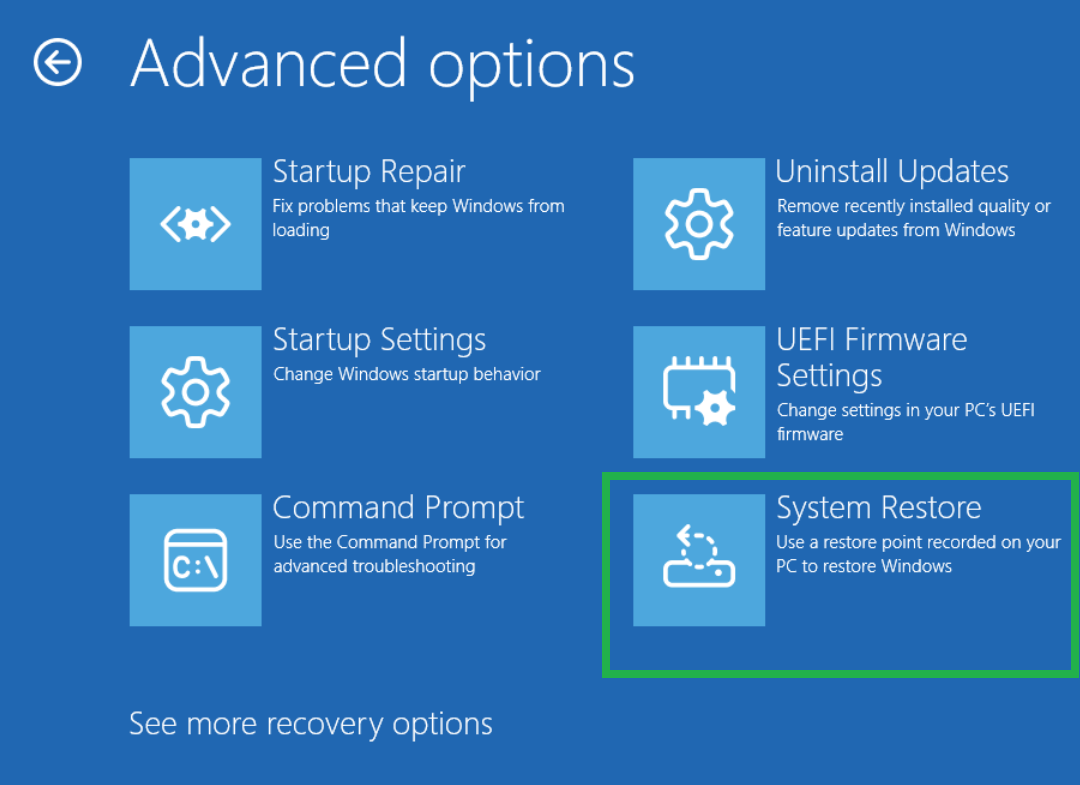
- Go to Troubleshoot → Advanced Options → System Restore.
- Choose a restore point before the issue started.
- Follow on-screen instructions to revert changes.
Option 2: Reset Windows 11 (Without Losing Files)
- Choose Troubleshoot → Reset this PC.
- Select Keep my files.
- Windows will reinstall while preserving your personal data.
| Option | What It Does | Best For |
|---|---|---|
| System Restore | Reverts to earlier working state | Update or driver-related boot loops |
| Reset this PC | Reinstalls Windows while keeping data | Severe Windows 11 boot loop errors |
| Clean Install | Wipes everything and installs fresh OS | When all other fixes fail |
These restore options are effective when the Startup repair not working Windows 11 issue persists after multiple attempts.
Method 5: Rebuild Boot Files Using Advanced Command Line
When your PC displays “Automatic Repair couldn’t repair your PC”, it often points to missing boot records. Rebuilding them can solve the Windows 11 blue screen automatic repair loop.
Run these commands:
bootrec /scanos
bootrec /fixmbr
bootrec /fixboot
bootrec /rebuildbcd
If the /fixboot command returns Access Denied, execute:
bootsect /nt60 SYS
Then rerun the bootrec commands.
This process helps repair Windows 11 boot problems by rewriting core boot information.
Method 6: Check Hardware and BIOS Settings
Sometimes, hardware conflicts or BIOS misconfigurations cause the Windows 11 startup repair stuck in loop problem.
Key BIOS/UEFI Checks:
| Setting | Recommended Configuration | Impact |
|---|---|---|
| Boot Order | Ensure system drive is first | Prevents boot errors |
| SATA Mode | AHCI (not RAID/IDE) | Ensures proper disk access |
| Secure Boot | Temporarily disable | Helps identify driver issues |
| Fast Boot | Disable temporarily | Allows better troubleshooting |
After checking, save changes and restart your computer. This can often fix boot loop issues in Windows 11 without reinstalling.
Method 7: Use Windows 11 Installation Media for Recovery
If your system still won’t boot, you can use a Windows 11 installation USB to perform advanced repairs.
Steps:
- Insert the bootable Windows 11 USB.
- Boot from the USB (change boot order if needed).
- Select Repair your computer → Troubleshoot → Advanced Options.
- From there, you can access Command Prompt, Startup Repair, or System Restore.
This method provides complete access to all Windows 11 repair tools, even if the operating system won’t start at all.
Final Method: Reinstall Windows (Last Resort)
If all else fails, you might need to reinstall Windows 11 completely. Use your USB installer, choose Custom Install, and format your primary drive.
While it’s a last resort, it will definitely eliminate any Windows 11 automatic repair keeps restarting loop caused by deep corruption.
🧾 Summary: Fix Windows 11 Startup Repair Loop (Quick Overview)
| Solution | Fix Type | Effectiveness |
|---|---|---|
| Boot into Safe Mode | Software-level fix | ★★★★☆ |
| Use Command Prompt commands | System repair | ★★★★★ |
| Disable Automatic Repair | Diagnostic fix | ★★★☆☆ |
| System Restore / Reset | Revert/repair OS | ★★★★☆ |
| Rebuild Boot Files | Advanced fix | ★★★★★ |
| Check BIOS Settings | Hardware-level | ★★★☆☆ |
| Reinstall Windows | Final resort | ★★★★★ |
Following these steps sequentially ensures you Fix Windows 11 Startup Repair Loop effectively without losing your important data.
❓ FAQ — Fix Windows 11 Startup Repair Loop
Q1: Why does Windows 11 get stuck in an automatic repair loop?
A: Usually due to corrupted system files, failed updates, or incorrect BIOS configurations. It’s common after abrupt shutdowns or power failures.
Q2: Can I fix the Windows 11 boot loop without reinstalling Windows?
A: Yes. Using Safe Mode, Command Prompt, or System Restore can resolve most Windows 11 startup repair stuck in loop issues without reinstalling.
Q3: Does disabling automatic repair harm my system?
A: No, it simply stops Windows from auto-restarting during the loop, allowing you to manually troubleshoot Windows startup issues more effectively.
Q4: What if Startup Repair not working Windows 11 persists after all fixes?
A: Try rebuilding the Boot Configuration Data or performing a clean reinstall using the Windows 11 installation media.
✅ Conclusion
The Fix Windows 11 Startup Repair Loop problem can be frustrating, but it’s not unsolvable. By following the above methods — from repairing Windows 11 using Command Prompt to resetting your PC safely — you can bring your system back to life without losing data.
Always remember to back up your files and create restore points regularly to avoid future Windows 11 boot loop errors. With patience and the right approach, your Windows 11 PC can be restored to perfect health.