How to Reset UEFI BIOS from Windows. Messing with BIOS settings can feel intimidating. One wrong toggle, and suddenly your system refuses to boot, fans spin loudly, or Windows behaves… oddly. The good news? On modern PCs, you don’t always need to open your laptop, remove batteries, or smash function keys at startup anymore.
In this guide, I’ll show you How to Reset UEFI BIOS from Windows using safe, Windows-based methods that actually work. These are practical steps I’ve personally used when dealing with boot loops, failed updates, and strange hardware detection issues.
We’ll also explore how to fix BIOS issues from Windows, walk through steps to reset UEFI firmware safely, and compare BIOS reset methods for modern PCs—all without unnecessary risk.
Understanding UEFI BIOS and Why Resetting It Helps
UEFI (Unified Extensible Firmware Interface) is the modern replacement for legacy BIOS. It controls how your hardware communicates with Windows before the OS even loads.
Sometimes things go wrong:
- Incorrect boot mode
- Overclocking instability
- Firmware conflicts after Windows updates
- Secure Boot misconfiguration
In such cases, knowing How to Reset UEFI BIOS from Windows can save hours of frustration.
Resetting simply means restoring stable, factory-tested defaults—not erasing Windows or files.
When Should You Reset UEFI BIOS?
Before diving in, ask yourself: Is this really a BIOS issue? In my experience, a reset helps if you’re facing:
- Boot loops or black screen before Windows loads
- Hardware not detected properly
- Windows stuck after updates
- Failed dual-boot setups
This falls squarely under BIOS troubleshooting Windows, and resetting is often the cleanest fix.
How to Reset UEFI BIOS from Windows Using Advanced Startup (Recommended)
This is the safest and most widely supported method.
Steps:
- Open Settings → System → Recovery
- Under Advanced startup, click Restart now
- Select Troubleshoot → Advanced options
- Click UEFI Firmware Settings
- Choose Restart
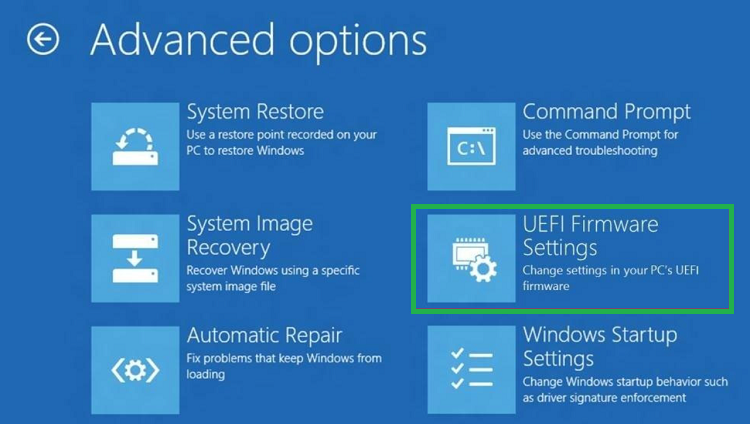
Once inside firmware:
- Select Restore UEFI BIOS defaults
- Save changes and exit
This method uses UEFI firmware settings Windows provides and works on both Windows 10 and 11.
It’s my go-to approach when I want to reset BIOS settings safely without guessing hotkeys.
Reset BIOS from Windows 10 vs Windows 11 (Comparison Table)
| Feature | Windows 10 | Windows 11 |
|---|---|---|
| UEFI Access Path | Settings → Update & Security | Settings → System |
| Firmware Menu Support | Yes | Yes |
| Secure Boot Integration | Limited | Improved |
| Ease of Use | Moderate | Easier |
Whether you reset BIOS from Windows 10 or reset BIOS from Windows 11, the underlying Windows-based BIOS recovery process is almost identical.
Reset BIOS Using Windows Recovery (When System Won’t Boot)
If Windows fails to load properly, don’t panic.
Power interrupt your PC 2–3 times during startup. Windows will automatically enter Recovery Mode.
From there:
- Go to Advanced options
- Choose UEFI Firmware Settings
- Restart and reset BIOS to factory settings
This is one of the most effective ways to reset BIOS using Windows recovery when nothing else works.
How to Reset UEFI BIOS from Windows Without Opening the Laptop
Many users still believe BIOS reset requires opening the device. Not true anymore.
You can:
- Reset BIOS without opening laptop
- Reset BIOS without CMOS battery
- Reset BIOS without entering BIOS menu manually
Modern UEFI implementations are designed for software-based recovery—especially useful for ultrabooks and sealed devices.
Reset Options Comparison (Modern PCs)
| Reset Method | Requires Opening Laptop | Risk Level | Recommended |
|---|---|---|---|
| Windows Advanced Startup | No | Low | ⭐⭐⭐⭐⭐ |
| Firmware Menu Defaults | No | Low | ⭐⭐⭐⭐ |
| CMOS Battery Removal | Yes | High | ❌ |
| Manufacturer Utility | No | Medium | ⭐⭐⭐ |
This table highlights why UEFI BIOS reset options built into Windows are preferable for most users.
Can You Reset UEFI BIOS Without Restarting PC?
Short answer? Not fully.
You cannot reset UEFI BIOS without restarting PC because firmware changes only apply during reboot. However, Windows lets you prepare everything beforehand, which reduces risk and confusion.
Think of it as a guided reset instead of a blind one.
Resetting BIOS Settings Safely (Best Practices)
Before you restore defaults:
- Note custom settings (boot order, virtualization)
- Disconnect external drives
- Ensure stable power (especially on laptops)
These small habits make steps to reset UEFI firmware safely smoother and avoid repeat issues.
Restoring UEFI BIOS Defaults vs Factory Reset
| Action | What It Does | Affects Data |
|---|---|---|
| Restore UEFI BIOS defaults | Resets firmware settings | ❌ No |
| Reset BIOS to factory settings | Same as defaults | ❌ No |
| Windows Reset | Reinstalls OS | ✅ Yes |
People often confuse these. Restore UEFI BIOS defaults won’t touch your files—ever.
How to Reset UEFI BIOS from Windows for Persistent BIOS Issues
If problems return after reset, you may need:
- BIOS/UEFI firmware update
- Windows repair install
- Hardware diagnostics
Still, in most real-world cases, knowing How to Reset UEFI BIOS from Windows resolves boot and stability issues immediately.
I’ve personally fixed Secure Boot loops and SSD detection problems this way—no screwdriver required.
Final Thoughts
Modern systems are kinder than they used to be. You no longer need risky hardware tricks to fix firmware issues.
By using advanced startup BIOS reset options and following a structured Windows-based BIOS recovery process, you can fix problems quickly and safely.
If you’re dealing with startup errors, boot conflicts, or strange firmware behavior, learning How to Reset UEFI BIOS from Windows is a skill worth having.
FAQ: Quick Answers
Q1. Will resetting UEFI BIOS delete my files?
No. BIOS resets only affect firmware settings.
Q2. Can I reset BIOS without entering BIOS menu?
Yes, Windows Advanced Startup allows this.
Q3. Does this work on all laptops?
Most modern UEFI-based systems support it.
Q4. Is it safe to reset BIOS frequently?
Occasionally, yes. Avoid doing it unnecessarily.
Q5. What if Windows won’t boot at all?
Use Windows Recovery to access UEFI settings.