Methods To Run CHKDSK On External Drive in Windows. Facing issues with your external hard drive? Disk errors, slow performance, or corrupted files can result from bad sectors, improper ejection, virus attacks, or file system corruption. Fortunately, Windows provides a built-in utility called CHKDSK (Check Disk) that can scan and effectively fix these issues.
In this article, we’ll explore the best Methods To Run CHKDSK On External Drive in Windows. This step-by-step guide will help you detect and repair file system errors, locate bad sectors, and optimize the overall health of your external storage devices.
What Is CHKDSK and Why Use It?
CHKDSK, short for Check Disk, is a command-line tool developed by Microsoft to analyze and repair issues related to hard drives. It helps in:
-Fixing file system errors
-Scanning for bad sectors
-Recovering readable data
-Improving disk performance
Methods To Run CHKDSK On External Drive in Windows:
Running CHKDSK on an external drive is essential when you notice frequent data loss, inaccessible folders, or error messages while accessing the disk.
Simple Methods To Run CHKDSK On External Drive Using Command Prompt:
The easiest and most effective way to run CHKDSK is via the Windows Command Prompt. Follow the steps below to check your external drive for errors:
1:-Open Command Prompt as Administrator
-Click on the search bar and type cmd
-Right-click on Command Prompt and select Run as administrator
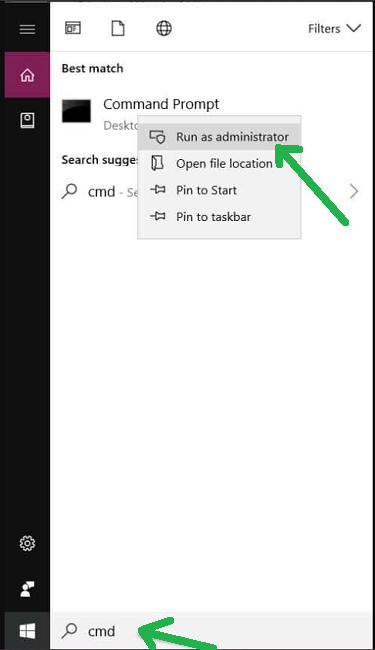
-Click Yes if prompted by the User Account Control
2:-Basic Disk Scan Command:
-To scan the external drive, type the following command:
chkdsk G:
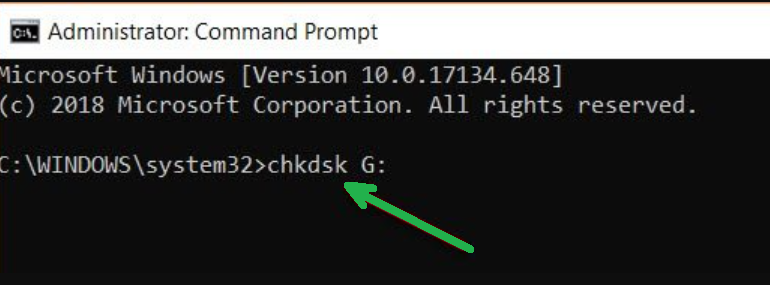
-Replace G: with the correct drive letter of your external disk.
-Press Enter, and Windows will start scanning the drive. If no issues are found, you’ll see a message like:
“Windows has scanned the file system and found no problems.”
3:-Fix File System Errors:
-If CHKDSK detects issues, you’ll need to run a repair command:
chkdsk G: /f
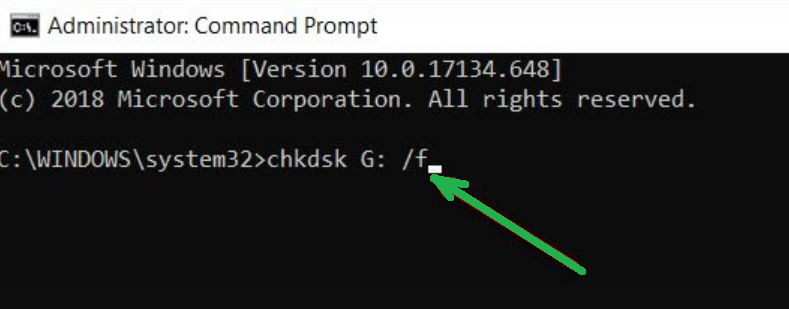
-The /f flag tells Windows to fix any errors automatically. This process might take a few minutes depending on the disk size and error count.
Advanced Methods To Run CHKDSK On External Drive:
For a more thorough scan, including recovery of readable data from bad sectors, use the command:
chkdsk G: /f /r /x
Here’s what each flag does:
/f – Fixes file system errors
/r – Locates bad sectors and recovers readable data
/x – Forces the drive to dismount before the scan
Sometimes, CHKDSK may ask to schedule the scan for the next restart. Type Y and press Enter to confirm.
Fixing CHKDSK Write Protection Errors:
If you get an error like “CHKDSK is write protected“, follow these steps:
1.Open Command Prompt as administrator.
2.Type diskpart and hit Enter.
3.Type list volume and press Enter.
4.Identify your external disk and type select volume G (replace G with the actual volume letter).
5.Type attributes disk clear readonly and press Enter.
6.Now try running the CHKDSK command again.
Graphical Methods To Run CHKDSK On External Drive:
If you’re not comfortable with command-line tools, here’s a simpler, GUI-based way to check your external hard drive:
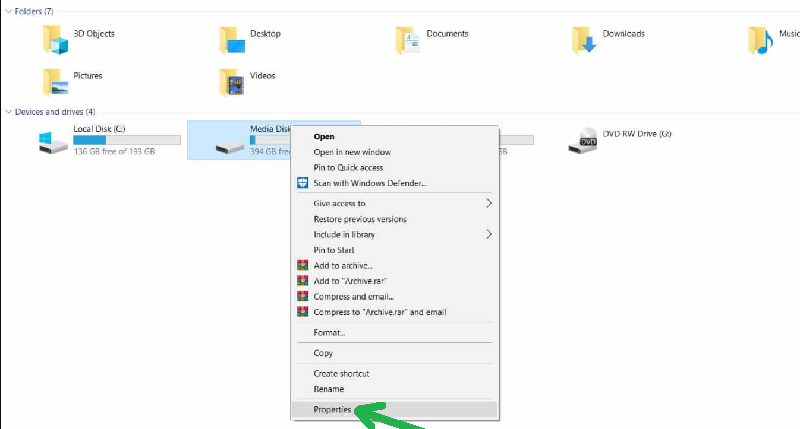
1:-Use File Explorer:
1.Type This PC in the Windows search bar and open it.
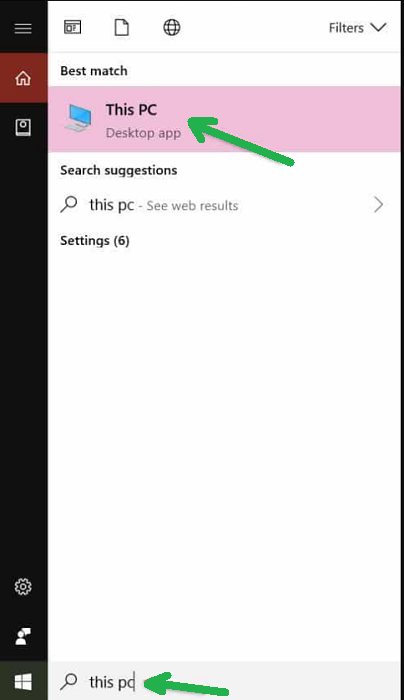
2.Right-click on your external drive.
3.Select Properties.
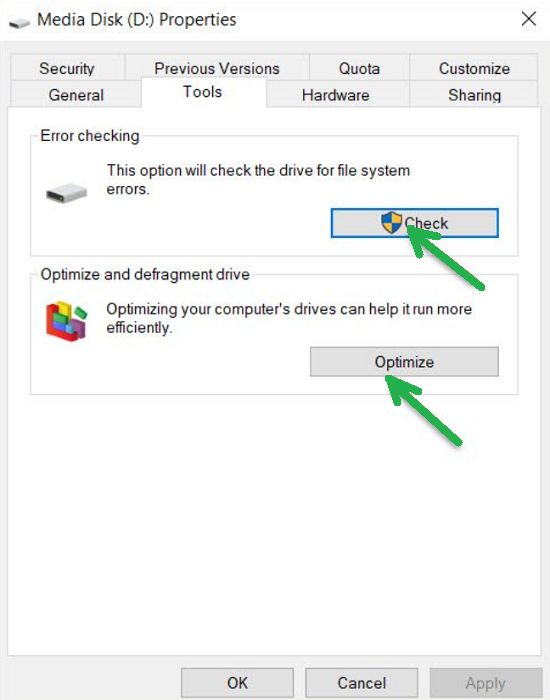
4.Go to the Tools tab.
5.Click on the Check button under the Error Checking section.
6.Windows will begin scanning the disk for issues. If any are found, you’ll be given the option to repair them automatically.
7.You can also use the Optimize button in the same window to defragment and improve drive performance.
Tips to Prevent Disk Errors:
While learning the Methods To Run CHKDSK On External Drive is essential, prevention is even better. Here are some helpful tips:
-Safely eject the drive before unplugging it
-Keep your antivirus software updated
-Avoid sudden shutdowns or removing the drive during file transfer
-Regularly backup your important data
-Run CHKDSK occasionally as a preventive measure
Conclusion:
Now that you’re familiar with the best Methods To Run CHKDSK On External Drive, you can easily detect and fix disk-related problems on your own. Whether you use the command line or the GUI, CHKDSK is a powerful utility for maintaining the health of your external drives.
Make it a habit to scan your drives periodically, especially when you notice unusual behaviour. And always keep a backup of your important files to avoid any data loss during the repair process.