How To Take A Screenshot On Chromebook. In this article, you will read various methods to screenshot Chromebook screen. Chromebooks are different from Windows, therefore their way of working is also different. There a various ways to capture the screenshots and record the screen in Chromebook. It also has built-in capture tools like Microsoft Windows. It has a keyboard shortcut and a screen recording tool.
How To Take A Screenshot On A Chromebook?
Method 1 – Use the Screen Capture Tool:
Chromebook has a built-in screen capture tool. You can take screenshots and video screen recordings from this tool. Follow the steps:
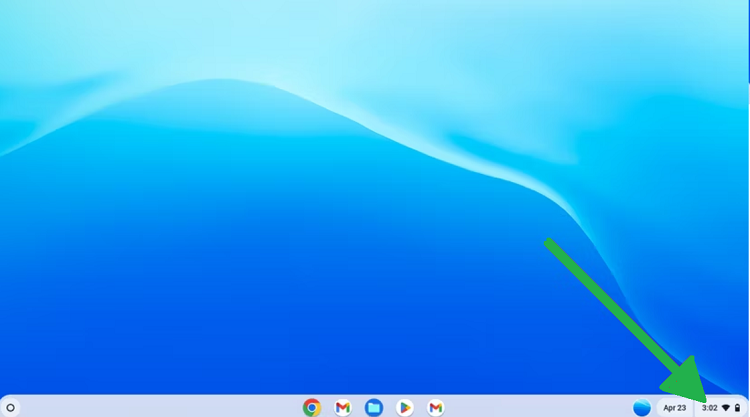
1.Click the clock on the Shelf (the taskbar) in the bottom-right corner.
2.It will open the Quick settings panel.
3.Click the “Screen Capture” button.
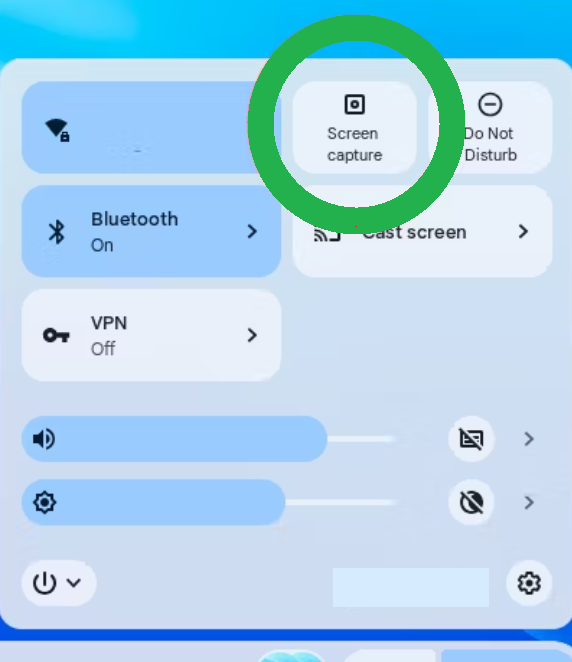
4.Screenshot tool will open.
5.It will have a switch that you can change from screenshot mode (camera icon) or screen recording mode (video camera icon).
6.There are also three capturing modes present to capture full screen, partial screen, or a specific window.
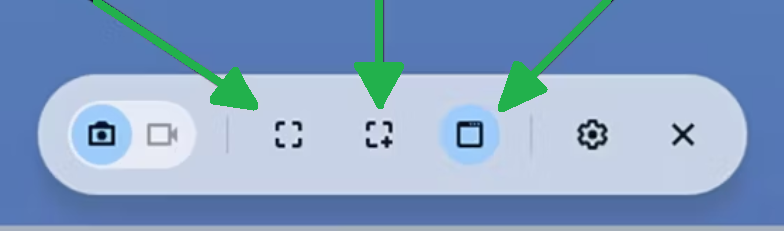
7.In full-screen mode, you can click anywhere on the screen to take a screenshot.
8.In partial mode, click and drag your mouse pointer to select an area of the screen and then click the ‘Capture’ button.
9.In Window mode, you can click an application window to only capture that window.
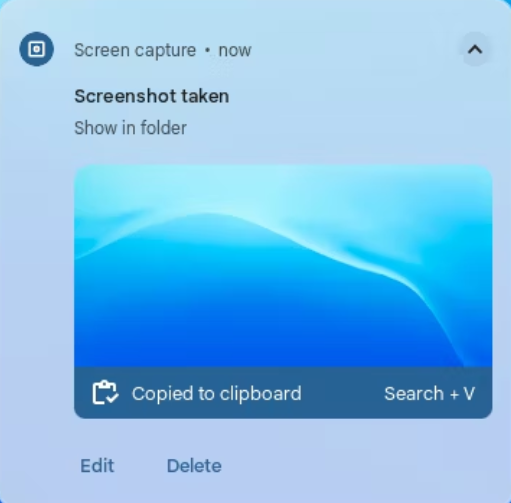
10.After you take the screenshot, it will appear in the bottom-right corner of the screen.
11.It will be automatically copied to the Chromebook’s clipboard or saved in the Downloaded folder.
12.Edit or Delete the screenshot from the preview thumbnail.
During recording the screen, you will get a countdown before the recording starts. When you are done, click the stop button in the ChromeOS Shelf when you are done. The video will be saved to your Downloads folder.
Method 2 – Use a Keyboard Shortcut:
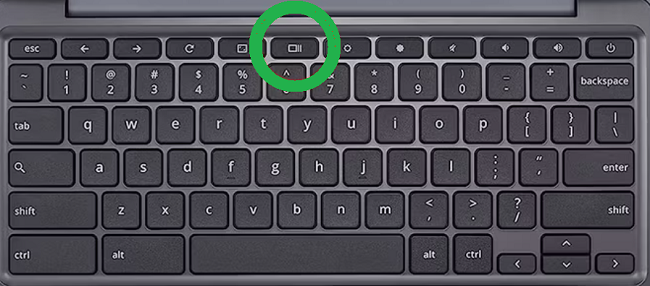
In Chromebooks, you can easily take three different various types of screenshots with the help of keyboard shortcuts. There is a Window key. This key is present on the top row of the keyboard. If you don’t have the Window key, you can use the F5 key. Use the below-given keyboard shortcut to screenshot on a Chromebook:
-Ctrl+Window: Full-screen screenshot.
-Ctrl+Shift+Window: You can select and take a partial screenshot using the Screen Capture Tool.
-Ctrl+Alt+Window: Select a window to screenshot using the Screen Capture Tool.