How To Create A Windows 10 Local Account. In this article, you will read how to create a Windows 10 local account on initial setup, how to create a Windows 10 local account after installation, and how to create a Microsoft account after installing Windows.
After May 2019 Windows 10 update, you cannot set up a local account or Microsoft account during the initial setup. But, after the update, Windows 10 only asks the user to create a Microsoft account during the out-of-box experience setup. However, you can create a Windows 10 local account during the initial setup. This option is hidden because Microsoft wants the user to create a Microsoft account, providing a much better and clean experience on its platform.
How To Create A Windows 10 Local Account On Initial Setup?
The Windows 10 initial setup local account option is disappeared from the initial setup, but it is not removed. There is a hack that you can use to set up the local account during the initial installation of Windows. While performing a clean install, follow the steps below:
1.First disconnect from the internet.
2.Remove the Ethernet cable or turn off the Wi-Fi adapter
3.Now, click on the Next option on the “Sign in with Microsoft” page.
4.Next, select the Create account option.

5.The “Something went wrong” error message will appear on your screen.
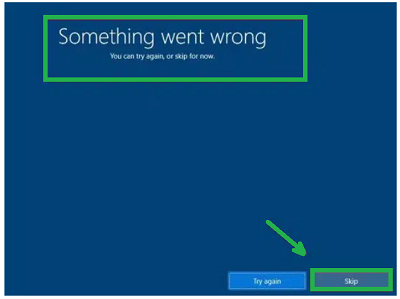
6.Now, select the Skip option.
7.You will now be able to create a local account.
8.Enter the name of the local account.
9.Click on Next.
10.Write your password and click on Next.
11.Then confirm your password.
12.Click on Next.
13.Select a security question and enter the answer.
14.Click on Next.
15.Now, follow the remaining instructions to set up your local account.
How To Create A Windows 10 Local Account After Installation?
Follow the steps below to create a local account after installation, if you do not set up on installation:
1.Right-click on the Start menu.
2.Select the Settings option from the pop-up menu.
3.Click on the Accounts option.
4.Select the Family and other users option.
5.Click on the Add someone else to this PC option in the Other users section.
6.Click on the I don’t have this person’s sign-in information option.
7.Next, click on the Add a user without a Microsoft account.
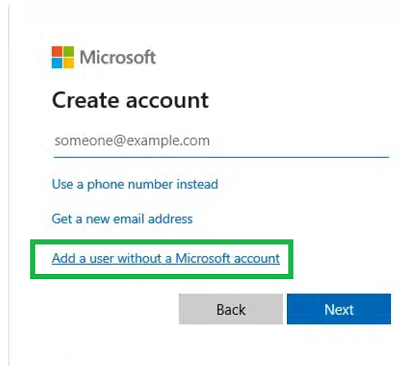
8.Enter the login details.
9.Click on Next.
10.Follow the on-screen instructions to set up the local account.
How To Create A Microsoft Account After Installing Windows?
If you have created a local account and want to create a Microsoft account, then follow the steps below:
1.Open the Accounts settings again.
2.Select the Email & accounts option.
3.Click on the Add a Microsoft account option.
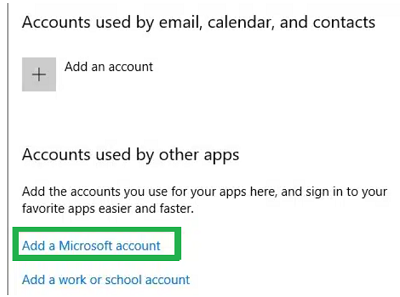
4.Click on Create One! after the Microsoft dialogue opens.
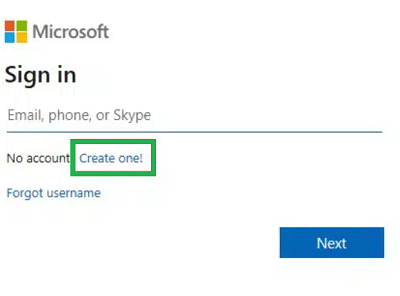
5.Fill the account details.
6.Follow the instructions to create a Microsoft account.