How To Fix PS5 Error E2-817B122B. Learn how to fix & restore PSN Connection fast with 10 proven solutions, including DNS tweaks, router fixes, system updates, and more. Are you facing the PS5 error E2-817B122B and can’t connect to PSN? This error is more common than you might think and often pops up when your PlayStation 5 cannot connect to the internet or PSN servers. This error can completely block access if you’re trying to stream, play online, or download content.
Fortunately, you can fix PS5 Error E2-817B122B by following some troubleshooting steps. In this comprehensive guide, we’ll show you how to fix PS5 error E2-817B122B and help you resolve network-related issues on your console using proven methods like DNS changes, router updates, system checks, and more.
What is PS5 Error E2-817B122B?
The E2-817B122B error code on PS5 signifies a failure to establish a proper connection with the PlayStation Network servers. This could be due to temporary PSN downtime, unstable Wi-Fi, DNS conflicts, outdated firmware, or incorrect console network settings.
Common Causes of PS5 Network Error E2-817B122B:
Before applying fixes, it’s important to understand why this problem occurs. Here are the most frequent reasons behind the PlayStation 5 connection error:
🔧 PSN Server Outage or Maintenance
🌐 Unstable or Slow Internet Connection
📶 Wi-Fi Interference or Weak Signal Strength
🧱 Firewall or Router Blocking Required Ports
📡 Incorrect DNS Configuration
⚙️ Outdated System Software on PS5
💻 Modem or Router Firmware Needs Update
How To Fix PS5 Error E2-817B122B – Complete Troubleshooting Guide:
Let’s go through 10 effective ways to fix the PS5 network error so you can reconnect your console and get back to gaming.
Method 1 – Check PlayStation Network Server Status:
The first step to troubleshoot PS5 network error is checking the PSN status. If the PlayStation servers are down, your console won’t be able to log in or connect.
How to check:
1.On your PS5, go to Settings.
2.Then go to Network > View PlayStation Network Status.
3.You can also visit the PlayStation Network Server Status page.
4.If there’s scheduled maintenance or a server issue, wait for it to resolve and try again later.
Method 2 – Restart Your PS5 Console To Fix PS5 Error E2-817B122B:
A quick reboot often fixes temporary glitches causing connection problems.
Steps:
1.Power off your PS5.
2.Unplug it from the power outlet and disconnect accessories.
3.Wait 2–3 minutes.
4.Plug it back in and restart.
5.This can clear minor system bugs that trigger the PS5 stuck on connection error.
Method 3 – Test and Improve Your Internet Connection:
A poor connection is one of the main reasons your PS5 cannot connect to PSN.
Steps:
1.Navigate to Settings > Network > Test Internet Connection.
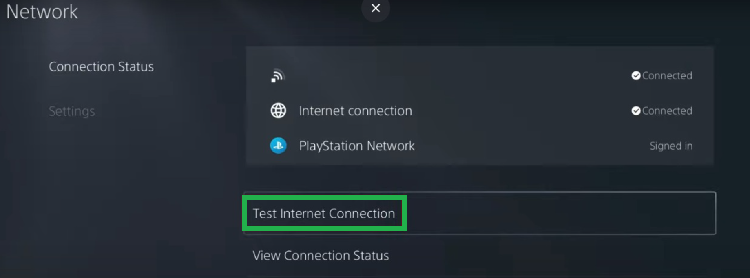
2.Now, check for download speed, upload speed, and signal strength.
3.Connect another device to your network to compare performance.
4.If your network seems slow or unstable, contact your ISP or move to a wired connection for better performance.
Method 4 – Restart Your Router or Modem:
Sometimes the issue isn’t with your PS5 but your home network.
Steps:
1.Turn off your router and modem.
2.Unplug them from the power source.
3.Wait for 2 minutes before plugging back.
4.Power up the devices and reconnect your PS5.
5.This can fix temporary router issues that affect PSN connectivity.
Method 5 – Update Your Router’s Firmware:
Router firmware updates often improve security, fix bugs, and enhance connectivity.
Steps:
1.Open a web browser and enter your router’s IP address (e.g., 192.168.1.1)
2.Log in using admin credentials.
3.Open the firmware or software update section.
4.Follow the on-screen prompts or contact your ISP for help.
5.Keeping firmware updated can prevent PlayStation 5 internet not working issues.
Method 6 – Use a Wired (Ethernet) Connection:
A wired connection is more stable than Wi-Fi and often resolves issues like high latency or packet loss.
Steps:
1.Connect an Ethernet cable from your router to PS5.
2.Go to Settings > Network > Set Up Internet Connection.
3.Choose Use a LAN Cable.
4.This method is ideal for solving PlayStation 5 server errors and optimizing your online gaming experience.
Method 7 – Manually Change Your DNS Settings To Fix PS5 Error E2-817B122B:
Changing to public DNS servers can help resolve DNS conflicts that block PSN access.
Steps:
1.Go to Settings > Network > Set Up Internet Connection.
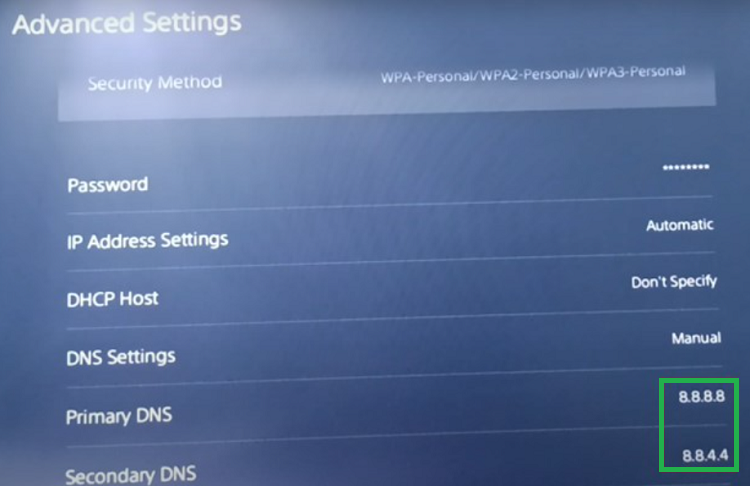
2.Select your network (Wi-Fi or LAN), then choose Advanced Settings.
3.Change DNS Settings to Manual.
Set:
Primary DNS: 8.8.8.8
Secondary DNS: 8.8.4.4 (Google DNS)
4.Save settings and retest your connection.
5.Now, head to the Network Page.
6.Now select Test Internet Connection.
7.You can Start Test and check the connection speed.
8.Using faster and more reliable DNS servers can solve the PS5 DNS settings fix issue.
Method 8 – Check Firewall and Port Settings To Fix PS5 Error E2-817B122B:
If your firewall blocks PSN ports, your console won’t connect properly.
Steps:
1.Access your router’s settings from a browser.
2.Look for Port Forwarding or Firewall Rules.
3.Ensure the following PSN ports are open:
TCP: 80, 443, 3478, 3479, 3480
UDP: 3478, 3479, 49152–65535
4.Ask your internet provider if you’re unsure how to do this.
Method 9 – Update PS5 System Software To Fix PS5 Error E2-817B122B:
Running the latest software ensures your console remains compatible with PSN.
Steps:
1.Go to Settings > System > System Software.
2.Select System Software Update and Settings.
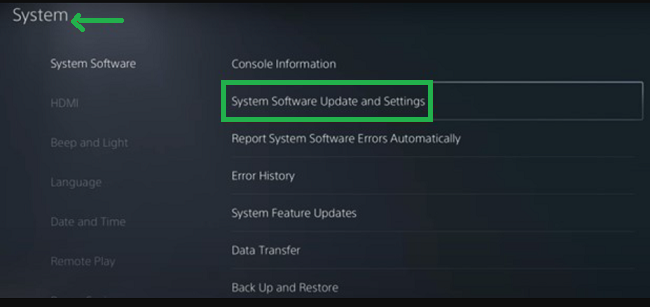
3.Choose Update Using Internet.
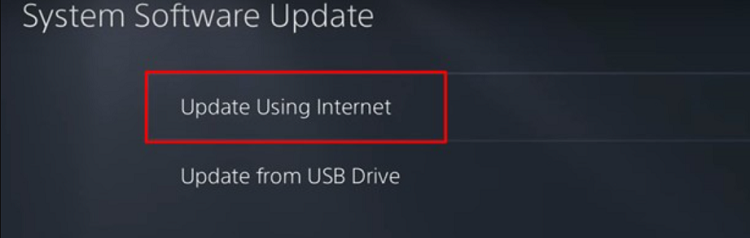
4.Follow the on-screen instructions.
5.Updating can resolve compatibility-related errors like error E2-817B122B PlayStation 5.
Method 10 – Contact PlayStation Support:
If none of the above methods work, contact Sony PlayStation Support for more specific assistance.
Visit: PlayStation Support
They can help you diagnose deeper issues and provide official repair or troubleshooting support.
Final Thoughts: Reconnect Your PS5 and Get Back to Gaming:
Dealing with the PS5 error E2-817B122B can be frustrating, but it’s usually fixable by following the right steps. Whether it’s a DNS misconfiguration, a router firmware problem, or a PSN server outage, the solutions in this guide will help you quickly restore your connection.
By implementing these 10 proven methods, fix PlayStation 5 connection issues, avoid unnecessary delays, and return to your favorite games or streaming platforms without disruption.
Still stuck? Bookmark this guide and refer back anytime your PS5 refuses to connect to the PlayStation Network.