How to Create a Custom GPT Without Coding.The world of Artificial Intelligence is no longer an exclusive playground for developers and data scientists. With advancements in large language models (LLMs) and user-friendly platforms, the power to harness AI for specific tasks is now accessible to everyone. This guide will walk you through How to Create a Custom GPT Without Coding, transforming generic AI into a specialized assistant tailored to your unique needs. Whether you’re a small business owner, a content creator, or simply curious, learning to build your own GPT model is a skill that promises to redefine productivity and innovation.
How to Create a Custom GPT Without Coding
The Dawn of No-Code AI: Why Custom GPTs?
For years, creating a custom AI model meant delving into complex programming languages, vast datasets, and intricate model architectures. The emergence of user-friendly interfaces, particularly OpenAI’s “GPTs” feature, has revolutionized this landscape. Now, anyone can make custom GPT easily, leveraging the foundational power of models like GPT-4, but with a personalized layer of knowledge, instructions, and capabilities.
What Exactly is a Custom GPT?
Think of a Custom GPT as a highly specialized version of a general-purpose AI like ChatGPT. While ChatGPT can answer almost any question, a Custom GPT is designed to excel in a particular domain or task. For instance, instead of asking ChatGPT to draft a marketing email and then instructing it to adhere to your brand guidelines, a Custom GPT could be pre-programmed with all your brand information, ready to draft that email perfectly every time. This is the essence of a custom AI assistant setup: an AI personalized to your specific workflow, knowledge base, and preferences.
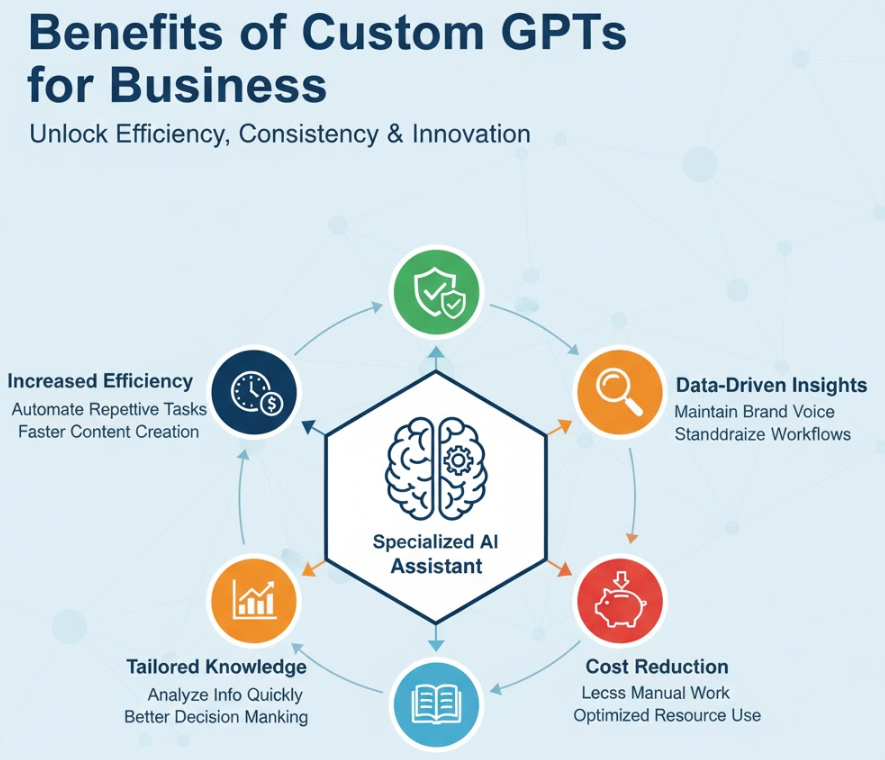
The primary benefit is efficiency. By embedding specific knowledge and instructions, you eliminate repetitive prompting and guide the AI towards more accurate, contextually relevant outputs from the outset. This is a game-changer for AI workflow automation within businesses and for individual users.
The No-Code Revolution: Democratizing AI
The most exciting aspect is the “without coding” part. Platforms like OpenAI’s GPT Builder allow users to interact with a conversational interface to define their custom AI. You simply tell the AI what you want your Custom GPT to do, what knowledge it should have, and how it should behave. This makes it possible to build your own GPT model even if your coding experience is zero. The goal is to make GPT builder platforms accessible to the broadest possible audience.
Getting Started with OpenAI’s Custom GPTs: Your No-Code GPT Builder
OpenAI’s dedicated feature for creating Custom GPTs stands out as the premier no-code GPT builder. It integrates directly within the ChatGPT Plus (and Enterprise) ecosystem, providing an intuitive conversational setup process.
Step-by-Step: How to Create a Custom GPT Without Coding on OpenAI
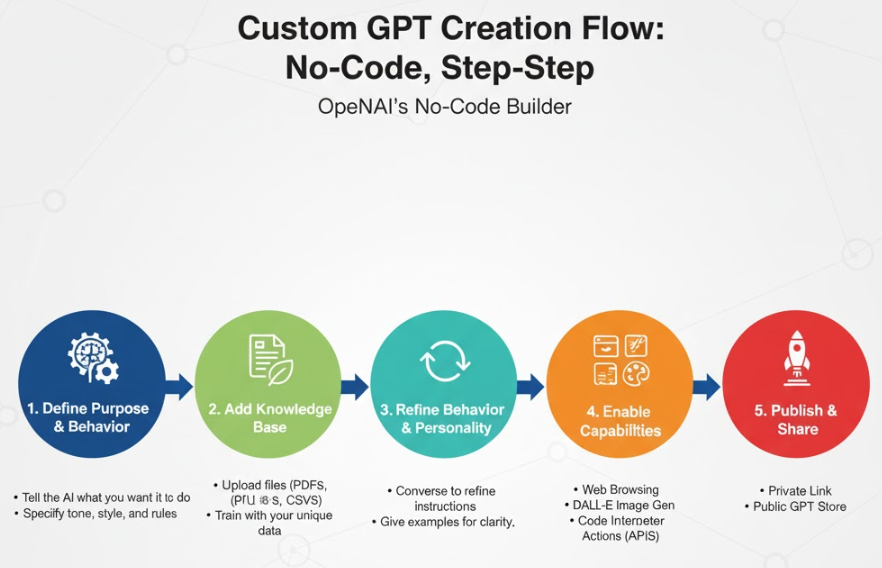
The process is remarkably straightforward, guided by an interactive AI assistant. Here’s a step-by-step custom GPT tutorial:
- Access the GPT Builder: Log into your ChatGPT Plus or Enterprise account. Navigate to the “Explore” section (usually in the sidebar), and select “Create a GPT.” This launches the conversational GPT Builder interface.
- Define Your GPT’s Purpose: The GPT Builder will prompt you: “What would you like to make?” This is where you describe your Custom GPT’s core function. For example: “I want a GPT that helps me brainstorm blog post ideas for my tech review website, focusing on current gadget trends and SEO keywords.”
- Refine Behavior and Personality: The Builder will ask follow-up questions to hone its personality, tone, and specific instructions. “Should it be formal or casual?” “What kind of tone should it use?” “What are its limitations?” This is your chance to specify GPT configuration settings to match your brand or personal preference.
- Upload Knowledge (Optional but Powerful): This is where your Custom GPT truly becomes unique. You can upload documents (PDFs, text files, CSVs) that contain proprietary information, specific guidelines, or a personal knowledge base. For our blog post idea GPT, you might upload a document with your niche’s top-performing keywords, a style guide, or past successful article structures. This directly helps you train a custom GPT online with specific data.
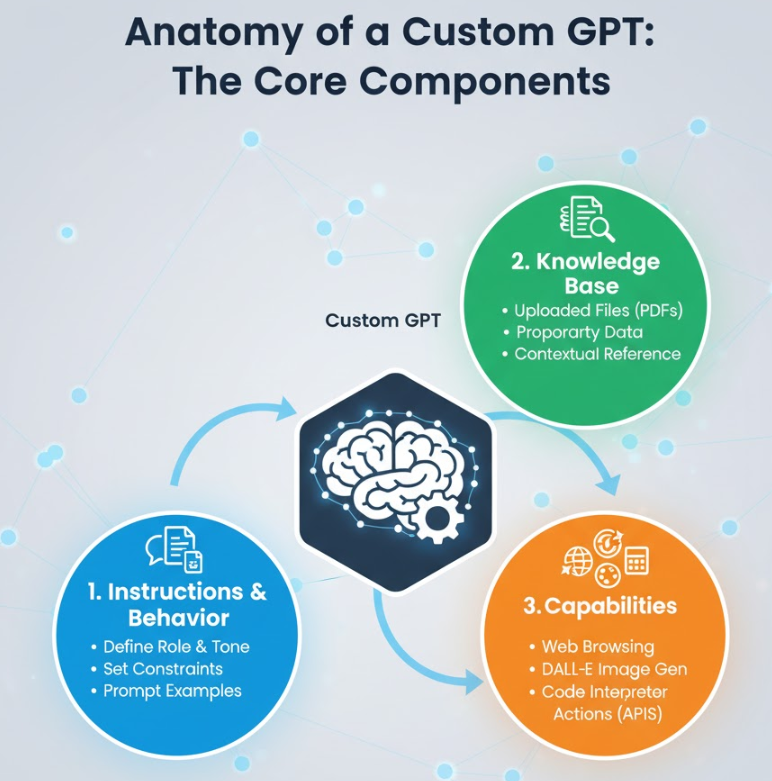
- Enable Capabilities: Decide what actions your Custom GPT can take.
- Web Browsing: Allow it to search the internet for real-time information.
- DALL-E 3 Image Generation: Enable it to create images based on prompts.
- Code Interpreter: Give it the ability to analyze data, perform calculations, or even write/test code snippets.
- Actions (API Integrations): This is an advanced feature that can involve coding for complex integrations, but simpler webhook-based actions might be configured without deep coding knowledge. This is key for AI workflow automation.
- Test and Iterate: Use the “Preview” pane to interact with your Custom GPT. Ask it questions, give it tasks, and see if it performs as expected. If not, go back to the Builder interface and tell it what you want to change. This iterative refinement is critical.
- Publish: Once satisfied, you can publish your Custom GPT for “Only me,” “Anyone with a link,” or “Public” (making it available in the GPT Store).
Key Stages in Custom GPT Creation
| Stage | Description | Your Role | AI’s Role |
| 1. Conception & Goal Setting | Define the purpose and desired outcomes for your Custom GPT. | Clearly articulate the problem it solves or the task it performs. | Guides you through defining scope and initial parameters. |
| 2. Instruction & Behavior Tuning | Specify its personality, tone, constraints, and how it should interact. | Provide clear, concise instructions and examples. | Learns your preferences and refines its conversational style. |
| 3. Knowledge Integration | Upload proprietary data or relevant documents for the GPT to reference. | Select and upload your unique knowledge base. | Ingests and contextualizes information for responses. |
| 4. Capability Activation | Select which tools (web browsing, DALL-E, code interpreter) the GPT can use. | Choose functionalities based on the GPT’s purpose. | Integrates and manages access to its various underlying tools. |
Beyond Basic Creation: Customization and Optimization
Simply creating a Custom GPT is the first step. To truly unleash its potential and make it a powerful GPT customization guide, you need to understand how to optimize its instructions and knowledge base.
Mastering Prompt Engineering for Your Custom GPT
Even though you’re not writing code, you are “programming” your Custom GPT through instructions. Clear and specific instructions in the “Configure” tab (under your GPT settings) are paramount. This is a form of GPT configuration settings.
- Be Explicit: Instead of “Help me write posts,” try “Act as a social media strategist specializing in [your niche]. Your goal is to generate three unique, engaging social media posts (for X, Instagram, and LinkedIn) based on the provided topic, including relevant emojis, hashtags, and a clear call-to-action.”
- Define Constraints: “Always keep posts under 280 characters for X.” or “Never use jargon unless specifically requested.”
- Give Examples: Provide examples of desired output to guide the AI. “Here’s an example of a great Instagram post from our brand…”
This detailed approach is crucial for how to make a Custom GPT Without Coding perform exactly as you envision.
The Power of Knowledge Files: Train a Custom GPT Online
The “Knowledge” section in your Custom GPT’s settings is where you upload files that serve as its long-term memory or reference library. This is how you train a custom GPT online without needing to understand machine learning algorithms.
- Brand Guidelines: Upload your brand’s style guide, mission statement, and voice document.
- Product Catalogs/FAQs: For a customer service GPT, provide detailed product information or an extensive FAQ sheet.
- Internal Documentation: For an internal team assistant, upload company policies, project briefs, or meeting minutes.
The GPT will reference these documents before searching the web or using its general knowledge, ensuring highly contextual and accurate responses that are unique to your provided data.
Business Applications and How to make ChatGPT Alternatives
The ability to create a Custom GPT Without Coding opens up a myriad of opportunities for businesses and individuals looking to streamline operations or offer specialized services.
Custom GPTs for Business Use Cases
| Business Need | Custom GPT Idea | LSI Keyword Alignment | Benefits |
| Marketing | Social Media Content Creator GPT: Generates posts adhering to brand voice & content pillars. | AI workflow automation, how to train GPT for business use | Saves hours on content creation, ensures brand consistency. |
| Customer Service | FAQ & Support GPT: Answers common customer questions based on uploaded knowledge base. | Custom AI assistant setup, GPT configuration settings | Reduces support ticket volume, provides instant customer help. |
| Content Creation | Blog Idea Generator GPT: Brainstorms SEO-optimized blog topics, outlines, and keyword suggestions. | Make custom GPT easily, best tools to build GPTs without coding | Accelerates content ideation, improves SEO performance. |
| Internal Operations | Onboarding Assistant GPT: Guides new hires through company policies & initial setup. | Build your own GPT model, train a custom GPT online | Standardizes onboarding, frees up HR time. |
These specialized GPTs effectively act as how to make ChatGPT alternatives that are finely tuned for specific business functions, outperforming generic AI for those particular tasks.
Best Tools to Build GPTs Without Coding (Beyond OpenAI)
While OpenAI’s native GPTs feature is currently the most prominent no-code GPT builder for creating custom conversational agents, other platforms offer similar functionalities or complement the process:
- Poe by Quora: Allows users to create custom bots by providing a prompt and a base model (like Claude, ChatGPT, or even your own fine-tuned model). It’s very user-friendly for text-based custom AIs.
- Zapier / Make (formerly Integromat): These are not directly GPT builders but powerful AI workflow automation tools. You can use them to connect your Custom GPT (via its “Actions” if configured with an API) to thousands of other apps, allowing it to trigger emails, update spreadsheets, or post to social media automatically after generating content.
- Internal Knowledge Base Platforms: Tools like Notion or Slite can serve as excellent places to organize the knowledge you’ll later upload to your Custom GPT, ensuring your information is structured and easily digestible for the AI.
Advanced Considerations: Integrating Your Custom GPT with Workflows
Once you master How to Create a Custom GPT Without Coding, the next step is to integrate it seamlessly into your daily operations. This is where the power of AI workflow automation truly shines.
Integrating Your Custom GPT
| Integration Method | Description | Use Case Example | Requires Coding? |
| Direct Interaction | Simply use the Custom GPT within the ChatGPT interface for specific tasks. | Asking your “SEO Content Planner GPT” for keyword ideas. | No |
| Actions (API) | Configure your GPT to interact with external services via APIs. | Have your “Social Media GPT” automatically post to Buffer after generating content. | Often yes, for setting up the API schema, but some no-code platforms (like Zapier) simplify this. |
| Knowledge Updates | Regularly update the uploaded knowledge files to keep your GPT current. | Adding new product information to your “Customer Support GPT” monthly. | No |
| Sharing | Share your GPT via a link or publish it to the GPT Store for others to use. | Distribute your “Project Management Assistant GPT” to your team. | No |
Understanding these GPT customization guide principles allows you to extend the functionality far beyond simple conversations. Imagine a Custom GPT that not only drafts your content but also schedules it, sends it for approval, or updates your CRM—all through a few natural language commands. This transforms your custom AI assistant setup from a novelty into an indispensable operational asset
Conclusion: How to Make a Custom GPT Without Coding
The ability to create a Custom GPT Without Coding marks a significant milestone in making advanced AI accessible to everyone. By following a structured approach, focusing on clear instructions, and leveraging the power of custom knowledge bases, you can transform a generic AI into a highly specialized tool. This empowers you to automate repetitive tasks, generate tailored content, and gain intelligent insights, all without writing a single line of code. Embrace this new era of AI, build your own GPT model, and unlock unparalleled productivity and innovation for your personal and professional endeavors. The future of personalized AI is here, and it’s remarkably easy to shape.
Frequently Asked Questions (FAQ)
Q1: Do I need a paid ChatGPT subscription to create Custom GPTs?
A: Yes, currently, the ability to create a Custom GPT Without Coding is available to ChatGPT Plus and Enterprise subscribers. These premium tiers provide access to the GPT Builder and advanced models like GPT-4.
Q2: What kind of files can I upload for a Custom GPT’s knowledge base?
A: You can upload various file types, including PDF documents, text files (.txt), Word documents (.docx), CSV files, and more. The AI will read and interpret the content to answer questions or generate responses based on that specific information. This is key to train a custom GPT online effectively.
Q3: Can my Custom GPT access the internet?
A: Yes, if you enable the “Web Browsing” capability during the GPT configuration settings, your Custom GPT will have the ability to search the internet for real-time information, supplementing its pre-uploaded knowledge and general training data.
Q4: Can I share my Custom GPT with others?
A: Absolutely. When publishing, you can choose to make your Custom GPT accessible “Only me,” “Anyone with a link” (for private sharing), or “Public” (to be listed in the official GPT Store). This makes it easy to collaborate or even offer your specialized AI to a wider audience.