How to Fix Secure Boot Violation Error. Seeing a Secure Boot Violation Error right when your PC starts can be frustrating—and honestly, a little scary. One moment your system works fine, and the next you’re stuck with messages like “invalid signature detected” or a black screen that refuses to go away.
I’ve dealt with this issue on multiple systems—Windows 11 laptops, older Windows 10 PCs, even dual-boot machines. The good news? In most cases, this problem is fixable without reinstalling Windows.
In this detailed guide, you’ll learn How to Fix Secure Boot Violation Error using practical, safe, and proven methods. We’ll cover Windows 11, Windows 10, BIOS and UEFI settings, and brand-specific fixes—all while keeping SEO-friendly structure intact.
What Is a Secure Boot Violation Error?
A secure boot violation error appears when your system detects that a boot component isn’t trusted. Secure Boot is part of UEFI firmware security, designed to protect the trusted boot process by allowing only verified software to load during startup.
When this verification fails—due to incorrect digital signature verification, misconfigured BIOS security settings, or firmware updates—you’ll see an error before Windows even loads.
Common Reasons Behind Secure Boot Errors
Before jumping into fixes, it helps to understand why this happens.
🔍 Main Causes at a Glance
| Cause | Why It Triggers the Error |
|---|---|
| BIOS update | Keys reset or become incompatible |
| Windows update | Boot files fail signature check |
| Dual boot setup | Linux or unsigned loaders conflict |
| Secure Boot misconfiguration | Wrong OS or key settings |
| Unauthorized changes | System flags boot files as unsafe |
These issues interfere with system boot authentication, which Secure Boot takes very seriously.
How to Fix Secure Boot Violation Error in Windows 11
The secure boot violation error Windows 11 users see is often tied to stricter security policies.
Step 1: Enter UEFI / BIOS Settings
Restart your PC and press F2, F10, DEL, or ESC (varies by manufacturer).
Step 2: Verify Secure Boot Mode
Navigate to Boot > Secure Boot and ensure:
- Boot Mode is UEFI
- OS Type is set to Windows UEFI Mode
If these are mismatched, a UEFI secure boot violation is almost guaranteed.
How to Fix Secure Boot Violation Error in Windows 10
The secure boot violation Windows 10 issue often appears after hardware changes or updates.
Recommended Fix
- Open BIOS
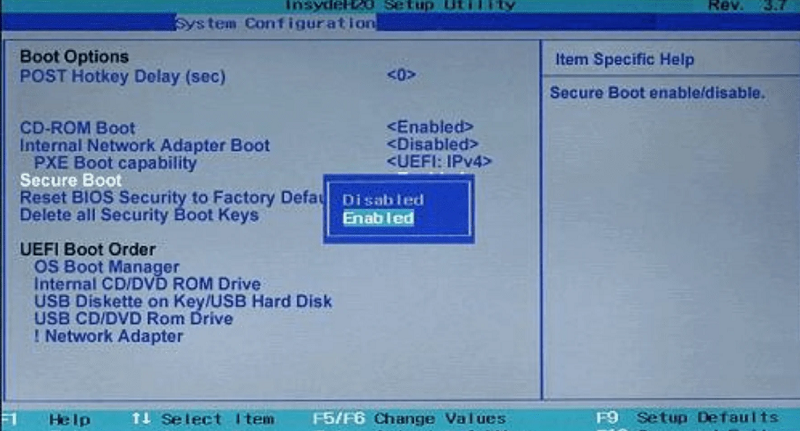
- Temporarily disable secure boot in BIOS
- Boot into Windows
- Re-enter BIOS and enable secure boot correctly
This refreshes the trust chain used in system boot authentication.
Fix Secure Boot Error on Startup (Invalid Signature Detected)
The message secure boot violation invalid signature detected usually means the bootloader signature doesn’t match stored keys.
Best Solution: Restore Default Secure Boot Keys
| Option | Result |
|---|---|
| Restore factory keys | Rebuilds trust |
| Clear custom keys | Removes conflicts |
| Re-enable Secure Boot | Validates boot files |
This process fixes many cases of secure boot error on startup without touching Windows files.
Disable Secure Boot (Temporary Fix)
Sometimes you just need access to your system.
When Should You Disable Secure Boot?
- During troubleshooting
- Testing hardware or OS compatibility
- Fixing bootloader corruption
⚠️ This is not recommended long-term due to UEFI firmware security risks.
Fix Secure Boot Error After BIOS Update
A BIOS update can unintentionally break Secure Boot.
| Post-Update Issue | Fix |
|---|---|
| Missing keys | Restore Secure Boot keys |
| Boot loop | Reset BIOS to defaults |
| Signature error | Re-enable Secure Boot |
This method is essential to fix secure boot error after BIOS update scenarios.
Secure Boot Violation on Dual Boot Systems
The secure boot violation dual boot problem is extremely common.
Linux bootloaders often aren’t signed in a way Secure Boot expects.
Options
- Disable Secure Boot permanently
- Use a Secure Boot-compatible Linux distro
- Manually sign boot files (advanced users)
Secure Boot Issue After Windows Update
Windows updates sometimes modify boot components.
If you see a secure boot issue after Windows update, resetting Secure Boot keys is often enough.
This restores the trusted boot process without rolling back updates.
Secure Boot Violation on HP, Dell, and Lenovo
The secure boot violation on HP Dell Lenovo systems varies slightly by brand.
| Brand | BIOS Path |
|---|---|
| HP | Security → Secure Boot |
| Dell | Boot Configuration |
| Lenovo | Startup → UEFI/Legacy |
Despite UI differences, the fix logic stays the same.
Secure Boot Violation Black Screen Fix
A secure boot violation black screen often means Secure Boot blocked Windows before display initialization.
Quick Fix
- Disable Secure Boot
- Boot successfully
- Restore Secure Boot keys
- Re-enable Secure Boot
This resolves the secure boot failed unauthorized changes warning in many cases.
Comparison: Enable vs Disable Secure Boot
| Feature | Enabled | Disabled |
|---|---|---|
| Security | High | Low |
| Boot compatibility | Limited | Flexible |
| Malware protection | Strong | Weak |
| Troubleshooting | Harder | Easier |
Balancing BIOS security settings with usability is key.
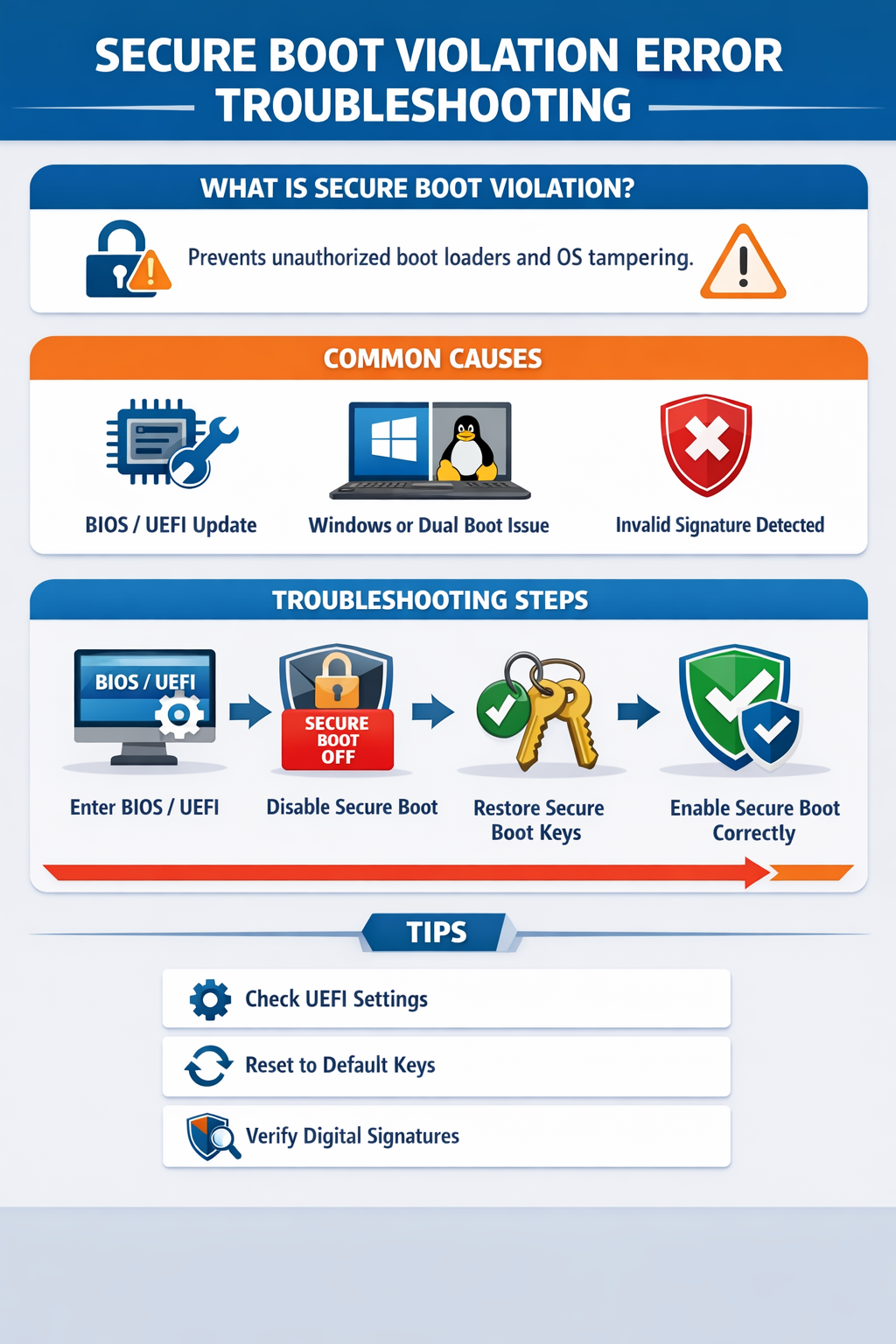
Final Thoughts: How to Fix Secure Boot Violation Error Safely
Knowing How to Fix Secure Boot Violation Error isn’t just about toggling a switch. It’s about understanding how UEFI firmware security, digital signature verification, and system boot authentication work together.
Most errors come from updates, configuration mismatches, or unauthorized boot changes—not hardware failure. Take your time, make one change at a time, and avoid panic resets.
Secure Boot exists to protect you—but sometimes, it just needs a little correction.
FAQ: Secure Boot Violation Error
❓ Can Secure Boot damage my system?
No. It only blocks untrusted boot files.
❓ Should I keep Secure Boot enabled?
Yes, once the issue is fixed.
❓ Does reinstalling Windows fix this?
Rarely. BIOS-level fixes work better.
❓ Is disabling Secure Boot unsafe?
Temporarily it’s fine, but long-term it reduces protection.