How to Prevent Unauthorized BIOS Access. If you’ve ever wondered how hackers bypass operating systems so easily, here’s a not-so-fun truth: they often don’t attack the OS first—they go straight for the firmware. That’s where learning How to Prevent Unauthorized BIOS Access becomes critical.
The BIOS (or UEFI) sits at the very core of your system. It controls hardware before your operating system even loads. So if someone gains access here, they can bypass passwords, install malware, or completely control your system. Scary, right?
That’s why following proper BIOS security best practices, understanding how to secure computer firmware, and implementing firmware protection techniques are essential—not optional anymore. Whether you’re a casual user or managing enterprise systems, preventing unauthorized system access at this level is a must.
Why BIOS Security Matters More Than You Think
Most people focus on antivirus software or Windows login passwords. But what about the layer beneath it all?
Without proper BIOS security settings, attackers can:
- Change boot order and load malicious OS
- Reset system passwords
- Install firmware-level malware
- Completely bypass OS-level protections
This is why you must protect system firmware from unauthorized access and implement strong hardware-level security settings.
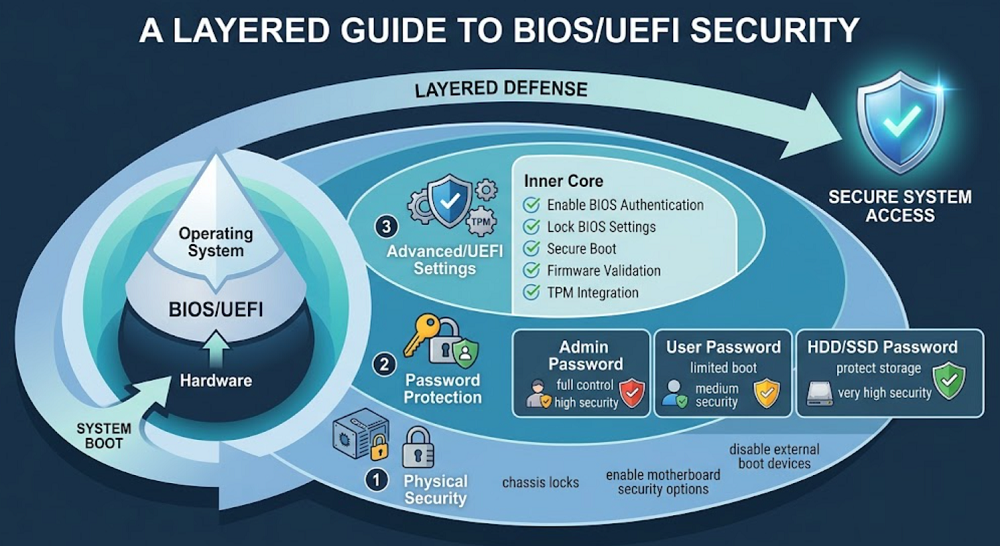
How to Prevent Unauthorized BIOS Access Using Password Protection
Let’s start with the basics—still one of the most effective solutions.
1. Protect BIOS with Password
The first step in How to Prevent Unauthorized BIOS Access is to protect BIOS with password. This ensures no one can enter BIOS without authentication.
2. BIOS Administrator Password Setup
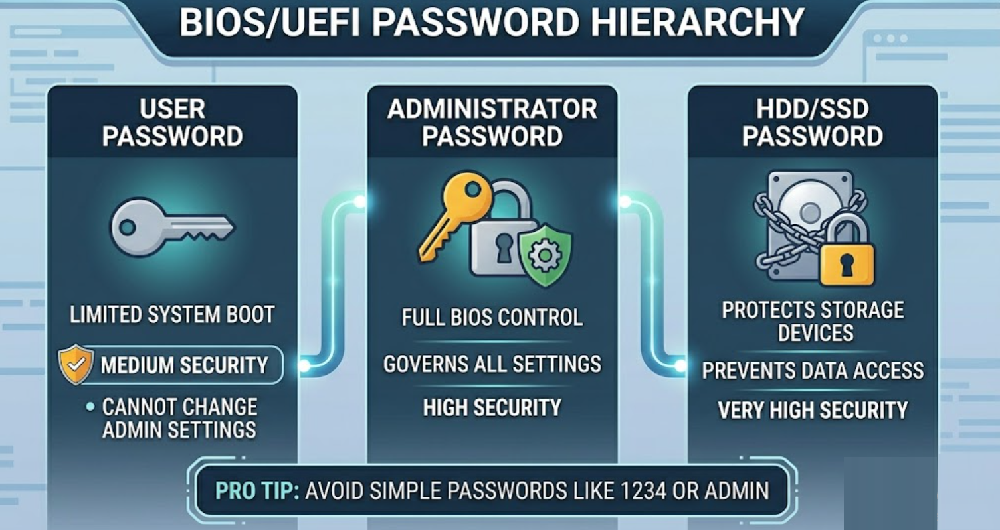
You should always configure a strong BIOS administrator password setup. This is different from a user password—it controls access to all BIOS settings.
👉 Pro tip: Avoid simple passwords like “1234” or “admin.” You’d be surprised how often people still use them.
Types of BIOS Passwords and Their Functions
| Password Type | Purpose | Security Level |
|---|---|---|
| User Password | Limits system boot | Medium |
| Administrator Password | Full BIOS control | High |
| HDD/SSD Password | Protects storage devices | Very High |
Configure Advanced BIOS Security Settings
Passwords are just the beginning. Modern systems offer deeper protections.
Enable BIOS Authentication
Always enable BIOS authentication features available in your system. These ensure only verified users can access firmware settings.
Lock BIOS Settings
Once configured, you should lock BIOS settings to prevent changes. This is especially important in shared or office environments.
BIOS Setup Utility Protection
Another overlooked step is enabling BIOS setup utility protection. This restricts unauthorized entry into BIOS configuration screens.
Use UEFI Security Features for Better Protection
If you’re still using legacy BIOS, you’re missing out. Modern systems use UEFI, which provides stronger security.
UEFI Security Features You Should Enable
- Secure boot configuration
- Firmware validation
- TPM (Trusted Platform Module) integration
These UEFI security features help protect PC from low-level attacks and ensure only trusted software runs during startup.
BIOS vs UEFI Security Comparison
| Feature | Legacy BIOS | UEFI Firmware |
|---|---|---|
| Secure Boot | ❌ No | ✅ Yes |
| Authentication Support | Limited | Advanced |
| Firmware Updates | Basic | Secure |
| Malware Protection | Weak | Strong |
Prevent BIOS Tampering with Physical Security
Here’s something many guides ignore: physical access equals total access.
If someone can open your PC, they can:
- Reset BIOS by removing CMOS battery
- Use motherboard jumpers
- Bypass passwords entirely
What You Should Do:
- Use chassis locks
- Enable motherboard security options
- Disable external boot devices
This is crucial if you want to truly prevent BIOS tampering.
BIOS Access Restriction Methods You Should Implement
To fully understand How to Prevent Unauthorized BIOS Access, you need layered security.
Key BIOS Access Restriction Methods:
- Disable boot from USB/CD
- Restrict BIOS access to admin users
- Enable firmware write protection
These BIOS access restriction methods significantly reduce attack surfaces.
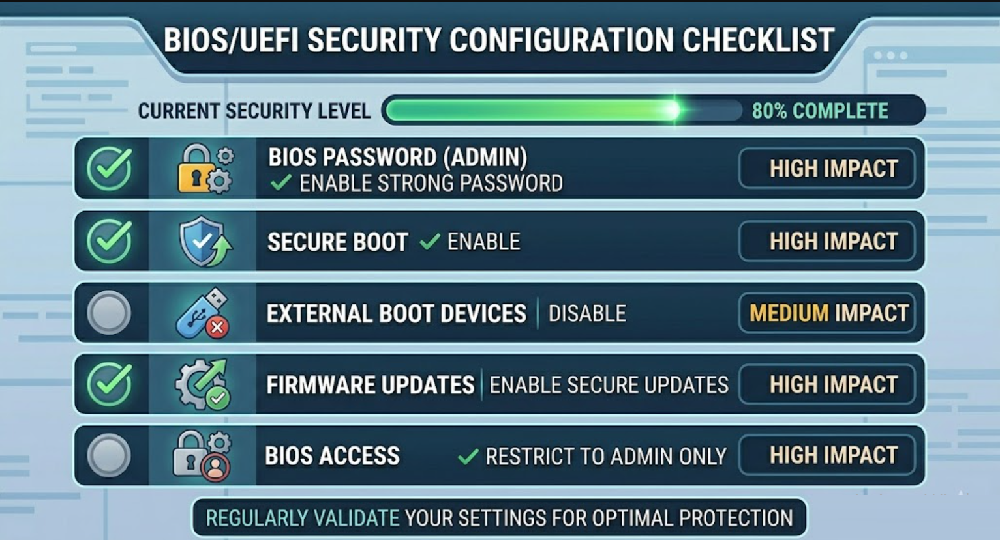
Recommended BIOS Security Configuration Checklist
| Setting | Recommended Action | Impact Level |
|---|---|---|
| BIOS Password | Enable strong password | High |
| Secure Boot | Enable | High |
| External Boot Devices | Disable | Medium |
| Firmware Updates | Enable secure updates | High |
| BIOS Access | Restrict to admin only | High |
BIOS Password Recovery Prevention: Don’t Overlook This
Ironically, many systems are designed to help users recover BIOS passwords. But attackers can exploit this.
To ensure BIOS password recovery prevention, you should:
- Disable password reset options (if available)
- Use manufacturer-specific security tools
- Keep firmware updated
This adds another layer of firmware security protection.
Firmware Security Protection Best Practices
Let’s bring everything together. If you’re serious about How to Prevent Unauthorized BIOS Access, follow these proven BIOS security best practices:
- Regularly update firmware
- Use strong authentication methods
- Enable all available hardware-level security settings
- Monitor system for unusual behavior
These steps align with modern firmware protection techniques and help in preventing unauthorized system access effectively.
Real-World Insight (A Quick Reality Check)
Here’s the thing—most users ignore BIOS security until something goes wrong.
I’ve seen cases where systems were completely compromised just because BIOS was left unprotected. No password. No restrictions. Nothing.
So ask yourself:
Would you leave your front door unlocked?
That’s exactly what an unprotected BIOS is.
Conclusion
Understanding How to Prevent Unauthorized BIOS Access isn’t just for IT professionals anymore—it’s essential for anyone using a computer.
By configuring strong BIOS security settings, enabling UEFI security features, and applying proper BIOS access restriction methods, you can significantly reduce risks.
More importantly, you’ll be able to protect system firmware from unauthorized access, protect PC from low-level attacks, and follow the best practices for how to secure computer firmware.
Security starts from the lowest level—and BIOS is exactly that.
FAQ: How to Prevent Unauthorized BIOS Access
1. What is the easiest way to prevent unauthorized BIOS access?
The simplest method is to protect BIOS with password and configure a strong administrator password.
2. Can BIOS passwords be bypassed?
Yes, if physical access is available. That’s why combining passwords with physical security and BIOS access restriction methods is essential.
3. Is UEFI more secure than BIOS?
Absolutely. UEFI security features like Secure Boot provide better protection against firmware-level threats.
4. How often should I update BIOS firmware?
Only when necessary—but always use official updates to maintain firmware security protection.
5. What happens if BIOS is compromised?
Attackers can control boot processes, bypass OS security, and install persistent malware—making it critical to prevent BIOS tampering.