How to Recover Data After System Crash: A Complete Step-by-Step Recovery Guide. Have you ever turned on your computer only to be greeted by a black screen, an endless loading circle, or the dreaded blue screen of death (BSOD)? It’s one of those moments that instantly raises your heart rate—especially if important work, family photos, or business files are trapped inside.
The good news is that a system crash doesn’t always mean your data is gone forever. In many cases, your files are still safely stored on the drive even though Windows refuses to start. Whether you’re dealing with a software failure, corrupted operating system, hard drive issue, or an interrupted Windows update, there are reliable ways to recover your data before attempting a complete reinstall.
In this guide, you’ll learn How to Recover Data After System Crash using built-in Windows tools, professional recovery software, and practical troubleshooting methods. Whether you’re a beginner or an experienced technician, these techniques will help you recover your important files while minimising the risk of permanent data loss.
Quick Answer
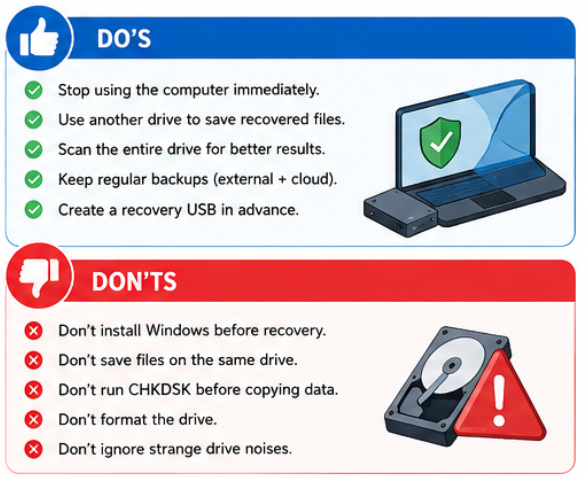
If your PC crashes and won’t boot, stop using the computer immediately. Boot into Windows Recovery Environment (WinRE) or use a bootable USB recovery drive. If Windows still won’t load, connect the storage drive to another computer or use Bootable Data Recovery Software to recover your files before repairing or reinstalling Windows.
How To Fix Windows 11 Black Screen With Cursor
Why Does a System Crash Cause Data Loss?
A Windows crash can happen for many reasons. While the operating system may become unusable, the files stored on your SSD or HDD often remain intact unless the drive itself has failed.
Common causes include:
- Corrupted Windows updates
- Malware infections
- Power outages
- Driver conflicts
- Failed BIOS updates
- SSD or HDD hardware problems
- File system corruption
- Accidental deletion during repairs
Knowing the cause helps determine the safest recovery method.
How to Fix Windows Automatic Repair Failed
Signs Your Data Can Still Be Recovered
Before trying any repairs, look for these encouraging signs:
| Symptom | Chance of Recovery | Recommended Action |
|---|---|---|
| Windows won’t boot | Excellent | Recover Data Without Windows Booting |
| BSOD appears repeatedly | Very High | Recover files before repair |
| Windows stuck on logo | High | Use WinRE or bootable recovery |
| Corrupted system files | High | Run repair after backing up files |
| SSD detected in BIOS | Very High | Copy files immediately |
| Hard drive clicking loudly | Low | Stop using the drive and seek professional recovery |
If your storage drive is still recognised by BIOS, your chances of successful recovery are usually very good.
How to Recover Data After System Crash Fast?
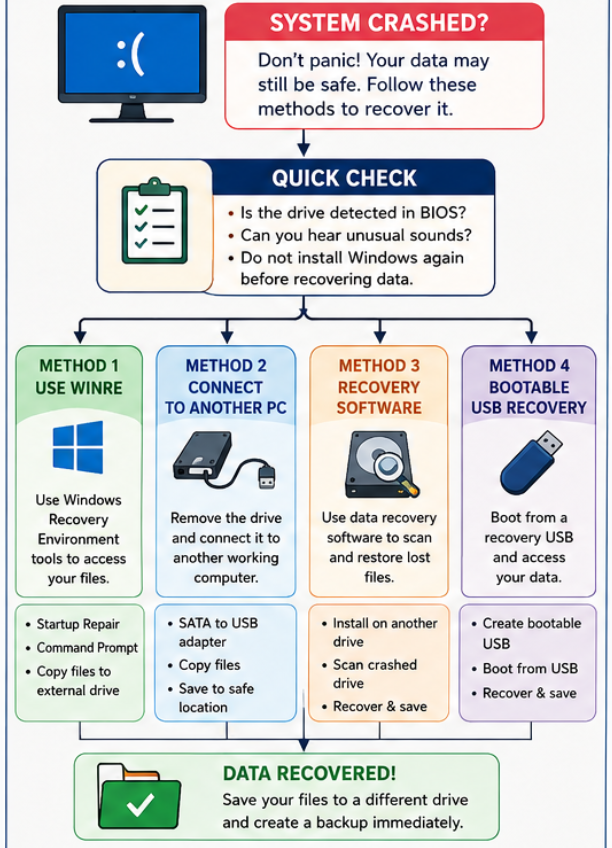
Method 1: Use Windows Recovery Environment (WinRE)
One of the safest methods for Windows crash recovery is using Windows Recovery Environment (WinRE).
Steps
- Turn the computer off.
- Power it on and interrupt startup three times.
- Windows should load WinRE automatically.
- Choose Troubleshoot.
- Open Advanced Options.
- Try Startup Repair first.
- If Windows still won’t start, open Command Prompt.
From Command Prompt, you can copy essential files to an external drive before attempting repairs.
This method works well when you need to Recover Data After Windows Crash without reinstalling the operating system.
Expert Tip: Always back up important files before running major repair tools, as some repair operations may overwrite damaged system files.
Method 2: Connect the Drive to Another Computer
If your computer won’t boot, removing the storage drive is often the fastest recovery solution.
You’ll need
- SATA-to-USB adapter
- External enclosure
- Another working computer
Once connected:
- Open File Explorer.
- Browse the affected drive.
- Copy documents, photos and videos.
- Verify files open correctly.
- Save everything to another storage device.
This is one of the easiest ways to Recover Files from Crashed PC when the storage hardware itself is still healthy.
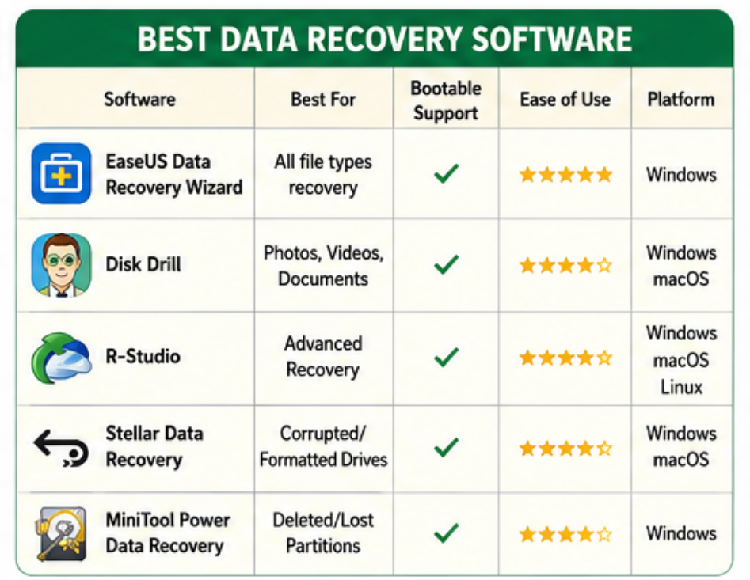
Method 3: Use Professional Data Recovery Software
If Windows won’t start but the drive is still detected, specialised file recovery software can scan the storage device for recoverable files.
Professional recovery applications can often restore:
- Deleted documents
- Lost photos
- Videos
- Office files
- Email databases
- Archived files
- Partition data
These utilities are especially useful for System Crash Data Recovery after Windows corruption.
Comparison of Recovery Methods
| Recovery Method | Difficulty | Success Rate | Best For |
|---|---|---|---|
| WinRE | Easy | High | Windows corruption |
| External drive connection | Easy | Very High | Working storage drive |
| Best Data Recovery Software | Medium | Very High | Deleted or inaccessible files |
| Professional recovery service | Advanced | Excellent | Physically damaged drives |
Remember, installing recovery software on the same crashed drive may overwrite recoverable data. Whenever possible, run the recovery tool from another drive or a bootable USB.
Method 4: Recover Data Using a Bootable USB
Sometimes Windows is completely unusable, but your files are still there.
That’s where Bootable Data Recovery Software becomes incredibly useful.
Most professional recovery programs allow you to create a bootable USB that starts independently of Windows.
The process is straightforward:
- Create the recovery USB on another computer.
- Insert it into the crashed PC.
- Change the boot order in BIOS.
- Boot from the USB.
- Scan the SSD or HDD.
- Save recovered files to an external drive.
This approach is ideal when you need to Recover Data Without Windows Booting.
Warning: Never recover files back onto the same drive you’re scanning. Always save recovered files to a different storage device to avoid overwriting recoverable data.
Method 5: Recover Files After a Blue Screen Error
A recurring blue screen of death (BSOD) often indicates corrupted drivers or damaged system files rather than lost data.
If you’re trying to Recover Files from Blue Screen Error, follow this order:
- Disconnect unnecessary peripherals.
- Boot into Safe Mode if possible.
- Copy essential files.
- Create a complete backup.
- Perform Windows Startup Repair.
- Only reinstall Windows after confirming your files are safe.
Many users reinstall Windows too quickly and accidentally make recovery more difficult.
Troubleshooting Guide
| Problem | Possible Cause | Solution |
|---|---|---|
| Black screen | Corrupted Windows | Boot into WinRE |
| Infinite restart | Failed update | Startup Repair |
| Drive not detected | Hardware issue | Check BIOS connections |
| SSD visible but inaccessible | File system corruption | Use recovery software |
| BIOS update failed | Firmware corruption | Recover Data After BIOS Failure before repair |
| Windows reinstall deleted files | Formatting mistake | Recover Deleted Files After Crash immediately |
How To Fix What Is Usoclient.exe Windows 10 Popup
Hard Drive Data Recovery vs SSD Data Recovery
Many people assume all storage devices fail in the same way, but that’s not the case. Understanding the difference helps you choose the safest recovery method and avoid making the situation worse.
| Feature | HDD Recovery | SSD Recovery |
|---|---|---|
| Storage type | Magnetic platters | Flash memory |
| Common failure | Mechanical damage | Controller or firmware failure |
| DIY recovery success | High | Moderate |
| Speed | Slower scanning | Faster scanning |
| Risk of permanent loss | Medium | High if TRIM has run |
| Best recovery method | Recovery software or external enclosure | Immediate backup or professional recovery |
Traditional hard drives are generally easier to recover because deleted data often remains until it is overwritten. SSDs, however, use the TRIM feature, which can permanently erase deleted data more quickly. If you need Hard Drive Data Recovery or SSD Data Recovery, stop using the drive immediately to maximise your chances of success.
How to Recover Data from Corrupted Windows
A corrupted operating system doesn’t always mean your files are lost. In most cases, only Windows is damaged while your personal data remains untouched.
Here’s a practical recovery process:
1. Boot into WinRE
Use Windows Recovery Environment (WinRE) to access repair and recovery tools.
2. Run Startup Repair
Launch Windows Startup Repair to fix damaged boot files. If Windows starts normally afterwards, back up your data immediately.
3. Use System Restore
If a restore point exists, system restore can return Windows to a working state without affecting your personal files.
4. Recover Files Before Reinstalling
If repairs fail, use recovery software or connect the drive to another computer to perform Data Recovery from Corrupted Windows before reinstalling the operating system.
Recover Data After BIOS Failure
A failed BIOS update can prevent your computer from starting, but it doesn’t necessarily erase your storage drive.
To Recover Data After BIOS Failure:
- Reset BIOS settings if possible.
- Check whether the SSD or HDD is still detected.
- Remove the storage drive and connect it to another computer if necessary.
- Copy important files before attempting BIOS recovery.
The storage device is usually unaffected unless there is additional hardware damage.
Can You Recover Data from a Dead Laptop?
Yes—provided the storage drive itself still works.
To Recover Data from Dead Laptop:
- Remove the SSD or HDD.
- Place it in a USB enclosure or use a SATA-to-USB adapter.
- Connect it to another Windows computer.
- Copy your files to a safe location.
Even if the laptop’s motherboard has failed, the drive often remains perfectly readable.
How to Fix System Crash Without Losing Data
Once your important files are safely backed up, you can begin repairing Windows with confidence.
Follow this order:
- Run disk repair using
chkdsk. - Repair Windows with Startup Repair.
- Use System Restore if available.
- Update faulty drivers.
- Scan for malware.
- Repair corrupted system files using
sfc /scannowandDISM. - Perform a Windows Reset while choosing Keep my files if necessary.
This approach helps Fix System Crash Without Losing Data whenever the hardware is still functioning correctly.
Expert Recommendation: Never perform a clean installation until you’ve verified that your important files are backed up. Reinstalling Windows too early can overwrite recoverable data.
Prevent Future Data Loss
Recovering data is stressful, but preventing future loss is much easier.
Here are a few habits that every Windows user should adopt:
- Schedule automatic data backup.
- Keep an external hard drive backup updated.
- Use reliable cloud storage for essential documents.
- Create a Windows recovery USB.
- Install Windows updates regularly.
- Replace ageing HDDs before they fail.
- Monitor SSD health using SMART tools.
- Test your backups occasionally to ensure they work.
A simple backup routine can save hours—or even days—of recovery work.
Frequently Asked Questions (FAQs)
1. Can I recover files after a Windows system crash?
Yes. In many cases, your files remain intact even if Windows fails to boot. You can use recovery software, WinRE, or another computer to access the drive.
2. What is the best way to recover data if my computer won’t boot?
The safest method is to use Recover Data Without Windows Booting techniques, such as a bootable recovery USB or connecting the drive to another PC.
3. Can I recover deleted files after a crash?
Yes. If the deleted data hasn’t been overwritten, Recover Deleted Files After Crash is often possible using professional recovery software.
4. Is Windows Startup Repair safe?
Yes. Windows Startup Repair attempts to fix boot-related issues without deleting personal files, although backing up your data first is always recommended.
5. What should I do if my SSD has failed?
Stop using it immediately. SSDs may permanently erase deleted data through TRIM, so early action significantly improves recovery chances.
6. Can I recover photos and documents after reinstalling Windows?
Sometimes. Recovery depends on whether the storage space has been overwritten. The sooner you attempt recovery, the better the chances of restoring recover photos, recover documents, and other recover important files.
7. Which recovery method is best for beginners?
Using Windows Recovery Tools, WinRE, or a trusted recovery application provides the easiest and safest starting point for most users.
Final Thoughts
Learning How to Recover Data After System Crash is an essential skill for every Windows user. A crashed operating system may seem catastrophic, but in reality, your files are often still recoverable if you act quickly and avoid unnecessary changes to the drive.
Whether you’re dealing with a failed update, a blue screen of death (BSOD), a corrupted operating system, or hardware issues, the key is to recover your data before attempting major repairs. Built-in recovery options, bootable tools, and professional software all have their place, and choosing the right method depends on the condition of your storage device.
Finally, don’t wait for another crash to think about backups. A combination of regular Backup and Restore Windows Files, cloud storage, and an Emergency Data Recovery Guide can turn a potential disaster into a minor inconvenience.
How to Monitor Network Traffic on Windows
Fix Corrupted Icons And Shortcuts In Windows 10
What To Do When Windows 10 Is Locked Out