Difference Between Cloud Storage and Cloud Backup: What’s the Real Difference? Cloud storage and cloud backup may sound like the same thing, but they serve two different purposes. Both help you keep files online, access data from multiple devices, and reduce dependence on physical storage. However, using cloud storage does not automatically mean your important files are safely backed up.
How to Secure Cloud Storage from Hackers
The Difference Between Cloud Storage and Cloud Backup comes down to how your data is stored, synchronized, protected, and recovered when something goes wrong.
For example, Google Drive lets you store documents and access them from different devices. A dedicated cloud backup service, on the other hand, is designed to create recoverable copies of your files so you can restore them after accidental deletion, hardware failure, ransomware, or other data loss incidents.
Understanding this distinction matters whether you are protecting personal photos, business documents, Windows system files, or an entire website. Let’s look at how both technologies work and which one makes more sense for your needs.
What Is Cloud Storage?
Cloud storage is an online data storage service that allows users to save files on remote servers instead of relying entirely on a computer’s internal drive or an external hard disk.
You can upload documents, photos, videos, and other files through an internet connection. Once uploaded, those files can usually be accessed through a web browser, desktop application, or mobile device.
Popular examples include Google Drive, Microsoft OneDrive, Dropbox, and Apple iCloud Drive.
How Does Cloud Storage Work?
When you upload a file, the cloud storage provider transfers it to its remote infrastructure. The service stores the data and makes it available through your account.
Many platforms also offer file synchronization, meaning changes made to a file on one connected device can appear on your other devices.
For instance, if you edit a document on your laptop, the updated version may automatically synchronize with your phone.
However, synchronization can create problems. If you accidentally delete a synchronized file, that deletion may also affect other connected devices.
Key benefits of cloud storage:
- Access files from almost anywhere with an internet connection.
- Share documents and folders with other people.
- Synchronize files between computers and smartphones.
- Reduce the need for physical storage devices.
- Collaborate on documents in real time.
Cloud storage is particularly useful for everyday file access, collaboration, and convenient online data storage.
What Is Cloud Backup?
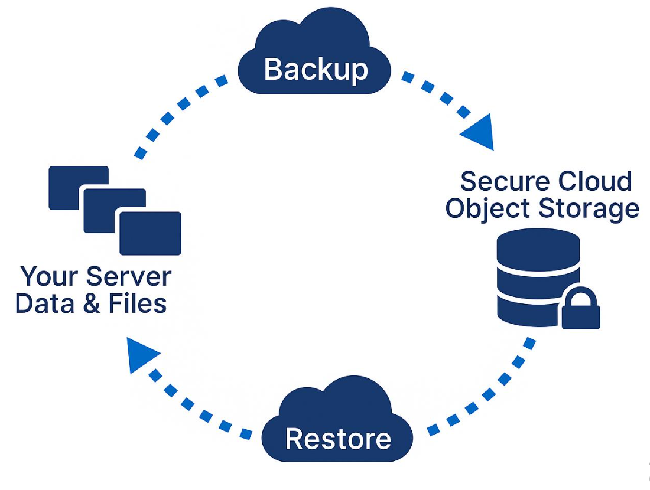
Cloud backup is a data protection method that creates copies of important files and stores them on remote servers. Its primary purpose is to help users recover information when original data becomes damaged, corrupted, deleted, or inaccessible.
Unlike ordinary file storage, backup software is designed around recovery.
For example, imagine your Windows laptop suddenly stops working because its SSD fails. If you have a properly configured cloud backup, you may be able to restore your important documents, photos, and other backed-up data on another device.
How Does Cloud Backup Work?
Most cloud backup services follow a straightforward process:
- Select data: Choose the folders, files, or system information you want to protect.
- Create an initial backup: The software uploads a copy of the selected data to a remote backup server.
- Schedule backups: Configure automatic backups to run daily, weekly, or at another suitable interval.
- Track changes: Depending on the service, subsequent backups capture new or modified files.
- Restore data: When data is lost, use the backup application to recover an earlier copy.
Some services support incremental backups, which upload only changed data after the initial backup. This can save bandwidth and storage space.
A good cloud backup service may also offer version history, encryption, ransomware protection, and disaster recovery features.
Cloud Backup vs External Hard Drive: Which Is Safer?
Difference Between Cloud Storage and Cloud Backup: Key Differences
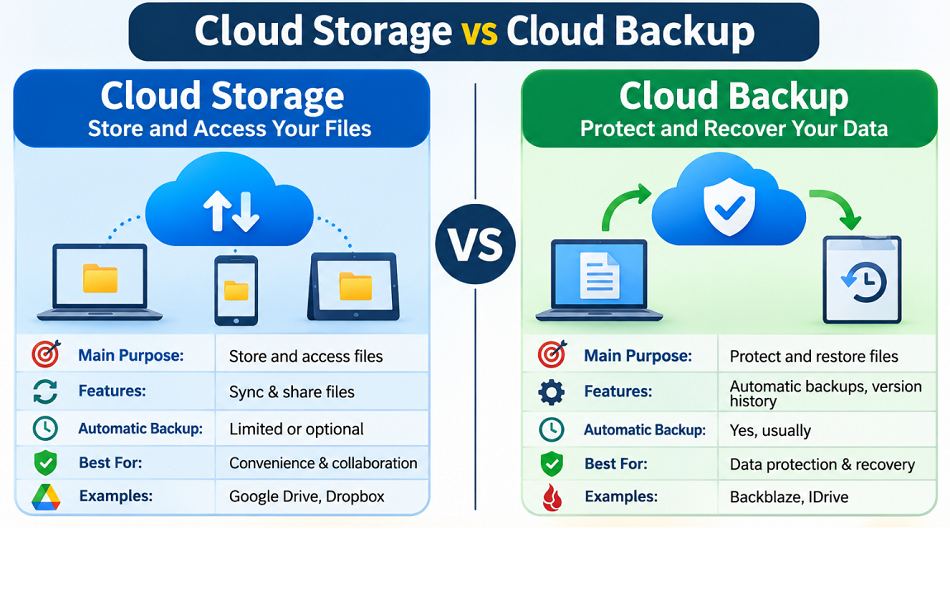
Although both technologies use remote servers, their functionality and purpose are different. Cloud storage focuses on storing and accessing files, while cloud backup focuses on protecting and restoring data.
Here is a practical Cloud Storage vs Cloud Backup comparison:
| Feature | Cloud Storage | Cloud Backup |
|---|---|---|
| Main purpose | Store and access files | Protect and recover files |
| File synchronization | Usually available | Not always available |
| Automatic backups | Limited or optional | Core feature |
| Version history | Depends on provider | Commonly supported |
| Accidental deletion protection | Limited retention options | Depends on backup retention |
| Ransomware recovery | Not guaranteed | May support clean recovery |
| Data restoration | Download individual files | Restore files or larger datasets |
| Best suited for | Sharing and collaboration | Data protection and recovery |
| Examples | Google Drive, Dropbox | Backblaze, IDrive |
One important detail: not every cloud backup service offers the same recovery features. Check its retention policy, versioning options, encryption, and restore capabilities before subscribing.
Cloud Storage vs Cloud Backup: Which One Should You Choose?
The right choice depends on what you want to accomplish.
If you regularly share documents, work across multiple devices, or collaborate with colleagues, cloud storage is generally the more convenient option.
However, if you are worried about losing important files because of hardware failure, malware, accidental deletion, or system corruption, a dedicated backup solution is a better choice.
Cloud Storage vs Cloud Backup for Business
Businesses often need both technologies because storing information and protecting it are separate responsibilities.
Consider a small company that manages customer records, financial documents, employee files, and project data. Cloud storage allows employees to access shared documents, while cloud backup helps recover business information after an unexpected incident.
| User or Situation | Recommended Solution | Reason |
|---|---|---|
| Students and casual users | Cloud storage | Easy file access and sharing |
| Freelancers | Both | Collaboration and data protection |
| Small businesses | Both | Productivity and disaster recovery |
| IT professionals | Cloud backup | Protect important technical data |
| Website owners | Both | Store working files and protect website data |
| Photographers | Both | Access large media libraries and preserve original files |
Expert recommendation: Do not treat cloud synchronization as a complete backup strategy. A synchronized folder can still reflect accidental deletions, unwanted changes, or ransomware-encrypted files.
Benefits of Cloud Backup Over Cloud Storage
The main Benefits of Cloud Backup Over Cloud Storage become clear when you consider what happens after data loss.
A storage service helps you access your files, but a properly configured backup system gives you additional recovery options.
Here are some important advantages:
1. Protection against hardware failure
An SSD, HDD, or laptop can fail without warning. Cloud backup keeps another copy of your selected data away from the original device.
2. Recovery after accidental deletion
Depending on retention settings, backup software may allow you to restore files that are no longer available on your computer.
3. Protection against ransomware
Some backup platforms provide versioned recovery points and immutable backup storage. These features can help restore clean copies after a ransomware attack.
4. Automatic data protection
You do not have to remember to copy files manually. Scheduled backups can run in the background.
5. Disaster recovery
Businesses can use cloud backups to restore critical information after hardware damage, theft, or other unexpected events.
Is Google Drive a Cloud Backup Service?
Google Drive is primarily a cloud storage and synchronization platform, not a complete replacement for a dedicated computer backup solution.
It allows you to upload files, share folders, synchronize documents, and access information from multiple devices.
However, simply keeping your important documents in Google Drive does not guarantee that every file on your computer is protected.
For example, your Windows operating system, installed applications, local configuration files, and other folders may not be included in your regular Drive synchronization.
Google also provides separate computer backup and synchronization options, but these should not automatically be confused with a full disaster recovery solution.
If you rely on Google Drive, consider using an additional backup service for important documents and system data.
Automatic Cloud Backup vs Manual Backup
There are two common approaches to backing up files.
| Factor | Automatic Cloud Backup | Manual Backup |
|---|---|---|
| User involvement | Minimal after setup | Required regularly |
| Backup frequency | Scheduled or continuous | Depends on the user |
| Human error | Generally reduced | Higher risk of forgetting |
| Convenience | High | Moderate |
| Best for | Regular data protection | Occasional file copies |
Automatic backups are generally more reliable for everyday protection because they reduce the chance of forgetting important files.
Manual backups can still be useful for transferring selected documents or creating an additional offline copy.
Troubleshooting Common Cloud Backup Problems
Even a properly configured backup service can occasionally experience problems. The important thing is to identify the cause before assuming your data is protected.
| Problem | Possible Cause | Recommended Fix |
|---|---|---|
| Backup is stuck | Slow internet or large files | Check connectivity and restart the backup application |
| Files are missing | Incorrect backup selection | Review selected folders and backup settings |
| Backup fails repeatedly | Insufficient cloud storage | Upgrade storage or remove unnecessary backup data |
| Old files are restored | Outdated recovery point | Select a more recent backup version |
| Files cannot be opened | Corrupted download or unsupported format | Download again and verify file integrity |
| Backup consumes too much bandwidth | Frequent large uploads | Configure schedules and incremental backups |
Warning: Never assume your backup is working simply because the application displays a successful status. Periodically test file restoration to confirm that your data is actually recoverable.
Best Way to Back Up Data to the Cloud
If you want reliable data protection, follow these practical steps:
- Identify important folders, including Documents, Pictures, Desktop, and business-related files.
- Choose a reputable backup provider with suitable storage limits and recovery features.
- Install its desktop backup application on your Windows computer.
- Select the folders or system data you want to protect.
- Enable automatic cloud backup and configure a suitable schedule.
- Turn on encryption and multi-factor authentication where available.
- Check backup reports regularly to identify failed uploads.
- Test the recovery process by restoring a few sample files.
For stronger protection, consider the 3-2-1 backup strategy: maintain three copies of your important data, use two different storage types, and keep one copy off-site.
Cloud backup can serve as that off-site copy, while an external hard drive provides another layer of protection.
Difference Between Cloud Hosting and Shared Hosting
Cloud Backup Security and Encryption: What Should You Check?
Security deserves attention because uploading files to remote servers means trusting a service provider with your information.
Before choosing a provider, review these features:
- Data encryption: Look for encryption during transfer and while data is stored.
- Multi-factor authentication: Adds another layer of account protection.
- Version history: Helps recover previous versions of modified files.
- Retention policy: Determines how long deleted or older files remain available.
- Ransomware protection: Check whether the provider supports immutable backups or protected recovery points.
- Private encryption keys: Some services offer client-side or zero-knowledge encryption, where the provider cannot access your encryption key.
Also remember that encryption does not replace a tested recovery process. A secure backup that cannot be restored is not particularly useful when an emergency happens.
How to Choose Between Cloud Storage and Cloud Backup
The best approach is to match the service to your actual needs rather than choosing based on storage capacity alone.
For everyday document sharing, Google Drive, OneDrive, or Dropbox can be practical choices.
For dedicated protection, compare services such as Backblaze and IDrive. Evaluate their device limits, backup frequency, version retention, restoration methods, and pricing before making a decision.
If you manage a website, your requirements may be different. You might need separate backups for website files, databases, configuration files, and media uploads.
Website owners should also remember that cloud data protection supports business continuity, not directly higher search rankings. Protecting website content, databases, and SEO assets helps preserve the work behind organic traffic growth.
For example, regular backups can protect the data used to review content performance, SEO performance metrics, competitive benchmarking, competitor intelligence, and keyword opportunities. These resources may support competitor website traffic research, SERP analysis, search intent analysis, backlink profile reviews, market positioning, and organic search performance.
When using AI-powered insights and Generative Engine Optimization to plan content, preserving research files and website data can also help maintain your workflow. These activities contribute to informed SEO decisions and long-term organic traffic growth, but they are separate from the technical benefits of cloud backup itself.
My recommendation: Use cloud storage for convenience and cloud backup for protection. For important personal or business data, combining both is usually the safer approach.
Frequently Asked Questions (FAQs)
1. Is Cloud Storage the Same as Cloud Backup?
No. Cloud storage is designed to store, access, and synchronize files, while cloud backup creates additional copies of data for recovery. Some services offer both features, but they are not interchangeable.
2. Is Cloud Backup Safer Than Cloud Storage?
For recovering lost data, a dedicated cloud backup service generally provides more protection through scheduled backups, version history, and recovery options. However, security depends on the provider’s encryption, account protection, and retention policies.
3. Can Cloud Storage Replace External Hard Drives?
Cloud storage can replace some everyday file storage needs, but it should not be your only backup method. An external hard drive provides an additional offline copy that remains accessible without an internet connection.
4. Do I Need Both Cloud Storage and Cloud Backup?
For important data, yes. Cloud storage makes files accessible across devices, while cloud backup protects them against unexpected loss. Combining both gives you greater flexibility and protection.
5. What Is the Best Cloud Backup Solution for Personal Use?
The Best Cloud Backup Solutions for Personal Use depend on your budget, device count, storage requirements, and recovery needs. Backblaze and IDrive are two options worth comparing before choosing a service.
6. What Is the Difference Between Incremental Cloud Backup and Full Backup?
A full backup copies all selected data, while an incremental backup saves only changes made since the previous backup. Incremental backups generally use less bandwidth and storage, while full backups provide a complete copy at a particular point in time.
7. Can Cloud Backup Protect Against Ransomware?
It can help, especially when the service offers immutable backups, version history, and protected recovery points. However, no backup service should be considered completely immune to ransomware or account compromise.
Conclusion
Understanding the Difference Between Cloud Storage and Cloud Backup helps you make better decisions about protecting your digital information.
Cloud storage is ideal for accessing, sharing, and synchronizing files across devices. Cloud backup is designed to preserve recoverable copies when something goes wrong.
Neither technology completely replaces the other. If you regularly work with important documents, business information, personal photos, or website data, using both is a sensible strategy.
Remember one simple rule: Store your files in the cloud for convenience, but back them up in the cloud for protection.