Best Free WiFi Analyzer for Windows. In today’s digital age, a strong and stable internet connection is vital for work, streaming, gaming, and online learning. However, most WiFi issues stem from signal interference, poor coverage, or overcrowded channels. That’s where a WiFi Analyzer For Windows becomes incredibly useful. These tools scan and assess your wireless network environment, helping you fix weak signals, optimize coverage, and improve overall performance — completely free.
This article covers the best free WiFi analyzer tools for Windows users. Whether you’re a tech enthusiast, a remote worker, or simply tired of laggy internet, these tools will help you take full control of your network.
Why You Need a WiFi Analyzer for Windows:
A WiFi Analyzer For Windows helps detect signal strength, nearby networks, optimal channels, and coverage issues. With real-time data and graphical analysis, these tools provide actionable insights to boost your WiFi performance.
If your internet frequently drops, runs slow, or buffers during video calls or streaming, it’s time to diagnose the problem with a WiFi analyzer. These tools are especially useful in crowded neighbourhoods or large homes where multiple routers may interfere with each other.
Top 5 Best Free WiFi Analyzer for Windows:
1:–NetSpot:
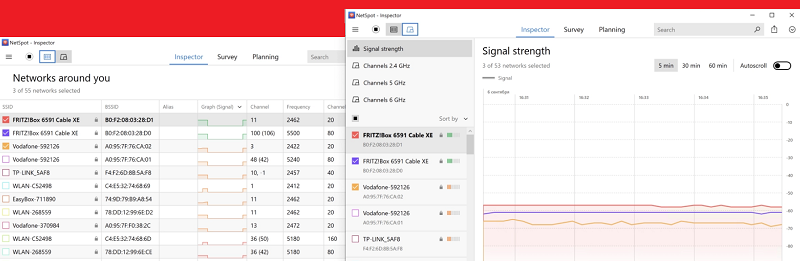
NetSpot is a top-rated WiFi analyzer for Windows that offers a perfect mix of simplicity and powerful features. It provides visual heatmaps, signal strength reports, and channel usage insights to help you find the best configuration for your network.
Features:
WiFi heat maps, dual-band analysis, signal-to-noise ratio
Best For:
Home and office network optimisation
2:–Acrylic WiFi Home:
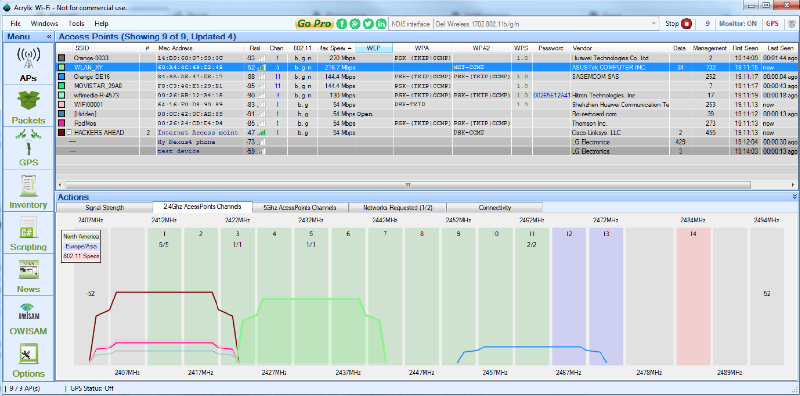
Acrylic WiFi Home offers professional-grade features in a free package. It delivers real-time WiFi data, including signal strength, encryption types, and connected device details. The layout is detailed yet beginner-friendly.
Features:
2.4GHz/5GHz support, real-time graphs, device tracking
Best For:
Tech-savvy home users
3:–Vistumbler:
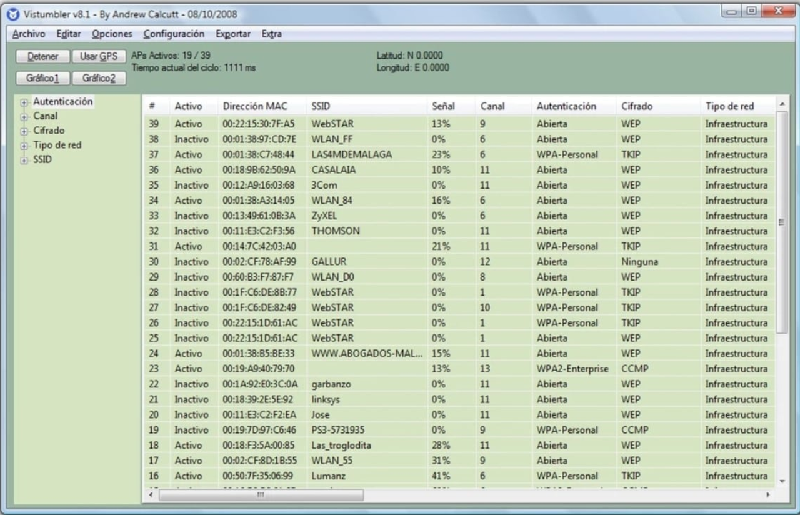
Vistumbler is an open-source WiFi Analyzer For Windows built for power users. It supports GPS integration for advanced tracking and displays wireless data in customizable graphs and charts.
Features:
GPS support, colourful signal graphs, network speech alerts
Best For:
Wireless professionals and field engineers
4:–WiFi Analyzer (Microsoft Store App):
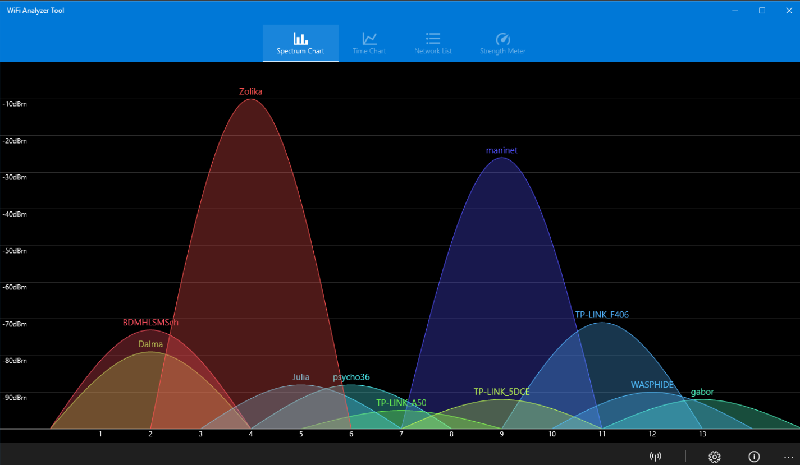
This lightweight app, named WiFi Analyzer is available on the Microsoft Store and is ideal for everyday users. It’s perfect for checking signal strength and channel congestion with minimal setup.
Features:
Signal bars, channel recommendations, user-friendly UI
Best For:
Basic users and quick home diagnostics
5:–inSSIDer (Free Version):
The free version of inSSIDer helps identify overlapping channels and assess your wireless network’s performance. Though it has a paid tier, the free edition is robust enough for most home and small business needs.

Features:
SSID filtering, signal metrics, basic channel analysis
Best For:
Small business and network troubleshooting
Benefits of Using a WiFi Analyzer:
Using a WiFi Analyser for Windows helps you:
-Find the least crowded WiFi channel for a better signal
-Improve speed by optimising router placement
-Detect hidden or unauthorised networks
-Reduce interference from nearby routers
-Enhance streaming, gaming, and work-from-home performance
These tools give you data-driven control over your wireless environment, which translates to a smoother and faster online experience.
Tips to Boost WiFi Performance:
Besides using a WiFi analyzer, you can follow these steps to improve signal quality:
-Move your router to a central, open location
-Avoid interference from microwaves, cordless phones, or thick walls
-Switch channels based on analyzer recommendations
-Use dual-band (2.4GHz and 5GHz) for better flexibility
-Update router firmware to fix bugs and improve speed
Conclusion:
If you’re dealing with slow or unstable internet, a WiFi Analyser for Windows is the first step toward solving the problem. Tools like NetSpot, Acrylic WiFi Home, and Vistumbler offer professional-grade features at no cost, empowering you to optimise your network from the comfort of your PC.
Don’t wait for buffering screens or dropped video calls to ruin your day — install a free WiFi analyser today and take charge of your wireless performance. It’s easy, effective, and absolutely free.