iTunes Not Working. In this article, you will get to know why iTunes is not working and how to fix Itunes not working issue. iTunes is an app developed by the company Apple. It provides music and other media services to Apple users. But sometimes it stopped working. Here, we will first troubleshoot the reasons for this problem and then go for the solutions to fix them.
Why iTunes Is Not Working?
The reasons for iTunes not working are:
-Corrupted iTunes File.
-Corrupted or missing libraries.
-Corrupted bonjour.
-iTunes version is incompatible with Windows.
iTunes Not Working Solutions:
Here are some solutions to the iTunes not working issue. Let us have a look at them one by one:
Solution 1 – Close iTunes By Using Task Manager:
If yourHow To Fix iTunes Not Working Problem,iTunes not working issue solution,iTunes is not opening,iTunes is not working, then try to force close it by using task manager. Restart iTunes to see if the problem still persists. To close iTunes from the task manager, follow the steps given below:
1.Press the Ctrl + Shift + Esc keys to open the Task Manager.
2.Right-click on the iTunes app.
3.Click on the End Task.
4.It will end all the active background processes of iTunes.
5.Restart the app to check if the problem is still there.

Solution 2 – Repair Bonjour:
Repairing Bonjour can solve this issue. A corrupted bonjour can be the reason for many users, that their iTunes is not opening.
Bonjour is a complete group of technologies, consisting of service discovery, address assignment, and hostname resolution. It provides a general method for the applications to discover shared services on LAN and IE plug-in for discovering local web servers. To repair Bonjour, follow the steps given below:
1.Open the Programs & features option.
2.Locate Bonjour and right-click on it.
3.Finally, click on the Repair option.
Solution 3 – Reinstall iTunes:
A corrupted iTunes can be the reason for this problem. You have to uninstall it first, then reinstall it on your computer. To do so, follow the steps below:
1.Open the Programs and Features.
2.Find iTunes and right-click on it.
3.Select the Uninstall option and follow the instructions given to finish the uninstallation process.
4.Then download the latest version of iTunes from the official website.

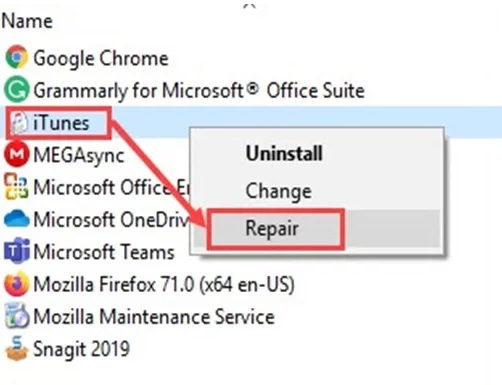
Solution 4 – Repair iTunes:
A corrupted iTunes can cause the problem. So, you have to repair iTunes to solve this problem. To do so, follow the steps below:
1.Type Control panel in the Windows search bar.
2.Click on the Programs option in the control panel.
3.Click on the Programs and Feature option and navigate iTunes.
4.Right-click on iTunes and select the Repair option.
Solution 5 – Open iTunes In Safe Mode:
When you run iTunes in Safe Mode, it will use only basic necessities to run. It will also check if any plug-in is causing problems. To open iTunes in Safe Mode, follow the steps:
1.Press and hold Ctrl + Shift and open iTunes.
2.The dialog box will appear on the screen.
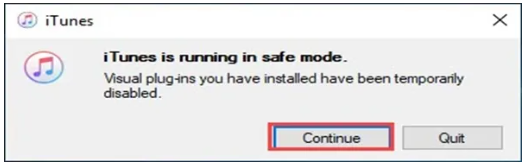
3.Click the Continue option and see if iTunes opens or not.
If iTunes gets open, then the problem lies in the plug-ins. They can be corrupted. To fix the corrupted plug-in, follow the steps:
1.First, you would have to navigate to
C:\Users\\AppData\Roaming\Apple Computer\iTunes\iTunes Plug-ins.
2.You will have to move all the files to somewhere else.
3.Once you have moved all the files, move them back one by one and check each time if iTunes opens or not.
4.Whenever you find that the iTunes is not opening, delete the last plug-ins you moved in.
Solution 6 – Create A New Library:
A corrupted library can be the cause that iTunes is not working. Creating a new library can solve the problem. To make a new library, follow the steps given below:
1.Press and hold the Shift key while you open the iTunes app.
2.A dialog box will appear. Click on the create library option.

3.Give library a new name and click on the Save option.
Solution 7 – Change The Compatibility Settings:
One of the causes that your iTunes is not working is that it is not compatible with the current version of Windows. You can solve this issue by just changing the compatibility settings, just follow the steps below:
1.Right-click on the iTunes shortcut on your desktop.
2.Select the Properties option.

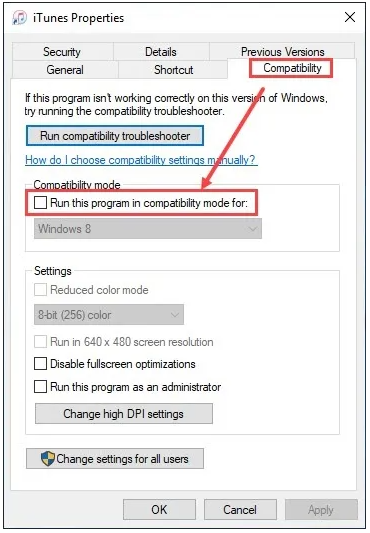
3.Select the Compatibility tab.
4.Check the Run this program in compatibility mode box.
5.Restart the app to see if the problem is solved.