Fix YouTube Videos Loading Slow Issue. You will read methods to fix YouTube videos take long time to start problem. The slow loading of YouTube videos can be because of various reasons, including extensions, hardware acceleration or theme of the browser. If YouTube videos take long time to start, read the method given below to solve this issue. I have mentioned two separate methods for Chrome and Firefox browser.
How To Fix Fix YouTube Videos Loading Slow Issue?
Solve Slow Loading Of YouTube Videos On Chrome:
Method 1 – Disable Extensions:
Any extension added to the browser can cause this issue. Maybe it is outdated thats why creating a problem. The solution to this is update or disable that extension. To do so:
1.Open ‘Chrome’.
2.Click on ‘Menu’ button or three parallel dots at the top right corner.
3.Select ‘More tools’.
4.Go to ‘Extensions’.

5.You will see a list of name of the extensions.
6.Uncheck ‘Enable’ to disable a particular one.
7.Repeat this method for each extension.
8.Now, restart the browser to make the changes.
Method 2 – Turn Off Hardware Acceleration:
Hardware acceleration can show various error messages. To disable the hardware acceleration:
1.Open ‘Chrome’.
2.Go to ‘Menu’ and choose ‘Settings’.
3.Scroll down and click on ‘Advanced’.
4.Scroll down to ‘System’.

5.Uncheck ‘Use hardware acceleration when available’.
6.Close the browser.
7.Reopen Google Chrome.
7.Try to open YouTube videos and the problem will get solved.
Solve Slow Loading Of YouTube Videos On FireFox:
Method 1 – Disable Firefox Extensions:
Some extensions can cause the slow loading of YouTube videos. And, it is also better to disable or remove the unused extensions. To do so:
1.Open ‘Firefox’.
2.Press keyboard shortcut ‘Ctrl + Shift + A’.
3.Click on the name of the extensions you want to disable.
4.Select ‘Disable’.
5.Repeat this method for each extension.
6.Now, restart the browser to make the changes.
Method 2 – Turn Off Hardware Acceleration:
If the hardware acceleration is turned on then, this might create a problem for YouTube videos taking forever to start. Turn hardware acceleration off and fix the issues. To do so:
1.Click on ‘Menu’ or three parallel lines at the top right corner.
2.Go to ‘Options’.
3.Select ‘General’.
4.Scroll down the page until ‘Performance’.

5.Uncheck ‘Use recommended performance settings.

6.Uncheck ‘Use hardware acceleration when available’.
7.Close the browser.
8.Open ‘Firefox’ again.
9.Now, try to load videos.
Method 3 – Run Firefox in Safe Mode:
You can also try running Firefox in Safe Mode. It will disables the add-ons and hardware acceleration also gets turned off. The theme of the browser will set to default. To open Firefox in safe mode:
1.Click on ‘Menu’ or three parallel lines at the top right corner.
2.Go to ‘Help’.

3.Select ‘Restart with Add-ons Disabled’.
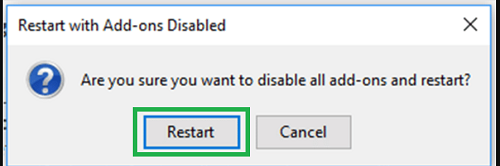
4.Click on ‘Restart’ and it’s done.
5.You can also try another method, if your browser is closed. Hold ‘Shift’ key and click on the ‘Firefox’ desktop icon on the Windows screen.
6.Click on ‘ Start in Safe Mode’.
7.Once the browser gets closed, you will get exit from the Safe Mode.
