How To Fix Blinking Whitespace Cursor after BIOS Flash on Windows 11. Updating or flashing the BIOS is often recommended to improve hardware compatibility, boost system stability, and resolve bugs. However, after a BIOS flash, some users encounter an unexpected issue: a blinking whitespace cursor after BIOS flash on Windows 11. This frustrating situation prevents the system from booting into Windows, leaving users stuck on a blank screen with only a cursor blinking.
This issue is commonly referred to as a BIOS flash cursor issue Windows 11. While it can be alarming, the problem is usually related to boot configuration, BIOS settings, or corrupted system files. In this detailed guide, we’ll explore how to fix blinking whitespace cursor after BIOS flash on Windows 11, analyze possible causes, and provide structured solutions to restore normal system functionality.
Why Does the Blinking Whitespace Cursor After BIOS Flash Happen?
When you see a whitespace cursor after BIOS flash, it usually indicates that your system cannot locate the bootable operating system. Several issues may be at play:
-Boot order misconfiguration after BIOS update
-Damaged Master Boot Record (MBR) or EFI partition
-Secure Boot settings conflicts
-Incomplete BIOS flash process
-Corrupted Windows boot files
Common Symptoms of BIOS Flash Cursor Issue Windows 11
Before applying fixes, confirm if you are facing this exact issue:
-Blinking whitespace cursor after BIOS update instead of booting Windows
-Cursor stuck after BIOS update Windows, with no error message
-No response even after pressing keys like F8 or F12
-BIOS settings reset to default, causing boot confusion
Causes vs Symptoms of Blinking Cursor Issue
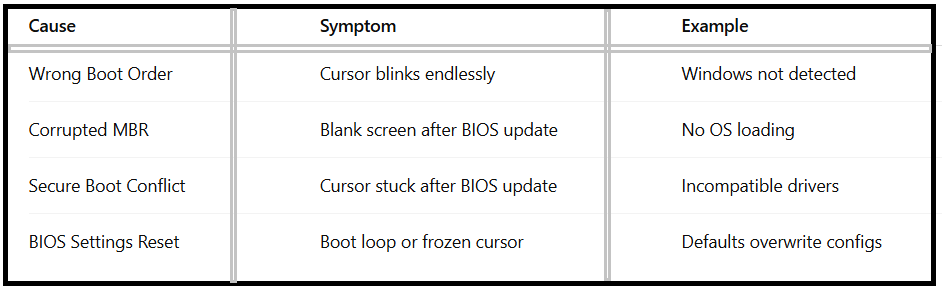
Step-by-Step Solutions – How To Fix Blinking Whitespace Cursor After BIOS Flash on Windows 11
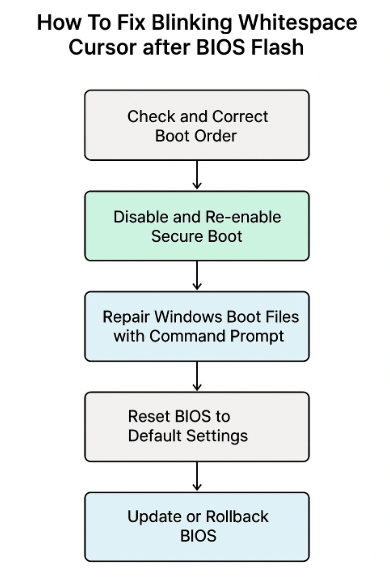
1.Check and Correct Boot Order
A BIOS flash can reset boot order, causing the PC to attempt to boot from the wrong device.
Steps:
1.Restart your PC and press Del/F2 to enter BIOS.
2.Navigate to the Boot tab.
3.Ensure your Windows drive is set as the primary boot option.
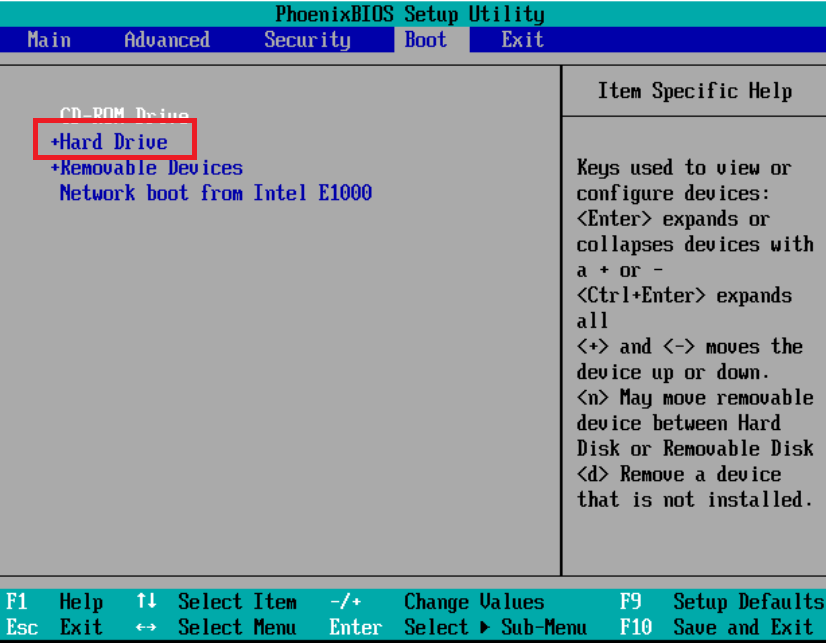
4.Save changes and reboot.
2.Disable and Re-Enable Secure Boot
Sometimes Secure Boot interferes with new BIOS configurations.
Steps:
1.Enter BIOS and go to Security or Boot settings.
2.Toggle Secure Boot off.
3.Save changes and reboot.
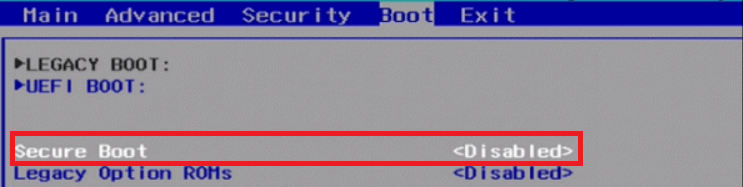
If Windows loads, re-enable Secure Boot for better protection.
3.Repair Windows Boot Files with Command Prompt
If your cursor stuck after BIOS update Windows, the issue may lie with corrupted boot files.
Steps using Windows Recovery:
1.Boot using a Windows 11 installation USB.
2.Select Repair your computer > Troubleshoot > Advanced Options > Command Prompt.
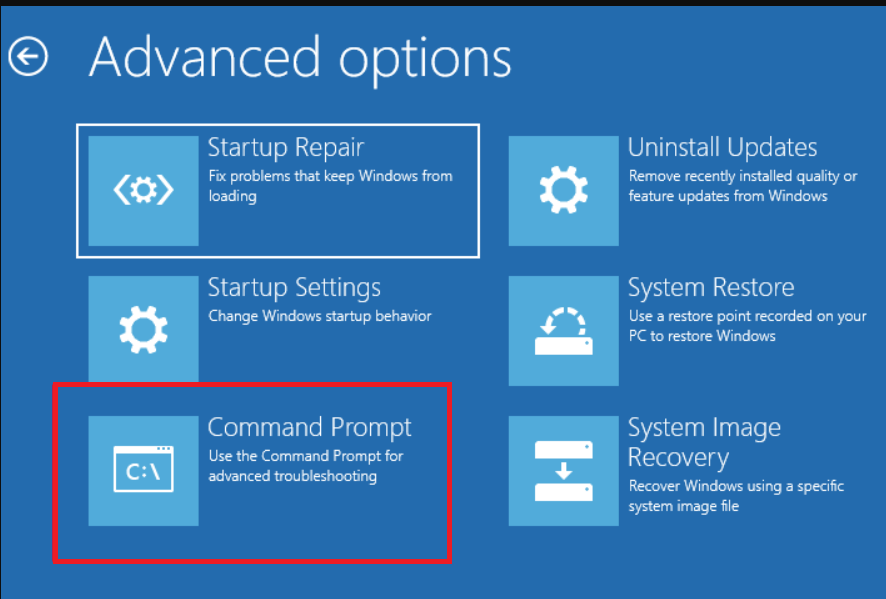
3.Enter the following commands:
bootrec /fixmbr
bootrec /fixboot
bootrec /rebuildbcd
4.Restart the system.
4.Reset BIOS to Default Settings
If the issue started after incorrect settings were changed, resetting BIOS may resolve it.
Steps:
1.Restart PC and enter BIOS.
2.Locate Reset to Default / Load Optimized Defaults.
3.Save and reboot.
5.Update or Roll Back BIOS
An incomplete or faulty BIOS flash may trigger the BIOS flash cursor issue Windows 11.
If available, try flashing the latest stable BIOS version.
If the problem began after a recent update, consider rolling back to an older version.
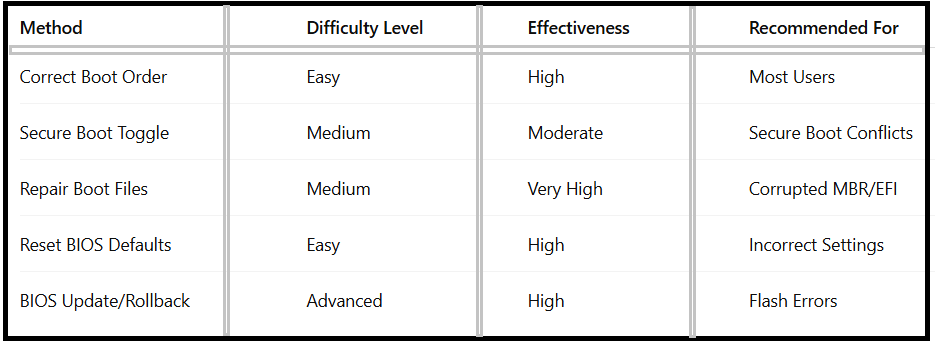
Fix Methods and Their Effectiveness:
Advanced Fixes for Persistent Cursor Issues:
1.Use Startup Repair:
Windows 11 has a built-in Startup Repair that automatically fixes boot problems.
-Boot from a Windows USB
-Choose Repair your computer > Startup Repair
2.Reinstall Windows 11:
If all else fails, reinstalling Windows may be the only solution. Back up your files if possible before proceeding.
Preventing Blinking Whitespace Cursor After BIOS Update in Future
To avoid facing the blinking whitespace cursor after BIOS update again:
-Always use the official BIOS update tool from your motherboard manufacturer.
-Do not interrupt the update process.
-Double-check boot settings after flashing.
-Create a Windows recovery USB in advance.
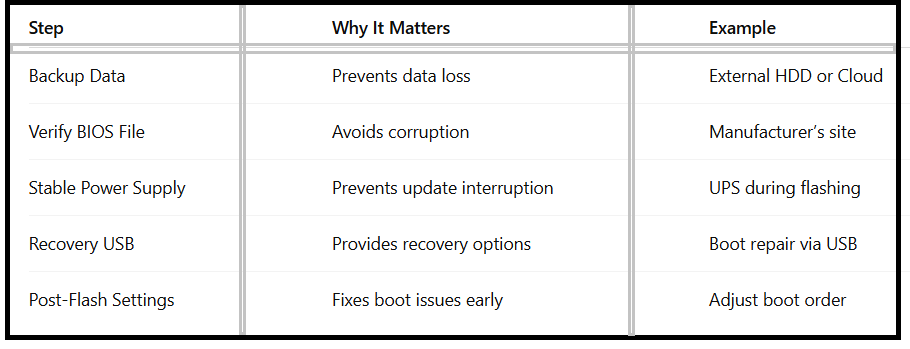
Prevention Checklist for Safe BIOS Flashing:
FAQs – How To Fix Blinking Whitespace Cursor after BIOS Flash:
Q1.What causes the blinking whitespace cursor after BIOS flash on Windows 11?
It’s usually due to boot misconfiguration, corrupted boot files, or Secure Boot conflicts after a BIOS update.
Q2.Can I fix the BIOS flash cursor issue Windows 11 without reinstalling Windows?
Yes. Try fixing boot order, disabling Secure Boot, or repairing boot files before considering a reinstall.
Q3.What if my cursor is stuck after BIOS update Windows even after repair attempts?
If common fixes fail, try rolling back or updating the BIOS again with a stable version.
Q4.Will resetting BIOS defaults remove the cursor issue?
In many cases, yes, since resetting restores proper boot configurations.
Q5.How do I prevent this issue in the future?
Always back up, verify BIOS files, and ensure stable power during flashing.
Conclusion:
The blinking whitespace cursor after BIOS flash in Windows 11 is a frustrating but solvable issue. Whether it’s a BIOS flash cursor issue Windows 11 due to misconfigured boot order, corrupted system files, or Secure Boot conflicts, the fixes range from simple BIOS adjustments to repairing the Windows boot loader.
By carefully following the methods above, including resetting BIOS, using bootrec commands, or performing a BIOS rollback, you can restore your system to working condition. Just like the cursor stuck after BIOS update Windows scenario, these solutions require patience and careful execution. Preventive measures like backups and recovery drives ensure that future BIOS updates are less risky.