How To Fix CPU Fan Error On Startup. Seeing a CPU fan error on boot can be frustrating, especially when you’re eager to start working or gaming. Fortunately, this warning doesn’t always mean your CPU fan is broken. In many cases, it’s simply a configuration issue, a loose cable, or incorrect BIOS fan control settings.
If you’ve ever wondered, “Why does my PC say CPU fan error?” or “What causes CPU fan error in BIOS?”, you’re in the right place. This guide explains every possible cause and the most effective solutions.
What Does a CPU Fan Error Mean?
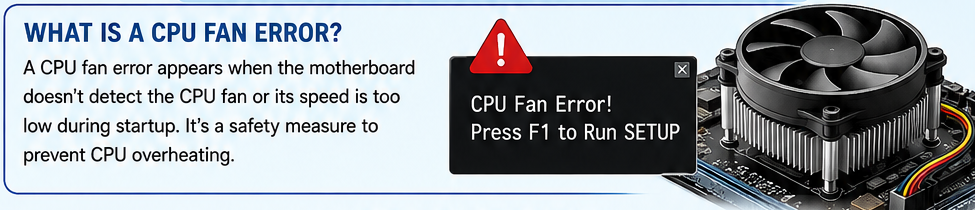
A BIOS CPU fan error appears when the motherboard cannot detect the CPU cooler properly during startup. Since the CPU generates significant heat, every motherboard performs Hardware startup validation before allowing Windows to load.
The warning usually appears because:
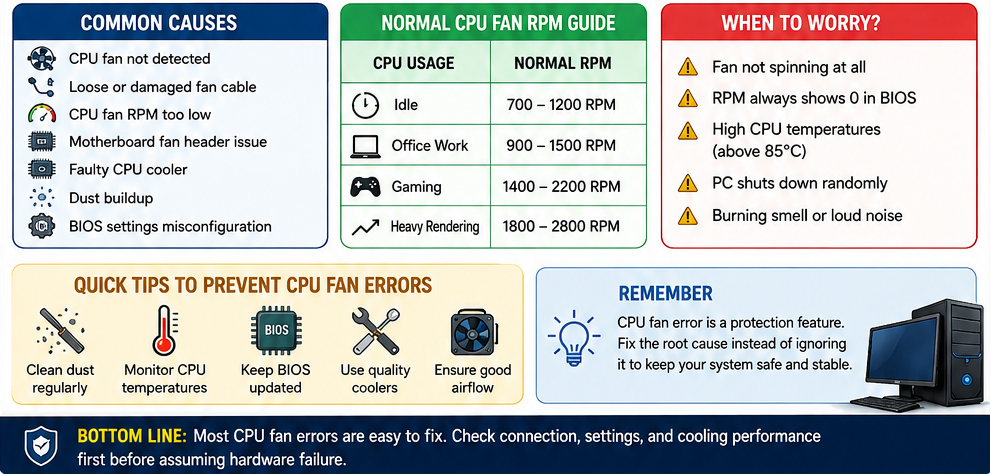
- CPU fan not detected
- CPU fan RPM too low
- Loose fan cable
- Incorrect BIOS settings
- Faulty CPU cooler
- Motherboard CPU fan header issue
- Damaged fan connector
The motherboard protects your processor from potential CPU overheating, which is why ignoring the message is never recommended.
Common CPU Fan Error Causes
| Cause | Symptoms | Difficulty to Fix |
|---|---|---|
| CPU fan not detected | BIOS warning appears instantly | Easy |
| Loose CPU fan cable | Fan works intermittently | Easy |
| CPU fan RPM too low | Fan spins slowly | Medium |
| CPU fan error after BIOS update | Error started after the firmware update | Easy |
| Motherboard CPU fan header issue | Fan not recognized | Medium |
| Failed CPU cooler | High temperatures | Hard |
| Dust buildup | Loud fan and overheating | Easy |
How To Fix CPU Fan Error On Startup Step by Step
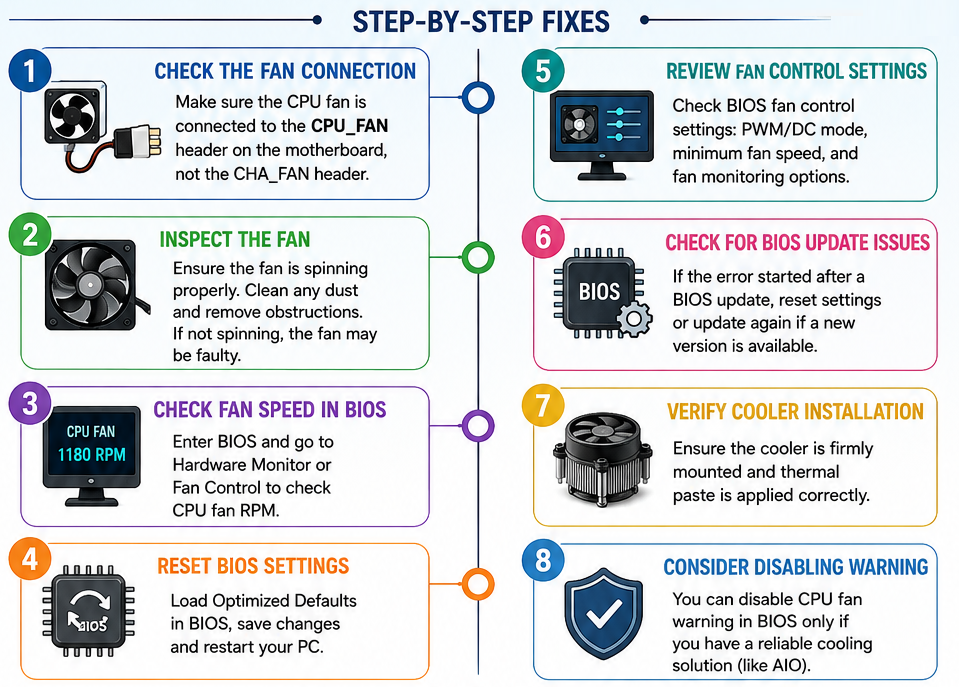
Below are the most effective fixes used by PC technicians.
1. Check the CPU Fan Connection
The first thing to inspect is whether the fan cable is connected to the CPU_FAN header rather than a chassis fan header.
A surprisingly common How To Fix motherboard CPU fan detection issue is simply reconnecting the cable correctly.
2. Inspect if the CPU Fan is Spinning
If you need a CPU fan not spinning fix, remove the side panel and power on your PC.
Check whether:
- Fan blades rotate smoothly
- No cable blocks the fan
- Dust isn’t preventing movement
If the fan never spins, replacement may be necessary.
3. Enter BIOS and Check Fan Speed
One of the easiest solutions is learning How to check CPU fan speed in BIOS.
Most BIOS interfaces include:
- Hardware Monitor
- Fan Control
- Q-Fan
- Smart Fan
A healthy CPU fan generally reports between 800–2500 RPM, depending on the cooler.
If the speed reads zero, the motherboard believes the cooler isn’t functioning.
Recommended CPU Fan RPM
| CPU Usage | Normal RPM |
|---|---|
| Idle | 700–1200 RPM |
| Office Work | 900–1500 RPM |
| Gaming | 1400–2200 RPM |
| Heavy Rendering | 1800–2800 RPM |
Low values may trigger the CPU fan RPM too low warning.
4. Reset BIOS Settings
Many users ask, How do I reset BIOS fan settings?
The process is simple:
- Enter BIOS.
- Load Optimized Defaults.
- Save changes.
- Restart the PC.
Incorrect Motherboard firmware configuration often causes unnecessary fan warnings.
5. Review BIOS Fan Control Settings
Improper BIOS fan control settings can prevent the motherboard from recognizing slower aftermarket coolers.
Verify:
- Fan Mode (PWM/DC)
- Minimum Fan Speed
- Smart Fan enabled
- Fan monitoring enabled
Avoid changing advanced settings unless necessary.
CPU Fan Error After BIOS Update
Many users experience a CPU fan error after BIOS update.
Why?
Updated firmware may change:
- Minimum RPM threshold
- Fan detection method
- Thermal monitoring behavior
Simply recalibrating the fan profile often resolves the issue.
CPU Fan Error After Replacing Cooler
Another common issue is a CPU fan error after replacing the cooler. Possible reasons include:
- Cooler plugged into the wrong header
- Low-RPM aftermarket cooler
- Loose mounting pressure
- Thermal paste application issue
Following a proper CPU cooler installation guide ensures optimal cooling performance.
Should You Disable CPU Fan Error in BIOS?
Some users choose to Disable CPU fan error in BIOS.
While this removes the warning, it should only be done if:
- Using an AIO liquid cooler
- Pump connected separately
- Motherboard documentation recommends it
Otherwise, leaving the protection enabled is much safer.
CPU Cooling Fan Troubleshooting Checklist
Before replacing hardware, perform this CPU cooling fan troubleshooting checklist.
Troubleshooting Checklist
| Check | Status |
|---|---|
| CPU fan connected correctly | ✅ |
| Fan spinning normally | ✅ |
| BIOS detects RPM | ✅ |
| No dust buildup | ✅ |
| Cooler firmly mounted | ✅ |
| Thermal paste applied correctly | ✅ |
| BIOS updated successfully | ✅ |
Completing these steps solves most startup fan errors.
Why CPU Temperature Monitoring Matters
Reliable CPU temperature monitoring protects your processor from permanent damage.
Excessive heat affects:
- Gaming performance
- System stability
- CPU lifespan
- Power efficiency
Effective CPU thermal management, combined with System temperature protection, prevents automatic shutdowns and hardware degradation.
When the Motherboard Is the Problem
Sometimes the issue isn’t the fan.
A damaged motherboard header can prevent proper communication, resulting in a Fix motherboard CPU fan detection issue.
Signs include:
- Different fans produce the same error.
- BIOS always reports zero RPM.
- Fan works on another motherboard.
Testing another fan helps isolate the problem.
Comparison: Software Issue vs Hardware Issue
Understanding whether your problem is software or hardware saves time.
| Software Related | Hardware Related |
|---|---|
| Wrong BIOS settings | Broken fan |
| Firmware update | Damaged header |
| Incorrect fan profile | Loose cable |
| Fan threshold too high | Failed cooler |
Best Practices to Prevent CPU Fan Errors
To avoid future issues:
- Clean dust every 2–3 months.
- Keep BIOS updated carefully.
- Replace worn thermal paste every few years.
- Monitor CPU temperatures regularly.
- Use quality CPU coolers.
- Avoid blocking airflow inside the PC.
- Check fan cables after upgrading hardware.
Small maintenance habits often prevent major repairs.
Conclusion
Knowing How To Fix CPU Fan Error On Startup can save both time and money. In most situations, the problem isn’t a failed processor but a simple connection issue, incorrect BIOS configuration, or low fan speed. Whether you’re dealing with a CPU fan error on boot, CPU fan not detected, PC won’t boot because of CPU fan error, or a BIOS CPU fan error, following a structured troubleshooting process usually resolves the issue.
Combining proper CPU thermal management, Cooling system diagnostics, Motherboard firmware configuration, Hardware startup validation, and System temperature protection ensures your PC remains reliable, efficient, and protected from overheating.
Frequently Asked Questions
1. Why does my PC say CPU fan error?
Usually because the BIOS cannot detect the CPU fan or its speed falls below the configured RPM threshold.
2. Can I boot my PC with a CPU fan error?
You can, but it isn’t recommended until the underlying issue has been diagnosed.
3. How do I reset BIOS fan settings?
Load BIOS defaults, save changes, and restart the computer.
4. What causes CPU fan error in BIOS?
Loose connections, incorrect fan settings, low RPM, BIOS updates, damaged headers, or faulty coolers.
5. Should I disable CPU fan error in BIOS?
Only if you’re using compatible liquid cooling hardware or your motherboard manufacturer specifically recommends it.