How To Fix Windows 11 Black Screen With Cursor. Nothing is more frustrating than turning on your PC only to be greeted by a black screen and a lonely mouse cursor. No desktop. No taskbar. No icons. Just a blank display that makes you wonder whether your computer is broken.
The good news? In most cases, it isn’t.
If you’ve been searching for How To Fix Windows 11 Black Screen With Cursor, you’re not alone. This issue affects thousands of Windows users after system updates, graphics driver changes, startup failures, or corrupted system files. Fortunately, most of these problems can be fixed without reinstalling Windows or losing your files.
I’ve dealt with this issue on several Windows 11 machines over the years, and surprisingly, the culprit is often something simple like Windows Explorer failing to load or a problematic graphics driver. Before you panic—or worse, format your PC—work through the solutions below one by one.
Why Does Windows 11 Show a Black Screen With Cursor?
A black screen usually means Windows has started, but something prevents the desktop environment from loading properly.
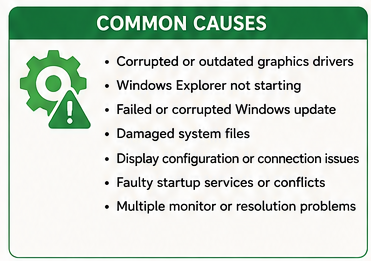
Common causes include:
- Corrupted graphics drivers
- Failed Windows updates
- Windows Explorer not starting
- Damaged system files
- Display configuration issues
- Faulty startup services
- Multiple monitor conflicts
- Corrupted user profile
The good news is that identifying the cause often makes the solution straightforward.
Quick Troubleshooting Summary
| Problem | Most Likely Cause | Best Solution |
|---|---|---|
| Black screen after login | Explorer.exe not loading | Restart Windows Explorer |
| Cursor moves but desktop missing | Graphics driver | Update or reinstall GPU driver |
| Black screen after update | Corrupted update | Uninstall latest update |
| Startup hangs on black screen | System files | Run Startup Repair |
| Random black screen | Display driver conflict | Boot into Safe Mode |
Signs You’re Experiencing This Problem
If your PC shows any of these symptoms, you’re likely facing the windows 11 black screen with cursor fix issue:
- Windows 11 black screen after login
- Desktop never appears
- Mouse pointer works normally
- Taskbar is missing
- Desktop icons disappear
- Keyboard shortcuts still respond
- Task Manager opens successfully
- Monitor stays black after startup
Sometimes the system is actually running in the background. It’s just failing to display the Windows desktop.
Common Causes of the Problem
Understanding the cause helps you choose the right fix instead of guessing.
1. Graphics Driver Problems
One of the biggest reasons behind a graphics driver causing black screen Windows 11 issue is a corrupted or incompatible GPU driver.
This often happens:
- After installing a new graphics driver
- Following a Windows Update
- After upgrading from Windows 10
- When switching between integrated and dedicated graphics
2. Windows Explorer Doesn’t Start
Windows Explorer is responsible for loading:
- Desktop
- Taskbar
- Start Menu
- File Explorer
If Explorer crashes during startup, you’ll usually see a windows 11 black screen with mouse pointer but nothing else.
3. Corrupted Windows Update
Many users report the windows 11 black screen after update problem after installing cumulative updates.
Fortunately, Windows allows you to uninstall problematic updates through the Recovery Environment.
4. Corrupted System Files
Damaged Windows files prevent important startup services from loading correctly.
This can happen because of:
- Power failures
- Disk errors
- Malware
- Interrupted updates
Running SFC and DISM often repairs these files.
5. Display Configuration Issues
Believe it or not, Windows sometimes thinks your monitor is connected somewhere else.
Common display-related causes include:
- Wrong display resolution
- HDMI cable issues
- Multiple monitor configuration
- External display conflict
- GPU output switching
How To Fix Windows 11 Black Screen With Cursor (Step-by-Step)
Start with the easiest solutions before moving to advanced troubleshooting.
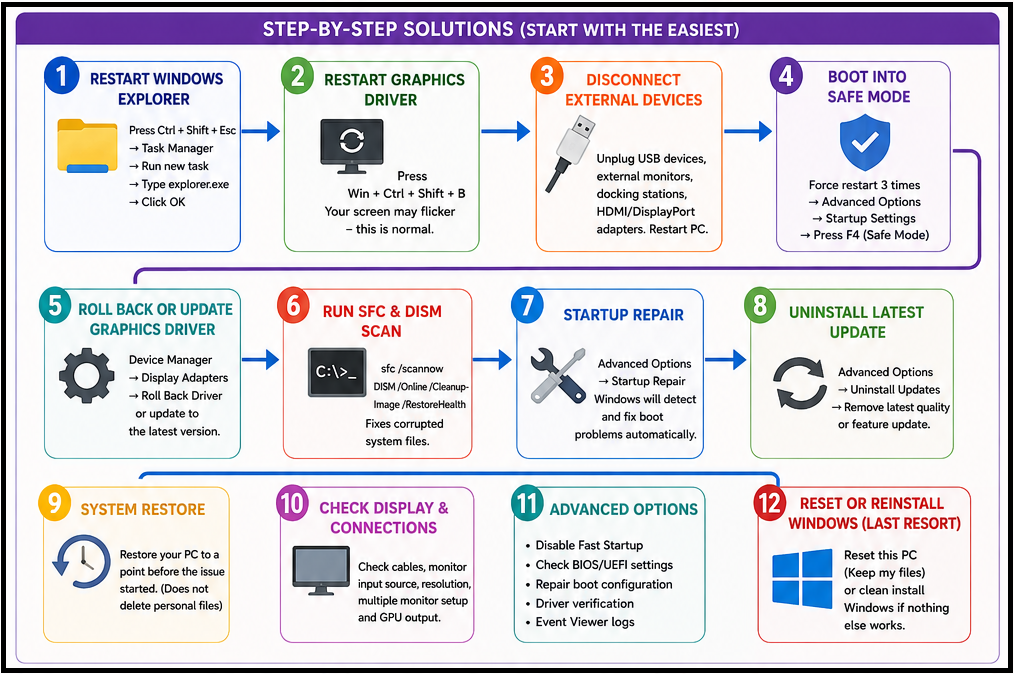
Method 1: Restart Windows Explorer
This is probably the quickest fix if you’re experiencing windows 11 no desktop after login.
Steps
- Press Ctrl + Shift + Esc
- Open Task Manager
- Click Run New Task
- Type:
explorer.exe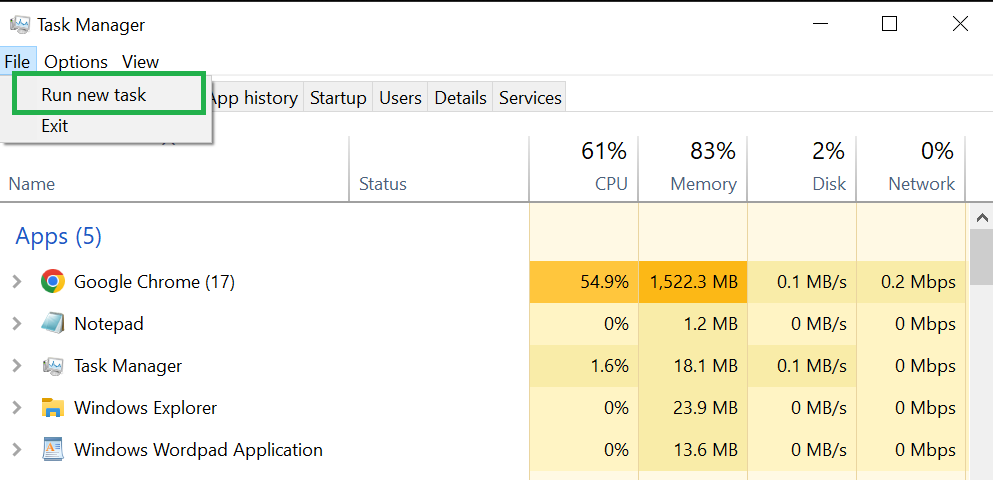
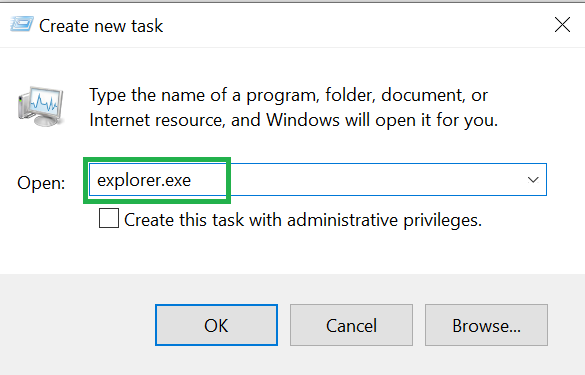
- Click OK
If Explorer simply failed to start, your desktop should immediately return.
This solution alone resolves many cases involving restart explorer.exe windows 11 black screen problems.
Method 2: Force Restart Graphics Driver
Windows includes a hidden shortcut that refreshes the graphics driver.
Press:
Windows + Ctrl + Shift + B
Your screen may:
- Flash
- Go black briefly
- Beep once
If the issue was caused by a temporary graphics driver crash, Windows will reload the display driver automatically.
Method 3: Disconnect External Devices
It sounds almost too simple, but external hardware can interfere with startup.
Disconnect:
- USB hubs
- External monitors
- Docking stations
- HDMI adapters
- USB graphics adapters
- DisplayPort accessories
Restart the PC afterward.
Method 4: Boot Into Safe Mode
If Windows refuses to load normally, Safe Mode is your best friend.
A windows 11 safe mode black screen fix allows Windows to start with only essential drivers.
Steps
- Force shutdown the PC three times.
- Windows Recovery Environment opens.
- Select:
Troubleshoot → Advanced Options → Startup Settings
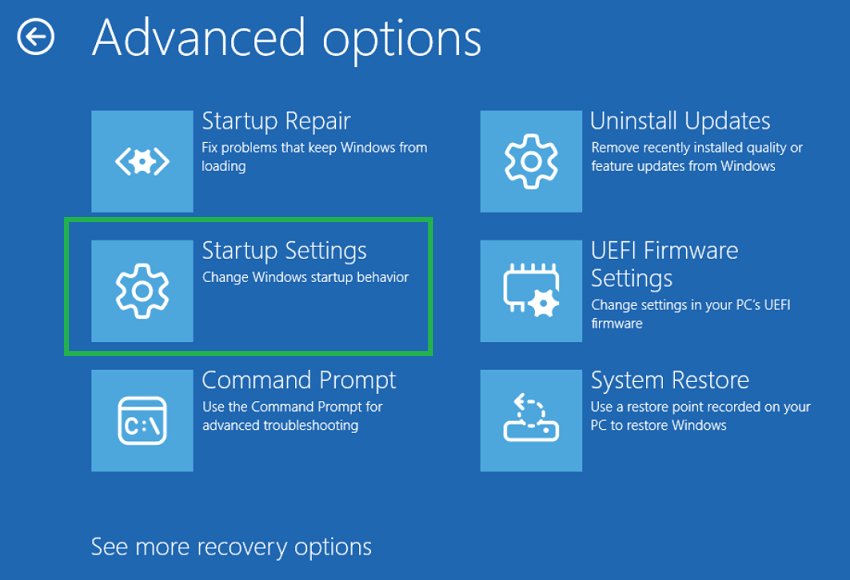
- Press F4 for Safe Mode.
If Windows loads correctly in Safe Mode, the problem is almost certainly software-related rather than hardware-related.
Method 5: Roll Back the Graphics Driver
If the issue started after updating your graphics driver, rolling it back can often solve the problem.
Inside Device Manager:
- Expand Display Adapters
- Right-click your GPU
- Select Properties
- Open the Driver tab
- Click Roll Back Driver
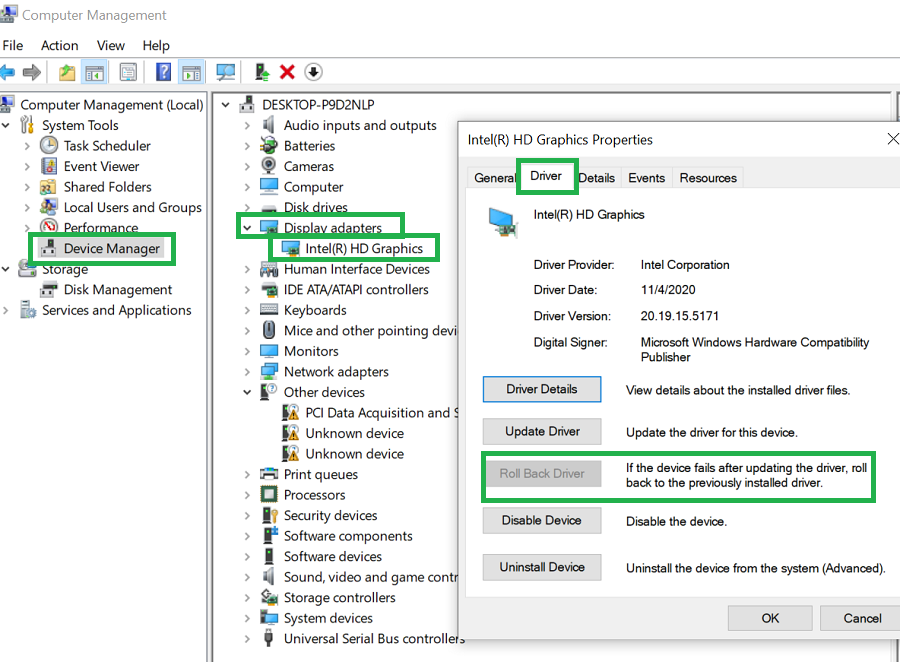
This is particularly useful if you’re dealing with a windows 11 boots to black screen situation after installing a new GPU driver.
Method 6: Update or Reinstall Display Drivers
Sometimes the opposite approach works better.
Download the latest drivers directly from your GPU manufacturer and perform a clean installation.
For NVIDIA, AMD, or Intel graphics, choose the clean installation option whenever possible.
Many cases of windows 11 black screen troubleshooting are ultimately traced back to outdated or corrupted display drivers.
Method 7: Run SFC and DISM Scans
If the issue is caused by system file corruption, Windows includes two powerful repair utilities: System File Checker (SFC) and Deployment Image Servicing and Management (DISM).
These tools repair damaged Windows files without affecting your personal data.
Steps
- Boot into Windows Recovery Environment or Safe Mode with Command Prompt.
- Open Command Prompt as Administrator.
- Run the following command:
sfc /scannowWait for the scan to finish. If Windows reports corrupted files, restart your computer.
Next, run the DISM command:
DISM /Online /Cleanup-Image /RestoreHealth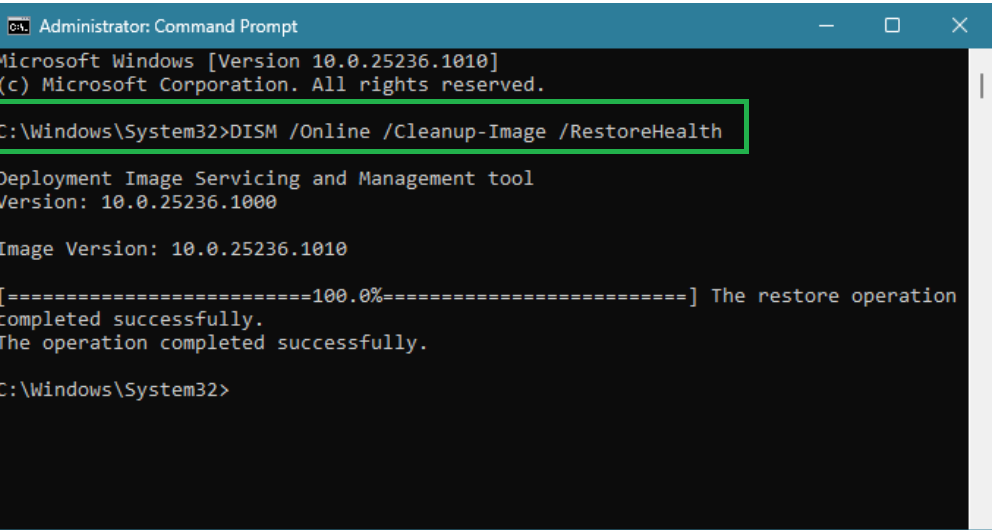
This command repairs the Windows image itself, making SFC more effective.
If you’re still searching for how to fix windows 11 black screen with cursor, these two commands should be among the first advanced troubleshooting steps you try.
Method 8: Use Startup Repair
If Windows fails before reaching the desktop, Startup Repair can automatically detect and fix boot-related problems.
Steps
- Enter Windows Recovery Environment.
- Select:
Troubleshoot → Advanced Options → Startup Repair
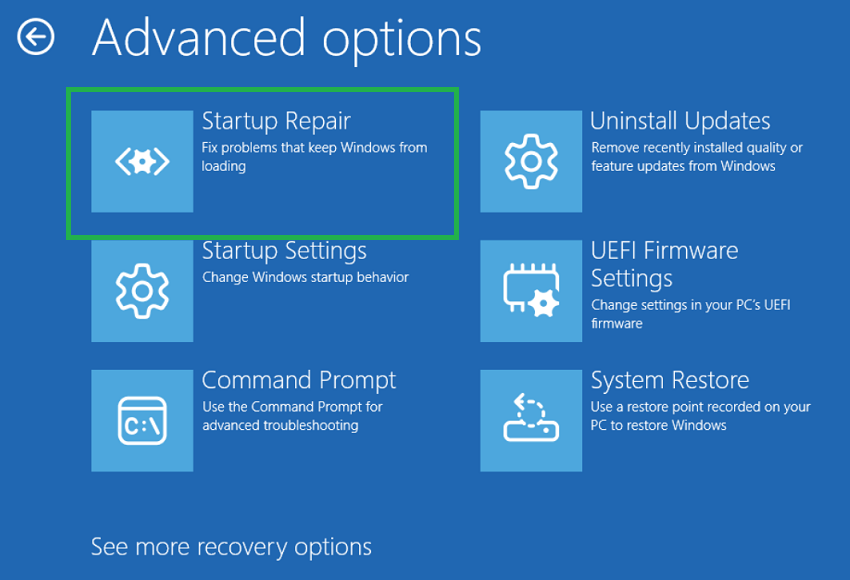
- Choose your Windows installation.
- Wait for the repair process to complete.
Startup Repair can resolve issues caused by corrupted boot files, damaged startup services, or interrupted Windows updates.
Method 9: Uninstall the Latest Windows Update
Many users experience a windows 11 black screen after update immediately after installing a cumulative or feature update.
If the timing matches, removing the latest update is worth trying.
Steps
- Boot into Recovery Environment.
- Go to:
Troubleshoot → Advanced Options → Uninstall Updates
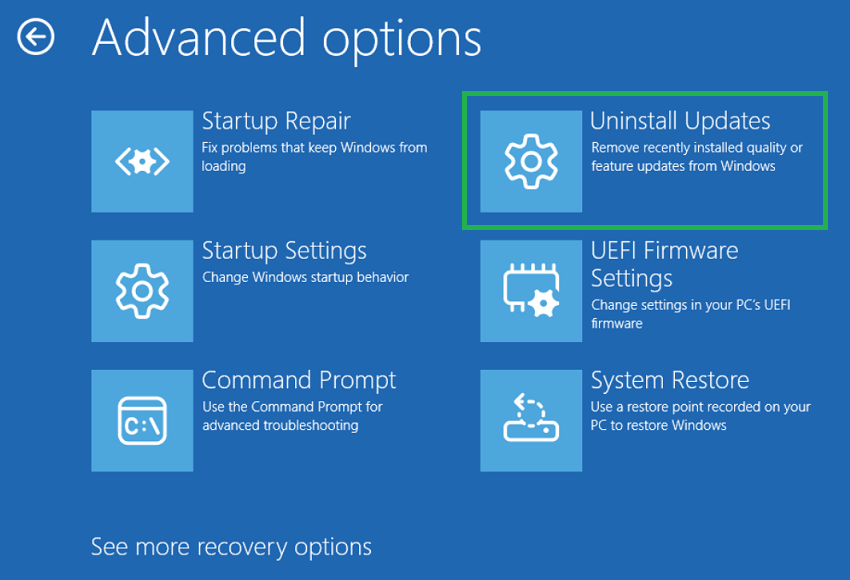
- Choose either:
- Uninstall Latest Quality Update
- Uninstall Latest Feature Update
Restart your PC after the process finishes.
Method 10: Perform a System Restore
If you created a restore point before the issue started, restoring Windows can save hours of troubleshooting.
Navigate to:
Recovery Environment → Advanced Options → System Restore
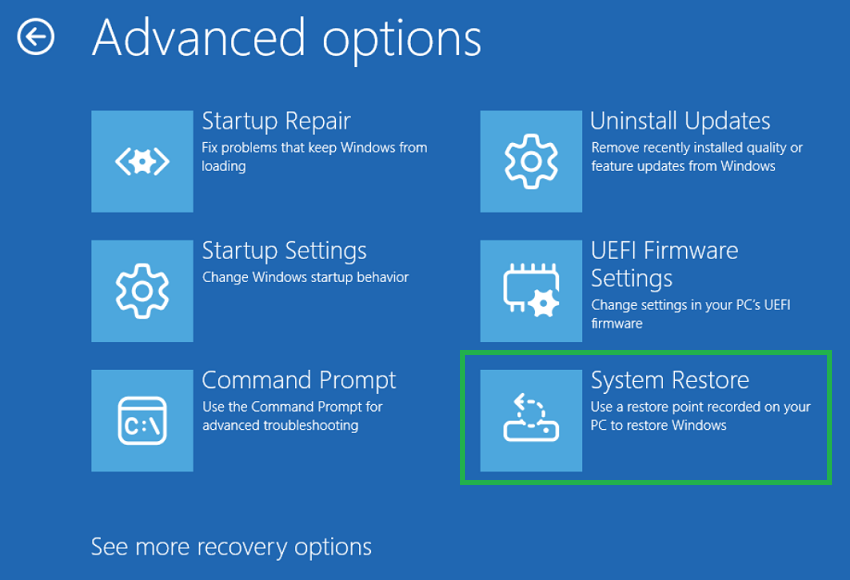
Select a restore point created before the problem appeared.
This won’t delete your personal files, although recently installed applications may need to be reinstalled.
Advanced Windows 11 Black Screen Troubleshooting
If none of the previous solutions worked, it’s time for more advanced diagnostics.
Check Your Display Connection
A faulty HDMI cable or DisplayPort cable can make Windows appear to have crashed when it’s actually running normally.
Inspect:
- HDMI cable
- DisplayPort cable
- Monitor power
- Monitor input source
- GPU outputs
Sometimes simply reconnecting the cable fixes the windows 11 display not showing desktop issue.
Test with Another Monitor
If possible:
- Connect another monitor.
- Try another HDMI or DisplayPort cable.
- Test the monitor on another PC.
This quickly determines whether the issue is hardware-related.
Disable Fast Startup
Fast Startup can occasionally cause startup conflicts.
To disable it:
- Open Control Panel.
- Select Power Options.
- Click Choose what the power buttons do.
- Disable Fast Startup.
Although this slightly increases boot time, it often improves stability.
Check BIOS or UEFI Settings
Incorrect BIOS display settings can also trigger startup display problems.
Verify:
- Primary display device
- Integrated graphics settings
- Dedicated GPU priority
- Secure Boot configuration
Avoid changing advanced BIOS settings unless you’re familiar with them.
Common Problems and Recommended Solutions
| Error or Symptom | Likely Cause | Recommended Solution |
|---|---|---|
| Black screen with mouse cursor | Explorer.exe failure | Restart Explorer |
| Windows 11 black screen after login | Startup service issue | Boot into Safe Mode |
| Windows 11 black screen after update | Faulty update | Remove latest update |
| Windows 11 boots to black screen | Driver corruption | Reinstall graphics driver |
| No desktop icons | Explorer crash | Launch explorer.exe manually |
| Random black screens | GPU instability | Update graphics drivers |
| Display stays black | Display configuration | Check monitor and cables |
When Should You Reset or Reinstall Windows?
If you’ve tried every solution above and Windows still refuses to load correctly, a reset may be necessary.
Choose Reset this PC first.
Navigate to:
Settings → System → Recovery → Reset this PC
Select Keep My Files whenever possible.
A clean installation should only be considered if:
- Windows won’t boot at all.
- Startup Repair fails.
- System Restore isn’t available.
- SFC and DISM cannot repair Windows.
- Multiple system files are corrupted.
For most users, a reset is enough to repair windows 11 black screen issue without losing personal documents.
Tips to Prevent the Problem from Returning
Preventive maintenance goes a long way.
Here are a few habits that have saved me countless troubleshooting sessions over the years:
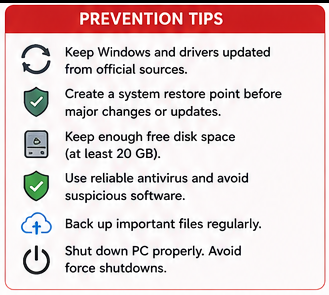
- Keep graphics drivers updated from official sources.
- Install Windows updates regularly—but avoid interrupting them.
- Create restore points before installing major drivers or updates.
- Keep at least 20 GB of free disk space.
- Use a reliable antivirus solution.
- Shut down Windows properly.
- Avoid forcing power-offs unless absolutely necessary.
- Back up important files regularly.
A little prevention today can save hours of frustration tomorrow.
Quick Recovery Checklist
| Task | Purpose |
|---|---|
| Restart Explorer.exe | Restore missing desktop |
| Boot into Safe Mode | Identify software conflicts |
| Run SFC & DISM | Repair corrupted system files |
| Roll Back Graphics Driver | Fix driver-related issues |
| Uninstall Recent Updates | Remove problematic Windows patches |
| Startup Repair | Repair boot files automatically |
| System Restore | Revert to a stable configuration |
| Reset This PC | Final software recovery option |
Conclusion
Experiencing a black screen with only a cursor can be alarming, but in most cases, it doesn’t mean your computer is beyond repair. Whether the issue stems from a faulty graphics driver, a failed Windows update, or Windows Explorer refusing to load, there are several effective solutions you can try before considering a full reinstall.
This guide on How To Fix Windows 11 Black Screen With Cursor walked you through everything from simple fixes like restarting Explorer.exe to advanced recovery methods such as Startup Repair, Safe Mode, SFC, DISM, and System Restore.
The key is to stay patient and work through each method systematically. More often than not, you’ll find the solution long before reaching the final recovery options.
Frequently Asked Questions (FAQ)
1. Why does Windows 11 show a black screen with only the cursor?
This usually happens because Windows Explorer fails to load, graphics drivers become corrupted, or system files are damaged.
2. Can a Windows update cause a black screen?
Yes. A faulty or incomplete update can trigger a windows 11 black screen after update. Uninstalling the latest update often resolves the issue.
3. Does Safe Mode fix Windows 11 black screen problems?
Safe Mode helps identify whether third-party drivers or startup services are causing the issue. It’s one of the most effective troubleshooting methods.
4. What if Task Manager opens but the desktop doesn’t?
Try manually launching Explorer.exe from Task Manager. This often resolves restart explorer.exe windows 11 black screen issues immediately.
5. Can corrupted graphics drivers cause this issue?
Absolutely. A graphics driver causing black screen Windows 11 is one of the most common reasons for startup display problems.
6. Will resetting Windows delete my files?
If you choose Keep My Files during Reset this PC, your personal files remain intact, although installed applications may need to be reinstalled.
7. Should I reinstall Windows immediately?
No. Work through the troubleshooting steps in this guide first. Most cases can be fixed without performing a clean installation.
8. How can I prevent a black screen issue in the future?
Keep Windows and graphics drivers updated, create restore points before major changes, maintain regular backups, and avoid interrupting Windows updates.