How To Fix Explorer.Exe Class Not Registered Windows Error. Windows users occasionally encounter system-related errors that interrupt productivity. One of the most annoyinng of these is the “Explorer.exe Class Not Registered” error. This issue can cause the desktop, Start menu, and file explorer to stop responding. In some cases, users might not be able to access basic Windows features at all.
If you’ve seen this error message pop up, don’t worry, you’re not alone. In this step-by-step guide, we’ll walk you through several effective methods to fix Explorer.Exe Class Not Registered Windows Error issue and get your system running smoothly again.
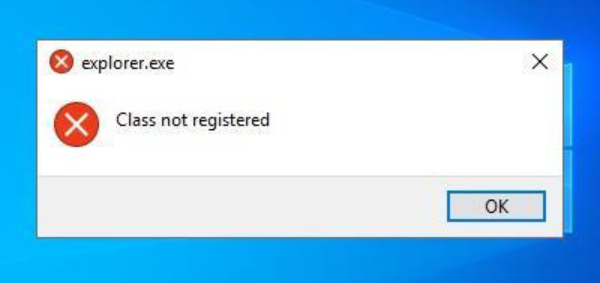
What Causes the “Explorer.exe Class Not Registered” Error?
This error is usually linked to problems with Dynamic Link Library (DLL) files, particularly when they become unregistered or corrupted. Windows uses these DLLs to allow multiple programs to share the same functionality. If a vital DLL, like ExplorerFrame.dll, is not properly registered, the File Explorer and desktop shell may stop functioning.
Common causes include:
-Corrupted system or DLL files
-Incorrect program file associations
-Damaged or misconfigured registry entries
-Malware or third-party software interference
-DCOM configuration errors
How To Fix Explorer.Exe Class Not Registered Windows Error?
Let’s explore five practical methods to resolve this issue. Try them in order for best results.
Method 1 – Restart File Explorer Using Task Manager:
Sometimes, simply restarting the File Explorer process can clear the issue.
Steps:
1.Press Ctrl + Shift + Esc to open Task Manager.
2.Locate Windows Explorer under the Processes tab.
3.Right-click it and choose End task.
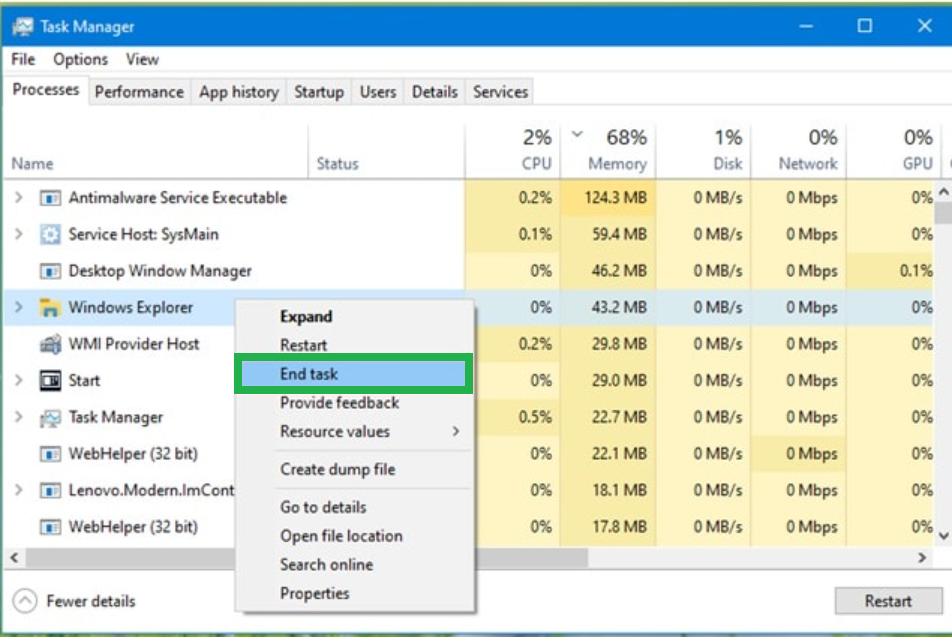
4.Click File > Run new task, then type:
explorer.exe

5.Press Enter to relaunch Explorer.
Why it works: This resets the Explorer shell and may resolve temporary glitches.
Method 2 – Register ExplorerFrame.dll via Command Prompt:
If the issue is caused by a missing or unregistered DLL, you can manually re-register it.
Steps:
1.Open Command Prompt as Administrator.
2.Search for cmd, right-click, and choose Run as administrator.)
3.Type the following command:
regsvr32 ExplorerFrame.dll
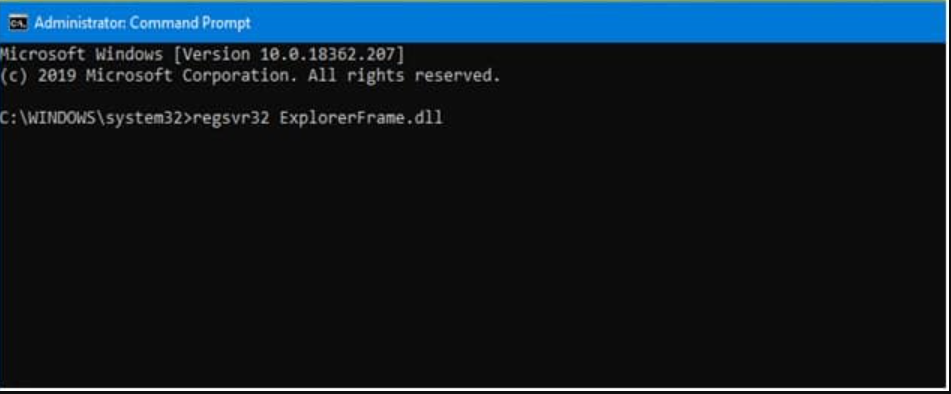
4.Press Enter and wait for confirmation.
5.Restart your PC.
Method 3 – Repair DCOM Configuration:
Incorrect settings in DCOM (Distributed Component Object Model) can also result in this error.
Steps:
1.Press Win + R, type dcomcnfg, and press Enter.
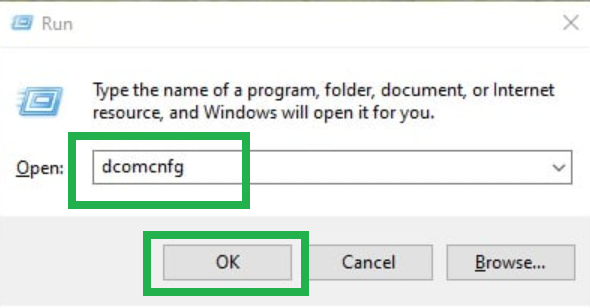
2.Go to Component Services > Computers > My Computer.
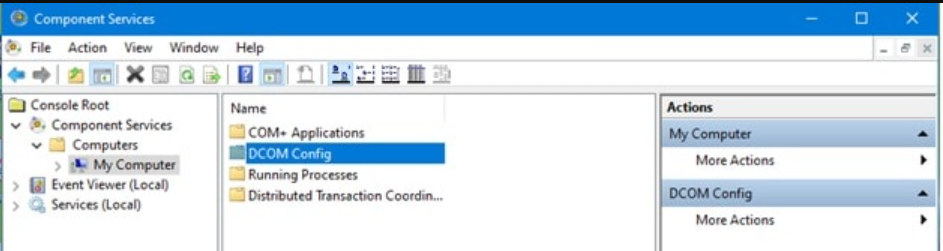
3.Double-click DCOM Config.
4.When prompted with warnings, click Yes.
5.Close the window and reboot your PC.
Method 4 – Enable Internet Explorer ETW Collector Service:
This background service interacts with File Explorer and other shell components.
Steps:
1.Open the Run dialog (Win + R), then type:
services.msc
2.Scroll down and find Internet Explorer ETW Collector Service.
3.Right-click and select Start or Restart.
4.Restart your computer.
Why it works: This service assists in event tracing, and restarting it can reset shell-related functions.
Method 5 – Run a DISM Scan to Restore System Health:
Corrupted system files may also trigger the class not registered error. Use DISM (Deployment Imaging Service and Management Tool) to fix this.
Steps:
1.Launch Command Prompt as Administrator.
2.Type:
DISM.exe /Online /Cleanup-image /Restorehealth

3.Press Enter and wait—this may take 15–20 minutes.
4.If using repair media, use:
DISM.exe /Online /Cleanup-Image /RestoreHealth /Source:D:\RepairSource\Windows /LimitAccess

(Replace D:\RepairSource with your drive letter.)
Extra Tip:-Use System File Checker (SFC)
After the DISM scan, it’s a good idea to run:
sfc /scannow
This will check for and repair corrupted system files that may still be causing issues.
Conclusion:
The “Explorer.exe class not registered” error can be a serious nuisance, preventing access to critical features in Windows. Fortunately, with the steps outlined above, you can diagnose and resolve the root causes—whether it’s a DLL registration issue, DCOM misconfiguration, or a corrupted system file.
Now that you’ve learned how to fix Explorer.exe class not registered Windows error, your PC should function more reliably. Try each method patiently, and you’ll likely solve the problem without needing to reinstall Windows.
Still having trouble? Drop a comment or contact a professional technician for advanced help.