How To Fix FireStick 7601 Error Code. Troubleshoot streaming issues on Prime Video and restore smooth playback in minutes. If you’re trying to unwind with your favourite show on Prime Video and suddenly encounter the FireStick 7601 error code, you’re not alone. This frustrating error disrupts your streaming experience and typically signals a deeper issue—either with your internet connection, software version, or app settings.
Thankfully, this is a common problem with several proven solutions. Here, you will read how to fix FireStick 7601 error code step-by-step and prevent it from recurring. Whether you’re dealing with a slow internet connection, outdated FireStick firmware, or app cache conflicts, we’ve got you covered.
What Causes the FireStick 7601 Error Code?
The 7601 error code on FireStick, especially while using Prime Video, usually stems from the following:
1.Weak or Unstable Internet Connection:
A slow or unstable Wi-Fi connection is one of the most common causes of streaming errors. FireStick streaming issues often occur when your internet speed drops below the minimum threshold required by Prime Video.
2.Corrupted App Cache:
Over time, streaming apps like Prime Video can accumulate corrupted cache files, which can cause unexpected bugs and error messages such as the Prime Video error 7601.
3.Outdated FireStick Software:
Running an older Fire OS version may lead to compatibility issues between the device and the streaming application, resulting in various error codes.
4.VPN or Proxy Interference:
If you’re using a VPN or proxy server, it can trigger error code 7601 by masking your actual location, which may conflict with Prime Video’s regional licensing restrictions.
5.Outdated Web Browser (if accessing Prime Video via browser):
Users accessing Prime Video via browser rather than through the FireStick app may face compatibility issues if their web browser is outdated.
How To Fix FireStick 7601 Error Code (Step-by-Step):
Now that we know what causes the issue, let’s walk through the most effective methods to resolve error code 7601 on FireStick.
Method 1 – Clear Prime Video App Cache and Data:
Corrupted cache files often cause FireStick app errors.
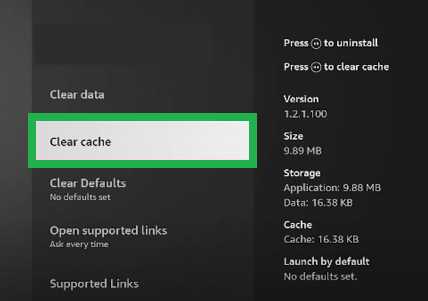
1.Navigate to Settings > Applications > Manage Installed Applications.
2.Select Prime Video (or any app showing the error).
3.Click Clear Cache and then Clear Data.
4.This step will remove any corrupted temporary files causing the issue.
Method 2 – Update FireStick Software To Fix FireStick 7601 Error Code:
Running the latest version of Fire OS ensures compatibility with all major apps.
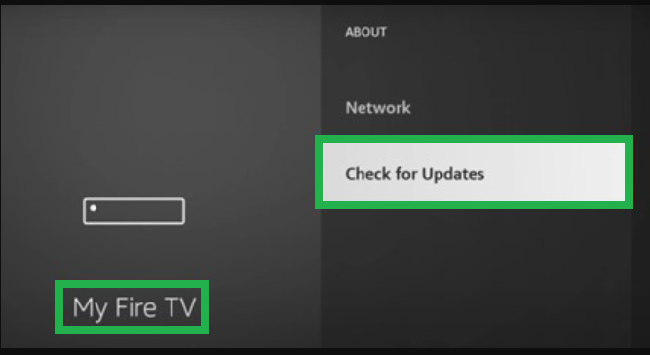
1.Go to Settings > My Fire TV > About > Check for Updates.
2.Download and install the update, if available.
3.Restart your device after updating.
4.This process often resolves system-level glitches that cause streaming problems.
Method 3 – Verify and Improve Your Internet Connection:
For smooth video streaming, a stable and high-speed internet connection is essential.
1.Go to Settings > Network on your FireStick.
2.Select your Wi-Fi network.
3.Press the Play/Pause button on your remote to run a speed test.
4.Ensure you have at least 5 Mbps for HD and 25 Mbps for 4K streaming.
5.If the connection is weak:
6.Restart your router and modem.
7.Move your FireStick closer to the router.
8.Use a wired Ethernet adapter for a smoother connection.
Method 4 – Update or Switch Your Web Browser (If Applicable):
If you’re accessing Prime Video via a web browser on a FireSticke compatible device:
1.Open your browser (e.g., Chrome).
2.Click the three-dot menu > Settings > About.
3.Let the browser check for and install updates.
4.Restart the browser and retry accessing Prime Video.
5.Using the latest version of your browser minimises compatibility issues.
Method 5 – Disable VPN or Proxy Server To Fix FireStick 7601 Error Code:
Using a VPN or proxy service may disrupt the content delivery by spoofing your location. If you’re using a VPN on FireStick, disable it temporarily. Try accessing Prime Video again to check if the 7601 error code disappears. Disabling the VPN often resolves regional content restrictions and streaming service errors.
Tips to Prevent Future FireStick Streaming Errors:
To prevent FireStick streaming problems like error code 7601 in the future:
-Regularly restart your FireStick to clear temporary glitches.
-Clear app cache periodically, especially for frequently used apps like Netflix and Prime Video.
-Keep your FireStick and all apps updated to their latest versions.
-Avoid using VPNs or proxies while streaming unless necessary.
Final Thoughts: Easily Fix FireStick 7601 Error Code and Resume Streaming
The FireStick 7601 error code may seem like a serious issue, but it’s often the result of a simple network or app glitch. By following the step-by-step methods above—checking your internet connection, clearing app cache, updating software, disabling VPNs, and ensuring browser compatibility—you can resolve the issue quickly and return to enjoying your favourite content without interruption.
Don’t let minor glitches interfere with your streaming. Implement these solutions today and keep your FireStick running smoothly