How To Fix Keyboard Not Working In BIOS. Few things are more frustrating than powering on your computer, pressing the BIOS key… and nothing happens. No response. No movement. Just silence. If you’re searching for How To Fix Keyboard Not Working In BIOS, you’re not alone. This is a surprisingly common issue, and yes—it’s usually fixable.
The problem often appears before Windows even loads, which means normal drivers aren’t involved. Instead, this becomes a boot-level keyboard detection issue tied to motherboard firmware settings, BIOS input device configuration, or simple hardware quirks.
Let’s break it down step by step—human-style, not robotic.
Why Keyboard Issues Happen Inside BIOS (Before Windows Loads)
When a keyboard fails in BIOS, it’s not about Windows. It’s about system firmware compatibility and how your motherboard handles input devices before the OS starts.
Common reasons include:
- USB keyboard not initialized early enough
- Disabled legacy support
- Corrupted BIOS settings
- Hardware detection conflicts
- Recent BIOS updates causing instability
This is classic pre-boot hardware troubleshooting territory.
🔍 Common Symptoms of BIOS Keyboard Failure
Before jumping to solutions, identify what you’re experiencing:
- keyboard not detected in BIOS
- BIOS keyboard not responding
- keyboard not recognized before boot
- keyboard not working in boot menu
- BIOS not detecting input devices
Each symptom points to a slightly different fix.
BIOS Keyboard Problems & What They Usually Mean
| Symptom | Likely Cause | Difficulty Level |
|---|---|---|
| USB keyboard not working in BIOS | Legacy USB disabled | Easy |
| Keyboard works in Windows, not BIOS | Firmware input issue | Medium |
| Laptop keyboard not working in BIOS | Embedded controller problem | Medium |
| Keyboard stops after BIOS update | Firmware conflict | Advanced |
| PS/2 keyboard works but USB doesn’t BIOS | USB initialization failure | Easy |
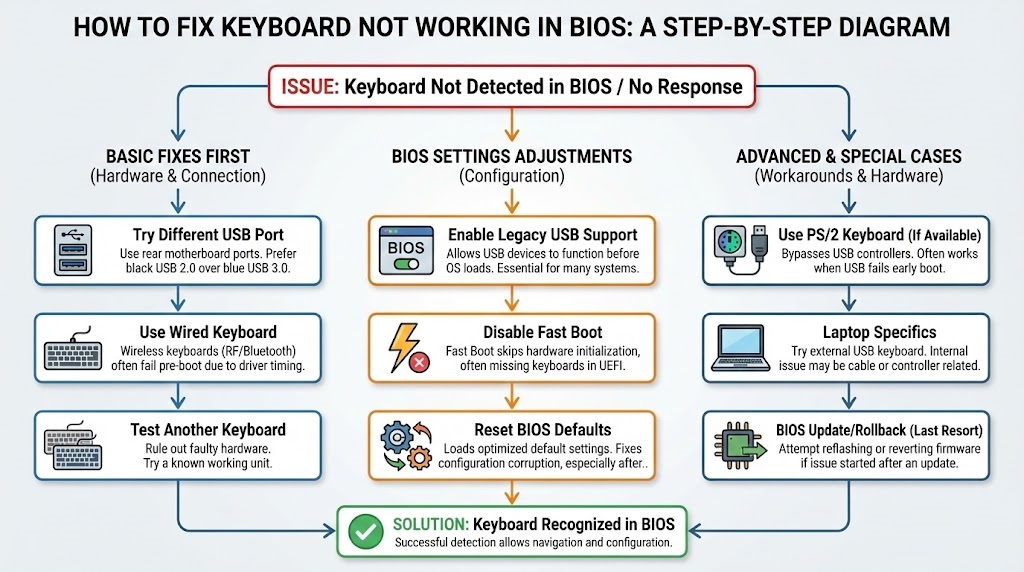
How To Fix Keyboard Not Working In BIOS (Basic Fixes First)
Let’s start simple. Seriously—many users skip these and regret it.
-Try a Different USB Port (This Matters More Than You Think)
Plug your keyboard into:
- Rear motherboard USB ports
- USB 2.0 ports (not blue USB 3.0 ones)
A USB keyboard not working in BIOS often fails because USB 3.0 drivers aren’t initialized early.
-Use a Wired Keyboard (Wireless Is Risky Here)
Wireless keyboards rely on USB receivers that BIOS may not recognize. If you’re using one, switch immediately.
This alone solves many external keyboard not working in BIOS cases.
How To Fix Keyboard Not Working In BIOS by Enabling Legacy USB Support
This is one of the most overlooked fixes.
-Enable Legacy USB Support
If you can access BIOS with another keyboard:
- Enter BIOS
- Go to Advanced or Integrated Peripherals
- Enable Legacy USB Support
- Save and exit
This resolves:
- legacy USB support BIOS keyboard issue
- enable USB keyboard in BIOS
- BIOS setup keyboard problem
BIOS Settings That Affect Keyboard Detection
| BIOS Setting | Recommended Value | Why It Matters |
|---|---|---|
| Legacy USB Support | Enabled | Allows USB keyboards pre-boot |
| USB Controller | Enabled | Detects input devices |
| Fast Boot | Disabled | Improves boot-level detection |
| USB Emulation | Enabled | Ensures BIOS input response |
Keyboard Not Working in UEFI BIOS? Read This Carefully
UEFI behaves differently from Legacy BIOS.
-Disable Fast Boot (Temporarily)
Fast Boot skips hardware initialization to save seconds. Unfortunately, it often causes keyboard not working in UEFI BIOS.
Turn it off. Test again. You can re-enable later.
-Switch Between UEFI and Legacy Mode (If Possible)
Some systems behave better in Legacy mode for input detection—especially older keyboards.
Laptop Keyboard Not Working in BIOS (Special Case)
This one’s tricky.
-Use an External USB Keyboard
If your laptop keyboard not working in BIOS, it may be:
- A ribbon cable issue
- Embedded controller glitch
- Firmware mismatch
External keyboards bypass internal keyboard circuits entirely.
Laptop vs Desktop BIOS Keyboard Fixes
| Device Type | Best First Fix | Secondary Fix |
|---|---|---|
| Laptop | External USB keyboard | BIOS reset |
| Desktop | Rear USB port | Legacy USB enable |
| Mini PC | USB 2.0 keyboard | Disable Fast Boot |
Keyboard Not Working After BIOS Update? Don’t Panic
Yes, this happens.
-Reset BIOS to Default Settings
A keyboard stops working after BIOS update often means settings were overwritten.
Try:
- Load Optimized Defaults
- Save & Exit
This frequently fixes BIOS keyboard settings missing errors.
-Roll Back or Reflash BIOS (Advanced Users Only)
If nothing works and input devices vanish entirely, reflashing BIOS may be necessary.
Proceed carefully.
When PS/2 Works but USB Doesn’t
This scenario is surprisingly common.
If PS/2 keyboard works but USB doesn’t BIOS, your USB initialization is failing early. The PS/2 port bypasses USB controllers entirely.
Use PS/2 temporarily to:
- Enter BIOS
- Enable USB support
- Fix detection permanently
BIOS Not Detecting Input Devices? Hardware Checks Matter
At this stage, consider:
- Faulty keyboard
- Damaged USB port
- Motherboard USB controller failure
Swap hardware before assuming the worst.
How To Fix Keyboard Not Working In BIOS (Final Checklist)
Before giving up:
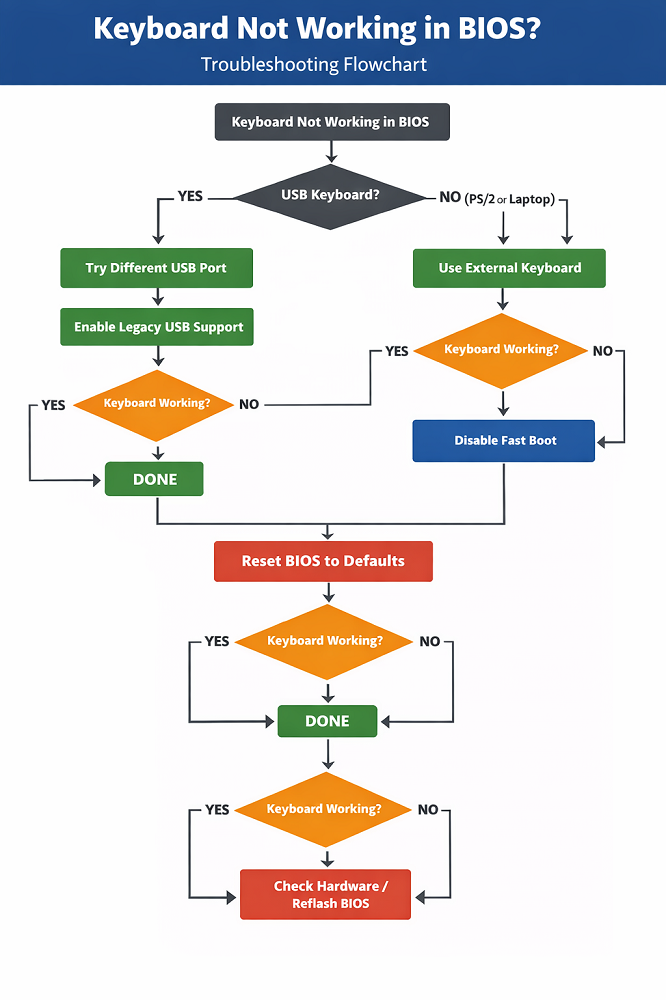
- Try another wired keyboard
- Use USB 2.0 ports
- Disable Fast Boot
- Enable Legacy USB
- Reset BIOS defaults
Most cases are solved before step five.
Conclusion
Fixing BIOS keyboard issues isn’t glamorous—but it’s doable. Once you understand how BIOS input device configuration, motherboard firmware settings, and boot-level keyboard detection work together, the solution becomes clearer.
Whether it’s a keyboard not detected in BIOS, BIOS keyboard not responding, or keyboard not working in boot menu, the fix usually lies in early hardware initialization—not software.
Take it slow. Test one change at a time. And remember—BIOS problems look scary, but they’re rarely fatal.
❓ FAQ – Keyboard Not Working in BIOS
Q1: Why does my keyboard work in Windows but not BIOS?
Because Windows loads drivers. BIOS doesn’t.
Q2: Can a BIOS update break keyboard support?
Yes. A reset or rollback often fixes it.
Q3: Does Fast Boot affect keyboard detection?
Absolutely. It frequently causes BIOS input issues.
Q4: Is PS/2 better than USB for BIOS access?
For troubleshooting, yes. It’s detected earlier.