How To Fix Laptop Freezing on BIOS Screen. Nothing can be more frustrating than powering on your laptop only to find it stuck on the BIOS screen. This issue, commonly referred to as Laptop Freezing on BIOS Screen, can happen due to a variety of reasons; from faulty hardware to corrupted BIOS settings. The good news is, in most cases, you can fix it without replacing the whole system.
How to Backup BIOS Before Flashing
In this guide, we’ll explore the causes, step-by-step solutions, and preventive measures for How To Fix Laptop Freezing on BIOS Screen, while also covering advanced tips for different laptop brands like Dell, HP, and Lenovo.
Understanding Why Your Laptop Freezes on BIOS Screen:
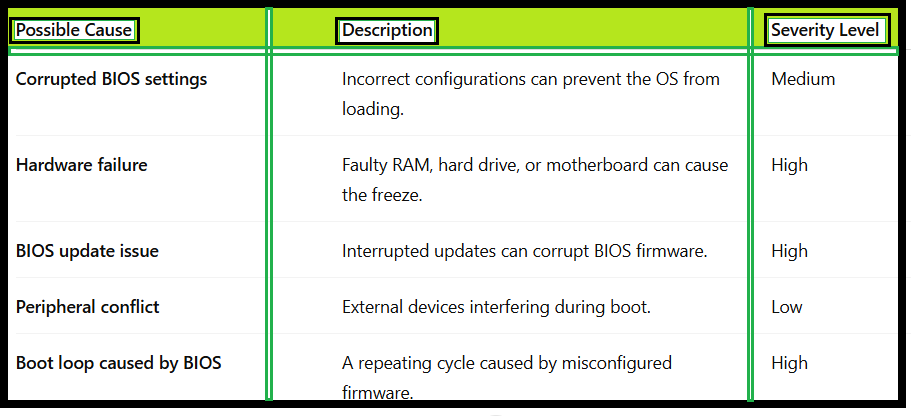
Before you can fix laptop freezing on BIOS screen, it’s important to understand the possible causes. BIOS (Basic Input/Output System) is the low-level firmware that initializes hardware during startup. If your BIOS is not responding, your system will fail to load the operating system.
Common Causes of BIOS Freezing:
How To Fix Laptop Freezing on BIOS Screen – Complete Guide:
1.Initial Troubleshooting for Laptop Stuck on BIOS Screen:
If your laptop is stuck on the BIOS screen, try these basic troubleshooting steps first:
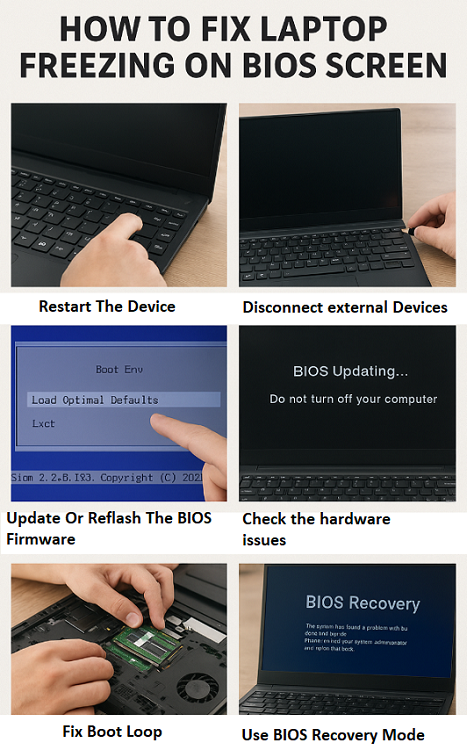
Restart the Laptop – Sometimes, a simple restart resolves temporary glitches.
Disconnect External Devices – USB drives, external hard disks, and even wireless dongles can cause BIOS conflicts.
Check Keyboard and Mouse – A faulty keyboard or stuck key may prevent the BIOS from progressing.
Quick Tip: If you hear beeping sounds during startup, note the pattern — these are error codes indicating specific hardware problems.
2.Reset BIOS Settings to Default:
One of the easiest solutions to fix laptop freezing on BIOS screen is resetting the BIOS settings back to factory defaults.
Steps to Reset BIOS:
1.Restart your laptop and press the correct BIOS key (F2, F10, F12, or Del depending on the brand).
2.Look for an option like Load Setup Defaults or Restore Defaults.
3.Save changes and exit.
If you can’t access BIOS normally, you may need to reset BIOS without CMOS battery, which involves a motherboard jumper reset or built-in BIOS recovery mode.
3.Update or Reflash the BIOS Firmware:
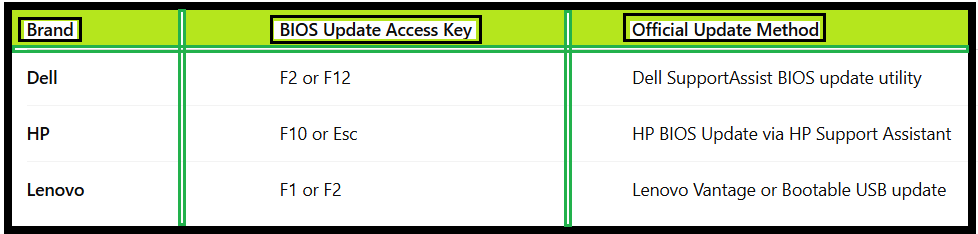
A BIOS not responding issue can also be due to outdated firmware. Updating your BIOS can solve compatibility issues and improve boot stability.
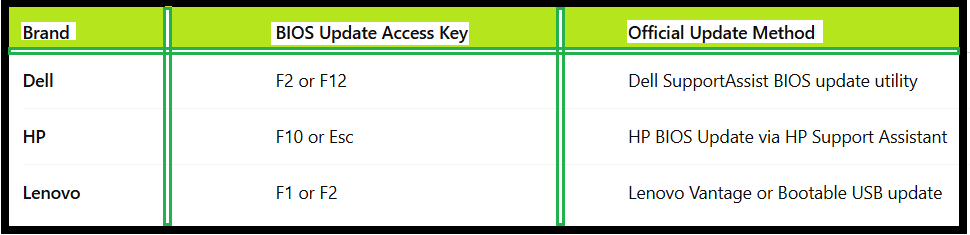
Warning: Ensure your laptop is plugged in during the update. Interrupting the update can corrupt BIOS and lead to permanent damage.
4.Check for Hardware Issues:
Sometimes, computer freezing during startup is a hardware-related problem.
How to Diagnose Hardware Problems:
Test RAM – Remove and reseat the memory modules. Test each stick individually.
Check Hard Drive – Use the built-in diagnostics (F12 in Dell, Esc + F2 in HP) to scan for disk errors.
Inspect Motherboard – Look for visible damage, burnt components, or swollen capacitors.
If you suspect recover BIOS from corruption is necessary, you may need professional repair tools or service center assistance.
5.Fix Boot Loop Caused by BIOS:
A boot loop caused by BIOS happens when incorrect settings or corrupted firmware force your laptop to restart repeatedly.
Solution:
1.Boot into BIOS.
2.Disable Fast Boot and Secure Boot temporarily.
3.Reset boot priority to the primary hard drive.
4.Save and exit.
6.Use BIOS Recovery Mode:
Many modern laptops have a BIOS recovery mode that helps repair firmware corruption without removing the CMOS battery.
To access BIOS recovery:
HP: Hold Windows + B while powering on.
Dell: Press Ctrl + Esc during startup.
Lenovo: Use the Novo button (small side button) and select BIOS recovery.
This can restore BIOS functionality and fix freezing issues.
7.When to Seek Professional Help:
If your laptop freezes on BIOS screen even after trying all the above fixes, it may indicate deeper motherboard or chipset damage. In such cases:
•Avoid repeated forced restarts.
•Contact the laptop manufacturer’s support.
•Consider BIOS chip replacement or professional firmware reprogramming.
•Preventing BIOS Freezing in the Future
•Keep BIOS firmware updated from official sources.
•Avoid abrupt shutdowns or power loss during updates.
•Regularly check and clean laptop vents to prevent overheating.
•Disconnect unused peripherals before startup.
FAQ – How To Fix Laptop Freezing on BIOS Screen
1.Can BIOS be repaired without replacing the motherboard?
Yes, in many cases BIOS can be reflashed or recovered without replacing the entire board.
2.Will resetting BIOS delete my data?
No, resetting BIOS only changes firmware settings and doesn’t affect files on your drive.
3.How do I know if my BIOS is corrupted?
Signs include the laptop not progressing past the BIOS screen, random boot loops, or failed firmware update messages.
4.Is BIOS freezing always a hardware problem?
Not always, it can be caused by misconfigured settings or firmware issues as well.
Final Thoughts:
Knowing How To Fix Laptop Freezing on BIOS Screen is an essential troubleshooting skill for any laptop user. Whether it’s resetting settings, updating firmware, or diagnosing hardware, following the steps in this guide will greatly improve your chances of getting your laptop back to normal without expensive repairs.