How to Fix No Display After BIOS Update. Updating your BIOS can unlock better hardware support, security patches, and improved system stability. However, in some cases, users experience a black screen issue after BIOS update or no display after BIOS update, leaving the system seemingly unresponsive. This issue is frustrating, but it is often fixable with the right steps. In this guide, we’ll show you how to fix no display after BIOS update using practical solutions suitable for both beginners and advanced users.
How To Recover Corrupted BIOS Without Display
Common Causes of No Display After BIOS Update:
Understanding the possible reasons can help in choosing the best method for recovery. Below is a breakdown of the most common culprits of PC not booting after BIOS update:
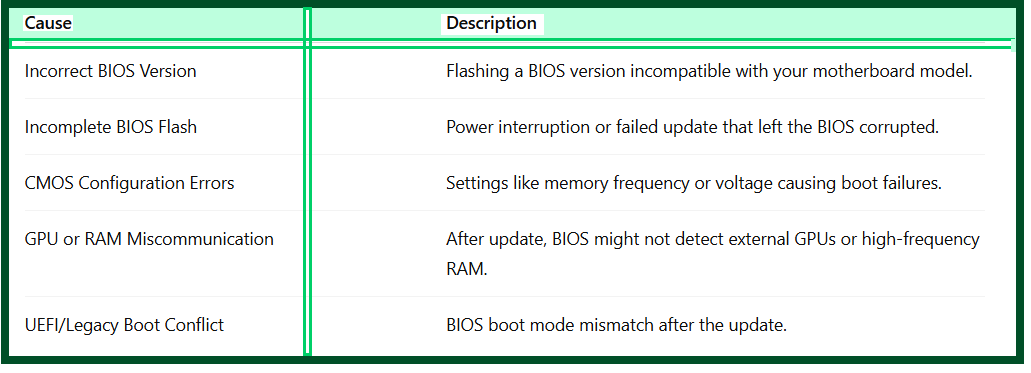
How to Fix No Display After BIOS Update?
Method 1 – Power Cycle Your System:
One of the simplest and most overlooked solutions when facing no display after BIOS update is to power cycle the computer. This step helps in fixing basic boot failure after firmware update issues.
Steps:
1.Turn off the PC and unplug it.
2.Hold the power button for 15–30 seconds to drain residual electricity.
3.Plug everything back in and boot.
This resets temporary power states and may resolve display issues caused by incomplete initialization.
Method 2 – Clear CMOS/Reset BIOS Settings:
Clearing the CMOS resets all BIOS settings to factory defaults, which can help if new BIOS configurations are incompatible. It is a recommended solution for resolving BIOS configuration errors.
How to Clear CMOS:
Desktop PC:
1.Turn off and unplug your system.
2.Locate the CMOS battery (a silver coin cell) on the motherboard.
3.Remove it for 5–10 minutes, then reinsert it.
Laptop:
Some laptops have a CMOS reset pinhole or require battery disconnection. Refer to your service manual.
Resetting the CMOS is a key step in how to fix no display after BIOS update, especially when overclocked settings or voltage adjustments are causing boot failures.
Method 3 – Use BIOS Recovery Mode:
Many modern motherboards include a BIOS recovery mode feature for situations just like this.
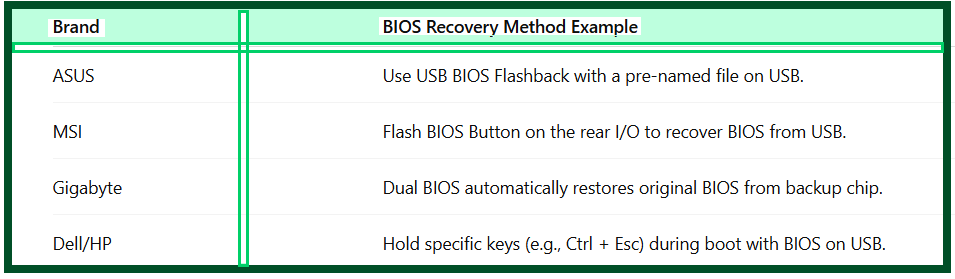
Steps for USB BIOS Recovery (Generic):
1.Download the correct BIOS file for your motherboard from the official site.
2.Rename it per manufacturer guidelines.
3.Place it on a FAT32-formatted USB stick.
4.Insert the USB in the correct port and use the dedicated recovery button or key combo.
Method 4 – Try External Display or GPU Reset:
Sometimes the BIOS switches the default video output to integrated graphics or PCIe. To fix this no signal after BIOS update scenario:
1.Remove external GPU and plug the monitor into the motherboard’s HDMI or VGA port.
2.If you’re using integrated graphics, insert a dedicated GPU if available.
3.Reseat (remove and reinsert) the GPU and RAM sticks. Faulty seating can cause display problems post-update.
This method often resolves issues when your system boots, but the monitor shows no signal.
Method 5 – Reflash BIOS Using Programmer (Advanced):
If your BIOS is completely bricked and other options fail, a hardware programmer like CH341A or RT809H can reflash the BIOS chip directly.
Warning: This requires technical skills and is risky if not done properly.
Steps:
1.Remove the BIOS chip or connect the programmer clip to it.
2.Use the programmer software to read, erase, and write the correct BIOS bin file.
3.Verify and reinsert the chip.
This method is essential for deep-level corruption and is the last resort in how to fix no display after BIOS update scenarios.
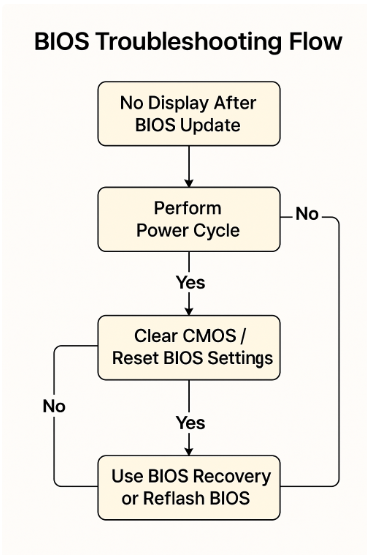
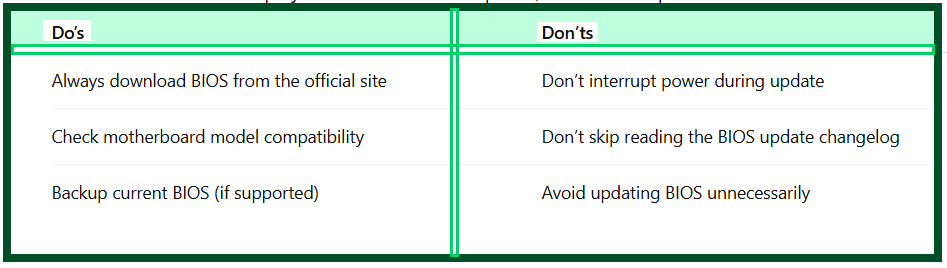
Preventive Tips for Safe BIOS Updates:
Avoid future display or boot issues after BIOS flash by following these best practices:
FAQ – How to Fix No Display After BIOS Update:
Q1.How long should I wait after a BIOS update before assuming it failed?
Most BIOS updates complete within 3–5 minutes. If your system remains unresponsive beyond 10–15 minutes, consider recovery steps.
Q2.Can BIOS update damage my motherboard?
If done incorrectly, especially with the wrong file or interrupted power, it can corrupt the BIOS. Hardware damage is rare but possible.
Q3.How do I know if BIOS is the cause of the black screen?
If your fans spin but no display appears, and the issue began right after the update, it’s likely BIOS-related.
Q4.Is it possible to downgrade BIOS to fix this?
Some motherboards allow BIOS downgrade via USB recovery. Check your manufacturer’s support page.
Final Thoughts:
Knowing how to fix no display after BIOS update is essential for any PC enthusiast or technician. Whether it’s clearing CMOS, using recovery tools, or reflashing BIOS via a programmer, each step addresses specific causes. Always proceed cautiously during BIOS updates and remember: even a BIOS update gone wrong is often recoverable with the right knowledge.
Taking time to understand your motherboard’s recovery features can save you from future frustrations. And remember—never rush a BIOS update without proper preparation!