How to Fix Touchpad Not Working After BIOS Update. A BIOS update can improve system stability and hardware compatibility, but for many users, it unexpectedly creates new problems. One of the most common issues reported by laptop users is the touchpad not working after BIOS update. If your laptop touchpad suddenly stopped responding, disappeared from settings, or stopped working entirely after a firmware update, you’re not alone.
This detailed guide explains How to Fix Touchpad Not Working After BIOS Update using proven, step-by-step solutions that work on Windows 10 and Windows 11 laptops. We’ll also cover BIOS configuration, driver issues, Device Manager errors, and system-level fixes to restore full touchpad functionality.
Why Does the Touchpad Stop Working After a BIOS Update?
Before learning How to Fix Touchpad Not Working After BIOS Update, it’s important to understand why the issue occurs. A BIOS update resets low-level hardware configurations, which can interfere with input devices.
How to Fix Touchpad Not Working After BIOS Update
Common Reasons Behind the Issue
| Cause | Description | Impact |
|---|---|---|
| BIOS settings reset | Touchpad may be disabled automatically | Touchpad not detected |
| Driver incompatibility | Old drivers conflict with new BIOS | Touchpad not responding |
| Windows update conflict | Windows overrides BIOS input settings | Touchpad missing |
| I2C HID errors | Communication failure with touchpad | Lag or no response |
When these factors combine, users experience a laptop touchpad stopped working after BIOS update, especially on modern Windows 11 systems.
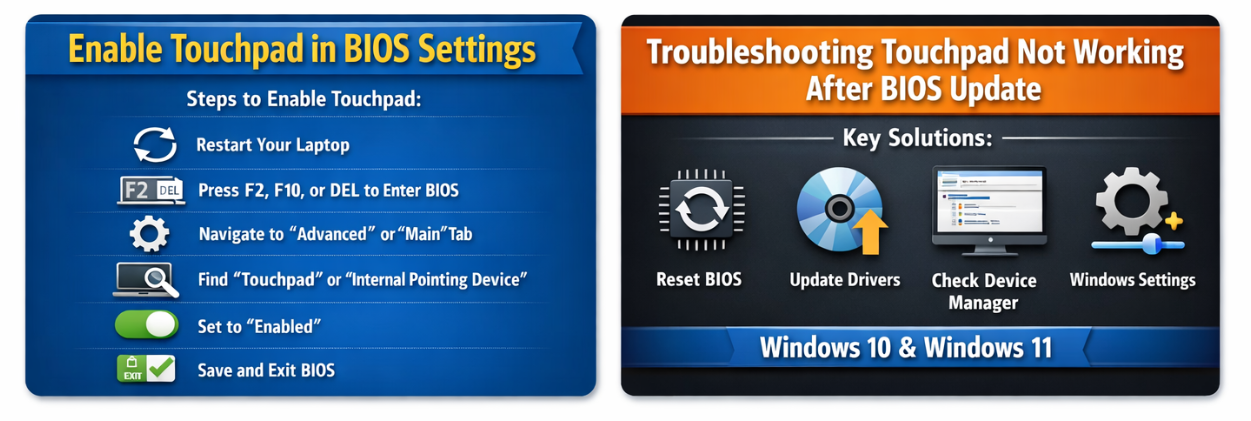
How to Fix Touchpad Not Working After BIOS Update by Checking BIOS Settings
The first and most critical step is checking whether the touchpad is disabled at firmware level.
Enable Touchpad in BIOS Settings
Many laptops automatically disable internal pointing devices during BIOS updates.
Steps to enable touchpad in BIOS settings:
- Restart your laptop
- Press F2, F10, F12, or DEL to enter BIOS
- Navigate to Advanced, Main, or Internal Device Configuration
- Look for Touchpad, Internal Pointing Device, or Trackpad
- Set it to Enabled
- Save changes and exit
If the touchpad not detected in BIOS, it may indicate a driver or firmware conflict rather than hardware failure.
Reset BIOS to Restore Touchpad Functionality
A simple BIOS reset often resolves the issue.
Reset BIOS Settings to Default
Resetting BIOS clears misconfigured parameters that cause the touchpad disabled after BIOS reset issue.
| Step | Action |
|---|---|
| Enter BIOS | Press BIOS key during startup |
| Load Defaults | Select “Load Optimized Defaults” |
| Save & Exit | Reboot system |
After rebooting, many users report their laptop touchpad not responding Windows issue is resolved instantly.
How to Fix Touchpad Not Working After BIOS Update Using Device Manager
If BIOS settings look fine, the next step is Windows hardware detection.
Touchpad Missing From Device Manager? Here’s What to Do
- Press Win + X → Device Manager
- Expand Human Interface Devices
- Look for HID-compliant touchpad
- If missing, click View → Show hidden devices
If the touchpad missing from Device Manager, it usually means Windows isn’t loading the correct driver.
Update or Reinstall Touchpad Driver After BIOS Update
Driver issues are the most common reason behind the touchpad not working Windows 11 BIOS update problems.
Update Touchpad Driver After BIOS Update
| Driver Type | Recommended Action |
|---|---|
| Synaptics | Update from laptop manufacturer |
| ELAN | Reinstall latest compatible version |
| I2C HID | Roll back or update via Device Manager |
Steps to reinstall touchpad driver Windows 10/11:
- Open Device Manager
- Right-click HID-compliant touchpad or touchpad driver.
- Select Uninstall device
- Restart Windows
- Install latest driver from manufacturer website
This process often fixes the fix touchpad issue after BIOS update without further troubleshooting.
Windows Settings That Affect Touchpad Behavior
Sometimes Windows disables the touchpad automatically after a BIOS update.
Check Touchpad Settings in Windows
- Go to Settings → Bluetooth & Devices → Touchpad
- Ensure the touchpad toggle is ON
- Disable “Leave touchpad on when mouse is connected” restrictions
This helps resolve cases where the touchpad not working after BIOS update but external mouse works fine.
How to Fix Touchpad Not Working After BIOS Update on Windows 11
Windows 11 introduces stricter driver policies that may block legacy touchpad drivers.
Windows 11-Specific Fixes
| Solution | Purpose |
|---|---|
| Driver rollback | Restore compatibility |
| Optional updates | Install hidden touchpad drivers |
| System restore | Undo BIOS-triggered conflicts |
Use Optional Updates in Windows Update to install manufacturer-approved touchpad drivers.
Advanced Troubleshooting for Persistent Touchpad Issues
If nothing works, try these advanced methods:
- Perform a System Restore
- Update Chipset and I2C drivers
- Check UEFI firmware updates
- Contact manufacturer support
These steps help when the laptop touchpad stopped working after BIOS update due to deep firmware conflicts.
Prevention Tips to Avoid Touchpad Issues After BIOS Updates
| Best Practice | Benefit |
|---|---|
| Update drivers before BIOS | Reduces compatibility issues |
| Backup BIOS settings | Quick recovery |
| Avoid beta BIOS versions | Stability |
Preventive care reduces the chances of facing touchpad not working after BIOS update in future updates.
Final Thoughts
Learning How to Fix Touchpad Not Working After BIOS Update can save you from unnecessary repairs or OS reinstallation. In most cases, the issue is caused by disabled BIOS settings, driver conflicts, or Windows input configuration errors. By following the structured steps above—checking BIOS settings, resetting firmware, reinstalling drivers, and configuring Windows—you can restore your laptop touchpad quickly and safely.
Frequently Asked Questions (FAQ)
❓ Why is my touchpad not working after BIOS update?
Because BIOS updates often reset hardware configurations, disabling the touchpad or causing driver incompatibility.
❓ Can BIOS update permanently damage the touchpad?
No. In most cases, it’s a software or firmware conflict—not hardware damage.
❓ What if the touchpad is not detected in BIOS?
This usually means a firmware or driver mismatch. Reset BIOS and reinstall touchpad drivers.
❓ Does Windows 11 cause touchpad issues after BIOS updates?
Yes, Windows 11 may block outdated drivers, causing touchpad issues after BIOS updates.