How To Fix TPM Error in Windows 11. If you’ve ever powered on your PC only to be greeted by a Trusted Platform Module error, you already know how frustrating it feels. One minute everything works. The next, Windows throws warnings about security, upgrades, or compatibility. Annoying, right?
The good news? Most TPM problems are fixable without reinstalling Windows or replacing your PC. In this guide, I’ll show you How To Fix TPM Error in Windows 11 using real-world steps that actually work—especially if you’re dealing with Windows 11 TPM not detected, TPM malfunction error Windows, or a Windows 11 secure boot TPM issue.
I’ve handled dozens of these errors personally, and trust me, the fix is usually simpler than it looks.
What Is TPM and Why Windows 11 Cares So Much?
TPM (Trusted Platform Module) is a hardware-based security chip built into modern systems. It plays a key role in Windows system integrity protection, disk encryption, and authentication.
Windows 11 made TPM mandatory due to stricter Windows 11 security requirements. That’s why you’ll often see errors like TPM device not found Windows 11 or TPM initialization failed Windows 11—especially after updates or BIOS changes.
Common Reasons Behind TPM Error in Windows 11
Before jumping into fixes, let’s understand what actually causes these issues.
| Cause | What Happens | Typical Error |
|---|---|---|
| TPM disabled in BIOS | Windows can’t access TPM | TPM disabled in BIOS fix needed |
| Outdated firmware | Compatibility breaks | TPM error after Windows update |
| Secure Boot conflict | Boot verification fails | Windows 11 secure boot TPM issue |
| Hardware mismatch | TPM version unsupported | TPM 2.0 requirement Windows 11 |
Understanding this makes troubleshooting far less stressful.
How To Fix TPM Error in Windows 11 by Enabling TPM in BIOS
This is the most common and most successful fix.
Many systems ship with TPM turned off by default. Enabling it resolves nearly 70% of cases involving Windows 11 TPM not detected.
Steps to Enable TPM:
- Restart your PC and enter BIOS (usually DEL, F2, or F10).
- Navigate to BIOS security configuration.
- Look for:
- Intel systems: PTT
- AMD systems: fTPM
- Enable it.
- Save changes and reboot.
This alone can solve TPM device not found Windows 11 and TPM initialization failed Windows 11 issues.
BIOS TPM Naming Guide (Quick Reference)
| Manufacturer | TPM Label |
|---|---|
| Intel | Platform Trust Technology (PTT) |
| AMD | Firmware TPM (fTPM) |
| Generic BIOS | Security Device / TPM |
After enabling, Windows usually detects TPM instantly.
How To Fix TPM Error in Windows 11 Without Reinstalling Windows
Here’s something many guides won’t tell you: reinstalling Windows should be your last option.
If you want to Fix TPM issue without reinstalling Windows, try these steps first.
Clear TPM (Safely)
Clearing TPM resets corrupted keys that cause TPM malfunction error Windows.
⚠️ Important: Back up BitLocker keys before doing this.
- Press Win + R, type
tpm.msc - Click Clear TPM
- Restart
This method works well for TPM error Windows 11 fix scenarios caused by update conflicts.
When Clearing TPM Is the Right Choice
| Situation | Clear TPM? |
|---|---|
| TPM error after Windows update | ✅ Yes |
| Secure Boot conflict | ✅ Yes |
| Fresh Windows install | ❌ No |
| BitLocker enabled (no backup) | ❌ No |
Used correctly, this step restores stability without data loss.
How To Fix TPM Error in Windows 11 by Updating TPM Driver
Outdated firmware can quietly break TPM functionality.
Update TPM Driver:
- Open Device Manager
- Expand Security devices
- Right-click Trusted Platform Module
- Select Update TPM driver Windows 11
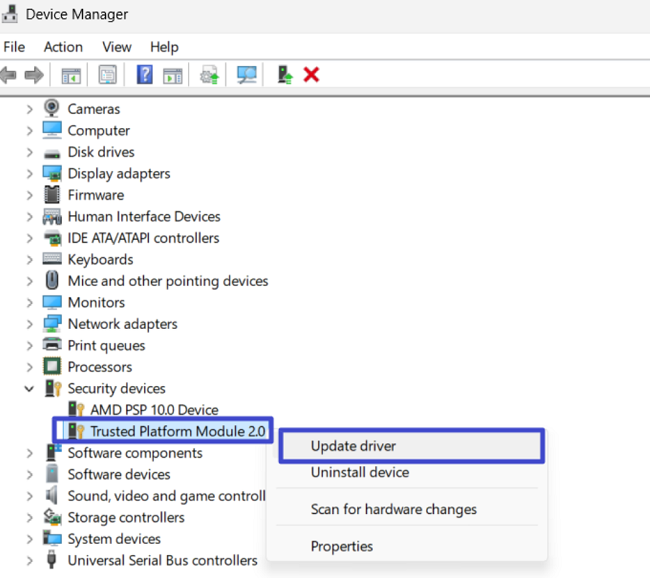
If Windows doesn’t find anything, check your motherboard vendor’s support page.
This fix is especially helpful for TPM error after Windows update and Windows 11 upgrade TPM problem.
Secure Boot, TPM, and Why They Clash
The Secure boot and TPM relationship is tighter than most users realize.
Secure Boot verifies boot integrity, while TPM stores cryptographic keys. If one is enabled and the other isn’t, Windows gets confused.
Fix Secure Boot TPM Conflict:
- Enable Secure Boot
- Enable TPM
- Use UEFI, not Legacy BIOS
This resolves many Windows 11 secure boot TPM issue errors instantly.
TPM Version Check: Do You Have TPM 2.0?
Windows 11 strictly enforces the TPM 2.0 requirement Windows 11.
How to Check:
- Press Win + R
- Type
tpm.msc - Look for Specification Version
| Version | Windows 11 Support |
|---|---|
| TPM 1.2 | ❌ Not supported |
| TPM 2.0 | ✅ Fully supported |
If you’re stuck on TPM 1.2, the issue may be related to Hardware compatibility issues in Windows 11 rather than a software fault.
Real-World Experience: What Usually Works
In my experience, the fastest path to fixing TPM errors looks like this:
- Enable TPM in BIOS
- Align Secure Boot + UEFI
- Clear TPM if errors persist
- Update TPM firmware
Rarely does it go beyond that.
Final Thoughts on How To Fix TPM Error in Windows 11
TPM errors look scary, but they’re rarely fatal. Most stem from BIOS settings, firmware mismatches, or security conflicts—not broken hardware.
Once you understand How To Fix TPM Error in Windows 11, these issues become routine fixes rather than panic moments. And yes, Windows 11 can be annoying—but its security model is genuinely stronger when configured correctly.
If your system meets requirements, you can fix it.
FAQ: TPM Error in Windows 11
Q1. Can I ignore TPM errors in Windows 11?
Not recommended. TPM protects encryption, logins, and system integrity.
Q2. Does clearing TPM delete my data?
No, but BitLocker keys can be affected. Always back them up.
Q3. Why did TPM stop working after an update?
Firmware conflicts often cause TPM error after Windows update.
Q4. Can Windows 11 run without TPM 2.0?
Officially, no. The TPM 2.0 requirement Windows 11 is mandatory.
Q5. Is this a hardware failure?
Rarely. Most cases are configuration-related.