How To Install Unsigned Drivers On Windows 11 and 10. This can be a tricky task due to Microsoft’s stringent security protocols. Users often encounter the “Windows requires a digitally signed driver” error, which halts the installation. This security feature is meant to protect the system, but it can be frustrating when you trust the source of the driver.
In this guide, you’ll learn how to install unsigned drivers on Windows 11 and 10 safely. We’ll also show you how to fix Windows Requires A Digitally Signed Driver error, ensuring you don’t face the same issue repeatedly.
Why Does Windows Block Unsigned Drivers?
Before diving into the solutions, it’s crucial to understand why Windows blocks unsigned drivers. A digitally signed driver confirms the software’s integrity and authenticity. When this certificate is missing or unverified, Windows prevents installation to avoid potential malware or system instability.
If you’re seeing the error, “The digital signature for this file couldn’t be verified“, it means Windows has blocked the file. Fortunately, there are proven methods to install unsigned drivers on Windows 11 and 10.

How To Install Unsigned Drivers On Windows 11?
Method 1 – Disable Driver Signature Enforcement Using Group Policy Editor:
One effective way to bypass this limitation is by modifying the Group Policy settings.
Steps:
1.Press Windows + R to open the Run dialog.
2.Type gpedit.msc and press Enter.
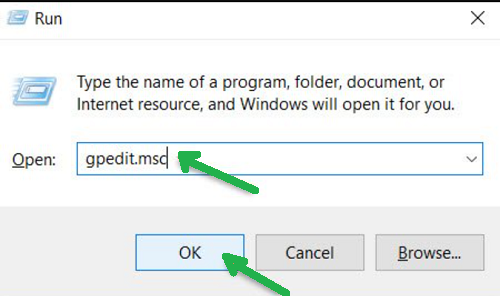
3.In the Local Group Policy Editor, navigate to:
User Configuration > Administrative Templates > System > Driver Installation
4.Double-click Code Signing for Device Drivers.

5.Choose Enabled, then set the option to Ignore.
6.Click Apply, then OK.

Restart your PC and try installing the unsigned driver. This method often resolves the Windows requires a digitally signed driver error.
🔒 Tip:
Once you’ve successfully installed the driver, return the setting from “Ignore” to “Warn” to avoid accidental installations of malicious drivers in the future.
Method 2 – Use Command Prompt to Enable Test Mode To Install Unsigned Drivers On Windows 11:
Test Mode allows you to bypass driver signature checks temporarily.
Steps:
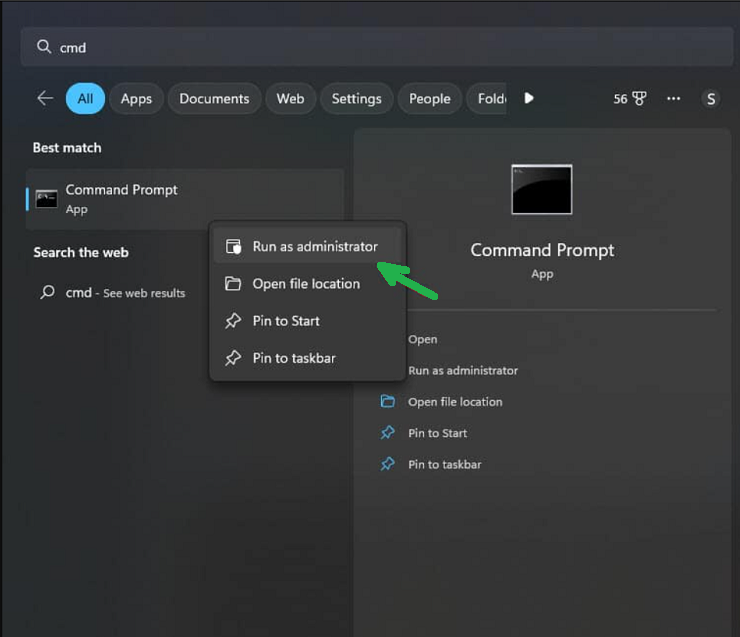
1.Type cmd in the search bar, right-click Command Prompt, and choose Run as administrator.
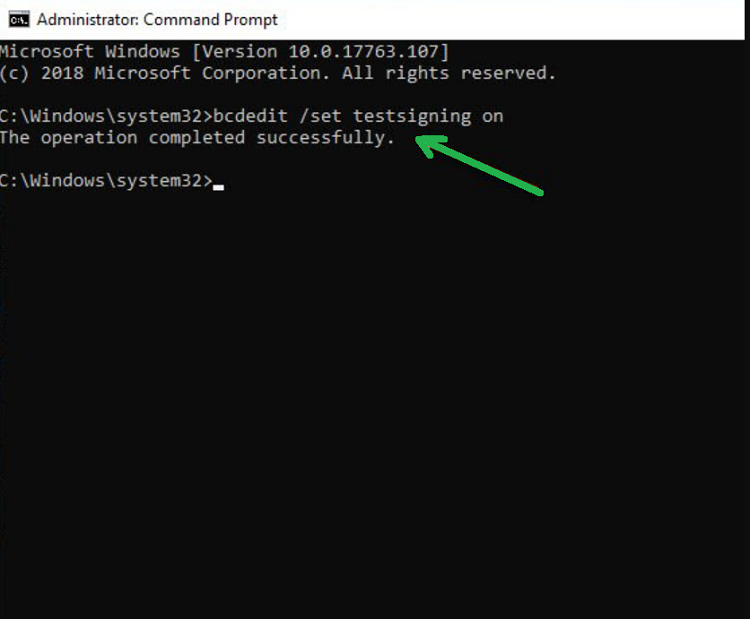
2.Type the command:
bcdedit /set testsigning on
3.Press Enter and wait for the success message.
4Restart your computer.
5.You’re now in Test Mode. Try to install unsigned drivers on Windows 11 without issues. To disable Test Mode later, use:
bcdedit /set testsigning off
6.Then, restart your PC again.
Method 3 – Disable Integrity Checks Permanently To Install Unsigned Drivers On Windows 11:
For advanced users who frequently need to bypass signature checks, this method offers a more permanent solution.
Steps:
1.Open Command Prompt as an administrator.
2.Type:
bcdedit.exe /set nointegritychecks on
3.Press Enter, then reboot your system.
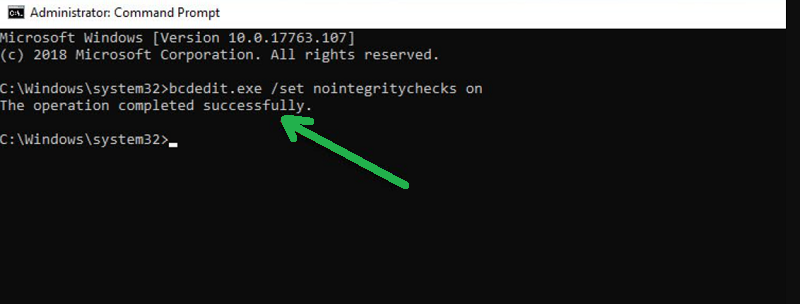
4.You can now install unsigned drivers on Windows 11 or 10 without the digital signature restriction. To reverse this change, use:
bcdedit.exe /set nointegritychecks off
5.Reboot your computer after entering the command.
Additional Method – Use a Driver Installation Utility (Optional):
Some third-party tools claim to simplify the process to install unsigned drivers on Windows 11. These tools can also repair existing drivers and assist in troubleshooting.
⚠️ Caution:
Use third-party apps only if you trust the source. Unverified tools may pose a risk to system security and performance.
How to Fix Windows Requires A Digitally Signed Driver Error:
This error can be frustrating, especially if you’re in the middle of critical work. To fix Windows requires a digitally signed driver error, follow any of the three methods above. They disable or bypass the enforcement temporarily or permanently, allowing you to complete the installation safely.
After you install the required drivers, remember to re-enable the security settings to avoid unintentional risks in the future.
Conclusion:
Learning how to install unsigned drivers on Windows 11 and 10 can save you time and avoid unnecessary headaches. Whether you’re testing hardware, working with older devices, or installing niche drivers, this guide provides safe, step-by-step solutions. Just be sure to re-enable signature enforcement afterward to keep your system secure.
And if you’re frequently facing the issue, now you know how to fix Windows Requires A Digitally Signed Driver error quickly and efficiently.
Take control of your driver installations, but always proceed with caution and verify the trustworthiness of the software source.