How to Recover Deleted Files from Google Drive. Accidentally deleting important files is a common issue for both individuals and professionals using Google Drive. The good news? If you know How to Recover Deleted Files from Google Drive, you can easily restore documents, photos, and shared files using built-in tools like Google Drive Trash recovery, File version history Google Drive, or Google Admin recovery options. Whether the files were recently deleted, permanently erased, or missing after 30 days, this guide explains every method to retrieve your data safely.
This in-depth tutorial covers Google Drive file recovery, Google Drive backup and sync recovery, and professional methods used in Google Workspace data recovery. It also includes three helpful tables to make the steps more visual and easy to follow.
Understanding Google Drive’s Recovery System
Why Deleted Files Can Often Be Restored
Google Drive has a strong built-in protection system that allows users to restore deleted Google Drive files from multiple sources such as Trash, admin controls, and sync backups. Even if you need to recover permanently deleted files, some methods may still work depending on your account type and timing.
Below is a quick overview:
| Feature | Availability | Best Use Case |
|---|---|---|
| Google Drive Trash recovery | All personal & Workspace accounts | Recover files deleted within 30 days |
| Google Admin recovery options | Workspace admins only | Restore items deleted permanently by users |
| File version history Google Drive | All accounts | Recover older file versions |
These built-in layers ensure that you can retrieve removed items from Google Drive without third-party tools.
How to Recover Deleted Files from Google Drive (Using Trash)
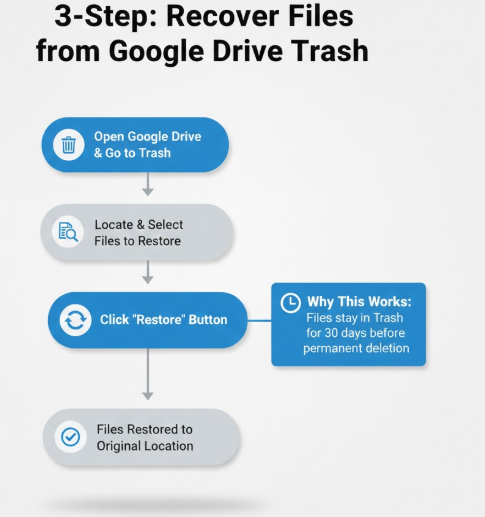
The most common method, and also the fastest, is recovering deleted files from Trash. This is the first place you should check.
Step-by-Step Guide
- Open Google Drive and go to the left sidebar.
- Click Trash (or Bin, depending on region).
- Select the files you want to restore.
- Click Restore.
This method is ideal when you need to restore documents from Google Account or recover deleted photos from Google Drive.
Why This Works
Google stores deleted files in Trash for 30 days before removing them permanently. That’s why understanding How to Recover Deleted Files from Google Drive through Trash is crucial for quick recovery.
How to Recover Deleted Files from Google Drive After 30 Days
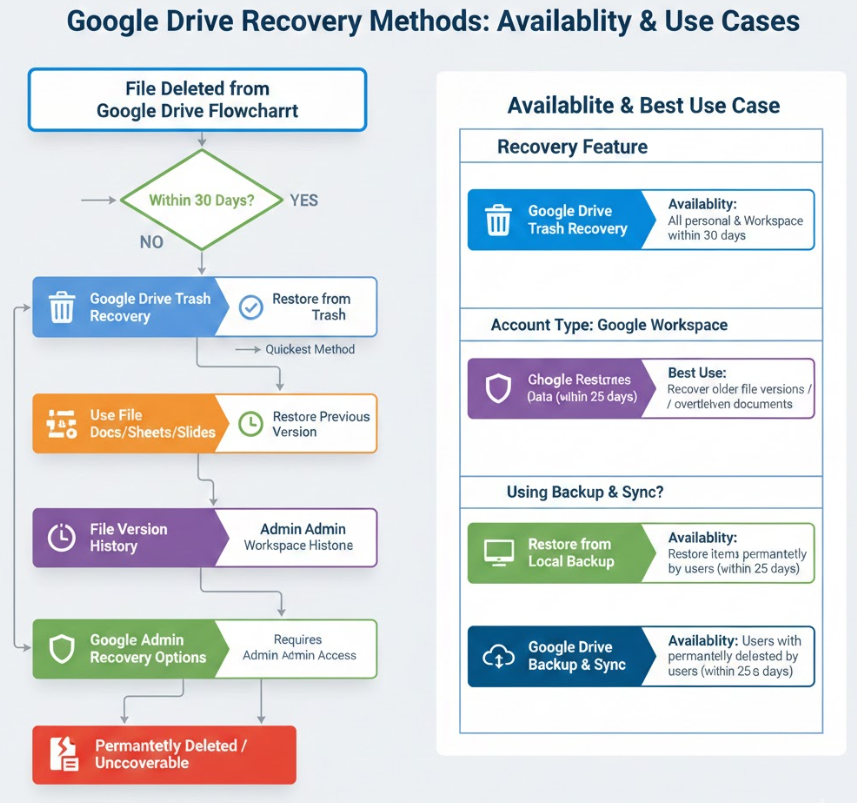
Sometimes files may be automatically deleted from Trash after 30 days. In such cases, your recovery options depend on your account type and whether backups or admin controls are available.
Below is a detailed comparison:
| Recovery Method | Works After 30 Days? | Suitable For |
|---|---|---|
| Trash Recovery | ❌ No | Recently deleted items |
| Version History | ✔ Yes | Changes made to existing files |
| Google Admin Recovery | ✔ Yes | Workspace accounts |
| Backup & Sync | ✔ Yes | Local computer backups |
If you know How to Recover Deleted Files from Google Drive using these advanced methods, data loss becomes less stressful.
How to Recover Deleted Files from Google Drive Using File Version History
File version history Google Drive allows you to revert documents to previous forms—even if recent edits are lost.
Steps to Use Version History
- Open the file (Docs, Sheets, Slides, etc.).
- Click File → Version history → See version history.
- Select the version you want to restore.
- Click Restore this version.
This option helps you recover lost files from Google cloud when documents were overwritten or mistakenly modified.
How to Recover Deleted Files from Google Drive (Admin Tools for Google Workspace)
If you are using a Workspace account, your admin can recover files permanently deleted within 25 days using Google Admin recovery options.
How Admins Restore Files:
- Sign in to Google Admin Console.
- Navigate to Users.
- Select the user who lost data.
- Click Restore data.
- Choose the date range and confirm.
This is one of the most reliable ways to recover permanently deleted files from enterprise accounts.
Recover Shared Files on Google Drive
Sometimes you may think a file is deleted, but it’s actually a shared item that was unshared or moved.
How to Fix Missing Shared Files:
- Check the Shared with Me section.
- Search using keywords.
- Request the owner to re-share the file.
- Check if you accidentally removed access.
Recover shared files on Google Drive is often quick once you understand how permissions work.
Google Drive Backup and Sync Recovery (Local Backups)
If you used the Backup and Sync desktop tool (or Drive for Desktop), your PC may still have copies of the deleted files.
Steps:
- Open Google Drive folder on your computer.
- Check Computers → My Laptop/Desktop section.
- Look for older synced versions.
- Restore them back to Drive.
This method works well for users trying to recover files after 30 days Google Drive automatically deleted.
Quick Solutions for Specific File Types
| File Type | Best Recovery Method | LSI Keyword Used |
|---|---|---|
| Photos & Videos | Trash, Backup & Sync | Recover deleted photos from Google Drive |
| Documents | Version history, Admin Restore | Restore documents from Google Account |
| Shared Files | Re-sharing, Shared With Me | Recover shared files on Google Drive |
How to Restore Drive Data from Trash (Advanced Tips)
If you frequently delete files, set reminders to empty Trash manually. This gives you more control over How to restore Drive data from Trash and ensures you don’t lose important files due to auto-deletion.
Pro Tips:
- Use Google Workspace data recovery tools if you are on Workspace.
- Enable offline sync to keep local backups.
- Check activity logs to retrieve removed items from Google Drive quickly.
Conclusion
Knowing How to Recover Deleted Files from Google Drive allows you to avoid accidental data loss and restore essential work quickly. With accessible tools like Google Drive Trash recovery, version history, Google Admin recovery options, and Google Drive backup and sync recovery, both personal and business users can retrieve important items efficiently. Whether you need to recover permanently deleted files, restore shared items, or access backups, Google provides multiple layers of protection to keep your information safe.
FAQ: How to Recover Deleted Files from Google Drive
1. Can I recover files after 30 days?
Yes, using version history, backup tools, or Google Admin recovery.
2. Can I retrieve permanently deleted files?
Workspace Admins can restore them within 25 days; otherwise, it may not be possible.
3. How do I recover shared files?
Check “Shared with Me” and request the file owner to re-share it.
4. Can I restore overwritten documents?
Yes—use File version history Google Drive.
5. Does Google Drive keep backups?
Yes, through Trash, version history, and synced desktop backups.