How to Remove Malware from Windows Without Antivirus (Step-by-Step Guide. Malware infections can slow down your PC, steal personal data, and cause frequent system crashes. While antivirus software is commonly recommended, many users still want to learn How to Remove Malware from Windows Without Antivirus using built-in tools and manual techniques. This guide explains safe, effective, and practical methods to clean an infected Windows system manually without relying on third-party security programs.
Whether you’re dealing with spyware, adware, or hidden background processes, understanding Windows malware removal without antivirus can help you regain full control of your computer.
Why Learn How to Remove Malware from Windows Without Antivirus?
Not every malware infection requires paid software. Windows already includes powerful utilities that allow users to remove malware manually from Windows systems. These methods are useful when:
- Antivirus software fails to detect threats
- Malware blocks antivirus installation
- You want lightweight, manual control
- The system is already compromised
Learning How to Remove Malware from Windows Without Antivirus is especially helpful for advanced users and troubleshooting scenarios.
Common Signs of Malware Infection on Windows
Before starting Windows malware removal without antivirus, you should confirm the infection. Watch for these warning signs:
| Symptom | Possible Malware Cause | Action Needed |
|---|---|---|
| Slow startup | Startup malware | remove startup malware Windows |
| High CPU usage | Hidden malicious processes | stop malicious processes in Task Manager |
| Unknown apps | Rogue software | identify suspicious programs Windows |
| Browser redirects | Spyware/adware | remove spyware without antivirus |

Step 1: Boot into Safe Mode for Manual Malware Removal
One of the safest ways to begin How to Remove Malware from Windows Without Antivirus is booting into Safe Mode. This loads Windows with minimal drivers and prevents most malware from running.
Why Safe Mode Works
- Blocks malware auto-execution
- Makes files easier to delete
- Ideal for Windows Safe Mode malware removal
To enter Safe Mode:
- Press Shift + Restart
- Navigate to Troubleshoot → Advanced Options → Startup Settings
- Select Safe Mode
This step is critical for anyone trying to remove malware from Windows 10 and 11 manually.
Step 2: Stop Malicious Processes Using Task Manager
Once in Safe Mode, open Task Manager to detect abnormal activity.
How to Identify Malware Processes
- Look for unknown names
- Check high CPU/RAM usage
- Verify file location (should not be in Temp folders)
This process helps you identify suspicious programs Windows users often overlook.
| Task Manager Indicator | Legitimate | Malicious |
|---|---|---|
| Digital signature | Present | Missing |
| File location | System folders | Temp/AppData |
| Resource usage | Normal | Excessive |
Right-click and stop malicious processes in Task Manager before proceeding further.

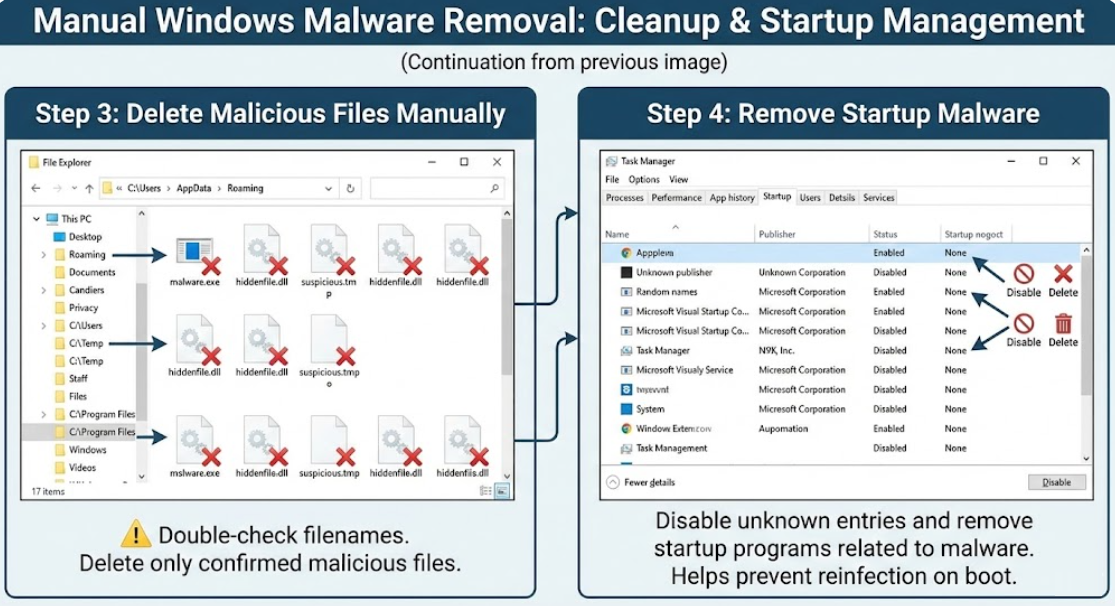
Step 3: Delete Malicious Files Manually
After stopping malicious processes, you must delete malicious files Windows systems may still store locally.
Where Malware Hides
C:\Users\AppData\RoamingC:\TempC:\Program Files (Unknown Apps)
Deleting these files is a core part of remove malware manually from Windows workflows.
⚠️ Always double-check filenames before deleting.
Step 4: Remove Startup Malware from Windows
Startup malware reinfects your PC every time it boots. To truly master How to Remove Malware from Windows Without Antivirus, you must disable these entries.
How to Disable Startup Malware
- Open Task Manager → Startup tab
- Disable unknown entries
- This helps disable malware startup programs
| Startup Entry | Risk Level | Action |
|---|---|---|
| Unknown publisher | High | Disable |
| Random file name | Critical | Delete source |
| System apps | Low | Leave enabled |
This step ensures long-term fix malware issues on Windows PC performance.
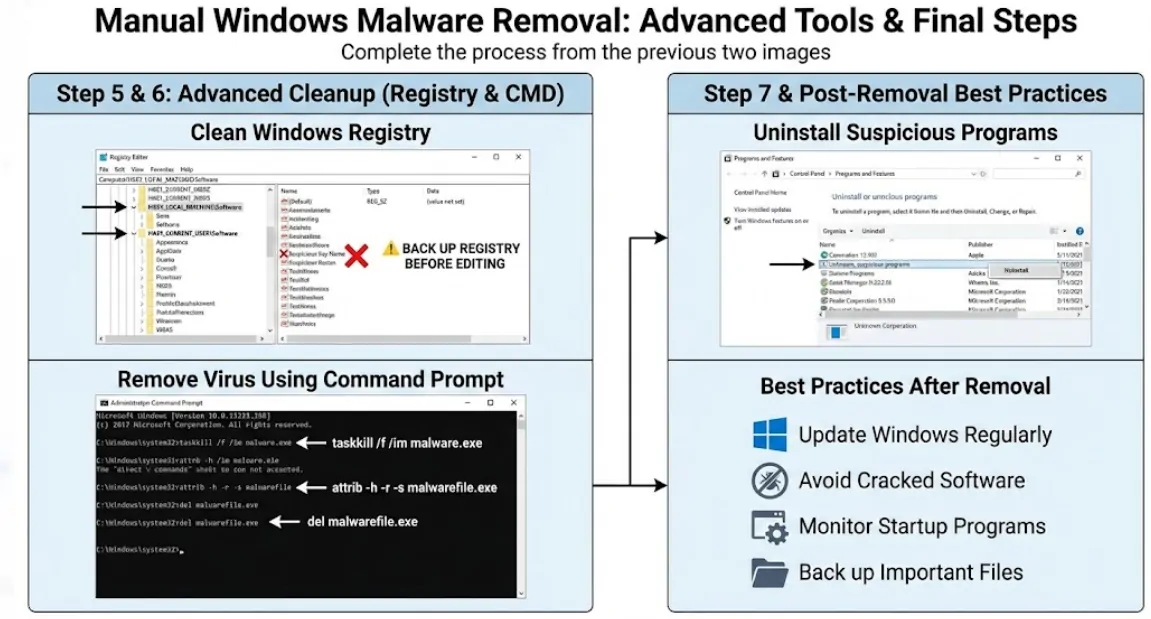
Step 5: Clean Windows Registry Malware
Malware often embeds itself into the registry for persistence.
Registry Locations to Check
HKEY_LOCAL_MACHINE\SoftwareHKEY_CURRENT_USER\Software
This allows you to clean Windows registry malware safely when done correctly.
⚠️ Always back up the registry before editing.
Removing bad registry entries plays a vital role in clean infected Windows system manually.
Step 6: Remove Virus Using Command Prompt
Advanced users can remove virus using Command Prompt, which is extremely powerful.
Useful CMD Commands
taskkill /f /im malware.exe
attrib -h -r -s malwarefile.exe
del malwarefile.exe
Command Prompt is a trusted method for malware removal using Windows tools when graphical interfaces fail.
Step 7: Uninstall Suspicious Programs
Open Control Panel → Programs → Uninstall.
Here, you can identify suspicious programs Windows systems install silently. Removing these programs prevents re-infection and completes How to Remove Malware from Windows Without Antivirus effectively.
Built-in Windows Tools That Help Malware Removal
Windows includes hidden features for malware cleanup.
| Windows Tool | Purpose | Use Case |
|---|---|---|
| Windows Defender Offline | Scan at boot | Severe infections |
| Disk Cleanup | Remove temp files | Delete malware traces |
| System Restore | Roll back system | Recovery |
These utilities strengthen Windows malware removal without antivirus techniques.
Best Practices After Manual Malware Removal
After you remove malware from Windows 10 and 11, follow these steps:
- Update Windows regularly
- Avoid cracked software
- Monitor startup programs
- Back up important files
These practices help fix malware issues on Windows PC long-term.
Frequently Asked Questions (FAQ)
Can I really remove malware without antivirus?
Yes. Learning How to Remove Malware from Windows Without Antivirus allows you to eliminate threats using Safe Mode, Task Manager, registry cleanup, and Command Prompt.
Is manual malware removal safe?
It’s safe if done carefully. Always verify files before deletion and back up important data.
Does this work for spyware?
Yes, these steps can remove spyware without antivirus effectively.
Will malware come back after removal?
If you fully remove startup malware Windows entries and registry traces, reinfection is unlikely.
Conclusion
Mastering How to Remove Malware from Windows Without Antivirus empowers you to protect your PC without relying on paid tools. By combining Safe Mode, Task Manager, registry cleaning, Command Prompt, and built-in Windows utilities, you can clean infected Windows system manually with confidence.
This approach not only saves money but also gives you deeper control over system security.