How to Secure WiFi Router from Hackers. Your WiFi router is the front door to your home network. If it is poorly configured, an attacker may be able to connect to your network, spy on connected devices, steal information, or use your internet connection without permission.
The good news? You don’t need to be a cybersecurity expert to lock it down. A few changes—such as replacing the default administrator password, enabling modern WiFi encryption, updating firmware, and disabling unnecessary features—can make a significant difference.
If you’re wondering How to Secure WiFi Router from Hackers, start with the practical steps below.
How to Secure a WiFi Router from Hackers?
The most effective approach is to combine several security measures rather than relying on a single setting. Think of your router as a house: a strong WiFi password is the main door lock, while firmware updates, firewall protection, and disabling remote access are additional layers of security.
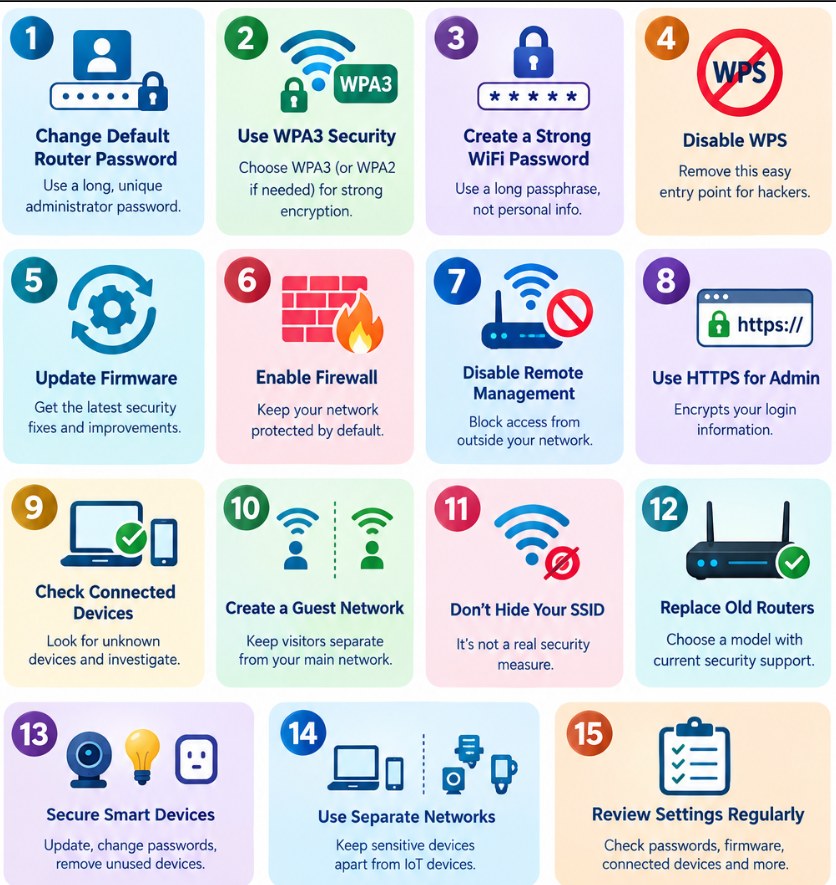
1. Change the Default Router Password
One of the first WiFi router security tips is also one of the easiest: change default router password credentials immediately after setting up a router.
Many routers ship with predictable administrator usernames or passwords. Even if your WiFi password is strong, someone who gains access to the router’s administration panel could change important network settings.
Use a long, unique administrator password that you don’t reuse on other websites.
2. Use WPA3 WiFi Security
When asking, Which WiFi security mode is safest?, the short answer is WPA3 when your router and devices support it.
WPA2 vs WPA3 security comes down to protection and compatibility. WPA3 provides stronger authentication and better protection against certain password-guessing attacks. WPA2 is still widely supported and remains preferable to outdated options such as WEP.
| WiFi Security Mode | Security Level | Recommendation |
|---|---|---|
| WEP | Very weak | Avoid |
| WPA | Outdated | Avoid |
| WPA2 | Strong | Good if WPA3 isn’t available |
| WPA3 | Strongest modern option | Recommended |
| WPA2/WPA3 Mixed | Strong + compatible | Useful for older devices |
So, What is the safest WiFi encryption? For modern home networks, WPA3 is generally the preferred choice.
3. Create a Strong WiFi Password
A short password such as your name, phone number, or house address is easy to guess.
For strong WiFi password ideas, think in terms of length rather than complicated symbols alone. A long passphrase made from several unrelated words can be easier for you to remember while being difficult to guess.
Avoid:
- Your name or children’s names
- Phone numbers
- 12345678
- Password123
- Your home address
- The router’s default password
If you suspect someone knows your current password, how to change WiFi password is simple: log into the router’s administration page, open Wireless/WiFi settings, replace the password, and reconnect your devices.
If you’re asking, What router settings should I change for security?, concentrate on these settings first.
4. Disable WPS
Here are the best router security settings to change. WPS makes connecting devices convenient, but convenience isn’t always worth the security trade-off.
If you don’t need it, disable WPS on router settings. This removes an unnecessary connection method and reduces the router’s attack surface.
Should I disable WPS on my router? For most home users, yes—especially if you already know how to connect devices using the normal WiFi password.
5. Update Router Firmware
Router manufacturers occasionally release firmware updates that fix vulnerabilities, improve stability, or add security improvements.
Therefore, update router firmware whenever a trustworthy update is available.
Look inside your router’s administration interface for Firmware Update, System Update, Administration, or a similar option.
How often should I update router firmware? Check every few months and install updates when your manufacturer recommends them. Some newer routers can install updates automatically.
Warning: Don’t interrupt a firmware update by unplugging the router. A failed update can potentially make the device unusable.
6. Enable Router Firewall Protection
Most modern routers include built-in firewall functionality.
Check your router firewall settings and make sure the firewall is enabled unless you have a specific technical reason to disable it.
For a typical household, leaving the manufacturer’s recommended firewall configuration enabled is usually the safest choice.
7. Disable Remote Router Management
Remote administration can be useful for advanced users, but it also exposes the router’s management interface beyond your local network.
For most households, disable remote router management unless you genuinely need it.
If remote access is necessary, use strong authentication, secure protocols, and the manufacturer’s recommended configuration.
8. Keep Router Administration on HTTPS
If your router provides an option for HTTPS administration, use it.
HTTPS encrypts communication between your browser and the router’s management interface, reducing the risk of sensitive login information being exposed on the local network.
One of the most useful best practices for WiFi network security is regularly checking which devices are connected.
9. Check Connected Devices
Most routers have a page called Connected Devices, Client List, Network Map, DHCP Clients, or something similar.
This is where you can learn how to detect unauthorized devices on WiFi.
Look for unfamiliar phones, computers, smart TVs, cameras, or IoT devices.
| What You See | Possible Explanation | What to Do |
|---|---|---|
| Unknown phone | Guest or forgotten device | Ask household members |
| Unknown computer | Potential unauthorized access | Change WiFi password |
| Smart device you don’t recognize | IoT device | Investigate its MAC address |
| Several unfamiliar devices | Password may be compromised | Change WiFi password immediately |
| Old device | Previously connected equipment | Remove or block it |
Don’t automatically assume every unfamiliar device is a hacker. Modern homes can have surprisingly many connected gadgets, and some devices display manufacturer names rather than familiar product names.
10. Create a Guest Network
If visitors regularly use your WiFi, consider creating a separate guest network.
This is an excellent way to secure home network from cyber attacks because guests don’t necessarily need access to the same local network as your personal computers, printers, storage devices, and smart-home equipment.
If your router supports it, enable client isolation or a similar feature on the guest network.
11. Don’t Rely on Hiding Your SSID
Some users search for how to hide WiFi network name thinking that a hidden SSID makes their network invisible.
It can reduce casual visibility, but it isn’t a serious security measure. A determined attacker can still discover a hidden network.
Your priority should be strong encryption and a strong password—not hiding the network name.
12. Replace Old or Unsupported Routers
An extremely old router may no longer receive security updates.
If the manufacturer has stopped supporting your model, replacing it can be more effective than endlessly changing settings.
Look for a router that supports WPA3, automatic firmware updates, modern encryption, guest networking, and current security standards.
13. Secure Smart Home Devices
Smart cameras, plugs, TVs, speakers, and other IoT products can become weak points in your network.
Change their default passwords, install available updates, and remove devices you no longer use.
A router can be properly secured while an outdated smart device creates another route into your network.
14. Use Separate Networks for Sensitive Devices
For advanced home setups, consider separating important equipment.
For example, personal computers and phones can remain on the main network while IoT devices use a dedicated network or VLAN.
This approach limits what a compromised smart device can reach.
15. Regularly Review Router Settings
Security isn’t a one-time task.
Every few months, check your administrator password, firmware version, connected devices, encryption mode, guest network, and remote-management settings.
These simple checks are among the most practical WiFi router security tips for long-term protection.
How To Fix WiFi Missing In Windows 11
Can Someone Hack My WiFi Without the Password?
Yes, although the exact risk depends on the router, encryption, configuration, and vulnerabilities involved.
Weak encryption, outdated firmware, compromised devices, insecure WPS configurations, and leaked credentials can all increase risk.
That doesn’t mean someone can simply “hack any WiFi” whenever they want. Modern WPA2/WPA3 networks with strong passwords and updated firmware are substantially harder to compromise.
How Can I Tell If Someone Is Using My WiFi?
If you’re wondering how to check if your WiFi has been hacked, start with your router’s connected-device list.
Unexpected devices, unexplained network activity, repeated router-setting changes, or a WiFi password that suddenly stops working can be warning signs.
However, one unfamiliar device isn’t proof of hacking. Identify the device first, then investigate further.
Troubleshooting Common WiFi Security Problems
| Problem | Likely Cause | Recommended Fix |
|---|---|---|
| Unknown device appears | Guest/old device or unauthorized access | Identify it and change WiFi password if necessary |
| Can’t enable WPA3 | Older router | Update firmware or replace router |
| Device won’t connect after WPA3 | Older WiFi hardware | Use WPA2/WPA3 mixed mode |
| WPS keeps appearing | Router feature enabled | Disable WPS |
| Router has no security updates | End-of-life hardware | Replace router |
| Remote access is enabled | Administration feature | Disable remote management |
| Internet becomes unusually slow | Congestion or unauthorized users | Check connected devices and router logs |
How to Browse Safely on Public WiFi
How to Protect Your Home WiFi Network From Unknown Devices: Quick Checklist
If you don’t want to change everything at once, start here:
- Change the router administrator password.
- Set a strong, unique WiFi password.
- Select WPA3 if supported.
- Disable WPS.
- Update router firmware.
- Enable the router firewall.
- Disable remote management.
- Review connected devices.
- Create a guest network for visitors.
- Replace unsupported routers and outdated IoT devices.
These steps cover the core of how to secure a WiFi router from hackers without requiring advanced networking knowledge.
How To Find WiFi Password On Chromebook
FAQ
Can someone hack my WiFi without the password?
It is possible in certain circumstances, particularly when a network uses weak security, outdated software, or vulnerable configurations. Strong WPA2/WPA3 encryption significantly improves protection.
Which WiFi security mode is safest?
WPA3 is generally the strongest modern choice for compatible routers and devices. WPA2 remains a solid alternative when WPA3 isn’t supported.
Should I disable WPS on my router?
Yes, disabling WPS is generally recommended for home users who don’t need the feature.
How often should I update router firmware?
Check periodically for manufacturer updates and install security updates when they become available. Automatic updates are preferable when your router supports them.
How do I make my WiFi router more secure?
Use WPA3, create a strong password, change the administrator credentials, disable WPS and remote management, enable the firewall, update firmware, and monitor connected devices.
How can I tell if someone is using my WiFi?
Open your router’s connected-device or client list and look for devices you don’t recognize. If you find something suspicious, change your WiFi password and review your router settings.
Does hiding my WiFi name make it secure?
No. Hiding the SSID provides little meaningful protection against a determined attacker. Strong encryption and authentication are much more important.
Should I replace an old WiFi router?
If the manufacturer no longer provides firmware or security updates, replacement is strongly recommended. Supported hardware is an important part of best practices for WiFi network security.
Final Thoughts
Learning How to Secure WiFi Router from Hackers doesn’t require expensive security equipment. The biggest improvements usually come from basic configuration: modern encryption, strong passwords, current firmware, disabled unnecessary features, and regular monitoring.
If you only have a few minutes, change the administrator password, enable WPA3 or WPA2, disable WPS and remote management, update the firmware, and check connected devices.
Once those basics are covered, your home network has a much stronger security foundation—and that’s far better than relying on a hidden WiFi name or hoping nobody tries to get in.