How To Update BIOS Safely Without Bricking. Updating your BIOS can feel risky—and honestly, it kind of is if done carelessly. One wrong step and your system might not even boot. But here’s the truth: if you follow the right safe BIOS update process, the chances of failure drop significantly.
In this guide, I’ll walk you through How To Update BIOS Safely Without Bricking using real-world tips, practical steps, and proven techniques. We’ll also cover firmware upgrade safety, maintaining system boot integrity, and ensuring a smooth hardware compatibility update.
What Is BIOS & Why Update It?
The BIOS (Basic Input/Output System) is a low-level system configuration layer that initializes your hardware before the operating system loads.
A motherboard firmware update can:
- Improve stability
- Fix bugs
- Add CPU/RAM compatibility
- Enhance security
But… updates aren’t always necessary. If your system runs perfectly, many experts (including myself) suggest: don’t update just for the sake of it.
Risks of BIOS Update You Should Know
Before learning How To Update BIOS Safely Without Bricking, understand the risks of BIOS update:
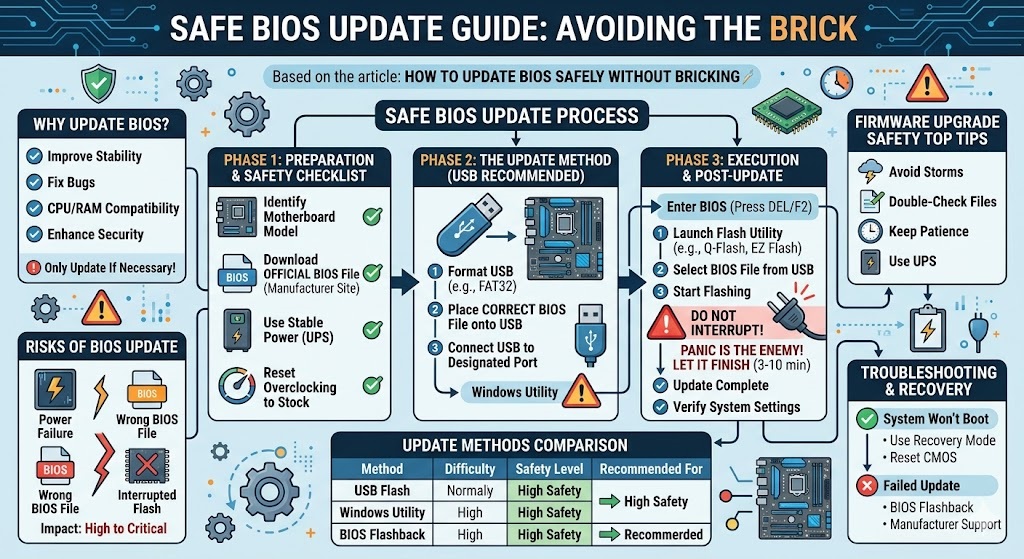
| Risk Factor | Description | Impact Level |
|---|---|---|
| Power Failure | Sudden shutdown during update | Critical |
| Wrong BIOS File | Installing incorrect firmware | High |
| Interrupted Flash | Removing USB or restart | Critical |
| Hardware Incompatibility | Unsupported motherboard version | Medium |
👉 A failed update can break system boot integrity, making your PC unusable.
Preparation: Backup & Safety Checklist
A successful update starts with preparation. Don’t skip this.
🔹 Backup BIOS Before Update
Always backup BIOS before update if your motherboard supports it. Some modern boards include dual BIOS or recovery options.
🔹 Essential Pre-Update Checklist
| Task | Why It Matters | Status |
|---|---|---|
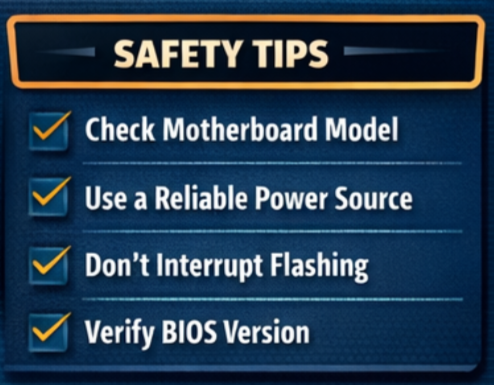
| Check motherboard model | Prevent wrong BIOS file | ✔️ |
| Download official BIOS | Avoid corrupted files | ✔️ |
| Use stable power (UPS) | Prevent shutdown | ✔️ |
| Reset overclocking | Ensure stability | ✔️ |
This is where firmware upgrade safety really begins.
BIOS Update Step by Step (Safe Method)
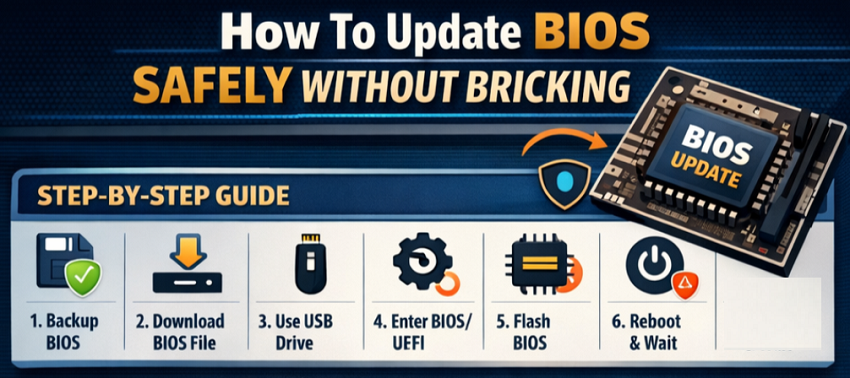
Now let’s get into the actual BIOS update step by step process.
Step 1: Identify Your Motherboard
Use tools like system info or manually check your board model.
Step 2: Download BIOS File
Go to the official manufacturer website and download the latest version.
Step 3: Choose Update Method
You can perform:
- BIOS update using USB drive (recommended)
- BIOS update without USB (via Windows utility)
Step 4: Enter BIOS/UEFI
Restart your PC and press keys like DEL or F2.
Step 5: Start Flashing Process
Use built-in BIOS flashing tools like:
- ASUS EZ Flash
- MSI M-Flash
- Gigabyte Q-Flash
Step 6: Wait (Don’t Interrupt!)
This is critical. Interrupting = bricked system.
How To Update BIOS Safely Without Bricking (Best Practices)
Here’s where most people go wrong. Follow these proven tips:
- Always update motherboard BIOS safely using official tools
- Avoid updating during storms or unstable electricity
- Never force shutdown
- Double-check file compatibility
- Keep patience—flashing can take time
Honestly, the biggest mistake I’ve seen? People panic and restart mid-update.
BIOS Update Methods Comparison
| Method | Difficulty | Safety Level | Recommended For |
|---|---|---|---|
| USB Flash Method | Easy | Very High | Beginners |
| Windows Utility | Medium | Moderate | Advanced users |
| BIOS Flashback | Easy | Very High | Emergency recovery |
👉 If you’re unsure, stick with the BIOS update using USB drive method.
UEFI BIOS Update Guide (Modern Systems)
Modern systems use UEFI instead of legacy BIOS.
Key Features:
- User-friendly interface
- Mouse support
- Built-in update tools
Following a proper UEFI BIOS update guide ensures:
- Better motherboard stability optimization
- Improved compatibility with new hardware
How to Avoid BIOS Corruption
Let’s be practical—corruption happens mostly due to avoidable mistakes.
Tips to how to avoid BIOS corruption:
- Use a UPS
- Avoid multitasking during update
- Don’t use unofficial firmware
- Verify checksum before flashing
These small precautions protect your low-level system configuration.
Troubleshooting BIOS Update Failure
Even if something goes wrong, don’t panic.
Common Issues & Fixes
| Problem | Cause | Solution |
|---|---|---|
| System won’t boot | Corrupt BIOS | Use recovery mode |
| Black screen | Incomplete flash | Reset CMOS |
| Boot loop | Wrong settings | Restore defaults |
👉 Proper troubleshooting BIOS update failure can save your system.
Recover From Failed BIOS Update
If your system is already bricked, here’s how to recover from failed BIOS update:
- Use BIOS Flashback (if supported)
- Insert USB with BIOS file and reflash
- Reset CMOS battery
- Contact manufacturer support
Some motherboards even auto-recover—thankfully.
BIOS Update for Windows 10/11 (Alternative Method)
You can also perform BIOS update for Windows 10/11 using software utilities.
Pros:
- Easy interface
- No need for USB
Cons:
- Riskier than BIOS-level updates
- OS crash can interrupt process
Personally? I still recommend the USB method for better firmware upgrade safety.
Final Thoughts on How To Update BIOS Safely Without Bricking
Updating BIOS isn’t as scary as it sounds—if done correctly. The key is patience, preparation, and following a structured safe BIOS update process.
By focusing on:
- system boot integrity
- Proper hardware compatibility update
- Smart motherboard firmware update techniques
…you can safely complete the process without turning your PC into a brick.
And honestly, once you’ve done it once, it feels much easier the next time.
FAQ (Frequently Asked Questions)
1. Is updating BIOS dangerous?
It can be risky if done incorrectly, but safe if you follow proper steps.
2. Can I update BIOS without USB?
Yes, BIOS update without USB is possible using Windows tools, but it’s less safe.
3. How long does BIOS update take?
Usually 3–10 minutes. Never interrupt it.
4. What happens if BIOS update fails?
Your system may not boot, but you can often recover from failed BIOS update using recovery tools.
5. Should I update BIOS regularly?
No. Only update if needed for compatibility or bug fixes.