Difference Between Secure Boot and Fast Boot. When you dive into BIOS or UEFI settings, you’ll often see options like Secure Boot and Fast Boot. At first glance, they sound similar—both related to system startup—but they actually serve very different purposes.
Understanding the Difference Between Secure Boot and Fast Boot is crucial if you care about system startup security, boot performance optimization, or even fixing boot issues. I’ve personally seen users enable both blindly… and later struggle with compatibility problems or slower troubleshooting.
So, let’s break this down in a practical, human way.
What is Secure Boot in BIOS?
To understand the Difference Between Secure Boot and Fast Boot, we first need clarity.
👉 what is Secure Boot in BIOS?
Secure Boot is a security feature built into UEFI firmware that ensures only trusted software loads during startup.
In simple terms, it protects your system from malicious boot-level attacks.
How Secure Boot Works
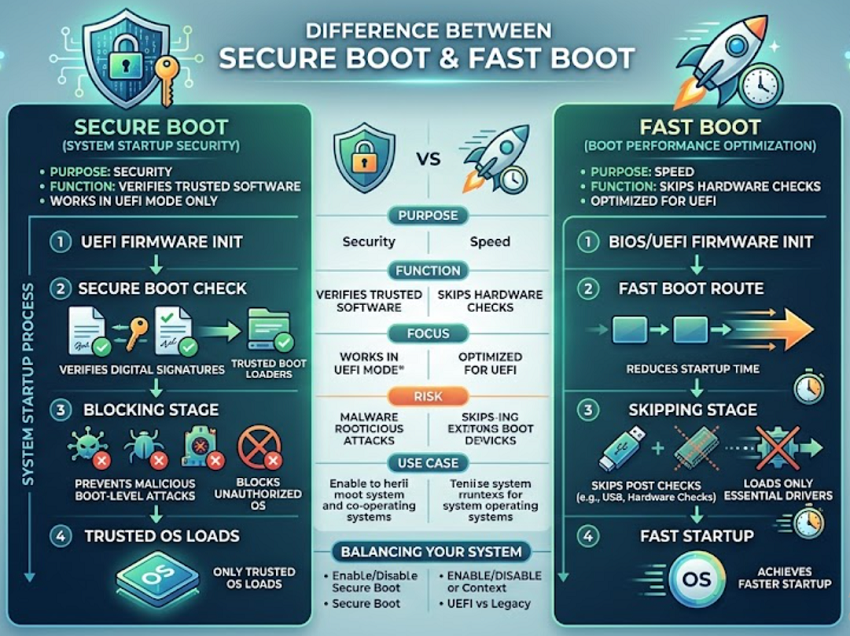
- It verifies digital signatures of boot loaders
- Blocks unauthorized or unsigned operating systems
- Prevents rootkits and bootkits from loading
This is part of the firmware boot process that ensures operating system protection from the very beginning.
👉 You’ll typically find it under UEFI Secure Boot settings.
What is Fast Boot Feature in BIOS?
Now let’s talk about speed.
👉 The Fast Boot feature in BIOS is designed to reduce startup time by skipping unnecessary hardware checks.
Instead of fully initializing all hardware components, it speeds things up by:
- Skipping USB device checks
- Reducing POST (Power-On Self Test) time
- Loading only essential drivers
This improves hardware initialization speed and helps achieve faster startup—especially on SSD-based systems.
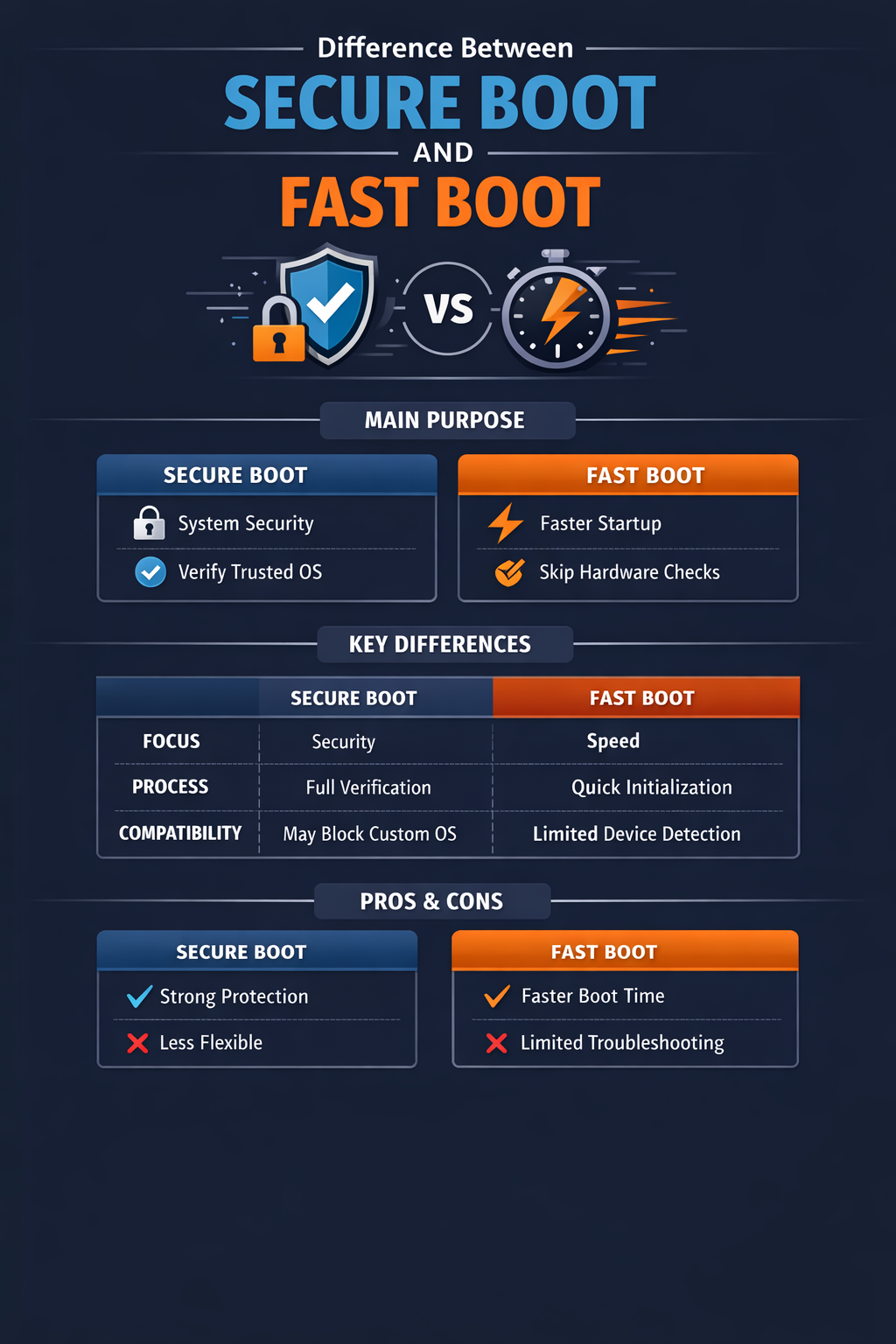
Difference Between Secure Boot and Fast Boot (Quick Comparison)
Here’s a clear table to understand the Difference Between Secure Boot and Fast Boot at a glance:
| Feature | Secure Boot | Fast Boot |
|---|---|---|
| Purpose | Security | Speed |
| Function | Verifies trusted OS | Skips hardware checks |
| Focus | system startup security | boot performance optimization |
| Risk | Compatibility issues | Limited hardware detection |
| Use Case | Prevent malware | Faster boot time |
Secure Boot vs Fast Boot: Core Differences Explained
Let’s go deeper into the Secure Boot vs Fast Boot debate.
1. Security vs Speed
- Secure Boot focuses on Secure Boot security features
- Fast Boot focuses on boot time improvement settings
So the real question is:
👉 Do you want protection… or speed?
2. Impact on System Behavior
- Secure Boot ensures only trusted OS loads
- Fast Boot skips full initialization
This directly affects the BIOS boot options explained in your firmware.
3. Compatibility Considerations
- Secure Boot may cause Secure Boot compatibility issues with Linux or older OS
- Fast Boot may prevent USB boot detection
Secure Boot Advantages and Disadvantages
Let’s look at both sides.
| Advantages | Disadvantages |
|---|---|
| Strong malware protection | May block custom OS |
| Ensures trusted boot process | Harder to troubleshoot |
| Improves operating system protection | Needs proper configuration |
👉 These Secure Boot advantages and disadvantages matter a lot if you dual-boot or test OS environments.
Fast Boot vs Normal Boot
Many users ask: Is Fast Boot really worth it?
Here’s a quick comparison of Fast Boot vs normal boot:
| Feature | Fast Boot | Normal Boot |
|---|---|---|
| Boot Time | Very fast | Slower |
| Hardware Check | Minimal | Full |
| Troubleshooting | Harder | Easier |
| USB Detection | Limited | Full |
👉 If you frequently access BIOS or boot from USB, Fast Boot can actually become annoying.
BIOS Boot Options Explained (Where These Fit)
Understanding BIOS boot options explained helps you configure both settings properly.
Typical BIOS options include:
- Boot priority order
- UEFI vs Legacy mode
- Secure Boot toggle
- Fast Boot enable/disable
These settings directly influence the firmware boot process and overall startup experience.
UEFI vs Legacy Boot Mode (Important Context)
The UEFI vs Legacy boot mode plays a major role here.
- Secure Boot works only in UEFI mode
- Fast Boot works in both but is optimized for UEFI
👉 If you’re using modern systems (Windows 10/11), UEFI is the standard.
Enable Fast Boot BIOS & Secure Boot Settings
Here’s how you can configure both:
Enable Fast Boot
- Enter BIOS (F2, DEL, or ESC key)
- Go to Boot settings
- Select enable Fast Boot BIOS
- Save changes
Secure Boot Setup
- Open BIOS
- Navigate to UEFI Secure Boot settings
- Enable Secure Boot
- Ensure OS supports it
👉 If needed, you can also disable Secure Boot Windows 11 for compatibility reasons.
Secure Boot Compatibility Issues (Real Talk)
This is where things get tricky.
Some real-world issues I’ve seen:
- Linux distributions failing to boot
- Older hardware not recognized
- Custom drivers getting blocked
These Secure Boot compatibility issues can frustrate beginners.
👉 Tip: Disable Secure Boot temporarily when troubleshooting.
BIOS Startup Optimization Tips
Want the best of both worlds?
Here are practical BIOS startup optimization tips:
- Use Fast Boot for daily usage
- Enable Secure Boot for protection
- Keep BIOS updated
- Avoid unnecessary startup devices
This balances boot performance optimization with system startup security.
Difference Between Secure Boot and Fast Boot (Final Thoughts)
After everything, the Difference Between Secure Boot and Fast Boot becomes clear:
- Secure Boot = Security layer
- Fast Boot = Speed booster
But here’s my honest take…
👉 If you’re a normal user, enable both.
👉 If you troubleshoot often, disable Fast Boot.
👉 If you use custom OS, carefully manage Secure Boot.
In modern systems, balancing hardware initialization speed with operating system protection is the real goal.
FAQ: Difference Between Secure Boot and Fast Boot
1. Should I enable Secure Boot and Fast Boot together?
Yes, you can. It improves both security and speed, but may limit troubleshooting options.
2. Does Fast Boot affect performance?
No, it only reduces startup time. It doesn’t impact system performance after boot.
3. Can Secure Boot slow down my PC?
Not really. It only checks signatures during boot, which takes minimal time.
4. When should I disable Secure Boot?
Disable it when installing Linux, using unsigned drivers, or facing compatibility issues.
5. Is Fast Boot safe to use?
Yes, but it may skip hardware checks, which can sometimes hide issues.